How to Edit AI Captions: Words, Style, Timing and Tools
Your auto captions are on screen. A name is spelled wrong. A few lines run late. The style looks off.
That's a hassle. It's also a small job. Work in one order: words first, then style, then timing, then publish. Each step below tells you what to do and what to recheck.
Can you edit and restyle captions after they are generated?
Yes. In most editors, the words and the time each caption stays on screen both stay editable after generation. The safe order is words first, then style. A style change can move the line breaks. So fix spelling, names and punctuation first. Then change the look and check the breaks again.
Here's why the order matters. Caption settings decide where lines break. Most editors limit how many characters fit on a line and how short a caption can be. Make the font bigger, and fewer words fit. The lines split in new places. A word you fixed can land on a new line. A line can get too long to read.
University accessibility guides say the same thing. Edit the transcript first. Add punctuation. Correct errors. Then work on single captions.
Part 1: Fix the words
- Spelling
- Names of people, brands and products
- Numbers
- Punctuation and capital letters
Recheck: play each changed line once with the sound on.
Part 2: Change the look
- Font
- Size
- Color
- Position
Recheck: read every line break. Look for lines that are too long, words split oddly, or text sitting under the app's buttons.
Some editors let you restyle many lines at once. One video editing app's help docs from 2026 describe applying one font, color or animation to all selected lines. That saves time. It still moves the breaks, so do the Part 2 recheck.
A few readability notes. Pick high contrast, like light text with a dark outline. Keep the size easy to read on a phone. Keep one style across the video. Busy animation can make words hard to follow, so test it on mute.
In GotReach, captions are built into the video workflow to make your spoken message visible. You choose a caption style, generate auto captions, then review the words and timing before publishing. Whatever tool you use, give the lines one more look after any style change.
For more on correcting, restyling and exporting, read our caption editing guide. For every stage from generation to export, see the complete caption workflow.
How do you check video captions against the script you recorded from?
Use your script as the answer key, but let the audio decide. Play the video and read along in your script. Stop at every mismatch. If the AI misheard you, fix the caption to match your words. If you went off-script, the caption follows what you actually said, not what you wrote.
That ad-lib rule has a solid base. The Federal Communications Commission caption rules, published by Cornell Law School's Legal Information Institute, say captions should match the spoken words, in the order spoken. They should not swap out proper names or paraphrase, except where time is tight. They also ask for correct spelling, the right sound-alike word, punctuation and capital letters. Those rules are written for TV. They still set a clear bar for social video.
Numbers need a close look. The W3C Web Accessibility Initiative shows a real slip. The speaker said, "Broil on high for 4 to 5 minutes. You should not preheat the oven." The auto caption read, "Broil on high for 45 minutes. You should know to preheat the oven." Two small errors. Both change the meaning.
Names are hard too. Speech recognition often gets proper nouns wrong. They are rare in the data the AI learned from, and the sentence gives few clues. In one peer-reviewed study of medical speech, a general speech engine got 61% of medical proper nouns wrong. A medical version still missed 46%. That's one study of hard medical names, not a general caption error rate. It does show why names come first.
Steps for a script check
- Open your script beside the captions.
- Play the video. Read along in the script as it plays.
- Flag every name, brand, product and number.
- Decide on each mismatch. Did the AI mishear? Fix it to match your speech. Did you ad-lib? Keep what you said.
- Play the changed parts again.
Words AI gets wrong most
- People's names
- Brand and product names
- Numbers, prices and dates
- Sound-alike words, like "their" and "there"
- Specialized words in your field
- Place names
University accessibility teams are blunt about this. Auto captions need a human edit. We tell GotReach users the same. Watch your finished video and check names, specialized words, timing, and readability before publishing.
For a fuller quality checklist and common AI error patterns, see AI captions explained.
How do you fix caption timing that is slightly off?
Find out which kind of problem you have first. If every caption is late by the same amount, that's one fix, not fifty. If the delay grows as the video plays, fix a few points along the way. If timing breaks after one spot, look for a cut. If only a few lines are off, fix those.
Two terms help. An offset means the whole caption track is shifted by the same amount. Drift means the gap between voice and caption grows as the video plays.
| Symptom | Likely cause | Fix |
|---|---|---|
| Every caption is early or late by the same amount | Offset: the whole track is shifted | Shift all captions by that amount in one move, if your editor offers it. If not, regenerate captions on the final video. |
| The gap is small at the start and bigger by the end | Drift: the delay grows over time | Re-time a few lines at the start, middle and end. Then check the lines between. Or regenerate on the final video. |
| Timing is fine, then breaks after one point | A cut or trim made after captions were created | Re-time from that point on, or regenerate. Next time, caption last. |
| Only a few lines are off | Single captions placed badly | Select each one. Drag its edges so it starts and ends at the right moment. |
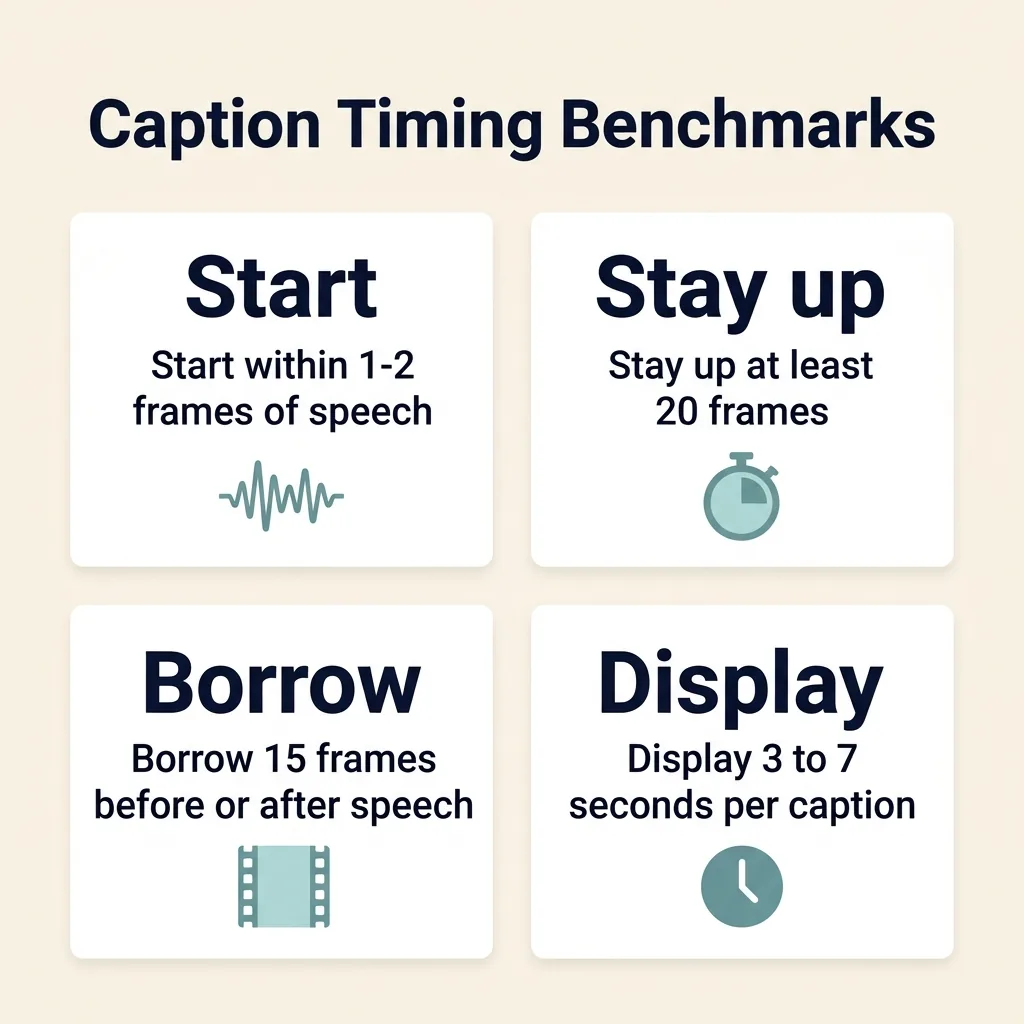
How close is close enough? The basic standard is simple. A caption should start when the speech starts and end about when it stops. Pro streaming work is stricter. Netflix's Timed Text Style Guide accepts a start time within 1 to 2 frames of the first frame of speech. It also says no subtitle should stay up for less than 20 frames, about 4/5 of a second. The Described and Captioned Media Program (DCMP) describes borrowing 15 frames before or after the speech to give viewers more reading time. For display length, aim for 3 to 7 seconds per caption when you can.
These are broadcast and streaming standards. Social apps don't enforce them. Use them as a guide for "good enough."
One creator tip saves a lot of fixing: add captions at the end of the edit. Every cut after captioning can knock lines off. In GotReach, captions sit inside the editing workflow, so they are part of the edit, not a separate tool. You review the timing before you publish.
Final playback check
- Watch the whole video once with the sound on.
- Look closely at the start, the middle and the end.
- Watch every spot right after a cut.
- Watch once on mute. Can you read each line before it leaves?
- Fix what you find. Then watch those parts again.
For measurable timing and reading-speed standards, see caption quality standards.
Can you edit video captions on a phone as easily as on a computer?
For quick fixes, yes. For detailed work, usually not. A phone is fine for a typo or picking a style. Checking against a script, line-by-line timing and long transcripts are easier with a keyboard and a bigger screen. Many editors now work on phone, desktop and web, so match each task to the screen.
The tools say this themselves. One video editing app's help docs from 2026 say its caption batch editing works on mobile, desktop and web. The same docs say desktop gives the fullest control, with keyboard shortcuts and full styling. How-To Geek reviewed a free phone video editor. It found dragging clips a hassle on a tiny screen. It also said precise, detailed edits may not be easy on the phone alone.
Some editors let you start on one device and finish on another. Sign in on both, and the project follows you.
| Task | Phone | Computer |
|---|---|---|
| Fixing a typo | Fine | Fine |
| Picking a style | Fine. You see it the way viewers will | Fine |
| Checking against your script | Hard. Script and captions share a small screen | Easy. Put them side by side |
| Line-by-line timing | Fiddly. Caption edges are small targets | Easier with a mouse and keyboard |
| Long transcripts | Lots of scrolling | Faster to scan and jump |
| Final preview | Best. Watch where your viewers watch | Good, but check on a phone too |
Tips for small-screen edits
- Zoom in on the timeline before you drag.
- Make one change at a time. Play it back.
- Keep your script on paper or a second screen.
- Save detailed timing for a computer if you can.
For mobile, web and desktop tools weighed against your workflow, see how to choose caption editing software.
Which caption editor is best for short-form social videos?
No one tool is best for everyone. The right editor is the one that fits how you work. Judge any tool with a few plain questions. Are burned-in captions clean? Is there a review step before export? Can you keep words clear of on-screen buttons? Can you fix many lines fast? Does it fit your workflow?
"Burned-in" means the captions are drawn into the video picture itself. A video software company explains why that's the norm for short-form. The apps draw their own buttons on top, and a separate caption track may not show reliably.
Burned-in has a cost. A captioning company notes that fixing an error usually means editing and exporting a new version of the video. So a review step before export matters.
Placement matters too. An ad analysis firm points out that every safe-zone figure the platforms publish is for ads. Treat those figures as an outer limit, not a promise. Its numbers for Meta's vertical 9:16 placements: the right-most 21% of the frame is unsafe up to 40% of its height. The rest of the bottom edge is unsafe up to 35%. Keep captions clear of those areas.
Questions to ask any caption editor
- Burned-in quality. Does the export look as sharp as the preview?
- Review before export. Can I check words and timing before the video renders?
- Placement. Can I move captions clear of the app's buttons and text?
- Fast correction. Can I fix one wrong name across many lines? Does that work on every caption, or only some? One editing app's 2026 help docs say its batch tools work only on auto-generated captions. Text added by hand usually gets edited line by line.
- Phone and desktop depth. Can I make quick fixes on my phone and detailed edits on a bigger screen?
- Workflow fit. Does it connect to recording, editing and scheduling? Or is it one more tool to export from and pay for?
Pick on how many videos it can handle, how good the correction tools are, and what it exports. A long feature list matters less.
Here's where GotReach fits. It keeps recording, editing, captioning, scheduling, analytics and conversation management in one workspace. Captions are built into the video workflow. You choose a style, generate captions from your spoken words, review timing and accuracy, then publish. See it on the AI caption generator page, which includes a preview of caption style controls. Interactive sample with fictional data. Nothing is published, sent, or saved to an account.
Want to see how captions fit into turning one recording into many videos? Read about content repurposing.
If one connected workspace sounds right for you: Start a partnership inquiry.
Frequently Asked Questions
Can you edit captions without re-rendering the whole video?
It depends on how the captions are attached. Burned-in captions are part of the picture. They can't be edited on their own, so a fix means a new export. A separate caption file, such as SRT, VTT or TTML, sits beside the video. You can edit that file without touching the video. Short-form videos usually use burned-in captions. If you spot a typo after posting, plan on fixing it, exporting again and uploading the new version. That's the best reason to review before you export.
Can you search and replace a word across all the captions in a video?
In some editors, yes. Professional desktop editors often include find and replace in their captions panel. Some transcript-based editors let you search a word and replace it. Others let you select many lines and update them at once. Some can fix a misheard word in the transcript without changing the audio or video. Check each replacement before you accept it. A search for "Sam" can also change "sample." If your tool has no find and replace, use the script check above and fix each line.
How long does it take to edit AI captions for a one-minute video?
For a short video, plan on a quick review and edit, not a rewrite. University accessibility guidance puts it at about three times the video's length, once you're used to the process. Clear audio and plain language make it faster. Background noise, accents, several speakers, fast speech and low audio quality make it slower. So do specialized words. Realistic AI caption accuracy varies with audio quality. Accessibility guidelines ask for at least 99%. Your review closes that gap.
Caption cleanup is a small, repeatable job. Words, then style, then timing, then publish. Do it the same way every time, and it stops slowing you down. When captions live in the same workspace as recording, editing and scheduling, that check is one step in your posting plan. Not another tool to open.
Start a partnership inquiry
Sources
- Cornell Law School Legal Information Institute (47 CFR 79.1) — 47 CFR § 79.1 - Closed captioning of televised video programming. | Electronic Code of Federal Regulations (e-CFR) | US Law | LII / Legal Information Institute · retrieved October 22, 2026
- W3C Web Accessibility Initiative — Captions/Subtitles | Web Accessibility Initiative (WAI) | W3C · retrieved October 20, 2026
- Netflix Partner Help – Timed Text Style Guide — Timed Text Style Guide: Subtitle Timing Guidelines – Netflix | Partner Help Center · retrieved October 22, 2026
- Described and Captioned Media Program (DCMP) — Captioning Key - Presentation Rate · retrieved October 22, 2026
- How-To Geek — Adobe's Video Editor Is Now Free on iPhone—Can It Replace CapCut or iMovie? · retrieved October 22, 2026
- Stanford University IT — Captioning in YouTube | University IT · retrieved October 22, 2026
- Arkansas State University Knowledge Base — Captioning with Adobe ... | A-State Knowledge Base · retrieved October 22, 2026
- FrameOS — What Are Burned-In Captions? (And When to Use Them) | FrameOS · retrieved October 22, 2026
- PubMed Central (NIH) – peer-reviewed study — Decoding disparities: evaluating automatic speech recognition system performance in transcribing Black and White patient verbal communication with nurses in home healthcare - PMC · retrieved October 22, 2026
- James Madison University — Edit Automatic Captions in YouTube Studio - JMU · retrieved October 22, 2026
- UC Berkeley Digital Accessibility — How do I edit captions on YouTube? | Digital Accessibility · retrieved October 22, 2026
- SubtitleEdit.net — Subtitles Going Out Of Sync: Easy 6 Steps for Sync Repair · retrieved October 22, 2026
- Subtitle Edit documentation — Adjust All Times | Subtitle Edit · retrieved October 22, 2026
- Purdue University College of Liberal Arts — How to Create and Edit Accurate YouTube Captions - College of Liberal Arts - Purdue University · retrieved October 21, 2026
- Primal Video — Adobe Premiere on iPhone: Free Edit Guide | Primal Video · retrieved October 22, 2026
- Rev — Open Captions vs. Closed Captions: Key Differences | Rev · retrieved October 21, 2026
- CapCut Help — How Should I Batch Edit to Recognize Subtitle/Lyrics Text in CapCut? · retrieved October 22, 2026
- Solid Labs — Social Media Safe Zones (2026): Reels, Stories & TikTok | Solid · retrieved October 22, 2026
- Utah State University Accessibility — What Are Captions | Accessibility | USU · retrieved October 21, 2026
- William & Mary Libraries — Video Captioning - Web Accessibility - Research Guides at Swem Library, William & Mary · retrieved October 22, 2026
- Descript Help Center — Search in script tool - Descript Help Center · retrieved October 22, 2026
- Duke University Web Accessibility — Video | Web Accessibility · retrieved October 22, 2026