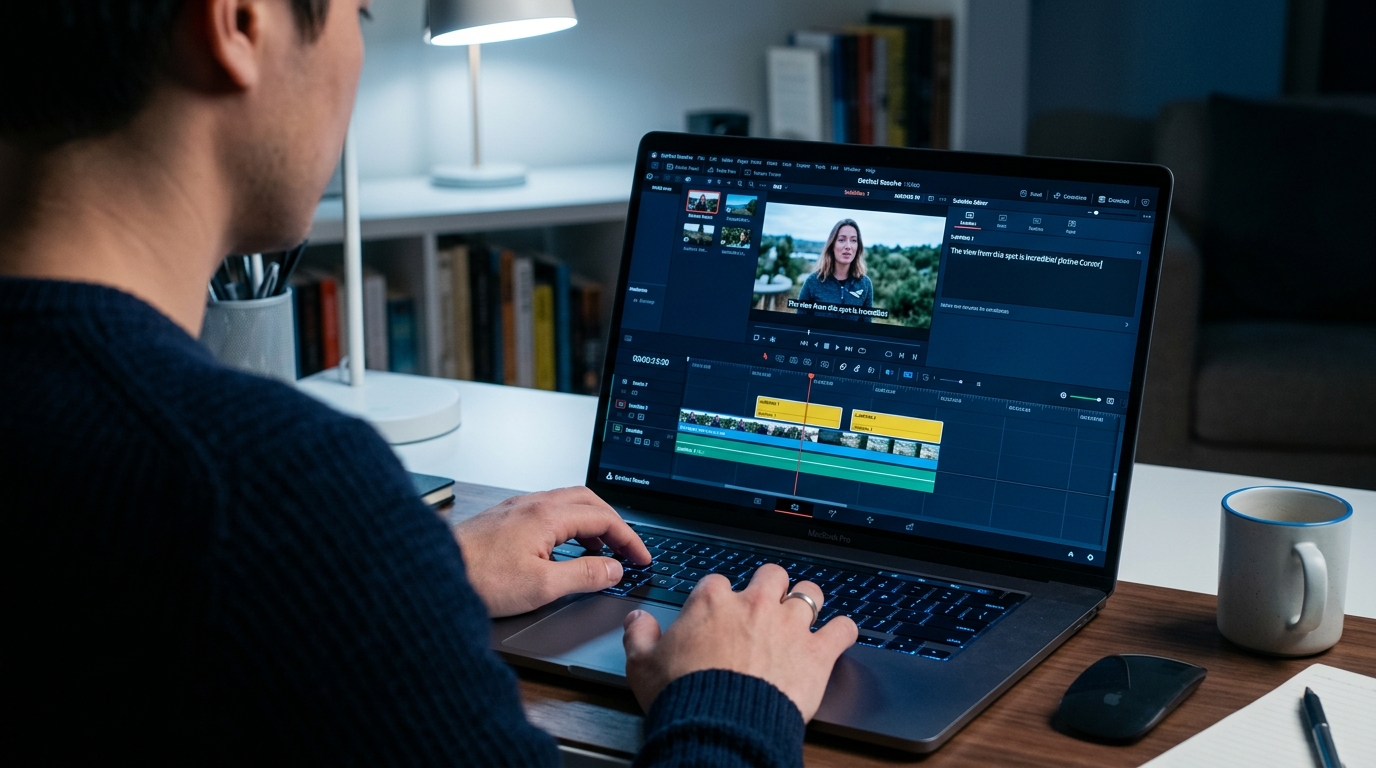
Caption Editing: How to Correct, Restyle, and Export Captions for Any Video
If you are searching for caption editing help, you probably already have footage or existing captions. You are not looking for a demo of how AI generation works. You want to fix errors, change the style, or get captions into the right format for your platform.
This article makes a distinction most tools ignore: caption generation and caption editing are not the same thing. Understanding the difference changes every workflow and tool decision that follows. By the end, you will know which format to use, which workflow fits your volume, and what to check before you publish.
Key Takeaways
- Caption editing covers three distinct tasks: error correction, timing adjustment, and format or style changes. It is not the same as adding captions from scratch.
- Burned-in captions suit TikTok and Reels. SRT files suit YouTube and LinkedIn. The platform determines the format.
- AI-generated captions typically need one human review pass. Common errors are homophones, speaker names, and filler words.
- Tool choice should follow the format and workflow decision, not precede it.
- For creators producing more than a few videos per week, one-video-at-a-time manual captioning is the bottleneck, not the solution.
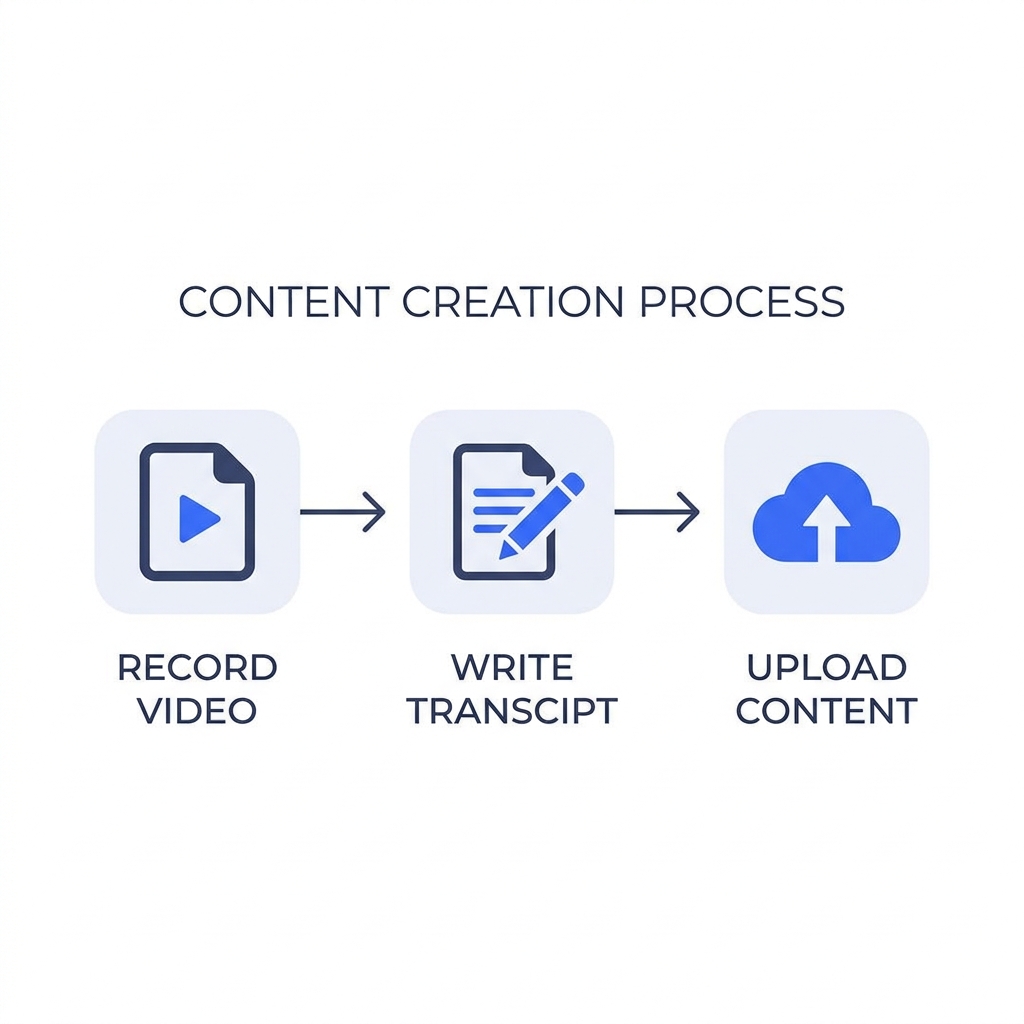
What Caption Editing Actually Means (And How It Differs from Generation)
Caption generation and caption editing are two separate steps, and most tools blur the line between them.
Generation is what happens when you upload a video and an AI produces a transcript in 30 seconds. That is the starting point, not the finish line.
Editing is everything that happens after: fixing the word "their" transcribed as "there," bumping a caption three frames earlier so it syncs with the speaker, switching from word-by-word to full-line display, and deciding whether to export a burned-in video or a separate caption file.
There are three main caption editing tasks:
- Error correction -- catching transcription mistakes, homophones, proper nouns, and filler words
- Timing adjustment -- syncing captions to speech, especially after pauses, cuts, or overlapping dialogue
- Style and format changes -- choosing display style, font, color, positioning, and export format
Before going further, here are the file formats you will encounter:
- Burned-in captions -- text permanently embedded into the video frame. Once exported, they cannot be changed without re-rendering the video.
- SRT (SubRip Text) file -- a separate uploadable text file that platforms read and display. It can be edited, re-uploaded, or translated without touching the original video.
- VTT (WebVTT) file -- a web-player variant of SRT, required by some accessibility tools and WCAG-compliant media players.
One more distinction worth naming: captions and subtitles are not interchangeable. Captions include non-speech audio cues (like "[music playing]" or "[door slams]") because they assume some viewers cannot hear the audio. Subtitles assume the viewer can hear and focus only on translating or transcribing speech. This distinction matters if your content has accessibility or compliance requirements.
For a deeper look at caption file formats and the methods used to add them, see this foundational guide to caption methods and formats.
Manual vs. AI-Assisted Caption Editing: Which Workflow Fits Your Situation
The right captioning workflow depends on your volume, accuracy needs, and what you are starting with.
Manual captioning from scratch makes sense in narrow situations: very short clips, content with sensitive legal or medical language, or situations where a transcript editor is already part of the production process. For most creators, it is too slow to sustain.
AI generation plus manual correction is the most common workflow. The AI handles transcription in seconds. A human then scans for the predictable error types -- homophones, brand names, speaker names -- and cleans them up. This takes 5 to 10 minutes per video for most tools on the market.
Importing existing SRT or VTT files for restyling or correction is a workflow most tools and guides skip entirely. If you already have captions and need to change the font, fix errors, or update the timing, you should not have to regenerate from scratch. Look for tools that let you import an existing caption file and edit from there.
The time math matters here. A creator publishing five short-form videos per day at five minutes of manual captioning each spends more than two hours a week on captions alone, before editing, graphics, or writing. At 20 videos per week, that is 2 to 4 hours of captioning time using a standard AI tool like Captions. That is the bottleneck manual workflows create.
For creators and agencies posting at higher volume, the math pushes toward full automation. GotReach produces 300 videos in approximately 30 minutes. That is not a marginal improvement -- it is a different category of capability entirely.
Which Workflow Fits Your Situation
| Situation | Best Workflow |
|---|---|
| 1-3 videos per week, sensitive or legal content | Manual captioning or professional transcription |
| 5-20 videos per week, standard content | AI generation + focused human review pass |
| You already have captions, need edits or restyling | Import existing SRT/VTT file for correction |
| 20+ videos per week or agency managing multiple clients | Automated bulk captioning (GotReach or equivalent) |
| Compliance-grade content (medical, legal, regulated) | Human transcription or professional captioning service |
Burned-In Captions vs. SRT Files: How to Choose the Right Format
This is the format decision that trips up most creators, and it is also the most consequential one.
Burned-in captions are permanently embedded into the video frame. They are always visible. The viewer has no ability to turn them off. This is actually an advantage on platforms like TikTok, Instagram Reels, and YouTube Shorts, where silent autoplay is the norm and viewers expect bold on-screen text. The downside: once the video is exported, the captions cannot be corrected or translated without re-rendering the entire file.
SRT files are a separate uploadable text file. The platform reads the file and renders captions on top of the video. YouTube indexes uploaded SRT captions for search, which means your caption text contributes to how the video ranks. SRT files can also be edited, re-uploaded, or handed to a translator without touching the original video. For YouTube and LinkedIn, SRT is the stronger choice.
VTT files are the web-player variant. They are required for some WCAG 2.1 Level AA compliant media players and accessibility tools. If your video is embedded on a website that needs to meet accessibility standards, you likely need VTT output.
The editability tradeoff is the most important consideration many creators miss. Burned-in captions lock you in. If a viewer spots an error, a brand name is wrong, or you need a translated version, you are re-rendering the video. SRT files can be updated with a text editor in minutes.
| Format | Best For | Editable After Export | SEO Indexable | Platform Notes |
|---|---|---|---|---|
| Burned-In | TikTok, Reels, Shorts | No | No | Always visible; preferred for silent autoplay feeds |
| SRT File | YouTube, LinkedIn, Podcasts | Yes | Yes (YouTube) | Can be updated or translated without re-rendering |
| VTT File | Web players, Accessibility tools | Yes | Varies | Required for some WCAG-compliant media players |
Platform-by-platform: TikTok prefers burned-in captions. YouTube performs better with an SRT file for search indexing. Instagram Reels performs better with burned-in text. LinkedIn supports SRT and it is the accessibility-preferred option there. For any platform embedding that must meet WCAG 2.1 Level AA caption standards, VTT or SRT file upload is required -- burned-in captions cannot satisfy synchronization and completeness requirements reliably.
AI Caption Accuracy: What to Expect and How to Fix Errors Efficiently
AI captioning is fast and accurate on clean audio with one speaker and standard vocabulary. It gets less reliable on noisy recordings, heavy accents, technical jargon, or industry-specific terminology.
Here is a useful frame for accuracy claims: a 95% word-level accuracy rate on a 10-minute video at 150 words per minute produces roughly 750 words of transcript, with around 35 to 40 potential errors. On clean audio, you will likely see far fewer. On difficult audio, more. The errors are rarely distributed evenly -- they cluster around proper nouns, brand names, and sentence endings where missing a word changes the meaning.
For a deeper breakdown of how to evaluate transcription accuracy across tools, this resource on AI caption accuracy and tool selection covers benchmarks and what to test before committing to a tool.
Common AI caption errors:
- Homophones: there/their/they're, your/you're, to/too/two
- Proper nouns: speaker names, brand names, product names
- Filler words: handled inconsistently across tools (sometimes left in, sometimes cut)
- Technical terms: industry-specific vocabulary the model has not seen frequently
Efficient review workflow: Do not re-read every word. Scan for red-flag patterns. Check the first mention of each name, every technical term, and sentence-ending words where a substitution changes meaning. This targeted approach takes a fraction of the time a full re-read requires.
When to escalate to human transcription: content with high legal, medical, or compliance stakes; audio quality that consistently degrades AI output across multiple recordings; or content in languages where the tool's accuracy is not reliable.
Before you publish, check these six things:
- Check speaker names and proper nouns for transcription errors
- Scan for homophones (there/their, your/you're, to/too)
- Confirm filler words are removed or handled consistently
- Verify timing sync at section breaks and after pauses
- Review captions on the target platform before publishing
- Confirm accessibility: captions cover all spoken content, including sound effects if required
Caption Style Options: How Formatting Choices Affect Viewer Behavior
Style is not decoration. Research from Discovery Digital Networks found that captions measurably affect viewer retention and watch time -- the case study data from 3Play Media provides sourced benchmarks for what formatting decisions cost in audience drop-off. Choosing the wrong caption style for your platform or content type reduces effectiveness regardless of how accurate the transcript is.
Word-by-word and karaoke styles highlight each word as it is spoken. These styles keep viewer attention anchored to the screen. They work well for short-form content on TikTok and Reels, where the average viewer is skimming and a well-timed word pop creates momentum.
Full-line and minimal styles display a full sentence or phrase at once. These are better for long-form YouTube content, corporate video, and accessibility use cases. Showing a complete thought at once reduces cognitive load -- the viewer does not have to wait word by word to get the meaning.
Font, color, and positioning affect readability across every device. High contrast matters most: white text with a black outline or a semi-transparent background block reads across light and dark video backgrounds. Positioning matters because platform safe zones shift. Captions placed too low get cut off in some feed views; captions placed too high compete with subtitles or overlays.
Aspect ratio interaction: A caption style that reads cleanly in 9:16 vertical video may not translate to 16:9 horizontal without adjustment. Word-by-word captions on a 60-second Reel keep attention anchored. The same style on a 20-minute YouTube tutorial feels distracting -- full-line display with clean fonts reads better for longer content.
Quick-reference: Caption style by content type and platform
- TikTok, Reels, Shorts: Word-by-word or karaoke style, bold font, high contrast, burned-in
- YouTube (long-form): Full-line display, clean readable font, SRT file preferred for indexing
- LinkedIn: Full-line, professional font, SRT file preferred for accessibility
- Corporate or training video: Full-line minimal style, high contrast, SRT or VTT for compliance
- Podcast video: Full-line or minimal style, burned-in or SRT depending on platform
How to Evaluate a Caption Editing Tool (Without Getting Locked Into the Wrong One)
Most people choose a captioning tool before deciding on a format or workflow. That order gets it backwards. Know your format (burned-in or SRT), your volume, and your accuracy tolerance first. Then find the tool that fits.
Here are the criteria that actually matter when evaluating any caption editing tool:
| Evaluation Criterion | Why It Matters | What to Look For |
|---|---|---|
| Transcription accuracy | Determines how much manual correction you will need after generation | Test with your own audio before committing to a paid tier |
| SRT/VTT export | Required for YouTube SEO indexing and future translation | Confirm it is available on the pricing tier you can actually afford |
| Style customization | Affects viewer retention and brand consistency | Fonts, colors, animation options, word-by-word vs. full-line control |
| Volume throughput | Determines whether the tool scales with your publishing pace | Batch or bulk creation vs. one-video-at-a-time processing |
| Platform integrations | Affects how much manual re-uploading you do after captioning | How many platforms, and whether scheduling is included |
| Free tier limits | Determines trial risk and what you can evaluate before paying | What features are gated, whether watermarks apply, video count limits |
Free vs. paid tiers: Most tools gate SRT export, style customization, or volume behind paid plans. Know which editing features you actually need before choosing a tier. GotReach's free tier allows up to 30 videos per month with no watermarks and one connected social account -- which is enough to run a real content project before committing.
Volume throughput is the underrated criterion. A tool that requires 5 to 10 minutes per video caps out at the speed of one person. That ceiling is real: at 20 videos per week, you are spending 2 to 4 hours on captioning alone. GotReach produces 300 videos in approximately 30 minutes. That is not a feature difference -- it is a workflow category difference. The bottleneck becomes your ideas, not your captioning tool.
For head-to-head tool comparisons, a dedicated caption editing software comparison goes deeper on specific tools. This section focuses on the evaluation framework so you know what to test regardless of which tools you are considering.
For agencies managing captions across multiple clients: GotReach Enterprise offers centralized multi-client video management at scale. Single-creator tools are not built for this workflow. If you are managing caption production for multiple brands or clients, the per-video bottleneck compounds fast -- GotReach Enterprise is designed specifically for that operating model.
Check current plan tiers and what is included at each level on the GotReach pricing page.
If scaling your caption output is the problem you recognized reading this article, start your 30-day free trial today. GotReach handles captioning, scheduling, and distribution across seven platforms from one workflow -- so the time you were spending on captions goes back to creating.
Frequently Asked Questions
What is the difference between caption editing and caption generation?
Caption generation produces the initial transcript from your video audio, usually through AI. Caption editing is everything that happens after: correcting transcription errors, adjusting timing so captions sync with speech, changing display style, and choosing the export format. Most tools market generation as the full solution. Editing is a separate, necessary step.
Can I edit captions that have already been burned into a video?
No. Burned-in captions are permanently embedded into the video frame at export. Once burned in, corrections require re-rendering the entire video with the updated caption text. If you need to fix errors or update captions later, use an SRT file instead. SRT files can be edited in any text editor and re-uploaded without touching the original video.
Should I use burned-in captions or an SRT file for YouTube?
Use an SRT file for YouTube. YouTube indexes the text from uploaded SRT caption files, which means your caption content contributes to how the video appears in search results. Burned-in captions are not readable by YouTube's indexing system. For TikTok and Instagram Reels, burned-in captions are the better choice because silent autoplay makes on-screen text expected.
How accurate are AI-generated captions and how long does correction realistically take?
Accuracy varies by audio quality, speaker accent, and vocabulary. On a clean single-speaker recording, a targeted review pass -- checking names, technical terms, and homophones rather than re-reading every word -- typically takes five minutes or less for a short video. Noisy audio or specialized terminology increases both error rate and correction time significantly.
What caption format is required for WCAG or ADA accessibility compliance?
WCAG 2.1 Level AA requires that captions be accurate, synchronized with speech, and complete -- covering all spoken content and relevant non-speech audio cues. File-based captions (SRT or VTT) satisfy these requirements more reliably than burned-in captions because they can be updated and meet timing accuracy standards more precisely. For web-embedded video, VTT is often the required format for compliant media players.
Can I import an existing SRT file and restyle or correct it without regenerating captions?
Yes, if the tool supports it. Importing an existing SRT or VTT file for restyling or error correction is a standard caption editing workflow that many tools support -- but not all advertise clearly. Check whether the tool you are evaluating allows SRT import before assuming you will need to regenerate captions from scratch. Regeneration is unnecessary if your timing is already correct and you only need to fix text or change the visual style.
Ready to Stop Captioning One Video at a Time?
If the gap between your publishing pace and your captioning capacity is the problem, the math on manual tools is not going to change. At 5 to 10 minutes per video, the time adds up fast.
GotReach creates 300 videos in about 30 minutes. One workflow covers creation, captioning, scheduling, and publishing across seven platforms. Your voice stays front and center -- the automation handles the time sink.
See how GotReach helps businesses and people create and publish more -- and start your 30-day free trial today with no watermarks and no commitment required.