
The Best Caption Apps for Instagram Reels (Ranked for Creators Who Actually Use Them)
Over 70% of Instagram Reels are watched without sound. That makes captions a functional requirement, not a finishing touch — a fact recognized by web accessibility standards — and yet most search results for this topic hand you a list of apps without ever comparing them against what Reels actually demands. This article does the comparison.
Below you'll find a ranked comparison table, per-app assessments, a free-vs-paid breakdown, and a clear recommendation. If you want to understand the difference between captions and subtitles before diving in, this breakdown covers that distinction so we don't have to repeat it here.
Key Takeaways
- Overall winner for most Reels creators: Captions.ai — strongest Reels-specific styling, word-by-word animation, and vertical format awareness in a mobile-first tool
- Best free option: CapCut — the most capable free transcription tier with no watermark on standard exports
- Biggest free-tier trap to know: Captions.ai throttles processing volume on the free plan; if you post frequently, you'll hit the ceiling faster than expected
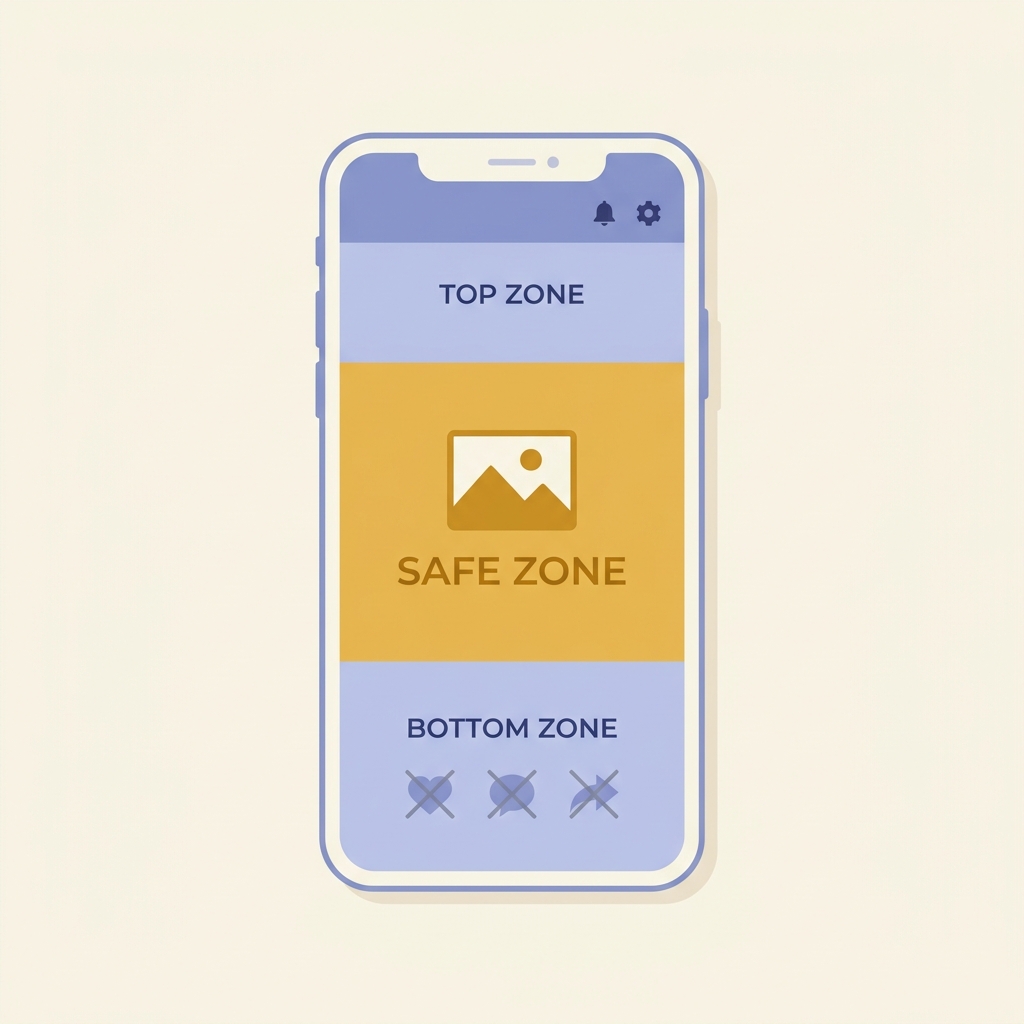
- Reels-specific formatting reality: Captions placed in the bottom 20-25% of the screen will be covered by Instagram's UI buttons — no desktop preview catches this; you need a tool that builds safe-zone awareness in
- If you've outgrown one-video-at-a-time: GotReach is not a caption app — it's a bulk video creation and distribution platform that produces up to 300 videos in approximately 30 minutes from a single idea, across seven platforms, which is a different category of problem than adding captions to one Reel
What Makes a Caption App Actually Work for Instagram Reels
Most caption tools were not designed with Instagram Reels in mind. They were built for general video editing and captions were added as a feature. On a 9:16 vertical canvas viewed on a phone at arm's length, that distinction shows up in ways that matter.
Instagram's UI occupies real estate. The bottom 20-25% of the screen is covered by the like button, comment icon, share button, and the creator's handle. A caption placed at the bottom center — exactly where most default export templates put it — becomes invisible the moment it overlaps those elements. No desktop preview catches this because the desktop preview does not render Instagram's native UI layer on top of the video.
Short-form content also amplifies transcription errors. A single misread word that sits on screen for three seconds is visible long enough to break trust with the viewer. In a 30-second Reel, one error is a larger percentage of total screen time than the same error in a five-minute video. Accuracy is not a nice-to-have for Reels — it's proportionally more important than for any longer format.
The workflow question also matters more on mobile. Reels creators are typically recording, editing, and posting from one phone. A tool that requires uploading to a desktop, exporting a file, and re-importing to Instagram adds friction that compounds across a weekly posting schedule. The best caption apps for Reels support a mobile-first workflow from record to post.
The mechanics of AI auto-transcription are worth understanding before comparing apps on that criterion.
What a Reels-optimized caption app must deliver:
- Vertical 9:16 format support with safe-zone awareness for Instagram's UI elements
- Auto-transcription accuracy suitable for talking-head content — ideally tested in real-world conditions, not just studio audio
- Caption styling options (fonts, colors, animation) that match current Reels visual trends
- Mobile-first workflow: record, caption, and export from a phone without a required desktop step
- A free tier that actually lets you test the output before committing a credit card
- Export compatibility with Instagram Reels — either direct share or a clean download in the right format
How We Evaluated These Apps — The Criteria That Matter for Reels
Every ranking in this article maps to six criteria specific to Instagram Reels. If your situation differs from the typical use case, these criteria let you reweight the ranking yourself.
- Transcription accuracy for talking-head Reels — How well does the app transcribe clear speech in a quiet room? More importantly, what happens with background noise, a regional accent, or faster speech? For Reels, accuracy in real-world conditions matters more than benchmark performance.
- Caption styling flexibility — Font variety, color control, background bars, and animation style (word-by-word vs. full sentence). Word-by-word animation, sometimes called karaoke-style, is the dominant aesthetic on Reels right now.
- Reels format compatibility — Does the tool work natively in 9:16? Does it warn you about safe zones? Can you export directly to Instagram or does the workflow require manual re-upload?
- Free tier real limits — Processing throttles, watermarks, video-count caps, and export restrictions that apply before you pay. These are the things most reviews omit.
- Mobile-first workflow — Can you complete the entire process on a phone, or is a desktop step required at any point?
- Platform availability — iOS, Android, and/or web. Relevant if you manage content across devices or on behalf of other creators.
For a deeper look at how transcription accuracy is evaluated across different recording conditions, this guide to AI caption accuracy and tool selection is worth reading before you commit to a tool.
The Best Caption Apps for Instagram Reels — Ranked
Here is how the top caption apps for Instagram Reels compare across the six criteria that matter for this format. Read the table first, then use the per-app assessments below to go deeper on the apps you're most interested in.
| App | Transcription Accuracy | Caption Styling | Reels Export | Free Tier Limits | Platform | Paid Price |
|---|---|---|---|---|---|---|
| Captions.ai | High (quiet environments); good with accents | Excellent — word-by-word, rich font and color options | Manual download, no direct share | Limited video count; throttles on free plan | iOS, Android | ~$10/mo |
| CapCut | High (quiet); drops noticeably in noisy conditions | Very good — large style library, templates | Manual download and re-upload to Instagram | Generous free tier; most features unlocked free | iOS, Android, Web | ~$10/mo (Pro) |
| Instagram Edits | Moderate — functional for clear speech | Basic — limited font and color options | Direct share to Instagram | Fully free, no watermark | iOS, Android | Free |
| Submagic | High — built specifically for short-form video | Strong — Reels-style templates, word-by-word | Manual download | Limited minutes/month free; watermark on free | Web, iOS | ~$20/mo |
| Zubtitle | Moderate to high | Good — clean, professional styling | Manual download | Watermark on free; 30-minute video cap/month | Web | ~$19/mo |
| GotReach | N/A — bulk creation platform, not a caption app | N/A | Distributes across 7 platforms | 30 videos/month, no watermark, 30-day trial | Web | See site |
Pricing and tier details change frequently. Verify current plans at each app's official site before signing up.
Captions.ai
Caption.ai is the strongest purpose-built caption app for Instagram Reels among the options tested. The word-by-word animation is smooth, the font library is extensive, and the interface is built around vertical video from the start. Safe-zone placement is handled well — captions default to positions that avoid Instagram's UI overlay.
The limitation to know: processing takes 5-10 minutes per video. If you're posting five Reels a week, that's 25-50 minutes of processing time before you've made a single editing decision. The free tier throttles how many videos you can process per month, so heavy posters will hit the ceiling quickly. The Captions.ai subscription page has current tier details worth checking before you commit.
CapCut
CapCut's free tier is the most capable among the apps compared here. Transcription, a large style library, and most core features are available without paying. For a creator who posts two or three Reels a week on a limited budget, CapCut is a legitimate choice.
The accuracy caveat is real: in a quiet room with clear speech, CapCut transcribes well. Add background noise, a faster speaking pace, or a regional accent, and errors accumulate noticeably. Export is manual — you download the file and re-upload to Instagram, which adds a step but is not a dealbreaker for most creators.
Instagram Edits (Native Tool)
Instagram's own Edits app includes auto-captions and it's worth being honest about what that means: for a creator who posts occasionally and needs basic, accurate captions without styling complexity, the native tool is a legitimate zero-cost option. No watermark. No export friction. Direct share.
The tradeoff is styling depth. Font choices are limited, animation options are basic, and you cannot match the polished word-by-word aesthetic that performs well on Reels. If styling matters to your brand, Instagram Edits is where you start, not where you stay.
Submagic
Submagic is a dedicated short-form video caption tool that most competitor roundups omit entirely. It's built around Reels-style templates and includes word-by-word animation that looks native to the format. Transcription accuracy is strong for standard talking-head content.
The free tier includes a watermark and limits processing minutes per month, which makes it a harder trial than CapCut or the native tool. The paid tier starts around $20/month, which is higher than Captions.ai. Worth trialing if you want Reels-specific templates without the learning curve of a general-purpose editor.
Zubtitle
Zubtitle is a web-based caption tool with clean, professional output. It works well for creators managing captions on a laptop rather than a phone. The free tier includes a watermark and caps at 30 minutes of processed video per month.
For Reels creators who work primarily on mobile, the web-only interface is a friction point. For creators producing longer-form content alongside Reels, or managing video for a brand from a desktop, Zubtitle's clean output justifies a closer look.
The Ranked Verdict
Winner for most Reels creators: Captions.ai. It is the only app in this comparison built from the ground up for short-form vertical video with styling depth, word-by-word animation, and safe-zone awareness that other tools treat as afterthoughts. The processing time per video is a real limitation at scale — but for a creator posting up to five Reels a week, it is the strongest single-tool choice.
Runner-up: CapCut. The free tier is unmatched. Accuracy in clean audio conditions is solid. If budget is the primary constraint and styling control is secondary, CapCut delivers more on zero dollars than anything else on this list.
Caption Styling Best Practices for Instagram Reels
A well-transcribed caption that sits in the wrong position, uses the wrong font size, or displays too many words at once will still underperform. Caption styling for Reels is a functional decision, not an aesthetic one.
Safe zone placement. Keep captions between roughly 45% and 75% of the screen height — measured from the bottom. Below 45% and captions will overlap Instagram's like, comment, and share buttons. Above 75% and they risk overlapping the account name at the top. This narrow vertical window is where your caption must live. Most caption apps let you drag placement manually — set it once, save it as a template, and stop re-adjusting every export.
Font size for mobile legibility. A font that looks clear in a desktop preview often becomes unreadable on a 6-inch phone screen viewed at arm's length. Use a minimum equivalent of 28-32pt for body caption text. If you're using a style with a background bar or outline, you can go slightly smaller — but when in doubt, go larger.
Word-by-word vs. full sentence display. Word-by-word animation (sometimes called karaoke-style) keeps the viewer's eye engaged on short clips. The text moves with the speech, which is harder to ignore even with audio off. Full-sentence display works better when you're explaining something with multi-word context — technical instructions, step-by-step processes — where breaking the sentence would disrupt comprehension.
Character pacing. For Reels under 60 seconds, aim for no more than 5-7 words on screen at once. More than that and viewers stop reading mid-display. Let the transcription timing drive this — if the app is pushing 12 words on screen in two seconds, split the segment manually.
High-contrast color choices. White text with a dark stroke or a semi-transparent background bar outperforms colored text on varied backgrounds. A creator's background changes shot to shot; a solid background bar ensures legibility regardless of what's behind it.
Well-styled captions also make Reels significantly easier to repurpose. A clean vertical caption at the right position can be retained or removed when repurposing short-form video across platforms — something worth considering if you're building a multi-platform content strategy.
Quick-reference styling checklist for Reels captions:
- Position captions between 45-75% of screen height to avoid Instagram UI overlap
- Use a minimum font size equivalent of 28-32pt for mobile readability
- Default to word-by-word animation for Reels under 60 seconds
- Keep on-screen text to 5-7 words at a time for short clips
- Use white text with a dark stroke or background bar for contrast across varied backgrounds
Free vs. Paid — What You Actually Get Before Spending Anything
Every app in this comparison offers some version of a free tier. What most reviews won't tell you is exactly where each one throttles. Here is the honest breakdown for the top three options.
Captions.ai
- Free includes: Auto-transcription, basic caption styling, word-by-word animation on select styles, limited monthly video exports
- Paid adds: Higher monthly video processing volume, full style library access, priority processing speed
- Watch out for: The free tier caps how many videos you can process per month — the exact number changes, so check the current subscription details before relying on it for a weekly posting schedule. Processing time of 5-10 minutes per video is the same on free and paid.
CapCut
- Free includes: Full auto-transcription, most of the style library, video exports without a watermark on standard use, mobile and web access
- Paid adds (CapCut Pro): Additional premium templates, AI-powered editing features, higher export resolution options
- Watch out for: The free tier is genuinely generous compared to competitors. The main limitation is transcription accuracy in non-ideal recording conditions, which no paid tier fixes.
Instagram Edits
- Free includes: Auto-captions, basic font and color options, direct share to Instagram, no watermark, no processing cap
- Paid adds: Nothing — this tool is fully free
- Watch out for: Styling depth is the ceiling here, not cost. If you want polished, on-brand captions, the native tool will feel limiting quickly.
GotReach
- Free includes: 30 videos per month, one connected social account, no watermarks on exports, full access during a 30-day free trial
- Watch out for: GotReach is not a caption app — it is a bulk video creation and distribution platform. The free tier is relevant for creators who want to test high-volume output across platforms, not for creators looking to add captions to existing Reels recordings.
Pricing and tier limits across all apps are subject to change. Verify current details on each app's official site before signing up.
Which Caption App Should You Actually Use?
Here is the direct answer, without the hedge.
For most Reels creators, the answer is Captions.ai. It is built specifically for short-form vertical video, handles safe-zone placement, delivers the word-by-word animation style that performs on Reels, and works entirely on mobile. The 5-10 minute processing time per video is the honest limitation — if you're posting five or more Reels a week, that adds up. At that volume, the processing bottleneck becomes part of your weekly workflow whether you like it or not.
For creators who post fewer than five Reels a week on a budget, CapCut's free tier is the right starting point. You get strong transcription in clean audio conditions, a broad style library, and no watermark without paying anything. When you're ready to upgrade styling or volume, Captions.ai is the natural next step.
For occasional creators or anyone testing captions for the first time, Instagram Edits is a zero-friction option. It's free, produces accurate captions for clear speech, and posts directly without an export step. The styling ceiling is low, but so is the barrier to getting started.
For creators hitting a volume wall — where single-video processing is becoming a production bottleneck across a weekly content calendar — GotReach's AI caption generator is a different category of tool. GotReach is not a caption app and is not a substitute for Captions.ai or CapCut for adding captions to an existing Reel. What it does is produce up to 300 videos in approximately 30 minutes from a single idea, distribute across seven platforms from one workflow, and handle AI-assisted editing while preserving the creator's voice — not an avatar replacement. The free tier gives you 30 videos per month, one connected social account, no watermarks, and a 30-day trial to see whether the volume advantage is relevant to your workflow.
If you're also thinking about how captioned Reels can extend further, multi-platform content repurposing covers how to distribute short-form video without rebuilding your workflow from scratch for each platform.
Quick-reference: which app for which situation
- Best for most Reels creators: Captions.ai — strongest Reels-specific styling, word-by-word animation, and vertical format awareness in a mobile-first tool
- Best free option: CapCut — generous free tier with solid transcription and no watermark for standard exports
- Best for zero-friction beginners: Instagram Edits — fully free, no watermark, posts directly to Reels, no third-party account required
- Best for Reels-style templates and dedicated short-form focus: Submagic — built for this format specifically, though the free tier includes a watermark
- Best for creators ready to scale beyond one video at a time: GotReach — 300 videos in approximately 30 minutes from a single idea, seven platforms, 30-day free trial, no watermark
Frequently Asked Questions
Does Instagram have a built-in caption app for Reels, or do I need a third-party tool?
Instagram's Edits app includes auto-captions and it works for basic use. It transcribes spoken audio and displays captions on screen, and exports go directly to Reels without a watermark. The limitation is styling: font choices are limited and animation options are minimal compared to dedicated caption apps. For basic captioning, it's a legitimate starting point. For branded, stylized captions with word-by-word animation, you'll want a third-party tool.
What is the best free caption app for Instagram Reels?
CapCut offers the strongest free tier. Transcription, a large style library, and standard exports without a watermark are all available without paying. The main caveat is accuracy in noisy environments or with accents, which is a transcription quality issue rather than a tier restriction. Instagram Edits is also free with no restrictions, but styling depth is more limited.
Can Captions.ai export directly to Instagram Reels?
No — Captions.ai does not offer a direct share to Instagram. You export the finished video to your camera roll and then upload it to Instagram manually. This adds one step to the workflow but is standard practice across most third-party caption apps. Only Instagram's native tools support direct share.
How accurate is auto-transcription for caption apps used on Reels?
For clear speech recorded in a quiet environment, all of the top apps in this comparison produce accurate transcriptions with minimal errors. Accuracy drops across the board in noisy environments, with regional accents, or at faster speaking speeds. Captions.ai and Submagic handle real-world conditions slightly better than CapCut in most tests, but no app is error-free in difficult audio conditions. Always review the transcript before exporting.
Do caption apps for Reels work on Android, or just iPhone?
Caption.ai and CapCut are both available on iOS and Android. Instagram Edits is available on both platforms. Submagic has a web interface that works on any device. Zubtitle is web-only. Platform availability is included in the comparison table above.
What caption style performs best on Instagram Reels?
Word-by-word animation (sometimes called karaoke-style) consistently outperforms static full-sentence captions on short-form vertical video. It keeps the viewer's eye engaged even without audio. Pair it with white text on a dark stroke or background bar, position the caption between 45-75% of screen height, and keep on-screen text to 5-7 words at a time for clips under 60 seconds.
When is a paid caption app worth it for a Reels creator?
A paid plan makes sense when you are posting frequently enough to hit the free tier's processing or video-count limits, when you need the full style library for on-brand consistency, or when you want faster processing turnaround. For creators posting once or twice a week, the free tiers of CapCut or Instagram Edits are often sufficient to start. For creators posting five or more Reels a week, the volume constraints of free tiers become a weekly friction point.