Automatic Captions: Where They Go in Your Edit and How to Check Them
Cut first. Caption last.
You are mid-edit. You captioned, trimmed one clip, and now the words drift. That is not carelessness. It is the order of work. This guide gives you that order. It covers where captions go in your edit and how to handle stitched clips. It covers when to burn them in or use a file, and how to judge any caption app.
The short version: lock the cut, generate, review, post.
What are the different ways to add captions to a video?
There are six realistic ways. You can type them by hand or auto-caption in your editor. You can sync a transcript, upload a caption file, use a platform's own captions, or hire a professional. They differ in effort, accuracy and styling. Every automatic route still needs a person to review it.
Most tools mix these routes. One desktop video editor's user guide lists three in one place. It offers automatic captions from spoken English, captions typed into a caption editor, and imported caption files. Some social apps transcribe your words while you edit. You can fix the text before it shows. A major video platform's official blog says you can edit its auto captions after the video processes.
| Method | Effort | Accuracy | Styling control | Best for |
|---|---|---|---|---|
| Type by hand | Highest. You type every word and set every timestamp. | As good as your ears and typing. | Depends on your editor. | Very short clips or unusual words. |
| Auto captions in your editor | Low. Generate, then fix. | A first draft. Depends on your audio. | High. You style before export. | Edited short-form video. |
| Sync a transcript | Medium. You need the script first. | Words match your script. Timing still needs a check. | Depends on your editor. | Scripted videos read word for word. |
| Upload a caption file | Low once the file exists. | As good as the file. | Low. The player sets the look. | Platforms that accept caption files. |
| Platform auto captions | Lowest. | A first draft. Fix it in the app. | Limited to the app's options. | Quick posts in one app. |
| Professional captioning | Low for you. You hand it off. | Built to the professional quality bar. | Set by the service. | Training, public or high-stakes video. |
Every automatic row needs a review pass before you post.
Typing by hand is slowest because it is two jobs. You type up the audio. Then you format it in a file with timestamps. Automatic captions skip that work. But they are not finished. The W3C Web Accessibility Initiative says automatic captions do not meet accessibility needs unless someone confirms they are fully accurate. It adds that they usually need a lot of editing. Even the video platform that offers them asks creators to review and edit them.
What does good look like? Harvard University Digital Accessibility puts quality captions at a 99%+ accuracy rate. That covers timing, completeness and placement. It is the bar your review works toward.
In GotReach, captions sit inside the video workflow. You pick a caption style, generate the captions, then review the words and timing before publishing. For the full path from recording to publishing, see our guide to adding subtitles to video.
At what point in editing should you add automatic captions to a video?
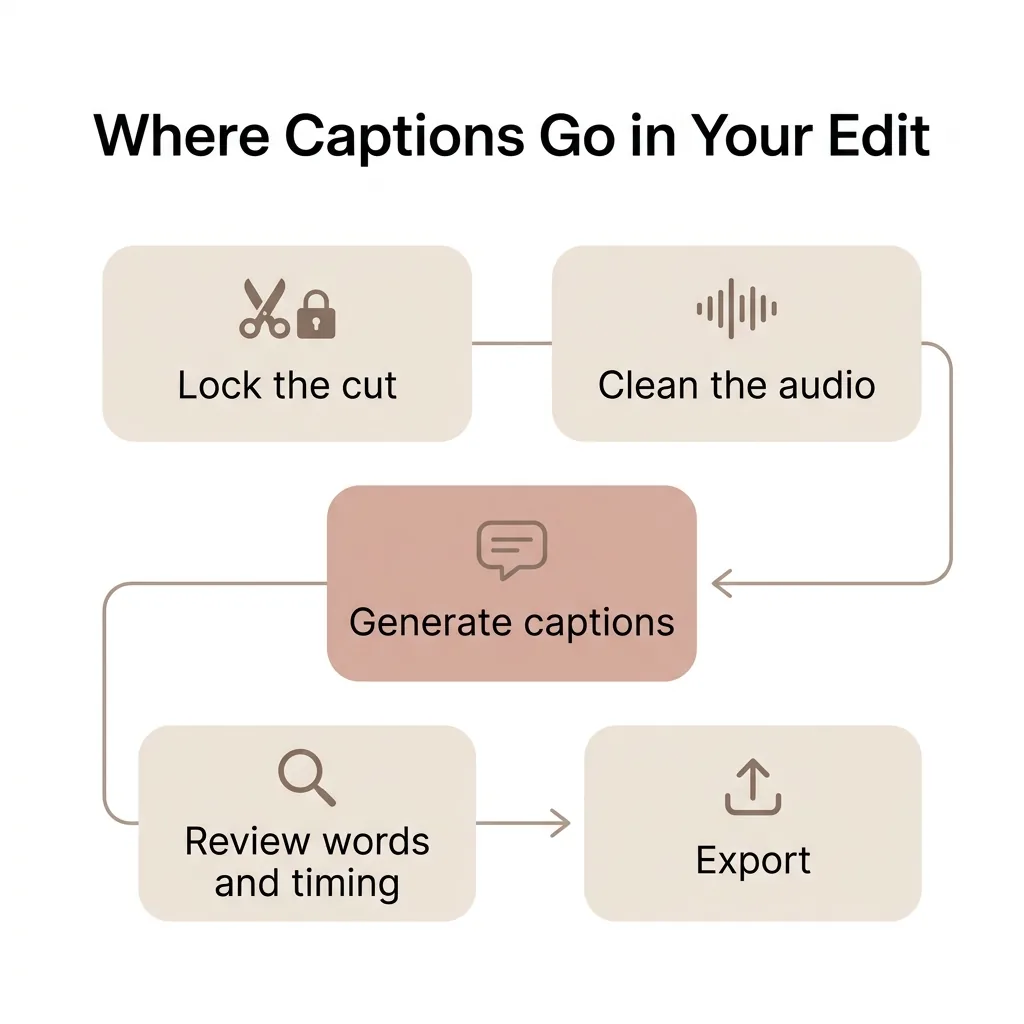
Add them after the picture and dialogue are locked, and before export. Captions go on a finished cut. Clean the audio first, then generate. Every trim after that moves the words. Fixing them by hand is slow and easy to get wrong. So caption late, review once, and export.
Here is the timeline:
- Cut the picture. Put clips in order. Trim dead air.
- Lock the dialogue. No more word-level trims.
- Clean the audio. Lower music under speech. Remove noise.
- Generate captions. This is the caption point.
- Choose a style. Font, colour, size, position. In GotReach you pick the style first, then generate.
- Review words, timing and placement. Watch the whole video.
- Export.
Why clean the audio first? One desktop editor's user guide warns that noise, music or overlapping voices can hurt caption accuracy and timing. The same guide suggests isolating the voice and removing noise first. Cleaner audio in means fewer fixes out.
Why lock the cut first? Once captions exist, their timing lives in the timeline. In that same editor, you retime captions by dragging and trimming them like clips. Drag one into its neighbour and it overwrites the neighbour. One late trim can mean a slow, risky hand fix.
The review in step 6 checks more than spelling. We tell GotReach users to check names, specialized words, timing and readability. Check placement too. Section508.gov, the US federal accessibility site, says to center captions in the lower third. The exception is when they would block important text, like signs or name labels.
Already captioned and need to fix, retime or restyle? Our caption editing guide walks through it.
How do you add automatic captions to a video made from several stitched clips?
Put the clips in their final order and lock it. Then caption the whole sequence in one pass. Do not caption each clip alone. After that, check every cut point. Look for lines spilling across a cut, sloppy timing at the cut, style changes between clips, and mixed languages.
- Stitch the clips. For example: hook, tip, close.
- Lock the order. Swapping clips later means re-checking every cut.
- Caption the full sequence. One pass. One style.
- Check every cut. Use the list below.
Some editors tie captions to the clip they came from. One desktop editor's user guide says it transcribes each selected clip and connects the captions to that clip. That way captions move with their clip. Split edits are trickier. That is when audio from one clip runs over the next picture, called a J-cut or L-cut. There, the editor attaches captions to the neighbouring clip that overlaps the audio. So a moved clip can carry words you did not expect. Check after any change.
Check at every cut:
- Split lines. A caption should cross a cut only if the speech crosses it too. That is the rule in Netflix's subtitle timing guidelines.
- Timing at the cut. If speech ends before a cut and nothing follows, still end the caption two frames before the cut. If speech starts on the cut, or within half a second after, start the caption on the cut's first frame.
- Style. Same text colour and background in every clip. Same way of labelling speakers, sound effects and music.
- Language. One browser-based editor's help docs say it transcribes one language per video. If your hook and tip use different languages, check those lines by hand.
GotReach starts from this kind of video. You record clips once. Then you mix and match hooks and solutions into several short videos. GotReach handles the editing, captions and scheduling. Videos are edited and captioned for you. You still watch each one before it goes out. See how content repurposing builds many videos from one set of clips.
Should captions be burned into the video or uploaded as a separate SRT file?
Burn them in when you want full control of the look. Burn them in, too, when a platform does not take caption files. Use a separate file when viewers should be able to turn captions off, or when you want the text searchable. Posting to several places? Make both.
Burned-in captions look the way you styled them. A separate file lets the viewer turn them off.
| Burned-in (open) | Separate file (closed) | |
|---|---|---|
| Styling | You control how and where they show. | The player sets the look. |
| Editing after export | Re-export the video. | Edit and re-upload the file. |
| Viewer control | Always on. Cannot be turned off. | Viewers show or hide them. |
| Search | The text is part of the picture. It cannot be searched. | The text stays text. |
| Where it works | Anywhere the video plays, including apps without caption-file support. | Platforms that accept caption files. |
Not every platform takes a caption file. The University of South Carolina's digital accessibility guide names Instagram as one that does not offer closed captions. It lists several major social and video sites that do. The guide carries no date, and apps change. Check what each platform takes today. Where it takes no file, burn the captions in.
You rarely have to pick just one. One desktop editor's user guide says it can export captions as a separate sidecar file next to the video. Many of its export options can also burn captions in, so they are always visible. So make a burned-in version for apps without file support. Keep the file for the rest.
On formats, WebVTT is the most common caption format on the web. SRT is the other one you will see often. Check which one each platform asks for.
The rule: burn in for the look, upload a file for viewer control, and make both when you post in more than one place.
What's the best app to add automatic captions to videos?
The best app is the one that fits your workflow and holds up on your own footage. Accuracy depends on your audio as much as the app. So skip the vendor rankings. Test any app, including the one you use now, against a short checklist.
Run one of your real videos through it. Pick one with music or a second voice. One desktop editor's own guide says noise, music and overlapping speech affect accuracy and timing. Your test should include them.
The checklist:
- Fixing errors. Can you click a word and fix it fast? One missing "not" can make a caption say the opposite of the audio.
- Timing control. Can you nudge one line without breaking its neighbours?
- Style presets. Can you apply a ready style in one step?
- Brand fonts. Can you upload your own font? Some browser-based editors allow it.
- Export options. Can you burn captions in at export? Can you get a separate file?
- Limits. Check video caps, length caps and watermarks on the plan you would use.
- Workflow fit. Does captioning sit where you edit and post? Or do you export, caption, download and upload again?
Here is how GotReach measures up on that last point. Captions live inside the video workflow. You choose a style, generate captions, and review the words and timing before publishing. Then you move on to scheduling in the same workspace. The AI caption generator page shows real style examples. Judge it by the same list as any other app.
Want pricing, free-plan limits and processing caps tool by tool? See our AI caption video editors comparison. Posting mostly to TikTok? See our caption app picks by creator type. To see create, edit, caption and post in one flow, look at how GotReach makes videos.
Frequently Asked Questions
Can beginners use an automatic caption app?
Yes. Most apps write the words for you. You fix them before they show. Treat the result as a starting point, not a finished job. Fixing takes a while the first few times. It gets faster.
Watch for missed words when you talk fast or there is background noise. Two simple checks help. Keep to two lines at most, with no more than 45 characters per line. Fewer is better. And speech over about 180 words a minute may be too fast to read. We tell GotReach users to check names, specialized words, timing and readability before publishing. Beginners too.
Our caption software comparison describes the GotReach free plan as 30 videos per month, no watermarks and one connected social account. Check the current terms before you start.
Do you need to design your own caption styles in an automatic caption app?
No. Most web videos just use the player's default style: white text in a black box. A ready-made style is fine. Get the basics right:
- Use the same text and background colour for every caption.
- Keep contrast high. One browser-based editor's help docs recommend white text for accessibility.
- Keep captions under the speaker, clear of graphics.
- Stay on one line when the text fits.
Brand fonts are an extra, not a must. Some editors let you upload one. In GotReach you choose a caption style before you generate captions.
What's the difference between subtitles and captions?
Captions are a text version of the speech and the sounds you need to follow the video. Think music or a door slam. Subtitles often mean a translation into another language. Captions serve accessibility. Foreign-language subtitles are not directly an accessibility aid.
In practice the line blurs. In some parts of the world the two words mean the same thing. Social video uses them interchangeably. The choice that changes what you make is open or closed. Open captions are always on. Closed captions can be turned off. That is the burn-in versus file choice above.
Captions are one step, not the whole job
Lock the cut. Generate. Review. Post. That is the habit.
In GotReach, captions sit between recording and scheduling. You record once, edit, caption, review and schedule in one workspace. Then Analytics shows what deserves another video. If you want to bring this workflow to your clients or audience, talk to us.
Start a partnership inquiry
Sources
- W3C Web Accessibility Initiative — Captions/Subtitles | Web Accessibility Initiative (WAI) | W3C · retrieved October 20, 2026
- Harvard University Digital Accessibility — Captioning | University Disability Resources · retrieved October 22, 2026
- Section508.gov (US General Services Administration) — Captions and Transcripts | Section508.gov · retrieved October 21, 2026
- Netflix Partner Help Center (Timed Text Style Guide: Subtitle Timing Guidelines) — Timed Text Style Guide: Subtitle Timing Guidelines – Netflix | Partner Help Center · retrieved October 22, 2026
- University of South Carolina Digital Accessibility — Open vs. Closed Captions - Digital Accessibility | University of South Carolina · retrieved October 21, 2026
- Apple Support (Final Cut Pro User Guide) — Adjust and arrange closed captions in Final Cut Pro for Mac - Apple Support · retrieved October 22, 2026
- Apple Support (Final Cut Pro User Guide) — Create closed captions in Final Cut Pro for Mac - Apple Support (EG) · retrieved October 22, 2026
- Apple Support (Final Cut Pro User Guide) — Export closed captions in Final Cut Pro for Mac - Apple Support · retrieved October 21, 2026
- Microsoft Support (Clipchamp) — How to use autocaptions in Clipchamp | Microsoft Support · retrieved October 21, 2026
- YouTube Official Blog — How to add captions to YouTube videos for better accessibility - YouTube Blog · retrieved October 22, 2026
- California State University San Marcos IITS Accessibility — Creating an Accessible TikTok Post | Instructional and Information Technology Services (IITS) | CSUSM · retrieved October 22, 2026
- NISM Online — 8 Steps to Create Accessible Instagram Posts - NISM Online · retrieved October 22, 2026
- Described and Captioned Media Program (DCMP) Captioning Key — Captioning Key - Text · retrieved October 20, 2026
- Netflix Partner Help Center (English USA Timed Text Style Guide) — English (USA) Timed Text Style Guide – Netflix | Partner Help Center · retrieved October 22, 2026