
AI Video Clipping Tools Compared: An Honest Guide for Creators and Marketers
You've probably landed on at least three tool homepages today. Each one promised to turn your long-form video into viral short clips — automatically, effortlessly, brilliantly. And yet you're still here, still not sure which one to actually use.
That's the real problem. Not a lack of options, but a lack of honest comparison. Every tool's homepage describes itself in isolation. None of them will tell you where they fall short, which content types they struggle with, or how their free tier limits compare to a competitor's.
This guide does that. You'll get a plain-language explanation of how AI clipping works, a side-by-side comparison of leading tools on consistent criteria, a use-case matching framework, transparent pricing breakdowns, and an honest look at where AI clipping still requires human judgment. The goal is a decision you can make with confidence — not one made by default.
Key Takeaways
- AI clipping works best on structured content like interviews and podcasts; accuracy drops noticeably on gaming footage, live events, or abstract presentations with minimal verbal structure.
- Free tiers across leading tools typically cap at 60–90 minutes of processed video per month, and most apply watermarks to exported clips until you upgrade.
- The right tool depends more on your content type and team size than on any single feature. A solo podcaster and a ten-client agency have fundamentally different requirements.
- Credit-based pricing models can surprise users — know whether you're paying per minute of input video or per clip exported before you commit.
- AI clip output is rarely publish-ready without a quick human review. A two-minute pre-publish check prevents errors that can damage your credibility.
How AI Video Clipping Tools Actually Work
Before evaluating any tool, it helps to understand what the AI is actually doing to your video — because most tools market outcomes ("go viral") rather than mechanisms. When you understand the mechanism, you can evaluate claims critically.
Most AI video clipping tools rely on three core processes working in combination:
1. Transcript analysis — The tool converts speech to text using automatic speech recognition (ASR), then analyzes the transcript to identify high-information segments: moments with complete thoughts, emotional peaks, quotable statements, or topic shifts. This is why structured speech — a podcast interview, a webinar Q&A, a talking-head explainer — tends to produce stronger AI clip results. Research into AI-based transcript and natural language processing for video highlight detection confirms that language structure is one of the most reliable signals available to moment-detection systems.
2. Visual and scene detection — The tool analyzes the video stream for shot changes, motion energy, facial presence, and framing shifts. This layer matters more on non-verbal content, but it is also less reliable as a standalone signal. A gaming stream with constant motion gives the model too much noise; a static lecture slide gives it too little.
3. Engagement or "viral" scoring — Some tools (OpusClip being the most explicit about this) apply a predictive model that scores moments based on estimated shareability. This model is trained on historical engagement data — not a real-time guarantee. Viral scoring is a useful heuristic, not an accurate forecast. Treat it as a starting-point ranking, not a publication decision.
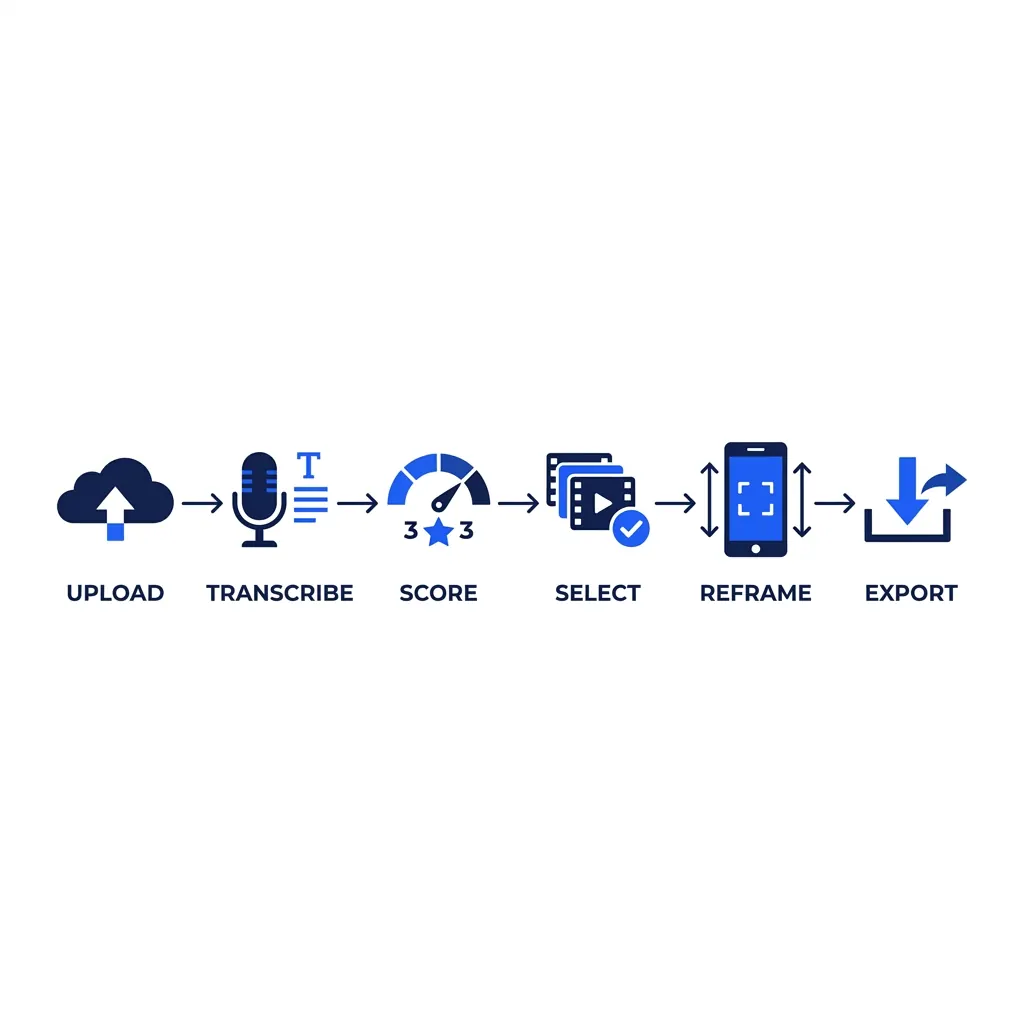
How AI Clipping Works — Step by Step
- Upload — You submit the source video (recorded upload, YouTube link, or direct recording depending on the tool).
- Transcribe — The tool runs automatic speech recognition to generate a full or partial transcript.
- Score moments — The AI evaluates segments using transcript analysis, visual signals, and engagement modeling to rank candidate clips.
- Select clips — The tool surfaces its top-ranked clips — typically 3–10 per session on free plans — as draft outputs.
- Reframe for vertical — The tool applies subject-tracking to crop the original 16:9 (or wider) video into a 9:16 vertical format suitable for TikTok, Instagram Reels, and YouTube Shorts.
- Export — Clips are rendered with captions, branding overlays, or watermarks depending on your plan tier.
Where AI clipping falls short: Wrong cut points are most common on content without clear speech structure — the AI clips mid-sentence or misses a natural endpoint. Reframing errors happen frequently on multi-speaker video, where subject tracking can't reliably follow who is speaking. Caption sync and accuracy errors are more common with heavy accents, fast speech, or domain-specific vocabulary. Context-incomplete clips — moments that only make sense with the surrounding five minutes of video — are a subtle but real risk, especially for educational or narrative content.
A podcast episode with clear speaker turns and consistent framing is close to ideal input for any AI clipping tool. A gaming stream or live event with overlapping audio, multiple visual sources, and no structured dialogue is significantly harder — visual cues alone are not a reliable foundation for moment detection.
Top AI Video Clipping Tools Compared
A note on methodology: The tools below were selected based on market presence, distinct positioning, and relevance across the creator and marketer use cases this guide addresses. Criteria applied consistently across tools: best-fit content type, clip accuracy profile based on published user feedback and known technical approaches, free tier actual limits (not marketing language), published paid plan starting prices, language and caption support, and team or agency features. Pricing information reflects publicly available data and may change — verify directly with each tool before purchasing. This guide is produced by the team behind GotReach, a platform in this space — that context is disclosed upfront so you can weigh the comparisons accordingly.
At-a-Glance Comparison
| Tool | Best For | Clip Accuracy Profile | Free Tier | Paid Plan Start | Language Support | Team Features |
|---|---|---|---|---|---|---|
| OpusClip | Talking-head YouTube, podcasts, interviews | Strong on structured speech; weaker on gaming or event footage | ~60 min/month, watermarked | ~$15/month | 20+ languages for captions | Limited on free; team plans available |
| Vizard | Webinars, marketing video, team editing | Solid on structured content; good editing UI for review | ~60 min/month, watermarked | ~$10/month | English-first, expanding | Collaboration features on paid plans |
| WayinVideo | Short-form social clips, broad content types | Reasonable on interview content; mixed on fast-paced video | Limited free credits, watermarked | ~$9/month | Multiple languages | Basic team support |
| GotReach | Agencies, marketing teams, high-volume publishing | Built for volume production and multi-platform distribution, not moment-scoring optimization | 30-day free trial | See pricing page | Unconfirmed at time of publication | Enterprise multi-client control, centralized workflow across 7 platforms |
| Descript | Podcasters, video editors comfortable with transcript editing | High control; accuracy depends on user review, not just AI auto-selection | 1 hour transcription/month, watermark | ~$12/month | English-primary, expanding | Strong team and collaboration tools |
Tool Write-Ups
OpusClip is built around viral scoring — its core differentiator is a predictive model that tries to identify which moments are most likely to perform on social. It works well on talking-head YouTube content, podcast conversations, and interview-format video where speech structure is clear. On gaming streams, multi-camera event footage, or abstract presentations, the miss rate climbs. Free tier delivers roughly 60 minutes of processed video per month with watermarks. Paid plans start around $15/month and unlock higher output, watermark removal, and team features. Caption support spans 20-plus languages, which is a genuine advantage for non-English creators. Limitation: the viral score can create false confidence — a high-scored clip still requires a human review before publishing.
Vizard takes a more editor-centric approach: it surfaces clips and gives you a clean interface to review and adjust them before export. This is useful for marketing teams who want AI speed but need editorial control. It performs well on structured content — webinars, product demos, talking-head explainers — and less reliably on unscripted or fast-paced footage. Free tier is approximately 60 minutes per month, watermarked. Paid plans start around $10/month. Language support is English-first with expansion underway. Collaboration tools on paid plans make it a reasonable option for small in-house teams. Limitation: the editing UI adds a step that solo creators in a hurry may find unnecessary.
WayinVideo positions itself as a broad-use short-form clip generator with a lower entry price point. It handles interview and structured content reasonably well. On fast-paced gaming or event video, results are mixed. Free tier is limited — credits rather than minutes, which can run out quickly for higher-volume users. Paid plans start around $9/month. Language support covers multiple languages, though depth varies. Team features are basic at the entry level. Limitation: credit-based pricing can surprise users who process longer videos frequently.
GotReach is a different category of tool. Where OpusClip and Vizard are optimized for viral moment detection on a single video, GotReach is designed for teams and agencies that need to produce and publish at volume — up to 300 publish-ready videos from a single session, distributed across seven platforms from one centralized workflow. It is not positioned as a moment-scoring competitor to OpusClip; it is positioned for businesses and agencies managing high-output content operations. Entry point is a 30-day free trial — a time-limited trial, not a free-forever plan. GotReach Enterprise gives agencies centralized multi-client control without rebuilding the workflow for each account. Limitation: if you are a solo creator who needs a tool to find the single best viral moment from one podcast episode, GotReach's volume-production architecture is more than you need.
Descript gives you the most editorial control of any tool on this list — it lets you edit video by editing the transcript directly, with AI-assisted highlight detection as a starting layer. That control comes with a steeper learning curve. It is well-suited for podcasters and video editors who are comfortable with a transcript-based editing workflow. Free tier includes approximately one hour of transcription per month with watermarks. Paid plans start around $12/month. English is the primary language with expansion in progress. Team and collaboration tools are strong. Limitation: it requires more active editing effort than tools designed for fully automated clip export.
Which AI Video Clipping Tool Is Right for Your Use Case
Your content type and team size matter more than any individual feature claim. Use the grid below to find the row that matches your situation, then read the tool recommendation and the one watch-out before making a decision.
| Use Case | Recommended Tool | Why It Fits | Watch Out For |
|---|---|---|---|
| Podcasters and interview creators | OpusClip or Descript | OpusClip's viral scoring and speech-based detection work well on structured interview content; Descript gives more control for editors who want transcript-level precision | OpusClip's auto-clips still need a context check; Descript requires more hands-on editing time |
| Livestreamers and gaming content | Vizard or WayinVideo | Both handle broader content types with review-and-adjust workflows; neither is optimized for fast-paced gaming, but the editing UI helps catch errors | Expect a higher miss rate on non-verbal or fast-motion content — plan to review every clip manually |
| Marketing teams and webinar repurposing | Vizard | Structured webinar content plays to Vizard's strengths; collaboration tools support team review workflows | Free tier minutes run out quickly for teams processing multiple webinars per month — budget for a paid plan |
| Agencies managing multiple clients | GotReach Enterprise | Up to 300 videos per session, centralized multi-client workflow, and distribution across seven platforms from one system — built for volume at scale | GotReach is optimized for production and distribution volume, not individual moment-scoring; editorial review of output is still required |
| Budget-constrained or beginner creators | WayinVideo or OpusClip free tier | Lowest entry price (WayinVideo) or most recognized free tier (OpusClip) for getting started without commitment | Watch free-tier credit limits carefully — both watermark exports and cap monthly processing |
For agencies and high-volume marketing teams ready to evaluate what a centralized, multi-platform workflow looks like at scale: see what GotReach's plans include and start with the 30-day free trial to assess fit against your actual workflow before committing.
Pricing and Free Plan Reality Check
Free tiers sound generous until you hit the wall. Before you invest time building a workflow around a tool, understand exactly what you get — and where the limits will bite you.
| Tool | Free Tier (Minutes/Credits) | Watermark on Free? | Clip Count Cap | Export Resolution | Paid Plan Starts At |
|---|---|---|---|---|---|
| OpusClip | ~60 min/month processed | Yes | Varies by plan | Standard on free | ~$15/month |
| Vizard | ~60 min/month processed | Yes | Limited on free | Standard on free | ~$10/month |
| WayinVideo | Limited credits (not minutes) | Yes | Limited on free | Standard on free | ~$9/month |
| Descript | ~1 hour transcription/month | Yes | Varies | Standard on free | ~$12/month |
| GotReach | 30-day free trial (time-limited, not free forever) | Trial access | Trial access | Trial access | See pricing page |
What free tiers actually mean in practice: A creator generating 10 short clips per week from one weekly 60-minute podcast episode will exhaust most free tiers within two to three weeks of the month. A marketing team processing four webinars per month — each running 45–90 minutes — will exceed free tier limits in the first week. Credit-based pricing models (like WayinVideo's) add a layer of unpredictability: you may pay per minute of input video, per clip exported, or per feature used, and longer source videos can drain credits faster than expected.
When does a paid plan pay for itself? If you are publishing more than 8–10 clips per month from any single tool, the math on paid plans typically works out — watermark removal alone protects brand credibility on every clip you publish. For agencies managing multiple clients, free tiers are not operationally viable; the question is which paid plan structure fits your volume.
For teams evaluating GotReach's trial against a paid commitment: review GotReach's plan options on the pricing page before the 30-day trial ends to avoid a gap in your publishing workflow.
How to Evaluate AI Clip Quality Before You Publish
AI clips are not always publish-ready. That's not a criticism of any specific tool — it's the nature of automated detection working without full context. The good news: most quality issues are easy to catch with a quick pre-publish review. The bad news: skipping that review is how a reframing error or a mid-sentence cut ends up in your feed.
The Four Most Common AI Clipping Failure Modes
Wrong cut points are the most frequent issue. The AI clips mid-sentence, cuts a second before the punchline, or starts the clip in the middle of a thought. This happens most often on content without clear speech structure — presentations, tutorials, or any video where key moments are separated by long non-verbal pauses. The fix: watch the first and last three seconds of every clip before exporting.
Poor vertical reframe on multi-speaker video is subtle but damaging. When two people are in frame and the AI tracks the wrong speaker, one person gets cropped out entirely. A two-person interview clip can become a one-person clip with an awkwardly moving frame. The fix: spot-check the reframe at any moment where a speaker transition occurs.
Caption sync and accuracy errors tend to cluster around fast speech, heavy accents, technical vocabulary, or domain-specific terms. A single word error in a caption can change meaning entirely — especially for clips that lead with a bold claim. The fix: read the caption text against the audio on at least three segments per clip.
Context-incomplete clips are the hardest to catch because the clip itself looks fine — it just doesn't make sense without the surrounding five minutes of video. This is most common in educational content, narrative storytelling, or any video where a statement only lands after substantial setup. The fix: ask yourself whether a viewer with no prior context would understand and value this clip on its own.
Content type and accuracy calibration: Structured interview and podcast content tends to produce the most reliable AI clips — the AI has clear speech anchors to work with. Gaming, live events, sports highlights, and abstract or non-verbal content see significantly higher error rates across all tools. On these content types, treat AI output as a starting point, not a finished product.
Pre-Publish Clip Quality Checklist
Run this check before posting any AI-generated clip:
- Cut point accuracy — Does the clip start and end at a natural, complete moment? No mid-sentence cuts, no abrupt endings.
- Reframe quality — Is the primary subject centered and fully visible in vertical format throughout the clip? Check any moment where speakers change or move.
- Caption accuracy — Spot-check at least three caption segments against the audio. Flag any errors in names, numbers, or key claims.
- Context completeness — Would a viewer with no prior knowledge of your content understand and get value from this clip on its own?
- Audio sync — Is the caption or subtitle timing aligned with speech? Check the first and last five seconds where sync errors most often appear.
Frequently Asked Questions About AI Video Clipping Tools
What is the best free AI video clipping tool? There is no single best free option — it depends on your content type. For podcasters and interview creators, OpusClip's free tier offers the most recognizable clip-detection experience with roughly 60 minutes of processing per month (watermarked). For creators who want more editorial control, Descript's free tier supports transcript-based editing. For the lowest price entry point, WayinVideo's credit-based free access is worth testing. Expect watermarks and output caps across all free tiers.
How accurate are AI video clipping tools at selecting the right moments? Most tools perform reasonably well — meaning they identify genuinely useful moments a significant portion of the time — on well-structured content like interviews, podcasts, and webinars. On gaming footage, live events, or non-verbal content, the miss rate climbs substantially. No tool has independently validated its viral prediction accuracy, and viral scoring is a heuristic model, not a guarantee. Plan to review every clip before publishing regardless of which tool you use.
Do AI clipping tools work for gaming, livestreams, or non-podcast video? They work, with lower reliability. Gaming streams and live events lack the speech structure that anchors most clip-detection systems, which means the AI leans more heavily on visual signals alone — a weaker foundation. Of the tools reviewed here, Vizard and WayinVideo have editing interfaces that make it easier to review and correct AI output on non-structured content. For gaming and livestream highlight workflows specifically, plan to spend more manual review time than you would on a podcast episode.
What is the difference between OpusClip, Vizard, WayinVideo, and other AI clipping tools? OpusClip is most known for its viral scoring model — it tries to rank moments by predicted shareability and is optimized for talking-head and interview content. Vizard prioritizes a clean editing and review interface, making it well-suited for marketing teams that want AI speed with human oversight built into the workflow. WayinVideo targets a broader content range at a lower price point with a credit-based model. Descript takes a transcript-editing-first approach, giving users the most granular control. GotReach addresses a different need entirely: volume production and multi-platform distribution at agency and business scale, rather than optimizing the detection of a single viral moment.
Can AI clipping tools handle non-English video or generate captions in other languages? Several tools offer multi-language caption support — OpusClip supports 20-plus languages, which is the strongest offering among the tools reviewed here. Vizard and WayinVideo offer multi-language support to varying degrees. Descript is primarily English-focused with expansion in progress. For GotReach, language support for non-English caption generation is unconfirmed at time of publication — verify directly before committing if this is a requirement. Language support quality also varies by language: widely spoken languages like Spanish, French, and Portuguese typically perform better than less common ones.
How many clips can I generate from one video on a free plan? Typically 3–10 clips per video upload on free tiers, with total monthly processing capped at roughly 60–90 minutes across most tools. Credit-based plans (like WayinVideo's) calculate differently — a 60-minute source video may consume significantly more credits than a 10-minute one, which can reduce effective output. GotReach operates on a 30-day free trial model rather than a free-forever tier, so the output ceiling during the trial reflects the plan you are trialing rather than a free-plan cap.
The Bottom Line: Match the Tool to Your Workflow
No single AI video clipping tool is the right answer for every creator. OpusClip's viral scoring is genuinely useful for interview and podcast content — and genuinely limited outside of it. Vizard's editing interface adds value for marketing teams who want AI speed with review built in. WayinVideo offers a lower-cost entry point for creators who are testing the workflow. Descript gives transcript-level control for editors who need it. And GotReach is built for a different problem entirely: teams and agencies that need to produce and distribute at volume — up to 300 publish-ready videos from one session, across seven platforms, from a centralized workflow.
Short-form video consumption continues to grow, and repurposing long-form content is one of the most efficient ways to meet that demand without multiplying production effort. The tools exist to make that practical. But the right tool is the one that fits your content type, your team size, and your publishing reality — not the one with the most compelling homepage.
If you are managing content at agency or business scale and want to see what a volume-production workflow looks like in practice, start GotReach's 30-day free trial — no long-term commitment, and enough runway to run your actual publishing volume through the system and evaluate fit. Learn more about the team behind GotReach and what the platform is built to do.
For everything else: pick the tool that matches your content type from the use-case grid above, run your first session on the free tier, and apply the pre-publish checklist before your first post. AI handles the volume — you bring the judgment.