AI Clipping Video Editors Compared: Which One Fits Your Content and Workflow
Most AI clipping tools do exactly what they claim: upload a long video, get clips back automatically. The part they leave out is what happens next. Reviewing cut points, correcting caption errors, fixing reframing on multi-speaker content, and then manually uploading to each platform one by one. That workflow gap is where most tools disappoint.
This is a criteria-based comparison for creators who are already past the basics and need to know which AI clipping video editor actually fits their content type, desired control level, and publishing volume. There is no single winner here. The right tool depends on what you are clipping and how much you need to publish.
Key Takeaways
- AI clipping tools handle selection and formatting automatically, but nearly every clip type except a clean single-speaker recording still requires a human review pass before publishing.
- Gaming, sports, and rapid-cut content are consistently the weakest fit for AI transcription-based clippers. Most tools were built for talking-head video and degrade quickly outside that format.
- Free tiers are not equal. A free plan that watermarks your output is not usable for professional publishing, regardless of the export limit.
- GotReach creates up to 300 videos in 30 minutes from a single idea and offers a free plan with up to 30 videos per month and no watermarks. Captions, by contrast, produces one video at a time and takes 5 to 10 minutes per video.
- The best clipping video editor is the one that matches your content type and output volume, not the one with the most automated claims on its homepage.
What a Clipping Video Editor Actually Does (And Why "AI-Powered" Is Not One Thing)
There are two distinct categories of tools creators choose between in 2026: AI-first clipping tools that analyze your video and generate clips automatically (OpusClip, Choppity, Wisecut), and traditional editors that you use to clip manually with full frame-level control (Clipchamp, DaVinci Resolve). The first category removes the selection work. The second category puts all of that work on you, with more precision in return.
The choice between them comes down to volume and control. A podcast host publishing three clips per episode weekly needs fundamentally different tooling than a gaming streamer clipping 20 highlight moments per session. Neither approach is automatically better.
GotReach sits in the AI-first category but with a volume output that standalone clipping tools do not match. Where most AI clippers process one video at a time, GotReach creates up to 300 videos in 30 minutes from a single idea, making it a different category of tool for creators or teams managing high-output content repurposing workflows.
How AI Clipping Works: From Upload to Exported Clip
Understanding the actual workflow makes the comparison table in the next section easier to read. Most AI clipping tools follow the same core process, with differences in how well they execute each step.
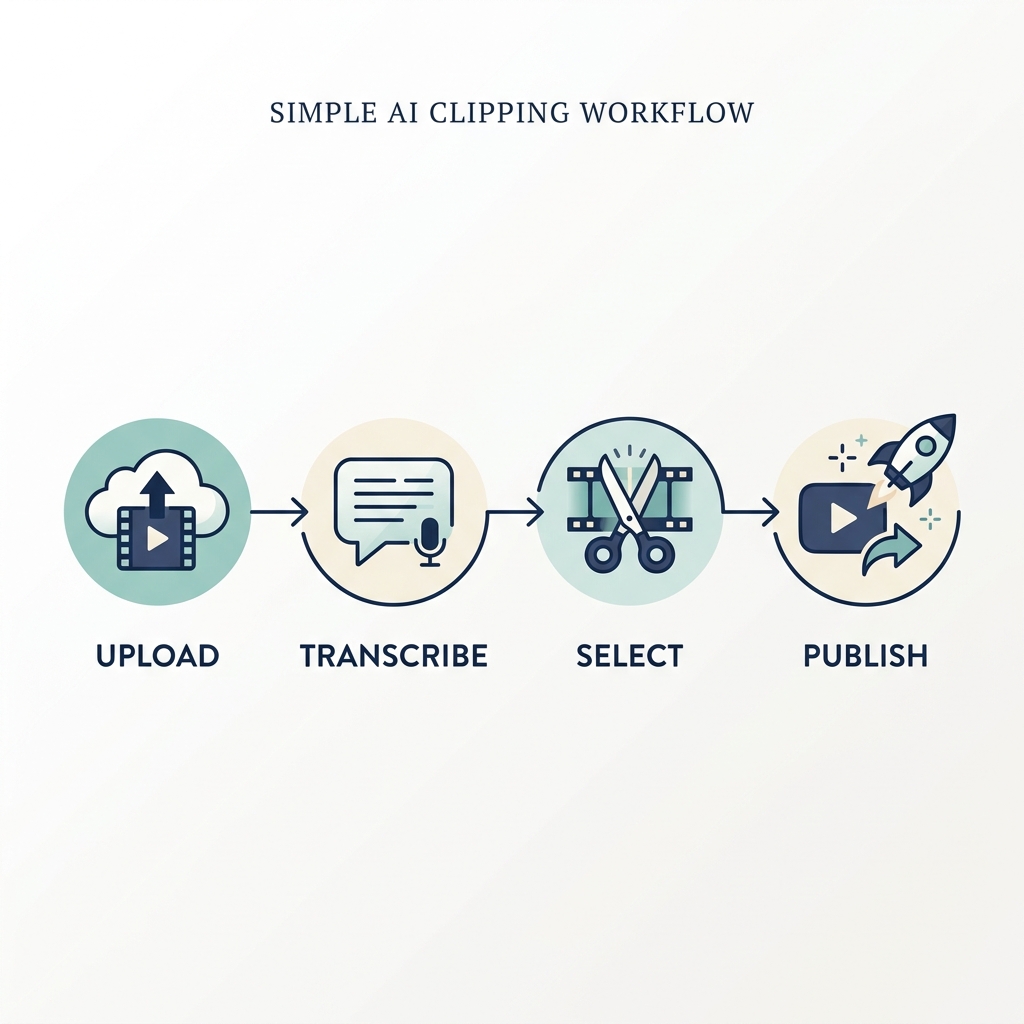
The standard AI clipping workflow:
- Upload or import your long-form video. Source can be a direct file upload, a YouTube URL, or a Zoom/meeting recording link depending on the tool.
- Transcription runs automatically. The tool converts speech to text, which becomes the basis for everything downstream including captions and segment selection. Accuracy here determines caption quality later.
- Segment scoring analyzes the transcript for high-value moments. Tools evaluate speech patterns, keyword density, topic shifts, and pacing signals to rank which segments are likely to perform. This step is AI-automated, but the signals it reads vary by tool.
- Clip selection surfaces the top-ranked segments as candidate clips, usually in a batch. Most tools give you 3 to 10 clips per hour of video. You review or approve these.
- Vertical reframing converts horizontal source video to 9:16 format by tracking the active speaker and repositioning the crop. Quality varies significantly across tools, especially with multiple speakers.
- Caption generation burns in or overlays captions derived from the transcript. Burn-in captions are embedded in the video file and visible even when a viewer watches on mute, which matters for TikTok and Reels performance.
- Human review (your job): check cut accuracy, caption errors, reframing quality, and whether each clip actually opens on a strong moment. This step is not optional if quality matters.
- Export and publish: download the clip or push directly to platforms via native integrations if the tool supports them.
Caption accuracy drops measurably in noisy environments, overlapping multi-speaker conversations, and non-English audio. Research on AI transcription variance confirms that audio quality and speaker overlap are the primary drivers of error rate, regardless of which tool generates the transcript. A single-speaker podcast with clean audio is the best-case scenario for AI clipping. A panel discussion with three overlapping speakers, or a gaming VOD with rapid cuts and sound effects, will require significantly more correction.
For a deeper look at converting long-form recordings into publishable clips step by step, see this long-form to short-clip workflow guide.
Clipping Video Editors Compared: Key Features and How They Stack Up
The criteria below were chosen based on the decision factors creators most commonly evaluate when selecting an AI clipping tool. This is not a sponsored comparison. No tool was given preferential column weighting.
How to read the table: each criterion reflects a real workflow decision point. Caption accuracy ranges are realistic estimates based on audio conditions, not vendor-stated figures. Free tier notes reflect publicly available information at time of writing.
| Tool | Best For | Free Tier | Watermark on Free | Caption Accuracy (realistic) | Reframing Quality | Post-AI Editing Controls | Native Publishing | Entry Paid Tier |
|---|---|---|---|---|---|---|---|---|
| GotReach | High-volume creators and teams; repurposing at scale across multiple platforms | Up to 30 videos/month, 1 social account | None | Consistent for clean single-speaker audio; degrades with noise and overlap | Functional for talking-head content; auto speaker tracking | Trim, schedule, and publish from one workflow | 7 platforms | 30-day free trial then paid tier |
| OpusClip | Single creators clipping podcast or interview content one at a time | Limited clips per month | Yes on free tier | Good for clear audio; multi-speaker tracking is inconsistent | Above average for single-speaker vertical crops | Basic trim and caption edit | Limited; manual upload for most platforms | Entry plan approx. $15-20/month |
| Choppity | YouTube creators focused on Shorts repurposing | Free trial only | Yes | Solid for long-form YouTube content with clear narration | Reasonable for 16:9 to 9:16 conversions | Limited; focused on selection over editing | YouTube-centric | Entry plan varies |
| Wisecut | Podcast editors who want silence removal alongside clipping | Free tier with watermark | Yes | Decent for studio-quality audio; drops off in field recordings | Basic; not a primary feature | Silence removal, basic trim | Limited | Entry plan approx. $10/month |
| Clipchamp | Creators who want manual control over every cut | Free (Microsoft integrated) | No | N/A (no AI transcription-based captioning in core clipping workflow) | Manual only | Full manual trim and edit | Microsoft/OneDrive ecosystem | Free for most features |
| DaVinci Resolve | Advanced editors who want frame-level precision | Fully free | No | N/A (manual captioning workflow) | Manual only; full control | Professional-grade | Manual export only | Free; Studio version approx. $295 one-time |
Note: Paid tier pricing for OpusClip, Choppity, and Wisecut reflects publicly listed ranges and may change. Verify current pricing on each tool's pricing page before committing.
For a more focused breakdown of how individual AI clip tools approach the same source video differently, see this comparison of AI clip maker approaches.
Which Clipping Tool Fits Your Content Type
The comparison table shows criteria. This section shows which tool logic actually matches your content.
Podcast and interview content is where AI clipping tools perform best, with meaningful variation. Multi-speaker detection, caption color-coding by speaker, and quote-moment extraction are the capabilities that separate good podcast clipping from generic transcript cuts. Most tools handle a two-person interview reasonably well. A roundtable with five participants is where speaker detection starts failing and manual override becomes necessary.
YouTube to Shorts has a specific constraint: the hook needs to appear in the first three seconds or the clip will underperform regardless of content quality. AI clippers that use chapter markers as selection signals perform better here because chapters often correspond to naturally strong moments. The 60-second clip length constraint also means the AI selection window is tighter. A tool that consistently selects 90-second clips from a YouTube video is a poor fit for Shorts repurposing. YouTube's official video format specifications confirm aspect ratio and resolution requirements for Shorts if you need a platform reference.
Gaming highlights and live stream VODs are the hardest category for AI transcription-based clippers. The reason is structural: most AI clipping tools score segments by analyzing speech. Gaming content is defined by rapid cuts, sound effects, music layers, and reaction moments that are not speech-driven. A tool built around transcript analysis will consistently miss the actual highlight moments in a gaming VOD. Manual clipping in a traditional editor or a tool with gameplay-specific detection is a more reliable approach here.
Webinar and educational video tends to tolerate longer clip lengths, typically 90 to 120 seconds, because the content is structured around teaching moments with natural chapter boundaries. AI clippers that use chapter markers or topic-shift detection as selection signals work well here. The risk is over-clipping dense content where any segment out of context sounds incomplete.
High-volume content repurposing across any content type is where the volume ceiling of single-video tools becomes a real operational problem. Captions processes one video at a time at 5 to 10 minutes per video. GotReach creates up to 300 videos in 30 minutes from a single idea. That difference is not a marketing claim, it is a workflow architecture difference that matters at scale.
Content Type Quick Reference
| Content Type | Recommended Clip Length | AI Tool Fit | Key Clipping Consideration |
|---|---|---|---|
| Podcast / Interview (1-2 speakers) | 45 to 90 seconds | High | Speaker tracking and caption accuracy are the differentiators |
| Podcast / Panel (3+ speakers) | 45 to 75 seconds | Medium | Multi-speaker detection degrades; expect manual review on cuts |
| YouTube to Shorts | 30 to 60 seconds | High if chapter-aware | Hook must appear in first 3 seconds; chapter markers improve selection |
| Gaming Highlights / Live VOD | 20 to 45 seconds | Low | Speech-based AI detection misses gameplay moments; manual preferred |
| Webinar / Educational | 60 to 120 seconds | High | Chapter and topic-shift detection improves selection quality |
| Heavily Produced / Narrative Video | Varies | Low | Narrative structure confuses segment scoring; manual override often needed |
How to Review and Refine AI-Generated Clips Before Publishing
AI saves the selection work. The review pass saves the publishing mistake. Budget time for both.
The most common AI clipping errors are not random. They follow predictable patterns. Knowing them makes the review pass faster:
Early cut-offs and mid-sentence starts happen when the transcription model scores a segment based on topic density but selects a start point that is grammatically mid-thought. The viewer's first impression is confusion. Check the first five seconds of every clip.
Missing context in the clip opener is the flip side. The AI selects a strong quote but the viewer needs one sentence of setup to understand why it matters. This is most common in educational content and panel discussions.
Off-topic segment selection in dense content occurs when the AI scores multiple overlapping topic threads and selects a segment from the wrong one. Webinars and long-form interviews are most vulnerable. If the clip topic does not match your publishing goal, override it.
Caption timing drift happens when the transcript is accurate but the caption timing shifts relative to the audio, usually in content with fast speech or heavy editing. Watch for captions that run ahead of or behind the spoken words.
If three consecutive AI-generated clips from the same video all start mid-sentence, the tool is misreading your content type. That is a signal to switch to manual selection or try a different tool, not to keep reviewing clip by clip indefinitely.
After clip review is complete, scheduling clips directly to social platforms removes the final manual step of uploading each clip individually to each platform.
Before you hit publish, run through this checklist:
Caption Review
- Spot-check caption accuracy in the first and last 10 seconds of each clip
- Confirm caption timing syncs to speech, not to transcript order
- Verify captions are readable at mobile screen size (font size and contrast)
Framing and Cut Quality
- Hook quality: does the clip open on a strong moment without a slow lead-in?
- Cut accuracy: no abrupt mid-sentence starts or early endings that lose context
- Speaker framing: subject is centered in frame throughout the clip
Export and Publishing Settings
- Aspect ratio confirmed: 9:16 for TikTok, Reels, and Shorts; 16:9 for standard YouTube
- File format and resolution match platform requirements before upload
- GotReach users: confirm scheduling queue destination and platform assignment are set before publishing
Pricing and Free Tier Realities: What You Actually Get Without Paying
A free plan that watermarks your output is not actually free for professional publishing. The watermark disqualifies the clip for any branded content, client work, or professional creator output. Evaluate free tiers on what they let you publish, not just what they let you create.
Free tier structures across major clipping tools follow three patterns: export-limited with no watermark, export-limited with a watermark, or trial-only with no ongoing free access. The difference matters depending on whether you are evaluating a tool before buying or building a permanent low-volume workflow around it.
GotReach's free plan includes up to 30 videos per month, one connected social account, and no watermarks. For a creator publishing 5 to 7 clips per week, that free tier is sufficient for genuine evaluation before committing to a paid plan, and usable as an ongoing plan for lower-volume publishing.
When a free plan is enough: a solo creator publishing 1 to 2 clips per week with no client obligations can likely stay on a free tier indefinitely if the export limit is not watermarked. The constraint is volume, not quality.
When a paid plan is necessary: an agency managing multiple client accounts, a creator publishing daily across three or more platforms, or any workflow requiring team access will run into free tier limits quickly. The hidden costs that matter most in those scenarios are team seat pricing, additional social account connections, and processing minute caps that do not appear on the main pricing page.
Free vs. Paid Tier Comparison
| Tool | Free Tier Clips/Month | Watermark on Free | Key Free Tier Limit | Entry Paid Tier (approx.) | What Paid Unlocks |
|---|---|---|---|---|---|
| GotReach | 30 videos/month | None | 1 connected social account | Paid after 30-day free trial | Higher volume, additional social accounts, team features |
| OpusClip | ~10 clips/month | Yes | Watermarked output; limited resolution | ~$15-20/month | Watermark removal, higher monthly clip allowance |
| Choppity | Trial only | Yes during trial | No ongoing free access after trial period | Varies by plan | Full access post-trial |
| Wisecut | Limited free tier | Yes | Watermarked; limited export quality | ~$10/month | Watermark removal, higher processing minutes |
| Clipchamp | Unlimited (manual) | No | No AI segmentation; manual workflow only | Free for most features | Premium stock and Microsoft 365 integration |
| DaVinci Resolve | Fully free | No | No AI segmentation; manual workflow only | ~$295 one-time (Studio) | Noise reduction, collaboration, advanced color tools |
Pricing figures are approximate based on publicly listed rates and are subject to change. Hidden costs to check on any tool's paid tier: additional team seats, extra social account connections, processing minute or storage caps, and API access fees for integrations.
Frequently Asked Questions
What is the difference between an AI clipping tool and a traditional video editor used for clipping?
AI clipping tools like OpusClip, Choppity, and GotReach analyze your video automatically and select segments without you reviewing the full timeline. Traditional editors like Clipchamp and DaVinci Resolve give you full manual control over every cut, but no automation. The tradeoff is speed and volume versus precision and editorial control.
Do AI-generated clips need significant manual editing before publishing?
For clean single-speaker video with good audio quality, a review pass is typically a light check. For multi-speaker content, non-English audio, gaming footage, or heavily produced narrative video, the manual correction required can be substantial. Skipping the review pass on complex content types usually shows in the published clip.
Which clipping video editor has the best free plan with no watermark?
Among AI-first clipping tools, GotReach's free plan offers up to 30 videos per month with no watermark and one connected social account. Among traditional editors, Clipchamp and DaVinci Resolve are free with no watermark but require fully manual clipping with no AI segmentation.
How accurate are AI captions in clipping tools?
Caption accuracy depends heavily on audio quality, language, and speaker count. Clean single-speaker recordings in English typically produce highly accurate captions. Multi-speaker conversations, noisy environments, accented speech, and non-English content all reduce accuracy and require a manual review pass. No AI captioning tool eliminates the need for spot-checking in those conditions.
What types of video content do AI clipping editors struggle with most?
Gaming highlights, live stream VODs, rapid-cut edited content, and narrative video with complex structure are the weakest fits for AI clipping tools built around transcript analysis. These tools were primarily designed for talking-head content and degrade outside that format. Sports clips and music-heavy content face the same limitation.
Can a single AI clipping tool handle high publishing volume across multiple platforms?
Single-video tools like Captions process one video at a time at 5 to 10 minutes per video. For teams or creators publishing at scale, that creates a production bottleneck. GotReach creates up to 300 videos in 30 minutes from a single idea and automates publishing across seven platforms from one workflow, removing that bottleneck for volume-based publishing needs.
What hidden costs should I watch for when evaluating paid tiers?
Processing minute caps, additional team seat fees, per-social-account connection charges, storage limits, and API access fees for advanced integrations often do not appear on the main pricing page. Review the full feature and limits documentation before committing to a paid plan.
Start Creating Without the Bottleneck
The best AI clipping video editor for your workflow is the one that matches your content type, publishing volume, and how much post-AI editing you are willing to do. That answer is different for a solo podcast host, a YouTube creator repurposing to Shorts, and a team managing multiple client accounts.
If you are evaluating at volume, GotReach creates up to 300 videos in 30 minutes, publishes across seven platforms from a single workflow, and offers a free plan with up to 30 videos per month and no watermarks. You can see the full output quality before paying anything.
See how GotReach helps businesses and creators publish more without single-video bottlenecks.
Ready to test what your content produces at scale? Start your 30-day free trial today and see how many clips you can create and publish before the trial ends.