AI Captions Apps: What They Actually Deliver on Accuracy, Features, and Price
AI captions apps automatically transcribe your video's audio, style the text, and export or burn captions directly into the footage — no manual typing required. Every major option currently claims "99% accuracy" and a generous free plan. The details tell a different story. This guide explains what actually affects caption accuracy in real conditions, what free tiers genuinely include before the paywall appears, and how to match an app to your specific platform and use case.
Key Takeaways
- Accuracy claims require testing in your real conditions — background noise, accents, and technical vocabulary all affect output quality.
- Free tiers vary significantly in what they include and exactly where the paywall appears — always verify processing limits before committing.
- Platform fit matters — not all apps optimize captions for TikTok, Reels, Shorts, and LinkedIn equally.
- Solo creators and business teams have fundamentally different needs — a standalone captions app may be sufficient for one and a bottleneck for the other.
- The right app is the one that matches your language, platform, volume, and editing tolerance — not the one with the highest App Store rating.
What AI Captions Apps Actually Do (And Who They Are For)
The core workflow is straightforward: you upload a video, the app's AI analyzes the audio track and generates a transcript, you style the captions (font, size, animation, position), and then export the finished file or burn the captions directly into the video. The best apps collapse that process into a few minutes. The weaker ones introduce friction at every step.
Who benefits most? The clearest use cases are social video creators producing content for TikTok, Instagram Reels, and YouTube Shorts; podcasters repurposing long-form audio into short video clips; brands reaching multilingual audiences with translated captions; and anyone creating content that needs to meet accessibility standards for hearing-impaired viewers.
The more important distinction is between app types. Standalone captions apps — tools like Captions.ai or OpusClip's caption features — are purpose-built for transcription, styling, and export. They do one thing well and are optimized for individual creators working on mobile or desktop. All-in-one video production platforms include captioning as one feature inside a broader production and publishing workflow, making them more appropriate for teams managing high-volume content across multiple accounts and platforms.
Knowing which type you need before evaluating features saves significant time and prevents you from optimizing for the wrong criteria.
What to Evaluate Before You Download
- Caption accuracy in your real recording conditions (not a demo clip)
- What the free tier actually includes — minutes, exports, and feature gates
- Which platforms the app natively supports and in which aspect ratios
- Language support quality, not just the number of supported languages
- Customization depth — fonts, animations, brand vocabulary correction
- How easy it is to manually edit captions after AI generation
Caption Accuracy: What It Really Means and What Affects It
Most apps claim 99% accuracy. In practice, that number is measured under ideal conditions: a single speaker, no background noise, standard American or British English, and no specialized terminology. Change any one of those variables and the real-world accuracy drops — sometimes noticeably.
The four main factors that degrade AI caption accuracy are:
- Background noise — Music, street noise, crowd sound, or even a fan in the background introduces errors. Apps vary significantly in how well their underlying speech recognition handles noisy environments.
- Non-standard accents — Regional accents, non-native English speakers, and speakers whose dialect diverges from the training data all produce more errors. An app that works flawlessly for a clear California accent may struggle with a strong Scottish, Nigerian, or Brazilian Portuguese accent in English.
- Domain-specific vocabulary — Medical terminology, legal language, software product names, and branded terms are rarely in an app's default vocabulary. The AI defaults to phonetic approximations, which often produce wrong words that are hard to catch on a quick review.
- Non-English speech — Nearly every app's English transcription outperforms its non-English capabilities. Apps that list 40 or 90 supported languages rarely disclose per-language accuracy, which varies enormously.
When AI accuracy falls short, most apps do allow post-generation editing — you can click into the transcript and correct errors manually. But the ease and speed of that editing interface varies. Some apps let you edit directly in a timeline view synced to the video; others require exporting and re-importing. Before committing to any app, test how friction-free the correction workflow actually is, not just whether it exists.
For additional context on how AI speech recognition accuracy is formally evaluated and what variables affect measurement, research on automatic transcription methodology provides a grounded technical baseline.
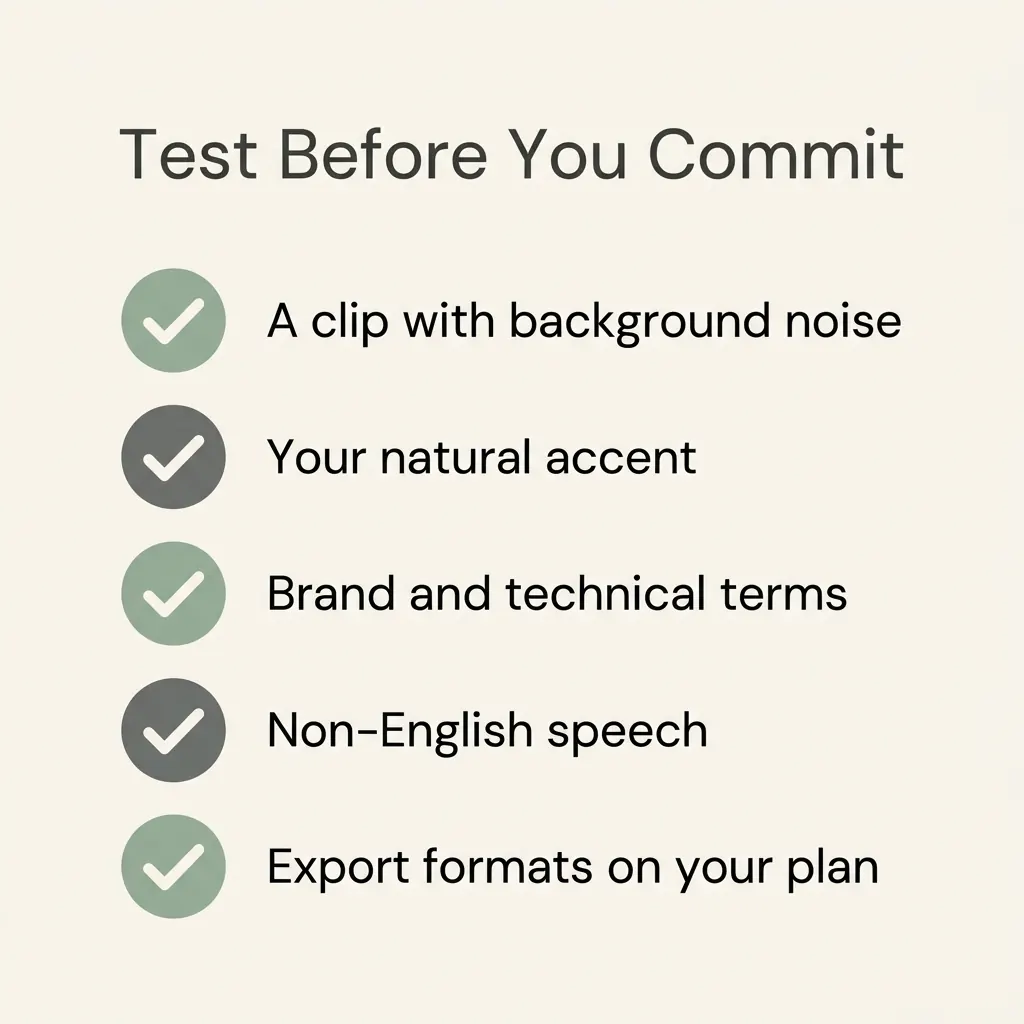
Before You Commit: What to Test
- Upload a clip with background noise — does transcription quality drop noticeably?
- Test with your natural speaking accent or a speaker with a regional accent relevant to your content
- Include technical terms or brand-specific vocabulary — does the app handle them or default to generic phonetic substitutions?
- Test with non-English speech if multilingual content is part of your workflow
- Try the free tier limit — does the app throttle processing speed on lower plans?
- Check caption export format options (SRT, VTT, burned-in) before upgrading to confirm the format you need is available at your plan level
Free vs. Paid Plans: What You Actually Get Before the Paywall
The free tier is almost never a long-term option for active creators — but knowing exactly where the walls are before you start prevents mid-project surprises. Here is what the free tier typically includes and where it stops:
- Processing time limits — Most apps cap free users at a set number of minutes of transcription per month, often between 30 and 60 minutes. Once you hit the cap, you either wait for the next billing cycle or upgrade.
- Export format restrictions — Free plans frequently limit exports to burned-in captions only. Downloading a clean SRT or VTT file — the formats you need for accessibility compliance or for re-importing into another editor — usually requires a paid tier.
- Watermarks — Some apps apply a visible watermark to free-tier exports, which is not usable for professional or branded content.
- Feature gates on styling — Custom fonts, branded color palettes, animated caption styles, and word-by-word highlighting are often locked behind paid plans.
Features that consistently require a paid upgrade across most major apps include: batch processing (uploading and captioning multiple videos simultaneously), custom vocabulary or brand name correction, team collaboration access, and high-volume or unlimited export.
The pricing jump from free to a usable paid plan is often larger than it appears at first. Evaluate whether the free tier genuinely covers your real monthly video volume before assuming you will stay on it.
| App Name | Free Tier Limit | Key Free Features Included | What Requires an Upgrade | Paid Plan Starting Price |
|---|---|---|---|---|
| Captions.ai | ~10 exports/month (limits vary by version) | AI transcription, basic caption styles, mobile editing | Custom fonts, AI eye contact correction, team features, bulk export | ~$9.99/month |
| OpusClip | ~60 minutes of clips/month | Auto-highlight clipping, basic captions, social share | Branded templates, team workspace, full caption style control, bulk processing | ~$19/month |
| Kapwing | ~4 hours of video storage, watermarked exports | Captions, subtitles, basic editing | Watermark removal, SRT/VTT export, team collaboration, brand kit | ~$16/month |
| Descript | ~1 hour of transcription on free plan | Transcription, basic text-based editing | Filler word removal, full export options, multi-track editing, collaboration | ~$24/month |
| Submagic | Limited free exports | Auto-captions, basic emoji overlays | Unlimited exports, custom fonts, no watermark, templates | ~$20/month |
Note: Free tier limits and pricing are subject to change — always verify directly on the app's pricing page before committing.
If you are evaluating whether a full video production and publishing workflow makes more financial sense than stacking standalone tools, review GotReach's plan options to compare what an integrated platform costs against multiple individual subscriptions.
Platform-Specific Captioning: What Works on TikTok, Reels, Shorts, YouTube, and LinkedIn
Not all captions apps handle all platforms equally — and the differences go beyond cosmetic styling. Format, animation style, caption placement, and safe zone awareness all vary by platform in ways that matter practically.
Format and aspect ratio are the baseline. TikTok, Instagram Reels, and YouTube Shorts all use 9:16 vertical video. YouTube's primary format is 16:9 horizontal. LinkedIn supports both but defaults toward horizontal or square formats for feed video. Apps that handle only one aspect ratio natively require you to manually crop or reformat for other platforms, which multiplies editing time at scale.
Animated vs. static captions perform differently depending on where you are publishing. Word-by-word pop captions and highlight animations are native to TikTok culture — they maintain viewer attention on short-form content. Static block captions are generally more appropriate for long-form YouTube content, where animated text would feel visually distracting over extended viewing. Apps that default to one style for all platforms require manual adjustment every time you repurpose content.
Caption safe zones — the screen area where captions display without being obscured by platform UI elements like comment buttons, follow handles, and interaction overlays — differ meaningfully between platforms. TikTok's bottom-third UI is aggressive. Reels has its own overlay position. YouTube Shorts differs again. Apps that auto-place captions within platform-appropriate safe zones save real time; apps that default to a fixed center-bottom position will require manual adjustment for every platform you publish to.
| Platform | Primary Format | Caption Style That Performs Best | Safe Zone Consideration | Auto-Optimization Support |
|---|---|---|---|---|
| TikTok | 9:16 vertical | Animated word-by-word or highlight | Heavy UI overlay at bottom — center or upper-center placement often needed | Varies by app — check natively |
| Instagram Reels | 9:16 vertical | Animated, bold, short bursts | Bottom third often obscured by UI | Varies by app |
| YouTube Shorts | 9:16 vertical | Animated or static both work | Less aggressive overlay than TikTok | Varies by app |
| YouTube (long-form) | 16:9 horizontal | Static or clean block captions | Standard bottom placement generally safe | Most apps handle natively |
| 16:9 or 1:1 | Clean, professional static captions | Bottom third safe on most feed views | Fewer apps optimize natively |
A creator repurposing a single interview clip for TikTok, YouTube Shorts, and LinkedIn faces three different formatting requirements. Apps that auto-adjust aspect ratio, caption placement, and animation style per platform save hours per week at production scale.
Language Support and Multilingual Captioning: Beyond the Number
Apps frequently advertise support for 40, 91, or even 120+ languages. That number is a marketing figure, not a quality benchmark. The honest evaluation question is not how many languages the app supports — it is how well it handles your specific language in your real content conditions.
In practice, almost every AI captions app's English transcription significantly outperforms its non-English performance. Spanish and French tend to be reliable across major apps because their training data is large. Regional dialects — Castilian vs. Mexican Spanish, European vs. Brazilian Portuguese — often produce inconsistent results. Less-common languages or those with smaller digital text corpora may be listed as "supported" but produce output that requires extensive manual correction to be usable.
There is also an important distinction between AI subtitles and AI dubbing. AI subtitles transcribe the original audio into text captions displayed on screen — the core function of a captions app. AI dubbing replaces the audio track with a synthesized voice speaking in a different language. Both appear in the marketing of modern captions apps, but they serve very different use cases. If you want captions in your audience's language displayed over your original audio, that is subtitling. If you want your video to speak in another language entirely, that is dubbing — and only some apps offer it.
For right-to-left scripts (Arabic, Hebrew, Farsi), check explicitly whether the app renders the text direction correctly in the video frame and in export formats. Many apps that list Arabic as a supported language render it correctly in the transcript but not in the burned-in caption display.
If multilingual captioning is central to your content strategy, language support and translation quality should be your primary evaluation criterion — above pricing, animation style, or feature count. The only reliable way to assess it is to test with your own content in your target language before upgrading.
Research on what captions do for viewer retention also notes that subtitle quality directly affects whether non-native speakers stay engaged — a captions file with frequent errors undermines the accessibility and engagement goals it is supposed to serve.
Accessibility and Caption Compliance: What the Standards Actually Require
Captions are not just a viewer retention tool — for content published in professional, educational, or regulated contexts, they carry real accessibility implications. The W3C Web Accessibility Initiative's guidelines for captions in video media define what constitutes accessible captioning: accurate transcription (not paraphrasing), inclusion of relevant non-speech audio cues, proper speaker identification in multi-speaker content, and readable timing and positioning.
For most social video creators, formal WCAG compliance is not a legal requirement — but the underlying standards are a useful quality benchmark. For brands, educational platforms, healthcare providers, and government-adjacent content, these requirements carry real weight.
The practical implications for app evaluation:
- SRT and VTT export — These are the standard caption file formats used by platforms, video hosts, and accessibility tools. If an app only offers burned-in captions and does not export clean SRT or VTT files, you cannot provide a separate accessible caption track for platforms that support it (YouTube, LinkedIn, Vimeo). Check whether your plan tier includes these export formats before assuming they are available.
- Timing and reading speed — WCAG guidance specifies that captions should display at a reading pace accessible to most viewers. Some auto-captioning tools generate captions with display timing that is too fast or erratically timed. Review caption timing as part of your accuracy evaluation.
- Accuracy standards — WCAG defines 99% accuracy as the threshold for accessible captioning — which is why that number appears in every app's marketing. But that threshold applies to a formal, reviewed workflow, not raw AI output on first pass. AI captions typically require at least a review pass before they meet that standard reliably.
Which AI Captions App Is Right for You: A Decision Framework
After evaluating accuracy, free tier limits, platform support, and language quality, the final question is: which tool type actually fits your situation? The criteria differ significantly based on your volume, team size, platform mix, and language needs.
| Creator Type | Primary Need | What to Prioritize When Choosing | Tool Tier or Workflow Fit |
|---|---|---|---|
| Solo creator (1–5 videos/week, single platform) | Fast, low-friction captioning with minimal editing | Accuracy on your accent, ease of correction, mobile app quality | Standalone AI captions app — free or entry-level paid plan |
| Brand or marketing team (moderate volume, multiple platforms) | Consistent branding across captions, multi-format export, team access | Custom fonts/brand kit, team collaboration, multi-aspect ratio support | Mid-tier standalone app or entry-level production platform |
| Agency managing multiple clients (high volume) | Scale without multiplying manual steps per client or account | Batch processing, workflow automation, multi-account publishing | Integrated production and publishing platform — standalone apps become a bottleneck at this volume |
| Multilingual creator or brand | Accurate non-English transcription and/or translation | Language quality in your specific language, right-to-left support if needed, manual correction ease | App with documented non-English quality — test before committing regardless of language count claims |
| Podcast repurposer | Convert audio-forward content to short-form video at volume | Clip selection, caption sync with audio timing, batch processing | Standalone captions app with clip creation, or a production platform if repurposing at scale |
For solo creators and small teams, a dedicated AI captions app handles most needs well. For agencies and brands managing video production across multiple clients, accounts, and platforms, standalone captioning apps address only part of the workflow — captioning, styling, and export are one layer inside a production process that also includes editing, brand consistency, scheduling, and multi-platform publishing.
If you have worked through this framework and concluded that your team or agency needs more than a captions app can provide, GotReach automates the full production and publishing layer — from video creation to distribution across seven platforms — in a single workflow. That is a different category of tool than a captions app, built for teams managing volume across multiple clients or accounts without multiplying manual effort.
For businesses and agencies that have outgrown the standalone app model, start a 30-day free trial to see how an integrated production workflow handles captioning and publishing together — without adding another tool to the stack.
Frequently Asked Questions
Are AI-generated captions accurate enough to use without manual editing?
For standard English with a clear speaker and minimal background noise, AI captions are often usable with light review. For accented speech, noisy recordings, technical vocabulary, or non-English content, plan on a correction pass. The accuracy you see in a demo clip is not representative of what you will get in your real content conditions — always test with your own footage before committing.
What does the free plan on most AI captions apps actually include?
Free tiers typically include a limited number of minutes of transcription per month (often 30–60 minutes), basic caption styling, and burned-in video export. Most restrict clean SRT/VTT file exports, custom fonts, batch processing, and team features to paid plans. Watermarked exports are also common on free tiers. Check the specific limits before starting a project you intend to finish on a free plan.
Do AI captions apps work well for non-English languages and accented speech?
It depends on the language and the app. Most apps perform significantly better in English than in other languages, and their documentation rarely breaks down accuracy by language or dialect. For accented English, results vary — some apps handle it well, others do not. Test with your actual content in your actual language before making a purchasing decision. Language count in marketing materials does not reflect quality consistency.
What is the difference between AI subtitles and AI dubbing?
AI subtitles transcribe your original audio into text captions that display on screen — your voice stays in the video, and text appears for viewers to read. AI dubbing replaces your original audio with a synthesized voice speaking in a different language — the video sounds like it was recorded in another language. Most captions apps offer subtitling. Dubbing is available in some apps but is a distinct feature with different quality and cost considerations.
Can I use an AI captions app for accessibility compliance?
AI-generated captions can support accessibility, but raw AI output rarely meets formal WCAG standards without review. The W3C guidelines require accurate transcription (not paraphrasing), proper timing, and speaker identification in multi-speaker content. For professional or regulated use cases, treat AI captions as a starting draft and budget time for a review pass. Also confirm your app exports SRT or VTT files — you need those formats to provide a separate accessible caption track on platforms that support it.
How do AI captions apps handle technical terminology or brand-specific vocabulary?
Poorly, by default. Most AI transcription models are trained on general speech and default to phonetic approximations when they encounter unfamiliar words — product names, medical terms, legal language, and branded vocabulary all tend to produce errors. Some paid-tier apps allow you to add custom vocabulary or a brand dictionary to improve accuracy on specific terms. If technical vocabulary is central to your content, test this specifically during any free trial.
Is one captions app enough, or will I need multiple tools to complete my workflow?
For solo creators publishing on one or two platforms, a single standalone captions app typically handles everything needed. For teams managing multiple clients, accounts, and platforms — where captioning is one step inside a larger production and distribution process — standalone apps often create bottlenecks because they do not connect to editing, scheduling, or publishing tools. At that scale, an integrated platform that handles the full workflow is more efficient than stitching together multiple single-purpose apps.
The Bottom Line
Choosing an AI captions app comes down to four questions: Does it actually perform in your real recording conditions? Does the free tier cover your genuine volume? Does it handle your platforms natively? And does it support your language at a quality level you can publish?
For solo creators and small teams, the right standalone app answers all four — and the evaluation checklist in this article gives you a framework to test any app honestly before committing.
For brands, agencies, and teams managing video at volume across multiple clients and platforms, captioning is one layer inside a larger production and publishing challenge. A standalone captions app solves part of the problem; the rest still requires editing, formatting, scheduling, and distribution.
If you have concluded that your team's workflow needs go beyond what a captions app handles, see how a full production platform changes the equation — start your 30-day free trial with GotReach and experience what it looks like when captioning, editing, and multi-platform publishing happen in a single workflow rather than across separate tools.