
Caption Editing Software Compared: How to Choose the Right Tool for Your Captioning Workflow
You've watched five product pages each claim to be the best caption editing software. None of them compared themselves to anything. None of them told you what the free plan actually limits. And none of them explained which export format your platform requires.
This article does all three.
Caption editing software is a distinct category — tools whose primary job is generating, importing, correcting, timing, styling, and exporting captions or subtitles. That is different from an AI video editor that happens to include auto-captions as a side feature. The distinction matters because it determines how much control you get over the captioning workflow itself.
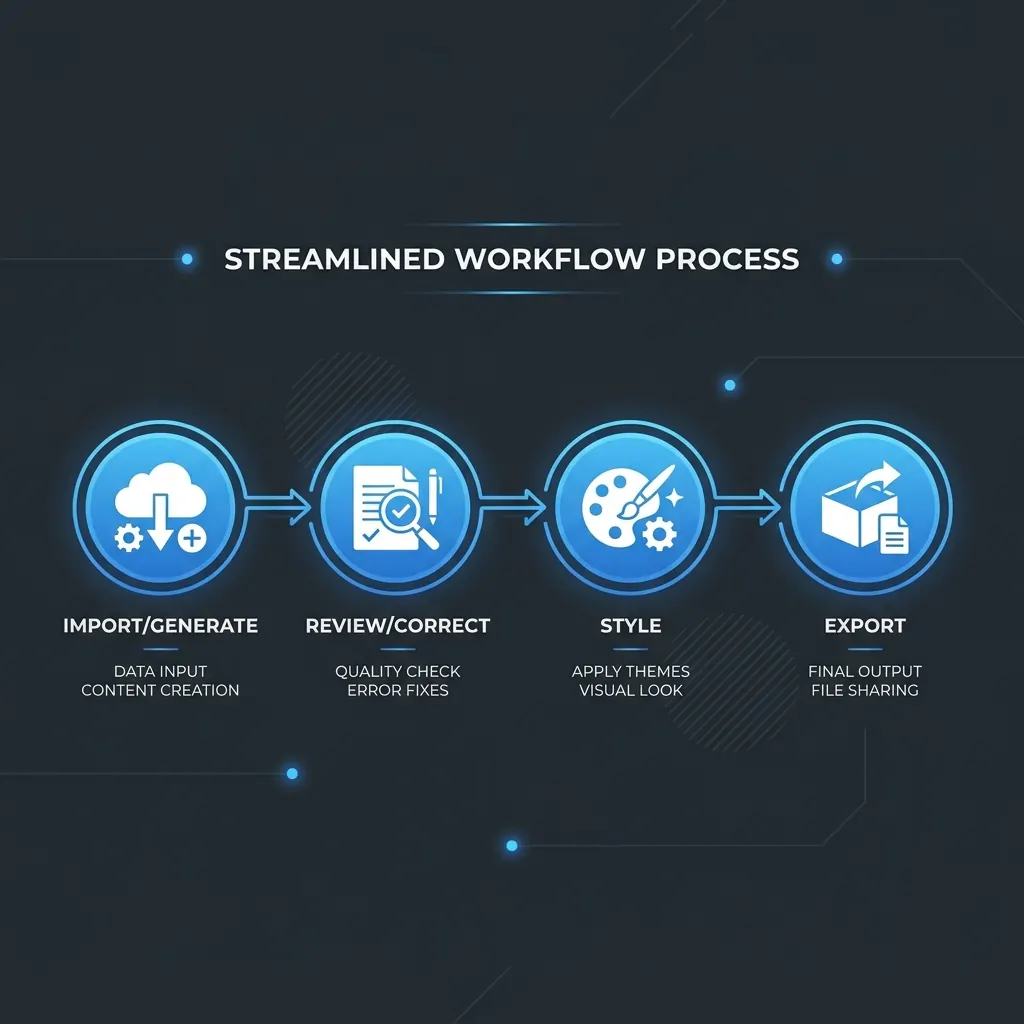
The workflow this article covers: generate or import captions → review and correct timing and accuracy → style formatting → export in the right format for your destination platform. Every section maps back to a stage in that sequence.
Key Takeaways
- Caption editing software is a separate category from AI video editors — the editing depth, export options, and manual correction capability are meaningfully different.
- AI caption accuracy is not a fixed number — it depends on speaker clarity, accents, background noise, and technical vocabulary. Test with your own content, not vendor claims.
- Free tiers on most caption tools include real constraints: minute caps, watermarks, and resolution limits that can stop a workflow mid-project.
- Export format choice depends entirely on your destination platform — SRT, VTT, and burned-in captions are not interchangeable.
- Matching the tool to your workflow volume and platform requirements matters more than chasing the most feature-rich option.
What Caption Editing Software Actually Is (And What It Isn't)
Caption editing software is built around one core workflow: take a video, produce accurate captions for it, adjust timing and formatting, and export those captions in a format the destination platform accepts. That is the job.
Contrast that with an AI video editor that includes auto-captioning. Tools like this generate captions inside a larger production environment — alongside trimming, transitions, music, B-roll, and effects. The captions are a feature of the editor, not the product's primary function. That means the editing controls for captions are usually shallower: limited timing adjustment, fewer export format options, and less granular word-level correction.
If you have a finished video and just need to add, correct, or re-export captions — you almost certainly want a caption-first tool, not a full editor.
The four-step captioning workflow applies regardless of which tool you use:
- Generate or import — either auto-generate captions from audio using AI transcription, or import an existing caption file (like YouTube's auto-generated SRT or a Zoom transcript) for correction.
- Review and correct — check timing sync, fix transcription errors, and correct vocabulary that AI misread.
- Style formatting — set fonts, colors, positioning, and per-speaker formatting if needed.
- Export — choose the right file format for your destination platform (more on this in the export section).
The audiences who most need dedicated caption editing tools: solo video creators, educators publishing course content, business video teams producing regular social or internal content, accessibility and compliance teams working to meet ADA or Section 508 standards, and agencies managing captioning across multiple clients at volume.
For teams at the agency or enterprise end — where captioning demands compound with production volume — platforms like GotReach address the broader production and distribution workflow, though captioning is one part of a larger AI-powered video content pipeline rather than the standalone focus.
What to Look for in Caption Editing Software: 7 Criteria That Actually Matter
Most people evaluate caption software on a single question: does it do auto-captions? That question screens out nothing. Almost every tool on the market auto-generates captions now. The criteria that actually separate them are below.
1. Caption accuracy Accuracy is not a fixed percentage — it shifts based on speaker clarity, accents, background noise level, and how much technical or domain-specific vocabulary appears in the audio. A tool that transcribes a studio-quality podcast accurately may produce a noticeably rougher result on a field-recorded interview. Vendor accuracy claims are marketing. Test each tool with a clip that represents your actual content before committing.
2. Manual editing controls Auto-generation gets you a draft. Manual editing is how you make it accurate. Look specifically for: word-level correction (click a word and fix it), timing adjustment (shift caption start/end timestamps), and sync control (realign captions that have drifted from the audio). A tool without these controls is a caption generator, not a caption editor.
3. Export format support SRT, VTT, TXT, and burned-in (hardcoded) captions are not interchangeable — different platforms require different formats. This is covered in depth in the export section, but check format support before you commit to any tool.
4. Caption styling depth Fonts, colors, animations, and per-speaker label formatting vary significantly across tools. One important note: styling applied inside an editor often does not transfer when you export to SRT or VTT. If you need styled captions on the final video, burned-in export is usually the only format that preserves them.
5. Free-tier limits Minute caps per month, watermarks on exported video, resolution restrictions (many free tiers cap at 720p), and processing throttles (slower queue times on free plans) are the real constraints. Check these before you build a workflow around a free plan.
6. Platform availability Browser-based tools require no installation and work from any device — but they depend on internet connectivity and sometimes impose file size limits. Desktop tools often handle larger files and more complex timing edits. Mobile-primary tools trade editing depth for convenience. Know which context you're working in.
7. Accessibility and compliance support If you're creating captions for ADA compliance, Section 508 requirements, or institutional accessibility standards, check whether the tool exports closed caption files in formats that meet those standards. Not every tool labels this clearly.
Evaluation Criteria at a Glance
| Criteria | Why It Matters | What to Check |
|---|---|---|
| Caption accuracy | Determines how much manual correction you'll need after generation | Test with your own audio — different accent, noise, and vocabulary conditions produce different results |
| Manual editing controls | The difference between a generator and a true editor | Word-level correction, timestamp adjustment, sync/realignment tools |
| Export format support | Wrong format = captions that don't work on your platform | SRT, VTT, TXT, burned-in — check which are available on which pricing tier |
| Caption styling depth | Affects whether captions look right on-screen | Font, color, positioning, per-speaker formatting — and whether styles survive export |
| Free-tier limits | Determines what's actually usable without paying | Minute caps, watermarks, resolution ceiling, queue throttling |
| Platform availability | Affects which workflow context the tool fits | Browser-based, desktop app, mobile — each has real tradeoffs |
| Accessibility / compliance support | Required for ADA, Section 508, or institutional needs | Closed caption export formats, compliance labeling, standards references |
Comparing Leading Caption Editing Tools: A Side-by-Side Breakdown
The table below covers tools across platform types — web-based, desktop, and mobile-primary — evaluated on caption-specific criteria. The goal is to let you identify the right fit without visiting each product site individually.
| Tool | Platform | Free Tier | Export Formats | Manual Editing | Best For |
|---|---|---|---|---|---|
| Kapwing | Web-based | Limited minutes/month; watermark on free exports | SRT, VTT, MP4 (burned-in) | Word-level editing, timing adjustment | Solo creators and small teams doing occasional caption work |
| Descript | Web + Desktop | Limited transcription hours; some features paywalled | SRT, VTT, TXT, MP4 (burned-in) | Word-level correction via transcript, overdub tools | Podcasters and video creators who edit via transcript |
| Clideo | Web-based | Watermarked exports on free plan | SRT, burned-in MP4 | Basic text and timing editing | Quick single-video caption jobs without installation |
| Zubtitle | Web-based | Limited videos per month | SRT, burned-in MP4 | Text correction, font and color styling | Social video creators focused on styled burned-in captions |
| Submagic | Web-based | Limited free access | SRT, burned-in MP4 | Text editing, animation presets | Short-form social content with animated caption styles |
| CapCut | Web + Mobile | Generous free tier; some export limits | SRT, burned-in MP4 | Text correction, style editing | Mobile-first creators, TikTok and Reels workflow |
A few things the table makes clear:
- Every tool listed has a legitimate free tier — but almost none are watermark-free or unlimited on free plans. A solo creator uploading three videos per week will hit caps faster than the free-tier marketing copy implies.
- Descript is the most editing-depth-heavy option but has a steeper learning curve — it edits video by editing a text transcript, which is powerful but unfamiliar to users accustomed to timeline editors.
- CapCut's free tier is among the most generous in terms of volume, but its caption editing depth is shallower than desktop-focused tools.
- Tools like Submagic and Zubtitle are optimized for short-form social content with styled burned-in captions — they are not the right choice if you need clean SRT or VTT files for platform upload.
For teams whose captioning needs are inseparable from a larger production and publishing workflow — producing videos at volume across multiple platforms — the per-video captioning tool model creates its own bottleneck. If that describes your situation, exploring what GotReach's pricing tiers look like for volume-based video production is worth a separate evaluation.
SRT, VTT, Burned-In Captions: Which Export Format Do You Actually Need?
Export format is not a technical detail to figure out after you've finished editing. Choosing the wrong format means your captions either won't upload, won't display, or will require rework. Here's what each format is and when to use it.
SRT (SubRip Text) An SRT file is a plain-text subtitle file that pairs lines of caption text with timestamps. It is the most widely accepted caption format across video platforms, media players, and accessibility workflows. If you're unsure which format to use, SRT is the safest starting point.
VTT (WebVTT) VTT files are structurally similar to SRT but include additional support for styling and positioning metadata. They are preferred by web-based video players and some platforms that render style information. For most practical purposes, SRT and VTT are interchangeable in terms of platform acceptance — but check your specific platform's documentation.
TXT A plain text export removes all timing data and outputs the caption text as a transcript. Useful for repurposing content (blog posts, show notes), but not for uploading as captions anywhere.
Burned-in (hardcoded) captions Burned-in captions are embedded directly into the video file during export. They cannot be turned off by the viewer, there is no separate subtitle file, and the captions are permanently visible regardless of platform or player. This format is the most universally compatible — any platform that plays video will display burned-in captions. The tradeoff: once burned in, captions cannot be edited without re-exporting the video.
Key tradeoff: SRT and VTT files offer flexibility — viewers can turn them off, they support accessibility compliance workflows, and they can be updated without re-rendering the video. Burned-in captions offer universal compatibility but sacrifice all of that flexibility. Caption styling (fonts, colors, animations) typically does not transfer to SRT or VTT exports — if styled captions matter to you, burned-in is usually the only format that preserves them.
Platform Caption Format Quick Reference
| Platform | Supported Caption Format | Notes |
|---|---|---|
| YouTube | SRT, VTT | Both accepted for upload; YouTube's Help Center lists all supported formats. SRT is most broadly compatible across tools. |
| TikTok | Burned-in preferred; SRT on some account types | Native auto-captions are available; external SRT upload availability varies by account region and type. Burned-in is the reliable fallback. |
| Instagram Reels | Burned-in or native auto-captions | External SRT upload is not natively supported for Reels. Burned-in captions before upload is the standard workaround. |
| SRT supported for video uploads | LinkedIn accepts SRT files on video posts — one of the cleaner upload experiences for subtitle files. | |
| Vimeo | SRT, VTT | Vimeo has strong subtitle file support including multiple language tracks. Both SRT and VTT are accepted. |
| General rule | SRT for uploads; burned-in for social | If the platform accepts subtitle file uploads, SRT is the most reliable choice. If you're posting to a platform with limited upload support, burn captions in before export. |
Free vs. Paid Caption Editing Software: What You Can Actually Do Without Upgrading
The gap between a free plan and a paid plan in caption editing software is often larger than the pricing page makes obvious. Here is what those limits actually look like in practice.
Common free-tier constraints across captioning tools:
- Minute caps — Many tools cap free plans at 30–60 minutes of transcription or video processing per month. A creator publishing five short-form videos per week can exhaust a 30-minute monthly cap within the first week.
- Watermarks — Free-tier exports frequently include a visible watermark on the finished video. Watermarked content is not publishable for most professional or business use cases.
- Resolution limits — Some free plans restrict export to 720p, which is below the 1080p standard for most current platforms.
- Processing throttles — Free plan users often wait in longer processing queues, which matters if you're working on a deadline.
- Restricted export formats — Certain export formats (particularly SRT or VTT file export, as opposed to burned-in video) may be paywalled even when caption generation itself is free.
What is realistically achievable on a free plan: Occasional single-video captioning — one or two videos per month with no strict resolution requirements — is usually fine on a free tier. Anything beyond that runs into at least one of the constraints above.
When a paid plan makes sense: The math changes based on volume. A solo creator with one video per week is in a different position than an agency processing 50 client videos per month. Frame the upgrade decision around your actual volume and output requirements — not just the feature list.
For teams whose captioning workload is part of a larger video production and distribution operation, per-video captioning tools compound the cost quickly. If you're producing at volume and distributing across multiple platforms from a centralized workflow, it's worth exploring whether a platform-level solution fits better — GotReach's 30-day free trial is a low-barrier way to see whether that kind of scale-first approach fits what you're building.
Free vs. Paid: Real Tradeoffs
| Free Tier Pros | Free Tier Cons |
|---|---|
| No upfront cost — test the tool before committing | Minute or video caps that reset monthly |
| Sufficient for low-volume, occasional captioning | Watermarks on exported video in most tools |
| Good for learning the tool's interface and accuracy | Resolution often capped at 720p |
| No credit card required on most platforms | Slower processing queues |
| Auto-caption generation is usually available on free tiers | SRT/VTT file export sometimes paywalled |
Accessibility and Compliance: What Caption Editing Tools Need to Support
For accessibility teams, educators at institutions, and businesses covered by ADA or Section 508 of the Rehabilitation Act, captioning is not optional — and not every caption editing tool supports the workflows compliance requires.
Closed captions (as distinct from open captions or burned-in captions) are caption files that can be toggled on or off by the viewer — delivered as SRT or VTT files that the platform renders on-screen. This format is required for most accessibility compliance contexts because it allows users who are deaf or hard of hearing to control caption display and because it supports screen reader compatibility in some environments.
When evaluating caption tools for compliance purposes, check:
- Whether the tool exports closed caption files (SRT, VTT) rather than only burned-in video
- Whether timing accuracy is sufficient for compliance — captions that run significantly ahead of or behind the audio do not meet the intent of accessibility standards
- Whether the tool supports multi-speaker labeling for complex dialogue
- Whether the exported file format is accepted by your specific distribution platform's compliance workflow
Caption editing tools designed for content creators may not explicitly label compliance features — but the underlying capability (clean SRT/VTT export, accurate timing, multi-speaker support) is what matters in practice.
Frequently Asked Questions About Caption Editing Software
What is the difference between caption editing software and a video editor with captions?
Caption editing software is built around the captioning workflow — generating, importing, correcting, timing, styling, and exporting captions. A video editor with captions includes auto-captioning as one feature inside a broader production tool. The practical difference shows up in editing depth: dedicated caption tools typically offer word-level correction, granular timing adjustment, and more export format options than the caption feature inside a general video editor.
Can I edit captions on a video I've already finished editing?
Yes — this is one of the most common caption editing use cases, and most dedicated caption tools are built for exactly this. You upload your finished video, the tool generates or imports captions, you correct and time them, then export. You do not need to re-edit the underlying video. This is different from working inside a video editor, where captions are often tied to the project timeline.
How accurate are AI-generated captions, and what affects accuracy?
AI caption accuracy varies based on speaker clarity, accent, background noise level, and how much technical or domain-specific vocabulary is in the audio. A clean studio recording with a single speaker will produce more accurate auto-captions than a noisy field interview with multiple speakers. Accuracy claims from vendors should be treated as best-case benchmarks — always test a tool with a clip that represents your actual content type before relying on it.
What does burned-in or hardcoded mean, and when should I use burned-in captions?
Burned-in (hardcoded) captions are permanently embedded into the video file — they cannot be turned off by the viewer and require no separate caption file. Use burned-in captions when publishing to platforms that do not support external subtitle file uploads (Instagram Reels is the primary example) or when you need captions to display universally regardless of player or platform. The tradeoff is that burned-in captions cannot be edited after export without re-rendering the video.
Which caption file format does YouTube, TikTok, or Instagram accept?
YouTube accepts SRT and VTT file uploads — see YouTube's official caption format documentation for the full list of supported formats. TikTok supports SRT on some account types but burned-in captions are the more reliable option. Instagram Reels does not natively support external SRT uploads — burned-in captions before upload is the standard approach. LinkedIn accepts SRT files on video posts.
Are free caption editing tools accurate enough, or do I need to pay for quality?
Caption generation quality is not directly tied to pricing tier — the same AI engine often powers both free and paid plans of the same tool. What the paid tier usually improves is volume capacity, watermark-free export, resolution, and access to certain export formats. If accuracy is insufficient on a free plan, it is usually still insufficient on the paid plan of the same tool — that signals a tool fit problem, not a pricing problem. Test accuracy first, then evaluate pricing based on your volume and export requirements.