
How to Choose the Right AI Caption App for Your Videos
If you have searched for the best AI caption app recently, you have probably landed on a dozen pages that each declare one tool the winner, bury the real limitations in fine print, and move on. This guide does something different.
Below, you will find the criteria that actually determine whether a caption app works for your content, a side-by-side comparison of leading tools using consistent standards, and a use-case framework that maps specific creator types to the right tool category. The goal is a confident decision — not another round of tab-switching.
What this guide covers:
- What AI caption apps do and who needs one
- The six criteria that matter most when choosing
- A side-by-side comparison of top tools
- Where AI captions fall short and how to fix it
- Which tool fits your specific workflow
Key Takeaways
- No single AI caption app is best for everyone. Platform, workflow, and volume all shape the right choice.
- Most free tiers come with real limits — processing caps, watermarks, or restricted exports — that are not always disclosed upfront. Know what to check before committing.
- Caption accuracy varies by accent, speech speed, and vocabulary. Always review before publishing.
- Individual creators usually get what they need from a dedicated caption app. Teams managing scale need a platform that handles captioning alongside editing, scheduling, and publishing.
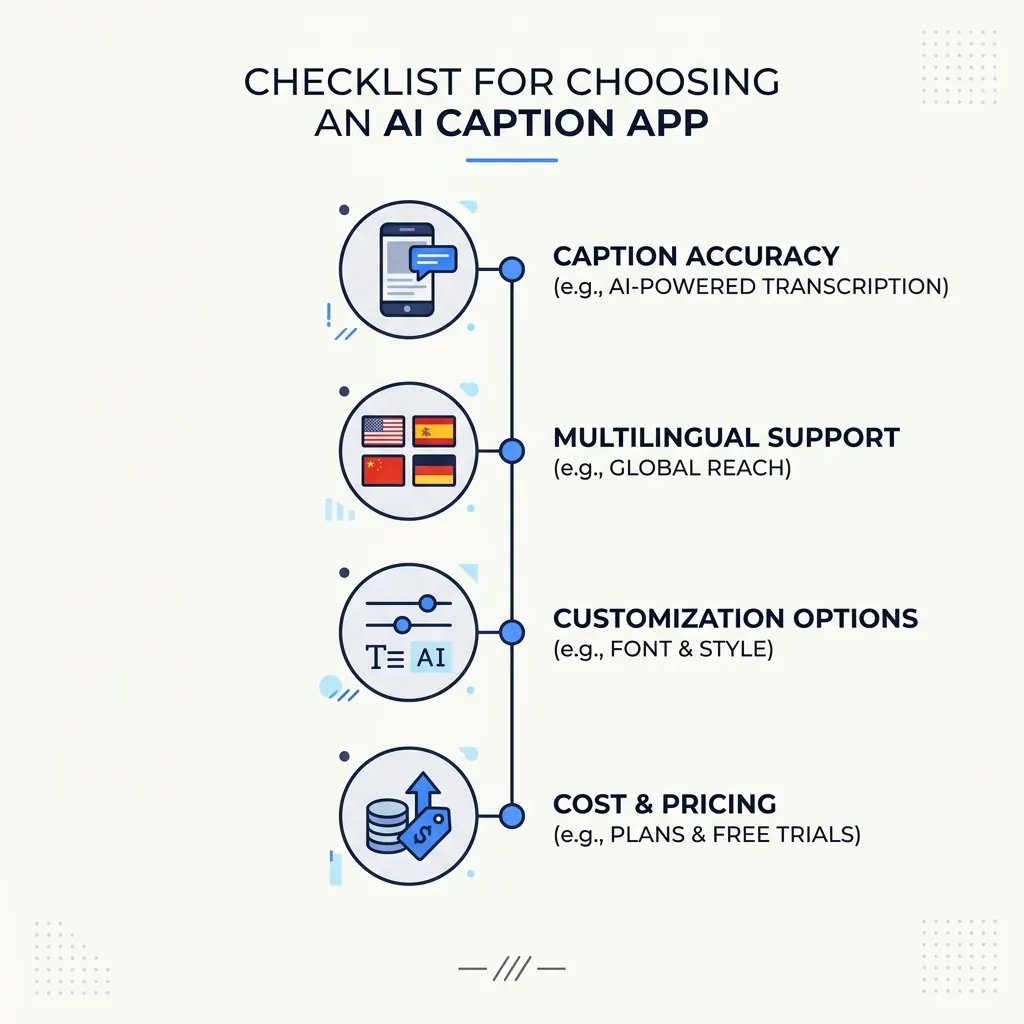
What AI Caption Apps Do — and Who Actually Needs One
An AI caption app is software that automatically converts the spoken audio in your video into synchronized text displayed on screen — no manual typing required. You upload a video (or record directly in the app), the AI processes the audio, and captions appear timed to your speech.
Three types of creators benefit most:
- Short-form social video creators — TikTok, Instagram Reels, and YouTube Shorts audiences scroll fast and often watch without sound. Captions are not a nice-to-have here; they are how most viewers follow along. Research consistently shows that captions improve video engagement and watch time on social platforms.
- Educators and long-form YouTubers — accuracy matters more at longer lengths, and the ability to correct errors and export in flexible formats becomes important.
- Businesses, marketers, and agencies — multilingual reach, accessibility compliance, and multi-platform publishing are priorities that go beyond what a simple caption app typically handles.
It is also worth drawing a clear line early: some tools are caption-only apps — they generate, style, and export captions, and that is the full scope. Others are all-in-one AI video platforms that include captioning as one part of a broader editing and publishing workflow. Which type you need depends entirely on what else you have to do with your video.
A TikTok creator who films on their phone and needs captions live in five minutes needs something different from a marketing team publishing to seven platforms on a weekly production schedule. Both use "AI captions" — but the right tool for each looks nothing alike.
What to Look for in an AI Caption App: The Criteria That Actually Matter
A long feature list is not a decision framework. These six criteria are the ones that determine whether an app actually works for your content, your platform, and your budget.
1. Caption Accuracy Every app claims high accuracy. What that means in practice depends on your specific content. AI captioning performs best on clear speech, standard accents, and controlled audio environments. It struggles with strong regional accents, fast delivery, crosstalk (multiple speakers), background noise, and specialized vocabulary — medical, legal, or technical terms the model has not seen frequently. The only reliable test is uploading a sample of your own content before committing to a tool.
2. Language and Translation Support Raw language count is a marketing number. An app that lists 100 supported languages may perform reliably on 20 of them. Quality per language — especially for non-English content — varies significantly across tools. If you need multilingual captions, test your specific language with realistic content, not a clean demo clip.
3. Platform Fit TikTok, Instagram Reels, YouTube Shorts, and LinkedIn each have different aspect ratios, caption placement conventions, and style expectations. A tool built for YouTube may not export correctly formatted captions for a vertical Reels video. Check whether the tool supports the specific platforms in your workflow — not just "social media" in general.
4. Mobile vs. Web Availability Some tools are web-only or browser-first. If you film on your phone and want to caption without sitting at a computer, you need a mobile-native app available on iOS or Android. This distinction matters more than most review sites acknowledge, and it is worth confirming before you invest time learning a tool.
5. Free Tier Honesty Most tools offer a free tier. What that free tier actually includes varies widely — and the limits are often not obvious until you hit them. Common restrictions include: a monthly cap on processing minutes, a watermark burned into exported videos, limited language access, or a maximum video length. Build a workflow around a tool before understanding its free tier ceiling, and you will eventually face a hard stop at the worst moment.
6. Pricing Transparency at Paid Tiers When the free tier stops being sufficient, what does paid actually unlock — and what does it cost? Some tools have clear, published pricing. Others require a demo call or hide plan limits behind vague tier names. Transparent pricing is itself a quality signal.
Before you commit to any AI caption app, run through this checklist:
- Caption accuracy: Does it handle your accent, speech speed, and vocabulary? Upload a real sample — not a clean demo — before deciding.
- Language support: Does it support your language with reliable quality, not just as a checkbox on a feature list?
- Free tier limits: What is actually free — processing minutes per month, watermark-free exports, video length cap? Check before building a workflow.
- Mobile availability: Is there an iOS and Android app, or is it web-only? Confirm before downloading.
- Platform fit: Does it export correctly formatted captions for your specific target platform — TikTok, Reels, Shorts, YouTube?
- Error correction ease: How easy is it to fix mistakes in the editor before you export? A clunky editor adds friction back into a workflow you are trying to streamline.
- Pricing transparency: Are paid plan limits clearly disclosed before you sign up, or do you need to book a call to find out?
Top AI Caption Apps Compared: Features, Free Tiers, and Platform Support
The table below covers the leading tools across consistent criteria. Scan it first to orient yourself, then read the prose summaries for the tools most relevant to your workflow.
| App | Best For | Caption Accuracy Notes | Free Tier | Mobile App | Platform Support | Starting Price |
|---|---|---|---|---|---|---|
| Captions.ai | Short-form mobile creators (TikTok, Reels) | Strong on clear English; may struggle with heavy accents or fast speech | Limited free tier; exports may include watermark | iOS and Android | TikTok, Reels, Shorts | Free tier available; paid plans start around $7–9/mo |
| CapCut | Short-form creators wanting captions + editing | Reliable on standard speech; quality dips on accented or overlapping audio | Generous free tier; some export limits on longer videos | iOS and Android | TikTok, Reels, Shorts, YouTube | Free; paid tiers for advanced features |
| Submagic | Social video with styled, animated captions | Good on conversational English; animated styles may distract on longer pauses | Free tier with watermark; paid removes it | iOS and Android | TikTok, Reels, Shorts, YouTube | Free with watermark; paid from ~$20/mo |
| Descript | Podcasters, educators, long-form video | High accuracy on clear speech; text-based editing simplifies corrections | Free tier limited to ~1 hour transcription/mo | Web-first; limited mobile | YouTube, export to most platforms | Free tier available; paid from $24/mo |
| AutoPod / Riverside | Podcast and multi-speaker video creators | Good accuracy; struggles with heavy crosstalk or low-quality audio | Free tier with usage limits | Web and limited mobile | YouTube, export-based distribution | Free tier; paid from ~$15–29/mo |
| GotReach | Agencies and teams needing full production workflow | Captioning is one component of a broader AI video platform; accuracy not independently benchmarked | 30-day free trial; no ongoing free tier | Web platform; mobile availability not confirmed | Publishes to seven platforms from a single workflow | See plan details |
Note: Pricing figures for third-party tools are approximate and subject to change. Verify on each tool's pricing page before committing.
Brief Summaries
Captions.ai is built for mobile-first creators who want a fast path from filming to captioned video. The app handles styling, timing, and export in a few taps. The trade-off: the free tier includes watermarked exports, and accuracy on non-standard speech can require more manual correction than competitors.
CapCut combines video editing and auto-captioning in one app, which is why it has become a default for TikTok creators. The free tier is more generous than most, and the editing tools reduce the back-and-forth between a caption app and a separate editor. The limitation is platform — it is optimized for short-form vertical video, and the workflow does not extend naturally to long-form or multi-platform needs.
Submagic focuses on styled, animated captions designed to increase engagement on short-form platforms. If visual caption design matters to you — fonts, highlight effects, animations — it is purpose-built for that. The free tier adds a watermark; removing it requires a paid plan. Worth noting: animated captions can be distracting if your content is not optimized for that style.
Descript approaches captioning differently: it transcribes your video into a text document and lets you edit the video by editing the text. For long-form creators and podcasters, this is genuinely useful — correcting a caption error is as simple as fixing a typo. The trade-off is the learning curve; it is more complex than a one-tap caption app, and the free tier caps monthly transcription hours.
Riverside (and AutoPod for podcast editing) targets multi-speaker recording and podcast creators. Caption quality is solid for clear, well-recorded audio, but crosstalk and low-quality recordings introduce more errors. The platform is primarily web-based.
GotReach is not a caption-only app and should not be evaluated on captioning features alone. It is an AI-powered platform built for businesses, agencies, and enterprise teams who need to produce, caption, schedule, and publish video across seven platforms from a single workflow. If your challenge is caption accuracy for a single video, GotReach is not the right tool. If your challenge is producing and distributing high volumes of content without scaling your team's workload, it belongs in the conversation.
Where AI Captions Fall Short — and How to Fix It Before You Publish
AI captioning produces a draft, not a finished product. Understanding where the draft breaks down — and how to catch it quickly — is the difference between a polished video and one that undermines your credibility.
The Four Common Failure Scenarios
1. Strong or regional accents AI transcription models are trained predominantly on standard American or British English audio. Speakers with strong regional or non-native accents will see higher error rates. Independent accuracy benchmarks confirm that accent diversity remains one of the most consistent performance gaps across AI transcription tools. This does not mean the tool is unusable — it means the review pass matters more.
2. Fast speech A fitness creator calling out reps while demonstrating a move, a comedian delivering rapid-fire punchlines, or a presenter who talks at 180 words per minute — all of these push AI captioning toward more errors. Slowing down slightly for the camera is not just good presentation practice; it produces more accurate captions.
3. Background noise and overlapping speakers Recording in a noisy environment — outdoor shoots, busy offices, event coverage — introduces errors proportional to the noise-to-speech ratio. Crosstalk (two people speaking simultaneously) is particularly problematic; most tools caption only one speaker cleanly at a time.
4. Technical or industry-specific vocabulary Medical, legal, financial, and technical creators use terminology that general-purpose AI models have seen infrequently. "Hypertrophy" becomes "hypertrophy," or it becomes something else entirely. Always check specialized terms manually.
Treating AI Output as a First Draft
The right mental model is this: AI captioning gives you a strong first draft in seconds. Your job is a quick quality pass before publishing — not a full rewrite. For most standard content in major languages with clear audio, the corrections will be minor. For edge cases, they will be more.
Before you publish, run through this caption review:
- Watch the full video with captions visible — do not skim.
- Flag any word that is wrong, missing, or sounds wrong in context.
- Check timing: do captions appear at the right moment, or do they lag or jump ahead?
- Spot-check speaker identification if you have multiple speakers.
- Look for any specialized terms, names, or brand words that were mistranscribed.
- Confirm the caption style (font, placement, size) looks correct for the platform you are publishing to.
- Export and preview before final publish — what looks right in the editor sometimes renders differently.
Which AI Caption App Is Right for Your Use Case?
| If you are... | Your priority is... | Best-fit tool type |
|---|---|---|
| A short-form social creator on TikTok, Reels, or Shorts | Mobile-native app, fast processing, platform-specific formatting | Caption-focused mobile app (Captions.ai, CapCut, Submagic) |
| A YouTube educator or long-form creator | Accuracy on longer recordings, easy error correction, export flexibility | Text-based editing platform (Descript) or caption tool with export options |
| A business or marketer needing multilingual or accessibility captions | Language quality depth, accessibility compliance features, reliable export | Tools with documented multilingual support tested on your specific language |
| An agency or team managing high-volume, multi-client content | Captioning + editing + scheduling + multi-platform publishing in one system | All-in-one video content platform (GotReach) |
Short-Form Social Creators
If you are publishing primarily to TikTok, Instagram Reels, or YouTube Shorts, your priorities are speed and formatting. You need a tool that works on your phone, processes quickly, and exports captions in the right aspect ratio and placement for vertical video. Caption-focused mobile apps handle this well. The trade-off is scope — these tools do one thing, and if your workflow grows to include scheduling or multi-platform publishing, you will eventually outgrow them.
YouTube Educators and Long-Form Creators
Longer videos amplify every accuracy problem. A 2% error rate across a 30-minute video is a lot of corrections. Tools with text-based editing — where you fix a caption by editing a word in a transcript — make that process significantly faster than clicking through a timeline. Export flexibility also matters: YouTube's subtitle workflow is different from short-form platforms, and you may want an SRT file (a subtitle file format that carries caption text and timing information) for upload rather than burned-in captions.
Businesses and Marketers Needing Multilingual or Accessibility Captions
Accessibility requirements for video content are real and increasing. Captions serve deaf and hard-of-hearing viewers directly — and accessibility standards in many markets increasingly expect or require them for professional and institutional content. Language quality at scale requires more than a feature checkbox: test your specific languages with real content samples before committing to any tool for multilingual campaigns.
Agencies and Teams Managing High-Volume, Multi-Client Content
Caption-only apps create workflow gaps at scale. When you are managing dozens of videos a week across multiple clients and platforms, the problem is not just captioning — it is the full production and distribution cycle. Logging into separate tools for editing, captioning, scheduling, and publishing is where time disappears.
GotReach is built for exactly this segment: an AI-powered platform that handles video production, editing, scheduling, and publishing across seven platforms from a single workflow. The proof point worth knowing: GotReach can produce high volumes of content from a single idea — the platform references 300 videos in 30 minutes as a supported output benchmark. That is a different scale than any caption-only app is designed for.
If you are managing content at that volume, a 30-day free trial is a practical way to evaluate whether a unified platform removes more friction than a stack of single-purpose apps. The trial covers the full workflow — not just captioning.
Frequently Asked Questions About AI Caption Apps
Are AI-generated captions accurate enough to publish without editing?
For most standard content — clear speech, standard accent, quiet environment — AI captions are close enough that corrections are minor and take just a few minutes. They are not accurate enough to skip the review entirely. Fast speech, strong accents, background noise, and specialized vocabulary all increase the error rate meaningfully. Treat the AI output as a strong first draft and do a quick pass before publishing.
What is the best free AI caption app with no watermark?
Free tiers vary significantly by tool. Most add a watermark to exported videos unless you upgrade; some cap processing minutes per month; others limit video length or language access. CapCut currently offers one of the more generous free tiers for short-form video without a watermark on standard exports — but check the current terms, as these policies change. The safest approach: confirm the watermark and export policies before building a workflow around any free tier.
Can AI caption apps handle multiple languages and translations?
Yes, most tools support multiple languages — but quality varies significantly by language. English-language performance is typically the strongest. For languages outside the top 10–15 by model training data, accuracy can drop noticeably. If multilingual captioning is a core requirement, test your specific language with a realistic content sample before committing. Raw language count on a feature page is not a reliable quality signal.
Do AI caption apps work on Android and iPhone?
It depends on the tool. Captions.ai, CapCut, and Submagic all have iOS and Android apps and are designed for mobile-first workflows. Descript and Riverside are primarily web-based, with limited or no mobile app support. GotReach is a web platform and mobile availability is not confirmed. Check the App Store or Google Play listing before assuming a tool works on your phone.
What is the difference between subtitles and captions?
Captions are designed for accessibility: they include not just spoken dialogue but also speaker identification and descriptions of relevant sounds (music, laughter, sound effects) so that deaf and hard-of-hearing viewers have the full context of the video. Subtitles are translations of spoken dialogue for viewers who can hear but speak a different language. In practice, many AI apps use the terms interchangeably — but the distinction matters when accessibility compliance is a requirement.
How do AI caption apps handle background noise or fast speech?
Not well, generally. Background noise and fast speech are the two most consistent sources of captioning errors across all AI tools. Background noise reduces the model's ability to isolate the voice signal; fast speech outpaces the model's confidence on individual words. The practical fix: record in a quiet environment, speak at a measured pace when possible, and always do a review pass on content recorded in non-ideal conditions.
The Bottom Line
There is no universally best AI caption app — and any page that tells you otherwise is selling something. The right tool depends on where you publish, how you work, what languages you need, and how much volume you are managing.
For most individual creators, a dedicated mobile caption app will do everything you need. For teams managing multi-client, multi-platform content at scale, captioning is one piece of a larger workflow problem — and a caption-only app is not the solution.
If you are in that second category — or you are building toward it — see how GotReach plans and pricing work and start with the 30-day free trial. No commitment, full workflow access, and a practical way to find out whether centralized production and publishing removes the friction that caption apps alone cannot solve.