How a Social Media Scheduling Tool Gets Your Post Live
Record once. Schedule the week.
If you make short videos, you know the weight. Every app wants something new, every day. Falling behind isn't a character flaw. It's what happens when you try to do everything at once.
A scheduling tool makes that a smaller job. You finish a batch of videos. You set when each one goes out. Then you check that it did. This guide shows how that works, where it breaks, and when the free tools inside each app are enough.
How do social media scheduling tools work?
A scheduler holds your finished post and publishes it at the time you set. It can only do that because the platform lets it in. You connect your account and grant permission. The tool then posts through the platform's official access. If the platform doesn't allow your format or account type, the tool can't publish.
That access is newer than you might think. Before Instagram opened official publishing to tools, schedulers could only send a push reminder. You still posted by hand. Even now, each platform sets its own limits on what tools can post. Posting inside the app itself stays open alongside it.
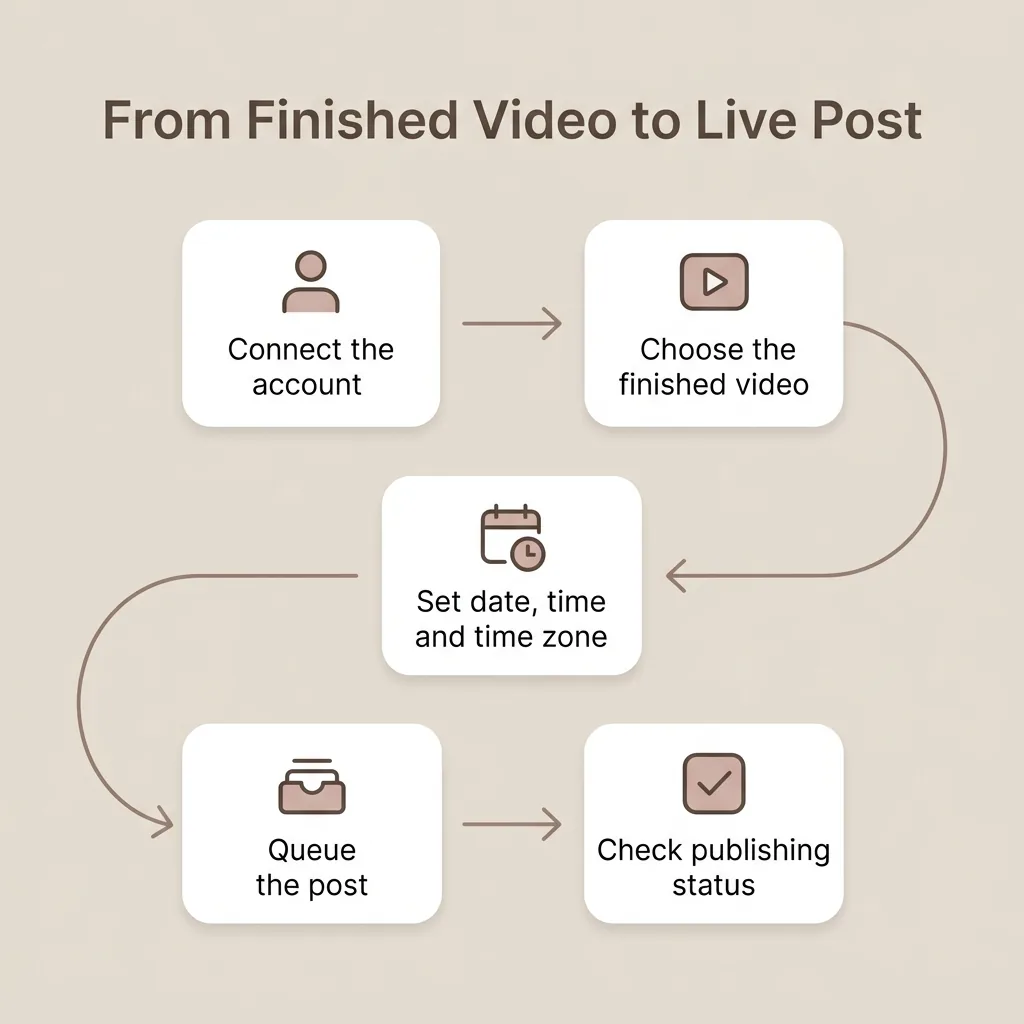
Here is the full path from finished video to live post:
- Connect the account. Sign in to the platform through the tool and grant permission. Check you picked the right account.
- Choose the finished video. Pick one you've watched and approved. Not a raw clip.
- Write the description. Add the caption text, hashtags and any links the platform allows.
- Set the date, time and time zone. Don't assume the time zone. Check it. Instagram's own suggested times use your current time zone and your followers' activity over the last 28 days.
- Queue it. The post waits in the schedule until its time.
- The tool publishes. At the set time, it sends the post through the platform's access.
- Check publishing status. Look after it goes out. Don't assume it worked.
When a post fails, it's usually one of three things. The connection lapsed. The format isn't supported. Or the account type isn't allowed.
Connections expire by design. The LinkedIn developer documentation says access tokens last 60 days by default. Refresh tokens last a year. After that, you must sign in again. Other platforms have their own rules. The fix is the same. Reconnect the account. Check the format and account type. Then reschedule.
In GotReach, scheduling sits next to video creation and your media library. The workflow has four steps: choose content, prepare the post, set the schedule, and check publishing status. You can see it on our social media scheduling page.
Interactive sample with fictional data. Nothing is published, sent, or saved to an account.
Want the longer version, from a batch of videos to a sequenced plan? Read how to schedule social media posts from a batch of videos.
Is a scheduling tool better than scheduling posts natively in each social app?
Not always. Native scheduling is free and built into each app. For one account and a few posts a week, it may be all you need. A connected tool earns its place when you run a batch of videos across several accounts. Then having the posts, their status and the results in one view saves real time.
The major apps now schedule in-app. For years, people who managed Instagram relied on outside tools for it. That changed. Native scheduling still has gaps, though. On Instagram, product tagging, collaborative posts, sponsored posts and fundraisers don't work with scheduled content for now.
Outside tools have limits too. Third-party scheduling can't do everything native features can. We'd rather say that plainly.
| Native scheduling in each app | Connected scheduling workspace | |
|---|---|---|
| Platforms per place | One app, one platform | Several connected accounts in one place |
| Formats and platform-only features | The app's own formats. Some features don't work with scheduled posts | Only what the platform lets tools publish |
| Editing a queued post | Instagram: delete, edit, reschedule or share now. Facebook on mobile: delete and recreate | In GotReach: edit the description, scheduled time and platform before it publishes |
| Batch scheduling | Post by post, app by app | Built for scheduling a batch |
| Analytics alongside the posts | Separate in each app | Next to the posts in one workspace |
| Team or multi-account use | Access set app by app | Accounts and seats set by plan |
Use native if:
- You run one or two accounts.
- You post a few times a week.
- You need a feature that only works when you post in the app.
Use a tool if:
- You run several accounts.
- You record in batches and schedule many videos at once.
- You want status and results next to the posts.
- More than one person touches the schedule.
GotReach keeps the workflow connected. Recording, editing, captioning, scheduling, analytics and conversation management sit in one workspace. See how that fits on our video-first social media management page.
Interactive sample with fictional data. Nothing is published, sent, or saved to an account.
Weighing options by where your work gets stuck? Our comparison of scheduling tools for video walks through it.
The number of accounts matters too. As of October 2026, the Free plan includes 30 monthly video generations and 1 social account. Starter includes unlimited video generation and 4 social accounts. Premium includes unlimited generation, 7 social accounts, an enterprise workspace, and additional seats for a per-seat monthly price. Choose a plan that matches your needs on our pricing page.
How do you schedule posts for a Facebook page?
Use a Facebook Page or a profile in pro mode. Both can schedule posts right on Facebook. You can also schedule through a connected tool if you have the right Page access. Tools can't post to personal profiles or Groups. Pick one path below. Then confirm the post went live.
The Meta Help Center guide to scheduling Facebook posts covers the native path in full.
Path 1: Schedule in Facebook itself
- Open your Page, or your profile in pro mode.
- Create your post as usual.
- Open Post settings.
- Choose a time to publish. Or use the recommended times, based on when your followers are most active.
- Schedule the post.
- To review it, tap Manage Posts on your Page or profile.
- To change it on mobile, tap Manage Posts. Delete the post and recreate it.
Path 2: Schedule through a connected tool
- Check that you're posting from a Page, set up as a business or professional account.
- Check your Page access. You need content access to create and manage posts.
- Connect the Page in the tool and grant permission.
- Choose the finished video. Write the description.
- Set the date, time and time zone.
- Queue the post.
- Check publishing status after it goes out.
Page access, in plain words. Content access lets a person create, manage or delete posts, Stories and more. People with task access manage the Page from other Meta tools for business and ads. The Meta Help Center page on Facebook Page access lists every type.
Page, profile or Group? Facebook no longer lets apps post to personal profiles. Meta also cut off outside tools' access to Groups. So a scheduler can only post to a Page. For a profile or a Group, post in Facebook by hand.
In GotReach, Facebook and Instagram need to be business or professional accounts before we can publish to them. You need connected social accounts before you can publish. Social platforms decide which account types can connect to tools like GotReach. Check the details on our FAQ.
You can disconnect at any time. Open GotReach, go to Settings, choose Social Accounts, select the account, and choose Disconnect. Disconnecting removes the stored Meta access credential and stops publishing, analytics refreshes, inbox activity, and webhook processing for that account.
Last step: confirm it went live. Open the Page and find the post. If you used a tool, check its publishing status too.
How far in advance should you schedule social media posts?
For most short videos, two to four weeks ahead is a sensible window. There's no official standard. Platforms set the ceiling, and people who do this daily share rules of thumb. Fill evergreen posts a few weeks out. Plan campaigns further ahead. Keep anything timely out of the queue. Review weekly.
Start with the ceiling. The Meta Help Center page on Instagram scheduling says you can schedule up to 30 days ahead without a subscription. With a Meta One plan, it's up to 365 days.
Just because you can doesn't mean you should. A social media software company says most teams schedule regular content one to two weeks ahead. It puts big campaigns and seasonal content at four to six weeks. A communications agency suggests two to four weeks. Its reason is simple. Social media moves fast, so posts need to stay timely.
| Content type | Common lead time | Review the queue |
|---|---|---|
| Evergreen tips and answers | 2 to 4 weeks | Weekly, when you record the next batch |
| Campaigns or seasonal posts | 4 to 6 weeks | Weekly, plus a final check before launch |
| Timely or trend posts | Don't queue. Post the same day | Not needed |
Size your recording session to the window. Post three times a week for four weeks, and you need twelve videos. Our repurposing guide splits one subject into twelve useful answers, organized by week. One recording session can become weeks of videos when you mix and match hooks and solutions. See how to repurpose one recording session into a month of short videos.
A batch of finished videos is the start of a consistent publishing plan.
Which social media posts should you avoid scheduling in advance?
Don't schedule anything that depends on today. That means breaking news, trend reactions, live events, sensitive topics and posts that need fast replies. Schedule prices and offers only with a review date. Evergreen how-tos are safe to queue. And if something serious happens, pause every scheduled post on every connected account.
Sort each post into one of three tiers.
Don't schedule
- Breaking news
- Trend reactions
- Live events
- Crisis-sensitive topics
- Posts that expect instant replies
Schedule with a review date
- Prices
- Offers and discount codes
- Stock or availability
- Event dates and deadlines
Safe to schedule
- Evergreen how-tos
- Answers to common customer questions
- Explainers about your service
The first tier stays manual for a reason. Social media moves quickly. A post about today belongs to today.
The pause rule: if a crisis hits, pause every scheduled post on every connected account. Then decide what goes back out.
The University of Florida College of Journalism and Communications calls posting scheduled content during a crisis a common mistake. Its advice is to pause right away, especially anything that could seem tone-deaf.
This isn't a new problem. During the Paris attacks, many people begged brands to stop normal posting. Most management tools had no simple emergency stop button. One team paused but missed one account. A scheduled tweet went out after they'd announced the pause. That isn't a failure of care. Pausing is just harder than it should be. Keep a short list of every connected account, and work through it.
In GotReach, you can schedule, track, and respond to posts. Your scheduled posts stay in view with their status. If a post hasn't been published yet, you can edit its description, scheduled time and platform from the post project tracking area.
One more check before anything joins the queue. Watch your finished video and check names, specialized words, timing, and readability of the captions before publishing.
Frequently Asked Questions
Do social media schedulers support Instagram Reels and TikTok?
Reels, yes, on eligible accounts. Meta's Reels tools let developers schedule and publish Reels on Instagram Business accounts. In the app, public accounts can schedule reels, photos and carousel posts.
TikTok is stricter. It vets developer partners through an audit before they can post for you. Some connections only drop the video into your TikTok inbox or drafts. A developer tools company's guide describes that flow. You open TikTok, review the video, finish any edits, and post it yourself.
In GotReach, you can schedule supported content to a connected Instagram account. You can plan Instagram posts from a finished video batch.
Supported formats, account eligibility, and direct publishing options depend on Instagram permissions and the connection available in GotReach. Do not assume every native Instagram effect, audio feature, or post format is available in a third-party scheduler.
Do social media scheduling tools post automatically or just send reminders?
Both exist. Before platforms opened official publishing, tools could only send a push reminder. You posted by hand. Now many connections publish for you. Some still don't. One automation service's TikTok action uploads the video and sends a notification to your TikTok inbox. You tap it, edit, then save a draft or publish.
GotReach handles the posting to connected accounts, with batch scheduling controls and publishing status tracking. The automation keeps your posting plan moving. You stay in control of the content.
What is the 5:3:2 rule for social media posts?
It's a content-mix ratio, not a daily quota. For every ten posts, you split them into three groups: five, three and two. In its common form, five share useful content from others. Three are your own. Two are personal posts that show the human behind the work. Treat it as a guide for balance, not a growth formula.
It fits batching well. One recording session can become weeks of videos when you mix and match hooks and solutions. Plan the mix before you record.
One batch. A calm week of posts. When you want that workflow in one place:
Start a partnership inquiry
Sources
- Microsoft Learn (LinkedIn developer documentation) — Refresh Tokens with OAuth 2.0 - LinkedIn | Microsoft Learn · retrieved October 22, 2026
- Meta Help Center — How to create and schedule Facebook posts with Meta One | Meta Help Center | Meta · retrieved October 22, 2026
- Meta Help Center (About Facebook Page access) — About Facebook Page access | Messenger Help Center · retrieved October 22, 2026
- Meta Help Center — How to schedule posts and reels further in advance on Instagram with Meta One | Meta Help Centre | Meta (en-gb) · retrieved October 21, 2026
- University of Florida College of Journalism and Communications — Social Media Crisis Communication and Management | UFCJC · retrieved October 22, 2026
- TechCrunch — Instagram now allows businesses to schedule their posts | TechCrunch · retrieved October 22, 2026
- Adweek — Instagram Adds Content Publishing API, Enabling Business Accounts to Schedule Posts · retrieved October 22, 2026
- WP Tavern — Facebook Shuts Down API for Publishing to User Timelines, Impacts Jetpack’s Publicize Feature – WP Tavern · retrieved October 22, 2026
- TechCrunch — Meta cuts off third-party access to Facebook Groups, leaving developers and customers in disarray | TechCrunch · retrieved October 22, 2026
- Hootsuite — How to create a social media posting schedule in 2026 · retrieved October 21, 2026
- Corporate Communications (agency) — How Far in Advance Should You Schedule Social Media Posts? · retrieved October 21, 2026
- TechCrunch — Instagram is testing an in-app scheduling tool for posts and reels | TechCrunch · retrieved October 22, 2026
- MarTech (Marketing Land) — Most Social Media Management Tools Still Lack “Emergency Stop” Button For Times Of Tragedy · retrieved October 20, 2026
- TechCrunch — Meta introduces Instagram Reels APIs for developers · retrieved October 22, 2026
- Engadget — TikTok now lets you post directly from third-party apps · retrieved October 22, 2026
- Netrows — TikTok Content Posting API: Requirements & Setup (2026) · retrieved October 22, 2026
- IFTTT — TikTok action: Upload video draft - IFTTT · retrieved October 22, 2026
- Social Media Today — How to Use The 5:3:2 Rule For Social Sharing | Social Media Today · retrieved October 21, 2026
- business.com — What Is the 5:3:2 Rule for Social Media and How to Use It · retrieved October 22, 2026