How to Add Captions to Video: Formats, Accuracy, and What Actually Works
Most creators already know they need captions. The friction is everything that comes next: which format does this platform actually require, will AI output be accurate enough to publish, and is the free tool going to slap a watermark on a client deliverable? This article resolves those three decisions in order, without making you read a product tour to get there.
Here is what you will leave with: a clear format-to-platform map, honest AI accuracy context, a five-step workflow you can follow today, and a use-case framework that tells you exactly which approach fits your situation.
Key Takeaways
- Burned-in captions are permanent and work everywhere; SRT and VTT files are editable and platform-specific. Getting the format wrong means your captions will not work where you publish.
- AI auto-captions are a strong starting point for clean audio and conversational content. They are not a finished product for compliance, legal, or technical content.
- Most free captioning tools add a watermark to exported video. That is fine for drafts, not for client-facing or monetized content.
- Your use case determines your format, your accuracy bar, and whether AI output is sufficient. The decision matrix below makes that match explicit.
- 69% of viewers watch video with the sound off, which means captions are not an accessibility afterthought. They are an engagement floor.
Captions, Subtitles, Open Captions, Closed Captions: What They Actually Mean
These terms get used interchangeably. They should not be.
Captions transcribe dialogue and include audio cues (music, sound effects, speaker identification) for viewers who cannot hear the audio. Subtitles transcribe dialogue only, on the assumption that the viewer can hear but does not understand the language.
Open captions (also called burned-in or hardcoded captions) are baked permanently into the video file. There is no toggle. Every viewer sees them, on every device, on every platform. A TikTok video with styled text overlaid on the clip is a common example.
Closed captions are viewer-toggled. The viewer clicks CC to turn them on or off. Closed captions require platform support to render correctly. A YouTube video where you click the CC icon is the standard example.
The accessibility stakes matter here. WCAG 2.1 Success Criterion 1.2.2 requires synchronized captions for prerecorded video in broadcast and many digital contexts. Open captions burned into a video file do not satisfy closed-caption compliance requirements on their own in most regulated contexts. If your content needs to meet ADA, WCAG 2.1, or Section 508 standards, closed captions with human review are the minimum.
For a deeper comparison of when to use captions versus subtitles and how the distinction plays out across platforms, see this breakdown of captions vs. subtitles and when to use each.
Caption Format Types: SRT, VTT, Burned-In, and Closed Captions -- When to Use Each
The format decision comes before the tool decision. Choose the wrong format and your captions simply will not work on the platform you are publishing to.
Burned-in captions are permanently encoded into the video file during export. They require no separate upload, work on every platform, and cannot be turned off or edited after export. They are the standard for TikTok and Instagram Reels, where external caption file uploads are not supported.
SRT files (SubRip Text) are plain-text files that contain timed caption entries. They upload separately from the video, are editable at any point, and are indexed by search engines when used on YouTube. Editing the SRT before publishing is standard practice. YouTube and LinkedIn both support SRT uploads natively. See YouTube's official documentation on supported caption file formats for format specifics.
VTT files (Web Video Text Tracks) are structurally similar to SRT but formatted for web-based video players and learning management systems. If your video lives in a web embed or an e-learning platform, VTT is typically the correct format.
Closed captions in platform terms refer to caption tracks that the viewer toggles on or off. On YouTube, these can be generated automatically, uploaded as an SRT or VTT file, or entered manually. They are the required format for ADA and WCAG compliance in most professional and regulated contexts.
| Format | Editable After Export | Best For | Platform Examples |
|---|---|---|---|
| Burned-in (Open) | No | Social short-form, universal compatibility | TikTok, Instagram Reels |
| SRT File | Yes | Long-form, indexable transcripts | YouTube, LinkedIn, Facebook |
| VTT File | Yes | Web players, LMS tools | Web embeds, e-learning platforms |
| Closed Captions | Yes (viewer-toggled) | Accessibility compliance, broadcast | YouTube, streaming, enterprise video |
How Accurate Are AI Captions Really? What Affects Transcription Quality
AI caption accuracy is not a fixed number. The tools that advertise a specific percentage are not lying about their best-case conditions. They are just not telling you about the conditions where accuracy drops significantly.
AI auto-captions perform well when audio is clean, the speaker is singular, the vocabulary is conversational, and the recording environment is quiet. In those conditions, the output is usually close enough to publish after a single read-through.
Accuracy degrades when any of the following are present: strong regional accents or non-native pronunciation, background music or ambient noise layered over speech, technical jargon or brand-specific terminology the model has not seen, multiple speakers talking in quick succession or over each other, and audio recorded on a phone or in an echo-prone environment.
Medical terminology, proprietary product names, and legal phrasing are the most common failure categories. A clean studio monologue will transcribe near-perfectly. A panel discussion recorded at a conference will require meaningful correction.
For a deeper look at how to evaluate captioning tools based on accuracy criteria for your specific content type, see this guide to AI caption accuracy and tool selection.
Your video probably needs manual caption review if:
- Speakers have strong regional accents or non-native pronunciation
- Background music or ambient noise overlaps with speech
- The content includes technical jargon, brand names, or industry terms
- Multiple speakers talk over each other or in quick succession
- The audio was recorded on a phone or in a noisy environment
- The content will be used for legal, medical, compliance, or accessibility purposes
How to Add Captions to a Video: A Step-by-Step Workflow That Works Across Tools
The process is not technically complex. It is just slow when done video by video. Here is the workflow regardless of which tool you use.
-
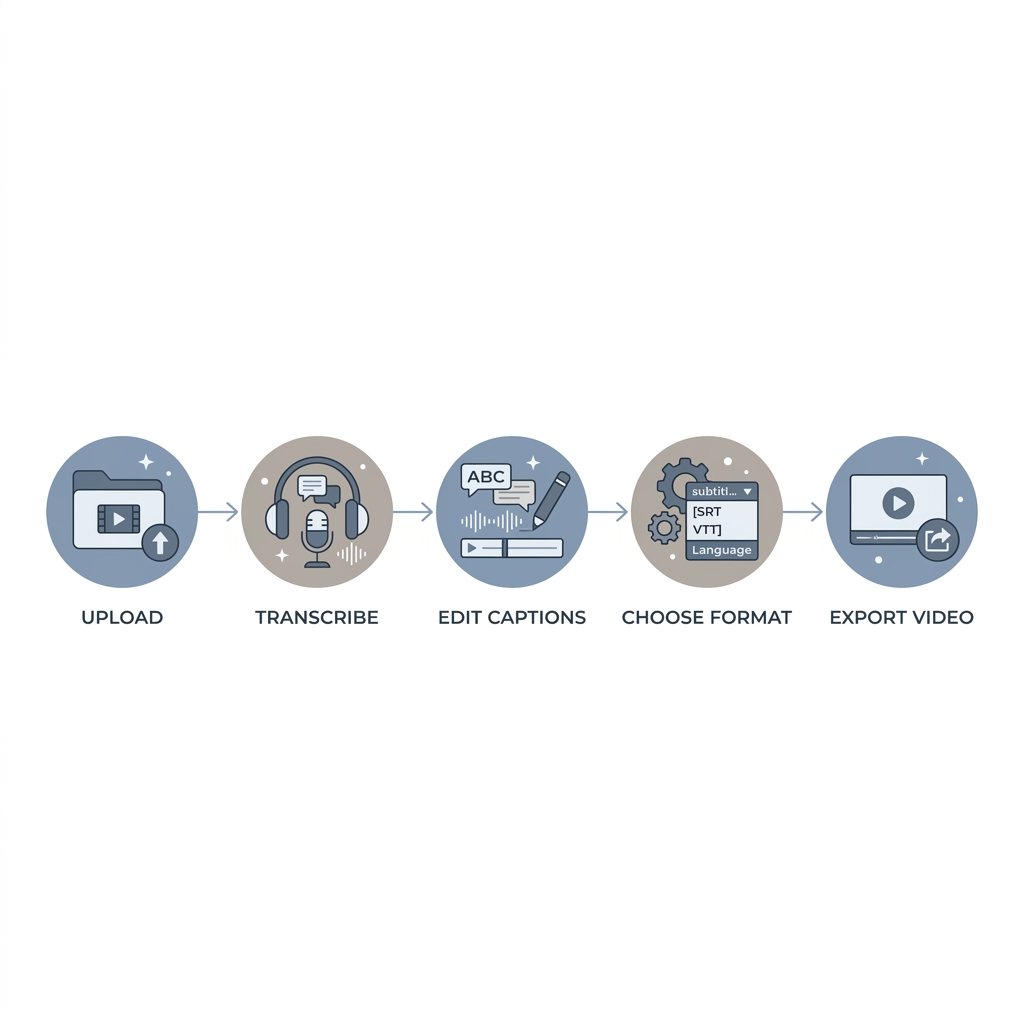
Upload your video or audio file to a captioning tool. Browser-based tools process files on a cloud server. If your content is sensitive, client-confidential, or proprietary, check the tool's data handling policy before uploading. For most content, this is not a concern. You can start auto-captioning your video with GotReach's caption generator directly from your browser.
-
Run auto-transcription and read through the output before doing anything else. One pass catches obvious errors before you commit to an export format. Do not skip this step even if your audio is clean.
-
Edit timing, speaker labels, and text as needed. Correct any words the AI misread, adjust caption timing if sentences feel rushed, and add speaker labels if your content has multiple voices. For detailed editing guidance, see how to edit video captions with AI and manual correction rather than expanding that process here.
-
Choose your output format based on where you are publishing. Refer back to the format table above. TikTok and Instagram Reels need burned-in captions exported with the video. YouTube, LinkedIn, and LMS platforms accept SRT or VTT file uploads.
-
Export and upload or embed. Burned-in captions require a full video re-export. SRT and VTT files are lightweight text files that upload separately in seconds. Most platforms have a dedicated caption upload field in the video settings.
That is the single-video workflow. It takes five to ten minutes per video with most tools. GotReach compresses that entire sequence into an automated system that produces 300 videos in 30 minutes from a single idea. Your voice stays in every clip.
Which Captioning Approach Is Right for Your Use Case
Identify your use case below. The format, accuracy bar, and whether AI auto-captions are sufficient are already decided once you know which row you are in.
| Use Case | Recommended Format | Accuracy Bar | AI Auto-Captions Sufficient? |
|---|---|---|---|
| TikTok / Reels / Shorts | Burned-in | Casual | Usually yes, with a quick review |
| YouTube long-form | SRT upload | Moderate to high | Yes, but edit before publishing |
| E-learning / training | SRT or VTT | High | Rarely -- manual review required |
| ADA / WCAG compliance | Closed captions | Very high | No -- human review required |
| Multilingual audiences | SRT with translation | High | Translate first, then human review |
For creators publishing across multiple platforms at volume, the per-video workflow breaks down fast. GotReach handles bulk creation and distribution across seven platforms from a single centralized workflow. 300 videos in 30 minutes. One system. Your voice stays authentic in every clip. If you are already captioning long-form content and want to turn it into short-form social clips, GotReach's content repurposing workflow is the natural next step.
Start your 30-day free trial today and see how GotReach helps businesses and people create and publish more.
Free vs. Paid Captioning Tools: What You Actually Get
Free tier pros and cons:
Free Tier
- Pros: No upfront cost, sufficient for personal or draft content, most major platforms generate auto-captions natively (YouTube adds captions without a watermark)
- Cons: Almost all free tools watermark exported video files, minute or file caps are standard (often 30 minutes of audio per month), no team or multi-account support, accuracy review features are typically gated
Paid Plan
- Pros: Watermark-free exports for client or professional content, higher or unlimited volume caps, accuracy correction and editing tools included, team access and multi-account workflows
- Cons: Monthly cost, overkill for one-off personal projects
A watermark on a client deliverable is not just aesthetic. It signals to the client that you used a free tool on their project. For professional or client-facing content, the cost of a paid plan is rarely the bigger issue.
Free tools are a legitimate starting point for low-volume or personal use. The limitations surface quickly when volume increases or the work goes to a client.
GotReach's free tier lets you create up to 30 videos per month with one connected social account. It is a real working tier, not a one-export preview. See how GotReach helps businesses and people create and publish more.
Frequently Asked Questions About Video Captions
What is the difference between captions and subtitles? Captions include dialogue plus audio cues (sound effects, music, speaker identification) for viewers who cannot hear. Subtitles include dialogue only, for viewers who can hear but need language translation. They are not interchangeable. For a full breakdown, see captions vs. subtitles: when to use each.
Do AI-generated captions meet ADA or WCAG accessibility requirements? Generally, no. WCAG 2.1 requires synchronized, accurate captions for prerecorded video. Auto-generated captions are a starting point, but human review is required before AI output can satisfy compliance standards in ADA, WCAG 2.1, or Section 508 contexts.
Which caption format should I use for YouTube vs. TikTok vs. Instagram? Use SRT for YouTube and LinkedIn -- upload the file separately after export. Use burned-in captions for TikTok and Instagram Reels -- these platforms do not support external caption file uploads, so the captions must be encoded into the video before export.
How accurate are AI captions? Accuracy depends on audio quality, speaker count, vocabulary, and recording environment. Clean audio with one speaker and conversational language performs well. Content with accents, background noise, technical terminology, or multiple overlapping speakers requires manual review. No tool produces a fixed accuracy rate across all content types.
Can I add captions to a video for free without a watermark? Most free third-party captioning tools watermark exported video. However, YouTube adds auto-captions to uploaded videos natively without a watermark, and you can also upload an SRT file to YouTube for free. For other platforms, watermark-free export typically requires a paid plan.
What is an SRT file and how do I use it? An SRT (SubRip Text) file is a plain-text caption file that contains timed dialogue entries. To use one, export it from your captioning tool and upload it in the caption settings of your video platform. YouTube's caption upload documentation walks through the process for that platform. LinkedIn uses the same upload workflow.
Ready to Stop Captioning One Video at a Time?
The format decisions are now clear. The accuracy bar is set. You know which approach fits your use case.
The part that remains is volume. Single-video captioning workflows do not scale when you are publishing consistently across platforms. GotReach produces 300 videos in the time a single-video editor takes to finish one. Seven platforms, one workflow. Your voice stays in every clip.
Start your 30-day free trial today and see how GotReach helps businesses and people create and publish more.