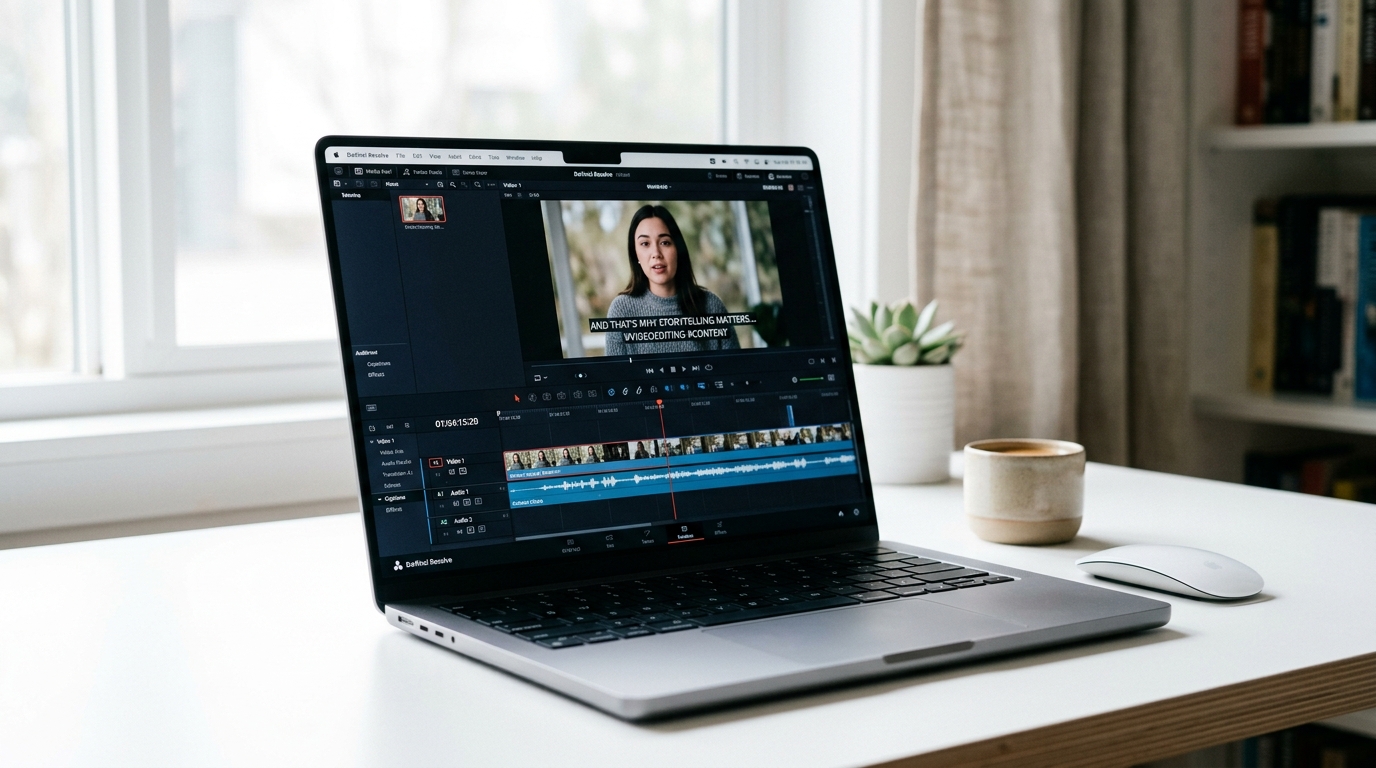
How to Caption Videos: Methods, Tools, Formats, and Best Practices
You have a video ready to publish and you know it needs captions. But should you upload an SRT file or burn the captions in? Does YouTube handle this differently than TikTok? And if your organization has legal obligations, does the free auto-caption tool actually satisfy them?
Those questions stop a lot of people before they start. This article covers every captioning method available, what file formats each platform actually accepts, and what compliance standards require for specific organizations. By the end, you will know exactly which approach fits your situation.
Key Takeaways
- TikTok and Instagram Reels require burned-in captions. You cannot upload a separate SRT or VTT file to those platforms.
- AI auto-captioning is fast and often accurate enough for casual content, but heavy accents, technical jargon, and compliance requirements call for human review.
- SRT is the safe default format for YouTube, Vimeo, and Zoom. VTT works for web-hosted HTML5 video. SCC is for broadcast only.
- WCAG 2.1 AA, ADA Title II/III, and Section 508 each define specific captioning obligations. AI-only captions typically do not satisfy compliance standards without human review.
- The right captioning method depends on your accuracy requirements, platform destination, content volume, and budget.
- Captions improve more than accessibility. They also affect SEO, sound-off viewership, and overall reach.
Why Captions Matter (It Is Not Just Accessibility)
Accessibility for deaf and hard-of-hearing viewers is the foundational reason to caption. But if accessibility were the only reason, a lot of content would go uncaptioned indefinitely. The reality is that captions serve multiple audiences at once.
Here is the full picture:
- Accessibility: Captions make video content usable for deaf, hard-of-hearing, and deafblind viewers who rely on visual text to understand audio.
- Sound-off viewing: Most people scroll social feeds without audio. On LinkedIn, Facebook, and Instagram, a video playing silently without captions communicates nothing. The message only lands when the text is visible.
- SEO and discoverability: Search engines cannot watch a video, but they can index a transcript. On YouTube especially, captioned videos benefit from having their spoken content treated as searchable text, which improves how they surface in results.
- Compliance: Higher education institutions, federal agencies, employers, and public accommodations face legal obligations under ADA, WCAG 2.1, and Section 508. A dedicated section later in this article covers who is affected and what those standards actually require.
- Engagement and watch time: Captioned videos tend to hold viewer attention longer. Sound-off viewers who might otherwise scroll past stay when they can read what is being said.
Think of captions less as an accessibility checkbox and more as a content strategy decision. They expand who your video reaches, how it gets discovered, and whether it satisfies legal obligations your organization may have.
Captions, Subtitles, Closed Captions, Open Captions: What Each Term Actually Means
These four terms get used interchangeably all the time, and the confusion has real consequences. Choosing the wrong approach because of a terminology mix-up can mean your captions do not show up on the platform you are publishing to. For a deeper look at the captions versus subtitles distinction, the difference between captions and subtitles is covered in detail separately. Here is the practical version:
| Term | What It Includes | Viewer Can Toggle | Typical Use Case |
|---|---|---|---|
| Captions | Spoken dialogue plus non-speech audio cues ([music], [applause]) and speaker identification | Depends on format | Videos for deaf or hard-of-hearing audiences; accessibility and compliance |
| Subtitles | Spoken dialogue only, usually translated into another language | Yes, when delivered as a sidecar file | Foreign-language films; multilingual audiences who can hear |
| Closed Captions | A separate text file (SRT, VTT) synced to the video; viewer controls visibility | Yes | YouTube, Vimeo, Zoom, web video with caption-capable players |
| Open Captions | Text burned directly into the video frame; always visible | No | TikTok, Instagram Reels, any platform that does not support caption file uploads |
The clearest practical example: a foreign-language film uses subtitles. A corporate training video for employees who are deaf uses closed captions. A TikTok clip uses open captions burned into the footage.
Why the distinction matters in practice: closed captions require a platform or player that can read and display a sidecar file. If you upload an SRT file to TikTok, nothing happens because TikTok does not support sidecar files. Open captions solve that problem but cannot be turned off, which some viewers find intrusive. Knowing which type your distribution channel requires determines which tool and export format you need before you start.
Captioning Methods Compared: AI, Manual, Hybrid, and Outsourced
There is no single right way to caption a video. The right method depends on how accurate the captions need to be, what platform they are going to, how much time you have, and whether compliance is on the table. Here is an honest breakdown of each approach.
AI Auto-Captioning AI auto-captioning generates captions automatically from the audio track using speech recognition. It is the fastest and lowest-cost option. For videos with clear audio, standard speech, and a single speaker, accuracy is often usable with minimal editing. Accuracy drops with heavy accents, multiple overlapping speakers, background noise, or domain-specific jargon (medical terms, legal language, product names). For casual content, a quick review pass is usually enough. For compliance-critical content, AI alone is not sufficient. If you want to explore an AI-first approach, GotReach's AI caption generator is a starting point worth testing.
Manual Captioning Manual captioning means a human types every word, adds speaker labels, and marks non-speech audio cues. It produces the highest accuracy of any method, but it is slow. A skilled captioner typically works at three to five times real time, meaning a 10-minute video takes 30 to 50 minutes to caption manually. This is the right choice for compliance-critical content where errors are genuinely unacceptable.
Hybrid (AI + Human Review) Hybrid captioning uses AI to generate a first draft, then a human editor reviews and corrects it. This is the recommended workflow for most professional use cases. You get the speed advantage of AI on the initial pass and the accuracy of human review on the output. The time cost is significantly lower than fully manual captioning because the editor is correcting rather than transcribing.
Outsourced Human Transcription Services For organizations that do not have the in-house capacity to review AI captions and need the highest accuracy ceiling, outsourced transcription services are the right fit. Cost is higher than any in-house method, but the accuracy is as high as the process allows. This works well for high-volume compliance-driven content, broadcast media, or legal and medical environments. For more on when AI accuracy is enough and when it is not, the AI captions accuracy and tool selection breakdown covers the decision in detail.
| Method | Accuracy | Speed | Cost | Best For |
|---|---|---|---|---|
| AI Auto-Captioning | Variable (high for clear speech, lower for accents/jargon) | Fastest | Free to low | Casual content, social video, high-volume first drafts |
| Manual | Highest | Slowest | Time-intensive | Compliance-critical content where errors are unacceptable |
| Hybrid AI + Human Review | Highest (practical) | Moderate | Mid | Professional video, institutional content, most volume use cases |
| Outsourced Human Service | Highest | Moderate | Higher | Legal, medical, broadcast, high-volume compliance environments |
Caption File Formats and Platform Compatibility: SRT, VTT, SCC, and Burned-In
Your captioning tool will ask you to choose an export format. The wrong choice means your captions either will not upload or will not display. Here is what each format is and where it belongs.
SRT (SubRip Text) SRT is a plain text file containing caption text with timestamps and sequence numbers. No styling, no font control. It is the most universally accepted caption format and works with YouTube, Vimeo, Zoom, and most media players. When in doubt, SRT is the safe default.
VTT (WebVTT) VTT is similar to SRT but adds support for styling (font, color, position). It is the native caption format for HTML5 video players and is also accepted by YouTube and Vimeo. If you are hosting video on a website with an HTML5 player, VTT gives you more control over how captions appear.
SCC (Scenarist Closed Captions) SCC is the broadcast television standard. It is relevant for content distributed through cable, satellite, or streaming services subject to FCC requirements. For most web-first content creators, SCC is not a format you will encounter.
Burned-In (Open) Captions Burned-in captions are not a file format. They are a delivery method where caption text is permanently embedded into the video frame during the export process. The resulting file is a video, not a text file. TikTok and Instagram Reels require this approach because neither platform supports uploading a separate caption file. Your captioning or editing tool must support video export with captions rendered in. Once burned in, captions cannot be removed or toggled off.
Platform Compatibility at a Glance
| Platform | Accepted Formats | Native Auto-Captions | Burned-In Required |
|---|---|---|---|
| YouTube | SRT, VTT | Yes | No |
| TikTok | Burned-in only | No (auto-captions via app, limited) | Yes |
| Instagram Reels | Burned-in only | Yes (via app sticker) | Yes for pre-produced captions |
| Vimeo | SRT, VTT | No | No |
| Zoom | Auto-native (live), SRT for recordings | Yes | No |
| Web / HTML5 Video | VTT, SRT | No | No |
A creator who captions in SRT and uploads to YouTube is fully covered. That same SRT file will not work on TikTok. The captions must be rendered into the video before it is uploaded.
How to Caption a Video: Step-by-Step Workflow
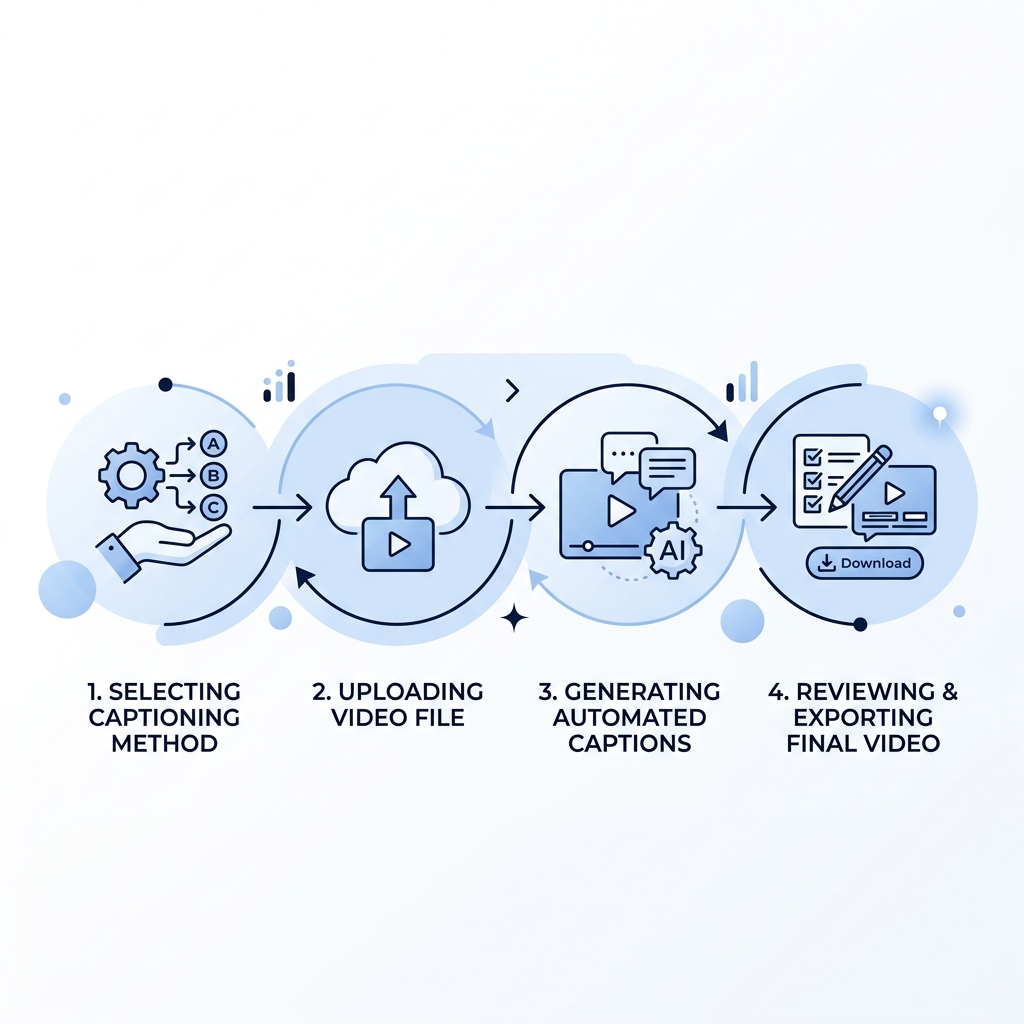
The process is the same regardless of which method or tool you use. The variables are which tool you choose in Step 2 and which format you export in Step 5.
-
Decide your method. Use the comparison table in the previous section. If the content is casual and the audio is clear, AI auto-captioning with a review pass is usually enough. If compliance is required, plan for hybrid or fully human captioning. If you are publishing to TikTok or Instagram, confirm your tool can export a burned-in video, not just an SRT file.
-
Choose your tool and upload the video. Upload your video file or paste the video URL into your captioning tool. For YouTube creators, YouTube Studio has a built-in auto-caption option that requires no upload to a third-party tool. For multi-platform creators and teams managing high video volume, a standalone captioning or content platform gives you more control over export formats.
-
Generate or create the captions. If using AI, let the tool process the audio and generate a draft caption file. Download the draft before you start editing so you have a backup. If captioning manually, work in a tool that shows the video and text simultaneously so you can sync timing as you go.
-
Review and edit for accuracy. This step matters regardless of method. Check speaker labels, caption timing, punctuation, and non-speech audio cues (label background music as [music], audience reactions as [applause], and so on). For AI-generated captions, pay close attention to proper nouns, acronyms, and any speaker with a strong accent or fast delivery.
-
Export in the correct format for your platform. SRT for YouTube and Vimeo. VTT for web-hosted HTML5 video. A burned-in video file for TikTok and Instagram Reels. For Zoom, recordings can be transcribed natively; live sessions use Zoom's built-in auto-captioning. If you are publishing across multiple platforms from the same source video, you may need to export more than one version. Managing that across seven platforms manually is where the process gets friction-heavy. GotReach's content repurposing workflow addresses exactly that problem for creators and teams publishing at scale.
-
Upload the caption file or publish the video. In YouTube Studio, go to the video's details page and select Subtitles to upload your SRT or VTT file. For TikTok and Instagram, upload the burned-in video file directly. For Vimeo, upload the SRT under the video's Advanced settings. Zoom recordings can have captions added in the Zoom web portal after the meeting.
Accessibility Compliance: Who Must Caption and What the Standards Require
Not every organization faces a legal captioning obligation, but specific ones do. Getting this wrong is not just a technicality.
Who must comply and under which standard:
- ADA Title II: State and local government entities, including public universities and schools. All video content with audio must be captioned.
- ADA Title III: Places of public accommodation (businesses open to the public). Online video published by these organizations can fall within scope.
- Section 508 of the Rehabilitation Act: Federal agencies and organizations receiving federal funding. All video content produced or procured must include captions. The Section 508 guidance on captions and transcripts details requirements for federally funded organizations.
- WCAG 2.1 Level AA: The most widely referenced web accessibility standard. It requires captions for all prerecorded video that includes audio. Many organizations adopt WCAG 2.1 AA either voluntarily or as part of legal settlements. The W3C's WCAG 2.1 captioning requirements are the authoritative reference.
- FCC rules: Apply to broadcast television content. Not typically relevant for web-only video.
What caption quality compliance actually requires:
Meeting compliance is not just about having captions. It is about caption quality. The DCMP Captioning Key is the widely recognized industry standard defining quality benchmarks. Requirements include accurate speaker identification when multiple speakers are present, non-speech audio cues labeled, appropriate reading speed (generally 120 to 180 words per minute), and accurate synchronization with the audio.
AI-only captions without human review are a compliance risk, not a solution. An auto-generated transcript with variable accuracy does not meet the DCMP standard or WCAG's accuracy expectation. A university posting lecture recordings to its LMS must caption them to satisfy ADA Title II and Section 508. A 15 percent error rate in AI captions is not compliant regardless of how fast the tool generated them.
Before publishing captions that need to meet compliance standards, confirm these boxes are checked:
- Captions are present for all prerecorded video content that includes audio (WCAG 2.1 AA requirement)
- Captions have been reviewed by a human editor, not published as AI-only output for compliance use cases
- Speaker identification is included when more than one speaker appears in the video
- Non-speech audio cues are labeled (e.g., [music], [applause], [laughter])
- Reading speed falls within the 120 to 180 words per minute range for most content
- Captions are properly synchronized with the corresponding audio throughout the video
- Caption file is in an accepted format for the delivery platform or LMS
Captioning Tools by Use Case: Matching the Right Tool to Your Situation
The best captioning tool is the one that matches your use case, not the one with the most features or the lowest price. Here is how to think about the landscape by situation.
YouTube-first creators: YouTube Studio's built-in auto-captioning is a zero-cost starting point. It works well for standard spoken English with clean audio and no specialized vocabulary. The output needs editing, but it handles the transcription step without requiring a third-party tool.
Short-form social creators (TikTok, Instagram Reels): You need a tool that exports a burned-in video file, not just an SRT. Burned-in caption styling (font, size, position) also matters for these platforms where visual presentation is part of the content. Most AI captioning tools support this export, but free tiers often add watermarks or cap monthly usage.
Compliance-required organizations (higher education, government, healthcare): AI auto-captioning is the draft, not the final product. You need a workflow that includes human review, ideally from an editor familiar with your content domain. If that in-house capacity does not exist, outsourced human transcription services are the appropriate tier.
High-volume content teams and agencies: The captioning step itself becomes manageable when you have the right tool. The harder problem is upstream: creating and formatting enough videos to fill the pipeline. Captioning 300 videos is a different problem than captioning 10. GotReach is built for this level of volume, enabling teams to go from a single idea to hundreds of publish-ready videos in one session across seven platforms. That reduces the upstream bottleneck that makes per-video captioning workflows collapse under pressure.
Free-tier limitations worth knowing as a category pattern: Most AI captioning tools apply watermarks, usage caps, or export format restrictions at the free tier. These are common enough to plan around regardless of which tool you use. GotReach's free plan allows up to 30 videos per month with one social account connected and no watermarks.
| Use Case | Recommended Tool Type | Free Option Available | Key Limitation |
|---|---|---|---|
| YouTube-first creator | YouTube Studio built-in auto-caption | Yes | Accuracy requires editing; no export control |
| Short-form social creator | AI captioning tool with burned-in video export | Often (with restrictions) | Watermarks or caps at free tier |
| Compliance-required organization | Hybrid AI + human review or outsourced transcription | Rarely at quality needed | AI-only output is insufficient for compliance |
| High-volume creator or agency | AI captioning platform with batch export | Sometimes | Per-video workflows do not scale; GotReach's AI caption generator addresses volume at scale |
| One-time or infrequent captioner | Any AI captioning tool with SRT export | Yes | May not support burned-in; check platform needs first |
Frequently Asked Questions
What is the difference between captions and subtitles?
Captions include all audio information: spoken dialogue, speaker identification, and non-speech sounds like [music] or [applause]. They are designed for viewers who cannot hear the audio. Subtitles include only spoken dialogue, usually translated into another language, and assume the viewer can hear but not understand the language.
What is the difference between closed captions and open (burned-in) captions?
Closed captions are delivered as a separate text file (SRT, VTT) that the viewer can toggle on or off using the player controls. Open captions are permanently embedded into the video frame and are always visible. TikTok and Instagram Reels require open captions because their players do not accept separate caption file uploads.
What caption file format should I use for YouTube, TikTok, or Instagram?
For YouTube and Vimeo, upload an SRT or VTT file. For TikTok and Instagram Reels, you must burn captions into the video before upload. Neither platform supports sidecar caption files. For web-hosted HTML5 video, VTT is the recommended format. For Zoom recordings, SRT is accepted in the web portal.
How accurate are AI-generated captions, and when do I need human review?
AI captions work well for clear audio, standard speech, and a single speaker. Accuracy drops noticeably with heavy accents, background noise, multiple overlapping speakers, or technical jargon. For compliance-required content, human review is not optional. For casual social content with clean audio, AI with a quick edit pass is often sufficient.
Are there legal requirements for captioning videos, and who must comply?
Yes. Higher education institutions must caption under ADA Title II and Section 508. Federal agencies and federally funded programs must meet Section 508 requirements. Businesses open to the public may fall under ADA Title III. Organizations with web video must meet WCAG 2.1 AA if they have adopted that standard or face legal requirements tied to it. FCC rules apply to broadcast television, not most web video.
How do I add captions to a video that is already uploaded?
For YouTube, go to YouTube Studio, open the video, select Subtitles, and upload an SRT or VTT file. For Vimeo, upload the caption file under Advanced settings on the video page. For TikTok and Instagram, captions must be burned into the video before the original upload. You cannot add a caption file to a video already posted on those platforms without re-uploading a new burned-in version.
Ready to Caption at Scale?
Understanding captioning methods, formats, and compliance requirements is the first step. The second is making sure your content volume does not turn every video into a manual project.
GotReach is built for creators, agencies, and teams who need to produce and publish video content at a pace that single-video workflows cannot match. One session, hundreds of publish-ready videos, across seven platforms. No watermarks on the free plan. No 5-to-10 minutes per video.
Start your 30-day free trial and remove the upstream bottleneck that makes captioning at scale feel impossible.