Best Caption Apps for TikTok: Honest Picks for Every Creator Type
Most TikTok viewers watch on mute. If your captions are missing, broken, or visually bland, you're losing watch time before you've said a word. TikTok's built-in auto-captions exist, but they fall short in ways the platform doesn't advertise. This article names a best-overall pick, breaks down real pricing and free-tier limits for five tools, and tells you exactly when TikTok's native option is actually enough.
Key Takeaways
- TikTok's native auto-captions are English-only, accuracy-limited, and offer no font customization, animation, or word-by-word styling. They are a starting point, not a strategy.
- CapCut is free and genuinely usable for low-volume creators, but accuracy drops noticeably with accents or fast speech.
- Submagic's word-by-word animations match the caption style you see on every viral TikTok. That's the point — and it's behind a paywall after the free trial.
- The right caption app depends on whether you prioritize style, accuracy, or speed, not which app has the most reviews or app-store stars.
- Free tiers are designed to convert you, not to serve you indefinitely. Know exactly where each cap hits before you build a workflow around it.
Why TikTok's Built-In Captions Aren't Enough
Research consistently shows that roughly 75% of mobile video is watched on mute, which means captions aren't an optional accessibility add-on for TikTok creators. They are the primary way most viewers experience your content. Caption quality is a content strategy decision.
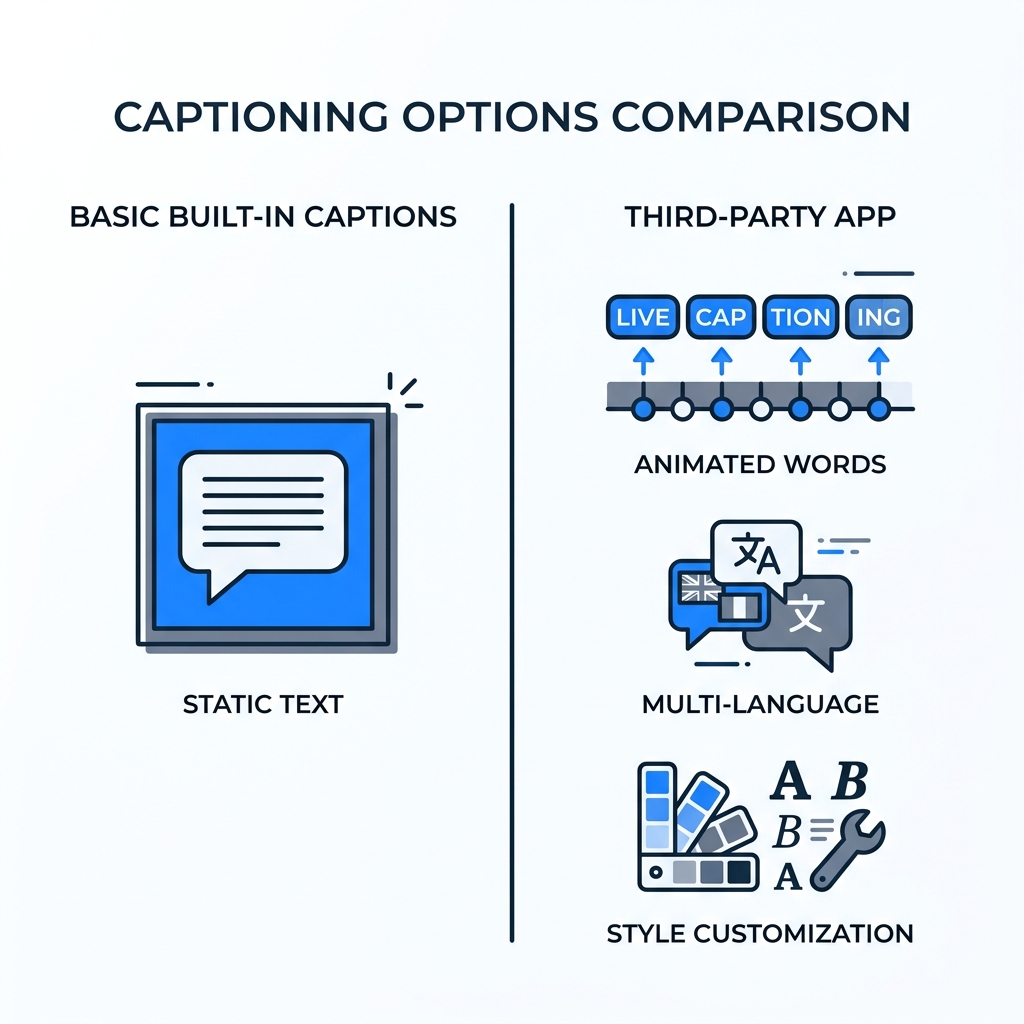
TikTok's native auto-caption feature was built for accessibility and convenience, not competitive content production. It delivers a single plain-text caption block in English. There is no option to change the font, add animation, highlight individual words, or control timing precisely. If your audio is clean and your speech is slow and accent-neutral, you will get something workable. If any of those variables shift, the accuracy drops fast.
A creator with a regional accent or fast delivery can expect accuracy somewhere around 60% with TikTok's native tool. That's not a number TikTok publishes, but it's enough to produce captions that confuse more than they help. And if you want the word-by-word karaoke style that drives completion rates on the For You Page, you will not get it here. (If you're new to the distinction between captions and subtitles for social video, this quick breakdown is worth the two-minute read before going further.)
When TikTok's native captions are sufficient:
- You post one to two videos per week in English
- Your audio is recorded cleanly with minimal background noise
- You speak at a moderate pace without a strong regional accent
- Visual caption styling is not a priority for your content
When native captions fall short:
- You have an accent, speak quickly, or record in noisy environments
- You post in any language other than English
- You want the word-by-word or karaoke animation style
- You need captions as a retention tool, not just an accessibility box-check
| TikTok Native Auto-Captions | Third-Party Caption App | |
|---|---|---|
| Accuracy | Moderate (drops with accents, speed, noise) | Moderate to strong (varies by tool) |
| Styling options | None | Word-by-word, animated, karaoke, full-sentence |
| Language support | English only | Multi-language (varies by tool) |
How to Choose the Right Caption App for TikTok
Most creators pick the wrong app because they search for "best caption app" instead of asking "what do I actually need captions to do?" The answer comes down to three variables.
1. Caption style is your priority. You want the animated word-by-word or color-highlight aesthetic. In this case, style and animation library matter more than raw transcription accuracy. You can fix a few word errors in editing. You cannot manufacture a visual aesthetic the tool doesn't support.
2. Transcription accuracy is your priority. You have an accent, speak fast, use technical vocabulary, or post in a language other than English. In this case, the accuracy signal matters most. A beautiful animation on a wrong word reads as unprofessional.
3. Workflow speed is your priority. You edit on your phone, you post frequently, and you want captions done in under two minutes with minimal correction. In this case, mobile availability and default simplicity are the filter.
A second question worth asking before you look at any tool: how many videos do you post per week? If the answer is one to three, most free tiers will hold you. If you're posting five or more, you will hit a free-tier ceiling quickly, and building a workflow around a free plan only to hit that wall mid-week is a predictable frustration.
For cross-platform creators who are repurposing TikTok content to Instagram Reels, YouTube Shorts, and other channels, a content repurposing workflow matters as much as the caption tool itself. Some apps export in formats optimized for TikTok only, which adds friction when you're distributing the same video elsewhere.
| Creator Type | Priority | Recommended Starting App | Why |
|---|---|---|---|
| Beginner (posts 1-3x/week) | Ease of use, speed | CapCut | Free, mobile-native, minimal learning curve — accuracy limitations are manageable at low volume |
| Viral-focused creator | Caption style and animation | Submagic | Closest match to the word-by-word aesthetic on high-performing TikToks |
| Cross-platform repurposer | Accuracy and export flexibility | Kapwing | Browser-based with strong editing controls and multi-format export |
| High-volume creator or agency | Speed at scale | Descript | Transcript-based editing cuts correction time significantly at volume |
Top Caption Apps for TikTok: Honest Assessments
Submagic
Submagic is built around the word-by-word karaoke animation that dominates high-completion TikTok content. The style options are the closest thing to a plug-and-play viral aesthetic in this category. You upload a video, the tool transcribes it, and you can apply animated caption presets in a few clicks.
The limitation: the free trial is short and the useful features are largely paywalled. Free access lets you test the tool but not realistically use it for a consistent posting schedule. Paid plans start around $20/month (prices subject to change). Accuracy is moderate to strong on clear English speech, but the focus is style over transcription precision. If you have a strong accent, budget time for corrections.
Best for: Creators who want the animated TikTok caption aesthetic and are willing to pay for it.
CapCut
CapCut is the most accessible free option in this list. The mobile app is well-designed, the captioning feature is built directly into the editing workflow, and the learning curve is nearly flat. For a beginner posting a few videos a week in English, it works.
The limitation no app store review will tell you: accuracy drops noticeably if you speak quickly or with an accent. Fast delivery that sounds perfectly clear to a human listener can produce a messy transcript in CapCut. The styling options are more limited than Submagic. CapCut's free tier is genuinely usable, but the premium version (around $10/month, subject to change) unlocks additional styles and removes some processing restrictions.
Best for: Beginners and casual creators who need a free, mobile-first option with minimal setup.
Captions.ai
Captions.ai is a mobile app focused specifically on AI-powered captioning and short-form video creation. The interface is clean, the animation options are solid, and it handles the full workflow from record to export on a phone.
The limitation: each video takes roughly 5 to 10 minutes of processing and editing time. At low volume, that's manageable. At higher volume, those minutes compound. The free tier allows a small number of exports before hitting a watermark or processing limit. Paid plans start around $15/month (subject to change). Accuracy is moderate and can struggle with accented speech or fast delivery.
Best for: Mobile-first creators who want a polished captioning app and don't mind the per-video time investment.
Kapwing
Kapwing is a browser-based video editor with strong captioning capabilities. It auto-generates captions from your audio, lets you edit them in a transcript view, and exports in multiple aspect ratios. The transcript-editing interface makes corrections faster than hunting through a video timeline.
The limitation: it is browser-only. If you edit exclusively on your phone, Kapwing is off the table. The free tier includes limited exports with a watermark. Paid plans start around $16/month (subject to change). Accuracy is one of the stronger signals in this group on clear English speech, but like all AI tools, it degrades with accents and background noise.
Best for: Cross-platform creators and those comfortable with a desktop editing environment who want precise caption control.
Descript
Descript takes a different approach: it transcribes your video into a text document and lets you edit the caption by editing the text. Cut a word from the transcript and it cuts from the video. This makes correction fast and intuitive for high-volume creators who find timeline-based editing slow.
The limitation: the learning curve is steeper than every other tool on this list. Descript is a full production tool, not a lightweight caption adder. For beginners, it is overkill. Free tier allows limited transcription hours per month. Paid plans start around $24/month (subject to change). Accuracy on clear speech is strong.
Best for: High-volume creators or small agencies who need to edit and caption efficiently across many videos.
| App | Best For | Free Tier | Paid Starting Price | Caption Styles | Mobile App | Accuracy Signal |
|---|---|---|---|---|---|---|
| Submagic | Viral-style animated captions | Limited trial only | ~$20/month | Word-by-word, animated, karaoke | Yes | Moderate |
| CapCut | Beginners, mobile-first creators | Yes (functional) | ~$10/month | Animated, full-sentence | Yes | Moderate (drops with accents) |
| Captions.ai | Mobile creators wanting polish | Yes (limited exports) | ~$15/month | Animated, word-by-word | Yes | Moderate |
| Kapwing | Cross-platform, desktop editors | Yes (watermarked) | ~$16/month | Full-sentence, styled | Browser only | Strong (clear speech) |
| Descript | High-volume creators, agencies | Yes (limited hours) | ~$24/month | Full-sentence, transcript-synced | Limited | Strong (clear speech) |
Pricing is approximate and subject to change. Verify current plans directly with each provider.
Best overall pick for TikTok beginners: CapCut. It is free, available on your phone, and requires no prior editing experience. The captioning feature is built into a tool you will likely use for editing anyway, which keeps your workflow in one place. The accuracy caveat is real, and if you speak with an accent or at speed, you will need to review your captions before posting. But for a creator just establishing a TikTok presence and posting a few times a week, CapCut removes every barrier without asking for a credit card. Once your posting volume grows or your style ambitions outpace what CapCut offers, that is the moment to revisit the comparison above.
Caption Styles That Actually Work on TikTok
Caption style is not a cosmetic decision. The format you choose affects how long viewers stay in the video. Choosing the wrong format for your content type is as costly as skipping captions entirely.
Word-by-word karaoke captions highlight each word as it is spoken, creating a visual rhythm that keeps attention locked to the screen. This format works best on fast-paced talking-head content, opinion videos, and anything where energy and pace are part of the message. Submagic and Captions.ai are the strongest options for this style. CapCut offers a version of it as well.
Animated pop and color-highlight captions add motion and color emphasis on key phrases. They are the visual signature of high-completion-rate short-form content. These require an app with a style library, not just a transcription engine. Submagic is purpose-built around this. CapCut has presets, though fewer.
Full-sentence lower-third captions display a full line of dialogue at once in a fixed position at the bottom of the frame. This format suits longer-form TikToks, tutorial content, and educational videos where the viewer needs time to read each sentence before the next arrives. It can hurt retention on high-energy content where the pace outstrips the reading time. Kapwing and Descript default to this format.
| Caption Style | Best Content Format | Retention Benefit | Apps That Support It |
|---|---|---|---|
| Word-by-word karaoke | Talking-head, opinion, energy-driven content | Holds attention through visual rhythm | Submagic, Captions.ai, CapCut |
| Animated pop / color-highlight | Short punchy clips, trending audio | Emphasizes key phrases, signals viral format | Submagic, CapCut |
| Full-sentence lower-third | Tutorial, educational, longer-form TikTok | Readable on complex or slower-paced content | Kapwing, Descript, CapCut |
A few practical formatting rules that apply regardless of which style you choose: keep font size large enough to read on a phone held at arm's length, use high-contrast text (white with a dark outline or shadow, or black on a light background), and keep captions out of TikTok's bottom UI zone, roughly the bottom 20% of the screen, where the like, comment, and share buttons sit.
Caption Accuracy: What AI Gets Wrong and How to Fix It
AI auto-captioning is a first draft, not a finished product. The question is not whether errors will happen. It is how much time fixing them costs relative to the tool's other strengths.
Accuracy is not uniform across tools, and it is not uniform within any single tool. Accents, fast speech, background noise, and technical or domain-specific vocabulary all reduce it. A tool that delivers 95% accuracy on a studio-recorded English monologue may drop to 75% or lower on a noisy outdoor recording from a creator with a regional accent. Neither number gets disclosed in the marketing.
Every tool covered in this article allows manual editing of auto-generated captions. What varies is how easy that correction process is. Descript and Kapwing make it fastest: you edit text in a transcript view and the timing updates automatically. Submagic and Captions.ai require you to click into individual caption blocks on a video timeline. CapCut sits in the middle.
For a practical guide to evaluating transcription quality before committing to a tool, this deeper breakdown on AI caption accuracy and tool selection covers the variables worth testing during any free trial.
The accuracy gap becomes a trust issue when your audience notices it. A single misheard word that changes the meaning of a sentence, or a caption that omits a key point, signals sloppiness. At low posting volume, a quick review before publishing takes 60 to 90 seconds and catches most problems. At higher volume, that time adds up, which is where workflow design matters as much as tool selection.
Free vs. Paid: What Each Caption App Actually Gives You
| App | Free Tier Reality | Key Free Limit | What Paid Unlocks |
|---|---|---|---|
| Submagic | Short trial, not a sustainable free plan | Trial expires; no ongoing free tier | Full animation library, watermark removal, longer videos |
| CapCut | Genuinely usable for casual creators | Some premium styles gated; processing limits at scale | Additional caption styles, more templates, faster exports |
| Captions.ai | Limited exports before watermark applies | Export cap; watermark on free exports | More exports, watermark removal, additional styles |
| Kapwing | Limited exports with Kapwing watermark | Watermark on all free exports | Watermark removal, higher export resolution, more storage |
| Descript | Limited transcription hours per month | Transcription hour cap | More transcription hours, advanced editing features |
All pricing and free tier details are current at time of writing and subject to change. Verify directly with each provider.
For creators posting one to three videos per week, CapCut's free tier is the most genuinely usable option. Kapwing's free tier works for occasional use but the watermark makes it impractical for public posting. Submagic's free trial gives you a real feel for the product, but it is a conversion mechanism, not a sustainable free plan.
The pattern across the category: free tiers are calibrated to let you experience the product, not to serve you at any meaningful volume. The moment you try to post consistently, you hit the ceiling. A creator who builds their editing workflow around a free plan and then discovers the export cap mid-week loses that time twice: once to the original edit, once to fixing the problem. Know where the ceiling is before it becomes your ceiling.
For creators evaluating their options, GotReach's AI caption generator is worth a look as an additional starting point, particularly if you are already thinking about what comes after single-video captioning tools.
When Single-Video Caption Apps Stop Being Enough
Caption apps solve one video at a time. That is the right tool for the right stage of a creator's journey. But at some point, captioning one video at a time stops being a workflow and starts being a bottleneck.
If you're posting five or more TikToks per week, running content across multiple platforms, or managing content for more than one account, the per-video time cost of tools like Captions.ai (5 to 10 minutes per video) compounds quickly. Thirty videos a month at 7 minutes each is 3.5 hours spent on captioning alone, before editing, scripting, or distribution.
GotReach is built for the stage past that ceiling. It automates the full short-form content cycle: from a single idea to up to 300 videos in approximately 30 minutes, with automated editing and publishing across seven platforms from a single workflow. The free plan allows up to 30 videos per month with one connected social account and no watermarks. It is not a caption editor in the way Submagic or CapCut is. It is the upgrade when your content demands outpace what any single-video tool can realistically handle, without making your content feel robotic or replacing your voice with an AI avatar.
If you're at the stage where content volume is the constraint, Start your 30-day free trial today and see how GotReach helps businesses and people create and publish more. If you're earlier in the journey, the comparison above gives you everything you need to pick the right caption app for where you are right now.
Frequently Asked Questions
What is the best free caption app for TikTok?
CapCut is the most functional free option for TikTok creators. It is mobile-native, requires no account setup beyond the app, and includes captioning as part of its standard video editing flow. The trade-off is accuracy: fast speech and accented delivery will produce errors that need manual correction.
Are TikTok's built-in auto-captions accurate enough to use?
For creators recording in quiet environments with clear, unaccented English at a moderate pace, TikTok's native captions are workable. For anyone with an accent, fast delivery, background noise, or non-English content, they fall short enough to create viewer confusion. A third-party tool is worth it in those cases.
Which caption app makes captions that look like viral TikTok videos?
Submagic is the closest match to the word-by-word animated caption style on high-performing TikToks. Captions.ai and CapCut offer similar animated presets, though with fewer style options. If the viral aesthetic is the priority, Submagic is the tool to test first.
Can I add captions to TikTok on my phone without a computer?
Yes. CapCut, Submagic, and Captions.ai all have mobile apps that handle captioning entirely on-device without a browser or desktop. Kapwing and Descript are primarily browser-based and less suited to a phone-only workflow.
What caption app works best if I have an accent or speak fast?
No AI tool handles accents and fast speech perfectly. Among the options in this comparison, Kapwing and Descript offer the most transparent editing interfaces, making corrections faster when errors occur. Regardless of which tool you use, review captions before posting if accent or delivery speed is a variable.
Is CapCut or Submagic better for TikTok captions?
It depends on what you need. CapCut is free and fast, making it the better starting point for beginners. Submagic's animated caption presets are better matched to the viral TikTok aesthetic, but access to the full style library requires a paid plan. If caption style is the priority, Submagic wins. If cost is the constraint, CapCut wins.
What do caption apps actually limit on their free plans?
The most common free-tier limits across these tools are: export caps (number of videos per month), watermarks on exported content, processing throttles at lower tiers, and paywalled access to animated caption styles. CapCut has the most usable free tier for casual posting. Submagic's free tier is a trial period, not an ongoing plan.