Best Captioning Apps for TikTok Videos: Which One Fits Your Workflow?
Most TikTok videos autoplay without sound. Viewers scroll through feeds in waiting rooms, on public transit, or with their phone face-down on a desk — and if your words are not on screen, a big portion of your audience is already gone by the second clip.
Captions keep silent viewers watching. They also make your content accessible to Deaf and hard-of-hearing audiences, who represent a significant portion of the viewing public and deserve to be part of the conversation — not an afterthought. According to the National Association of the Deaf, access to captioned media is a fundamental communication right, and that expectation extends to social video in 2026.
TikTok does have a built-in caption feature. It is free and easy to enable. But it has real limits — and which captioning tool you choose after you hit those limits depends on your workflow, your budget, and how many videos you actually need to post.
This guide compares the top captioning apps for TikTok using criteria that matter to real creators: accuracy, styling options, mobile-first usability, free tier honesty, and what each tool actually feels like to use at posting frequency.
Key Takeaways
- Most TikTok videos play silently — captions are not optional if you want to hold attention through a full video.
- TikTok's native auto-captions are free and fast, but viewers can switch them off, they are English-only as of 2026, and styling control is limited.
- Burned-in captions from a third-party app are permanently part of the video — they cannot be turned off by the viewer and can be styled to match your brand.
- The top TikTok captioning apps (Captions.ai, CapCut, Submagic, Rev, and GotReach) each serve a different type of creator — no single app is the best fit for everyone.
- TikTok has specific caption placement rules (the safe zone), font size requirements for vertical mobile screens, and trending styles in 2026 that generic captioning tools do not account for.
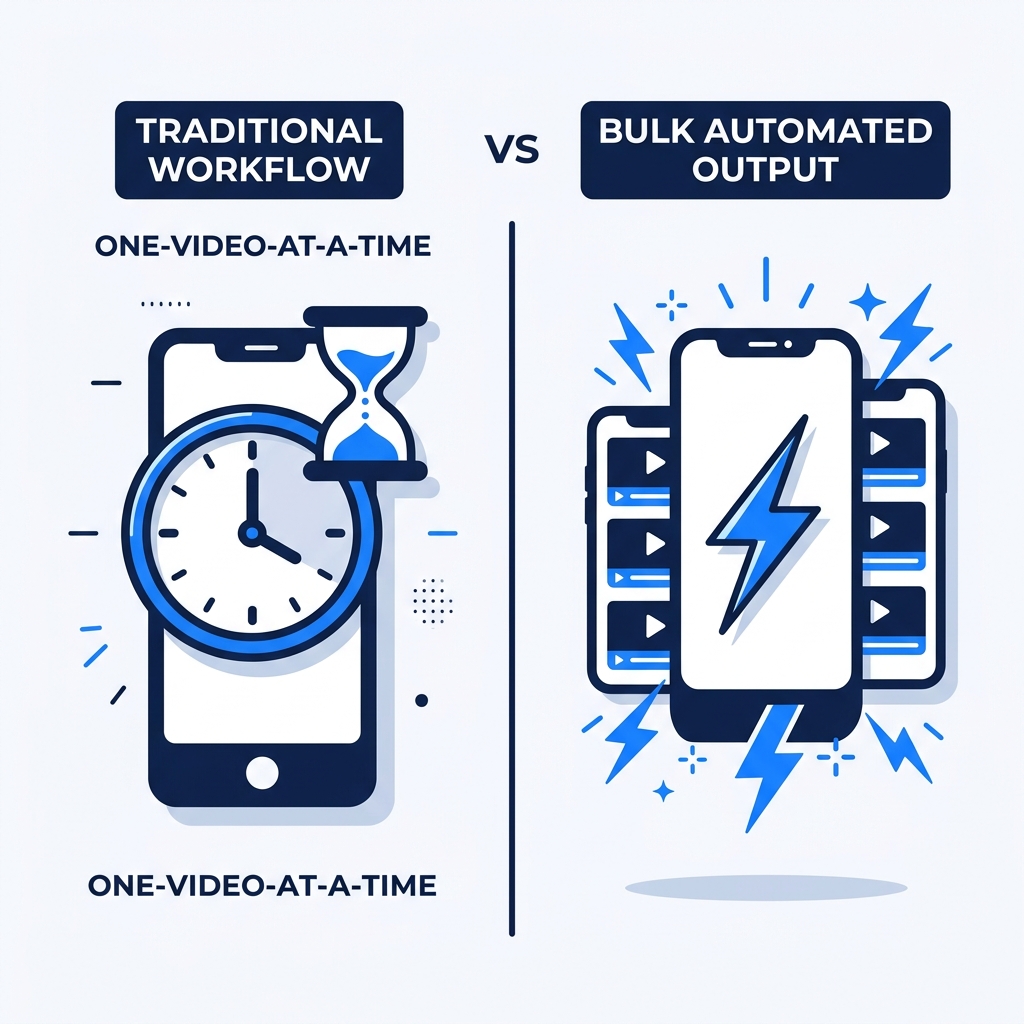
- If you are captioning one video at a time and posting at volume, the workflow itself is the bottleneck — not the caption quality.
Why Captions Matter on TikTok (More Than You Might Think)
Research consistently shows that a large majority of video content is watched without sound. A Verizon Media study found that 69 percent of consumers watch video with the sound off in public places. On TikTok specifically, that behavior is baked into the platform: videos autoplay in feed, many viewers never tap to unmute.
Imagine a viewer watching TikTok in public with headphones sitting unused in their bag. They either read along or they scroll past. Captions are what keep them reading along.
Beyond silent viewing, captions serve Deaf and hard-of-hearing audiences who depend on on-screen text to follow any video content. Accessibility is not a secondary concern — it is a baseline production standard in 2026.
Many creators also report that captioned videos show longer watch time and higher completion rates, which are signals TikTok's algorithm uses to distribute content more broadly. To be clear: TikTok has not officially confirmed that captions directly improve algorithmic reach. But the pattern is widely observed among creators — and it makes intuitive sense. Captions reduce drop-off from silent viewers, and more people watching to the end means stronger engagement signals regardless of the mechanism.
Captions are not a nice-to-have feature. They are a baseline production standard for any creator who wants their content to reach the widest possible audience on TikTok.
TikTok's Built-In Auto-Captions vs. Third-Party Apps
TikTok has offered native auto-captions since 2021. Here is how they work: after you finish recording or uploading a video, the post editor includes a Captions toggle. Tap it, and TikTok's AI transcribes your audio and attaches the text as an overlay on the video. The whole process takes seconds.
The important distinction is what kind of captions these are. TikTok's native captions are togglable overlays, not burned-in captions. That means they are a separate layer on top of your video — and viewers can switch them off in their own settings.
Burned-in captions are different. They are rendered directly into the video file itself, so they appear for every viewer, every time, with no option to disable. When you export a captioned video from a third-party app and upload that file to TikTok, the captions are permanently part of the footage.
Understanding the difference between captions and subtitles — and when burned-in versus togglable formats serve creators better — matters before you choose a tool.
TikTok Native Auto-Captions: Honest Tradeoffs
Pros
- Free and built directly into TikTok — no extra app, no account, no export step
- Enabled in seconds with a single toggle in the post editor
- Works on both iOS and Android within the TikTok app itself
Cons
- English-only as of 2026 — no support for Spanish, Mandarin, Portuguese, or other languages
- Viewers can turn them off in their own settings — your captions may never appear for a large portion of your audience
- Limited styling control: you cannot freely change the font family, size, color, placement, or animation style
- Accuracy drops noticeably with regional accents, fast speech, overlapping audio, or industry-specific terms
- A creator with a strong regional accent, or one who frequently mentions brand names and product terms, will find native auto-captions misfiring on the words that matter most
Native captions are a reasonable choice for casual English-speaking creators posting occasionally with no brand styling requirements. For everyone else, they are a starting point, not a complete solution.
Best Captioning Apps for TikTok: Side-by-Side Comparison
Here is how the top TikTok captioning apps compare across the criteria that actually shape your daily workflow.
| App | Caption Accuracy | TikTok-Specific Styling | Mobile App | Free Tier | Paid Starting Price | Best For |
|---|---|---|---|---|---|---|
| Captions.ai | High (strong for clear speech; review needed for accents) | Yes: animated word-by-word, font and color control | iOS and Android | Limited free tier; processing cap applies | ~$9.99/month | Creators who want styled animated captions per video |
| CapCut | Good (consistent but less nuanced for fast speech) | Yes: templates, font styles, auto-highlight | iOS, Android, and web | Generous free tier with watermark on some exports | Free with in-app purchases; Pro ~$7.99/month | Mobile-first creators who already edit in CapCut |
| Submagic | Good (optimized for short-form video) | Yes: animated captions, emoji integration, trending styles | Web-based; mobile browser accessible | Very limited free tier; most features require paid plan | ~$20/month | Creators who prioritize trendy animated caption styles |
| Rev | Very high (human-reviewed option available) | Minimal: transcript-focused, not styled for TikTok | Web-based; not mobile-optimized | No free tier; pay per minute of audio | ~$1.50/minute (AI); more for human review | Accuracy-first creators or brands with budget for corrections |
| GotReach | Automated as part of bulk video creation | Captions embedded in bulk video output | Web-based | Up to 30 videos/month free, no watermarks | 30-day free trial available | Creators and agencies publishing at volume across platforms |
What the Table Does Not Show
Captions.ai is one of the most capable single-video captioning tools available. The animated word-by-word captions are polished and genuinely TikTok-native in feel. The limitation is time: each video still takes 5 to 10 minutes of review and adjustment before it is ready to post. For a creator posting five TikToks per week, that is 25 to 50 minutes spent just on caption cleanup. Five accounts? That number becomes a part-time job.
CapCut is the easiest entry point for mobile-first creators who are already editing their TikToks inside the app. Caption quality is solid for standard speech, and the free tier is more usable than most. The tradeoff is that the tool is built as a general-purpose editor, not a captioning-first platform, so TikTok-specific styling options require more manual work to achieve.
Submagic leans into visual style: animated captions, emoji, and on-trend formats that feel native to short-form video. It is designed specifically for short-form content, which shows in the output. But the free tier is minimal, the paid price is higher than Captions.ai, and it is not optimized for mobile creation workflows.
Rev prioritizes accuracy above everything else. The human-reviewed option is genuinely more accurate than any AI-only tool for complex audio. But the per-minute pricing adds up fast for high-volume creators, there is no meaningful free tier, and the output is transcript-focused rather than styled for TikTok's vertical format.
GotReach is not a single-video captioning app. It is a bulk video creation and distribution platform: one idea becomes up to 300 publish-ready videos in about 30 minutes. Captions are part of that automated output rather than a standalone styling tool. For a social media manager handling five brand TikTok accounts, GotReach's AI caption generator removes the per-video bottleneck entirely. It is not the right tool for a casual creator posting once a week, but for anyone who has already hit the ceiling on single-video workflows, it is a different category of solution.
For a deeper look at how AI captioning accuracy varies across tools and what to watch for when evaluating quality, this breakdown of AI caption accuracy and tool selection covers the criteria worth applying before committing to a paid plan.
TikTok Caption Styling: What Actually Works on the Platform
Caption placement and style are not purely aesthetic choices on TikTok. Get them wrong and your captions are covered by the UI, unreadable on a small screen, or paced so poorly that viewers cannot follow along. Get them right and they become part of what makes a video feel professional and watchable.
The TikTok Safe Zone
TikTok's interface stacks multiple elements over your video: the bottom navigation bar, the like and comment buttons on the right side, your username and caption at the bottom left. Captions placed in any of these areas get buried or cut off.
The safe zone for text is roughly the middle third of the vertical frame, or more precisely: above the bottom UI bar and below the top status bar, centered horizontally, and staying left of the engagement button column on the right edge. If your captions sit inside this zone, they remain visible on every device and in every context.
Word-by-Word vs. Full-Line Captions
Word-by-word captions, sometimes called karaoke-style, highlight one word at a time in sync with the audio. They keep viewers locked into the audio-visual rhythm and are the dominant style among high-performing TikTok accounts right now. They also work particularly well for fast-paced content where a full sentence on screen would require the viewer to read ahead.
Full-line captions show a complete sentence or phrase at once. They work better for dense dialogue, explanations, or tutorial content where the viewer needs to absorb a complete thought before the next one appears.
For most TikTok content, word-by-word is the more engaging choice. For educational or step-by-step content, full-line may serve comprehension better.
Font Size and Readability
TikTok videos are watched on phones in portrait mode, often at arm's length with partial attention. Captions need to be large enough to read without squinting. Aim for at least 20 to 24 points equivalent in any captioning tool's sizing settings. Thin fonts and serif typefaces break apart at small sizes on compressed video; bold sans-serif fonts stay readable.
Trending Styles in 2026
The caption formats performing well on TikTok in 2026 include:
- Bold white text with a semi-transparent black background box, which stays readable over any footage color or background
- Animated pop-in per word with a color highlight on the active word
- Color-coded speaker identification for multi-person videos, making it easy to follow who is saying what
- Thick outline strokes on white text for outdoor or bright footage where a background box would feel too heavy
TikTok Caption Style Checklist
- Place captions in the safe zone: centered, above the bottom UI bar, left of the right-side engagement buttons
- Use a minimum font size equivalent to 20 to 24pt for portrait-mode readability on small screens
- Choose bold sans-serif fonts over thin or serif styles — they stay legible on compressed video
- Use word-by-word animated captions for fast-paced content; switch to full-line for tutorials or dense explanations
- Add contrast: white text on a semi-transparent dark background box, or bold outlined text, so captions are readable over any footage
- Match caption display time to natural speech rhythm: captions that linger or disappear too fast both hurt comprehension
- Avoid placing text over faces, hands, or product close-ups that are central to the video's content
How to Add Captions to a TikTok Video: Step-by-Step
Both methods below assume you are working entirely on your phone. No desktop required.
Using TikTok's Native Auto-Captions
- Record or upload your video in the TikTok app as you normally would.
- On the editing screen, tap the Captions button (speech bubble icon) in the right-side toolbar.
- Wait a few seconds for TikTok to generate the transcript from your audio.
- Review the generated text and tap any word to correct errors — especially names, brand terms, or words with unusual pronunciation.
- Confirm and proceed to the post screen. Captions will appear as a togglable overlay on the published video.
Tip: Do not skip the review step. Accuracy varies, and a misheard word in a key moment (your brand name, a product price, a call to action) is worse than no caption at all.
Using a Third-Party App (Burned-In Captions)
This process uses any dedicated captioning app, with GotReach or a single-video tool as the example depending on your volume.
- Record your TikTok video and save it to your camera roll (do not upload to TikTok yet).
- Open your captioning app and import the video from your camera roll.
- Let the app generate captions automatically, then review and correct any errors in the app's editing interface.
- Adjust caption style: font, size, color, placement, and animation within the app's styling tools.
- Export the finished video. The captions are now burned into the video file — they are permanently visible and cannot be toggled off by any viewer.
- Upload the exported video file to TikTok through the standard upload flow, just as you would upload any video from your camera roll.
For creators publishing across multiple platforms, the exported captioned file can go to Instagram Reels, YouTube Shorts, and other channels at the same time. GotReach's content repurposing workflow makes that multi-platform distribution a single step rather than a manual re-upload for each channel.
Which Captioning App Is Right for You?
The right captioning app depends on your pace, your budget, and how many videos you actually need to post. There is no universal answer, but there is usually one clear fit for each type of creator.
| If you are... | Best option |
|---|---|
| A casual creator posting 1 to 3 videos per week on your phone with no budget | TikTok native auto-captions (free, built-in, no extra app needed) |
| A growing creator who wants styled, animated captions and has a small monthly budget | Captions.ai or CapCut — both offer usable free tiers and mobile-friendly workflows |
| A multilingual creator or one captioning non-English content | CapCut (broader language support than most) or Rev for accuracy-first translation needs |
| A brand or agency publishing at volume across multiple platforms with consistency requirements | GotReach: bulk video creation removes the per-video captioning overhead entirely |
| A creator or team who has already hit the ceiling on one-video-at-a-time tools and needs maximum output speed | GotReach's AI caption generator and bulk video workflow — 300 videos in the time a single-video tool finishes one |
One video at a time adds up fast, and not in a good way. A social media manager handling five brand TikTok accounts cannot spend 5 to 10 minutes per video per account on caption review. That is 25 to 50 videos worth of manual captioning time every single day. GotReach is built for exactly that scenario: bulk creation, automated captions embedded in the output, and distribution across seven platforms from one workflow. The creator's voice and content stay authentic; automation handles the tedious part.
If you are still captioning one video at a time and posting at scale, the bottleneck is the workflow, not the caption quality. GotReach's 30-day free trial (up to 30 videos per month on the free plan, no watermarks) is a low-friction way to find out whether bulk automation changes the math for your operation.
Ready to remove the per-video bottleneck? Start your 30-day free trial with GotReach and turn one idea into 300 publish-ready videos in about 30 minutes.
Frequently Asked Questions
Does TikTok have a free built-in captioning feature, and is it good enough?
Yes. TikTok's native auto-captions are free and built directly into the post editor. You enable them with a single tap before publishing. They are good enough for casual English-speaking creators with clear audio and no brand styling requirements. They fall short for creators who need captions that are always visible (they can be toggled off by viewers), non-English content, styled or animated text, or consistent accuracy across fast speech and regional accents.
What is the difference between burned-in captions and TikTok's auto-captions?
TikTok's auto-captions are a togglable overlay: they sit on top of the video and any viewer can switch them off in their settings. Burned-in captions are rendered directly into the video file itself. They appear for every viewer, on every device, and cannot be disabled. When you export a captioned video from a third-party app and upload that file to TikTok, the captions are burned in permanently.
What is the most accurate captioning app for TikTok?
For AI-only accuracy, Captions.ai performs well for clear speech in standard English. Rev's human-reviewed option delivers the highest accuracy overall but at a per-minute cost and without TikTok-specific styling. No AI captioning tool is perfect: accuracy drops with strong accents, fast speech, background noise, and unusual vocabulary. Every app requires at least a quick review pass before publishing.
Can I add captions to TikTok on my phone without a computer?
Yes. TikTok's native captions work entirely within the app on iOS and Android. Captions.ai and CapCut both have full-featured mobile apps. Submagic is web-based but accessible on a mobile browser. The process of recording, captioning, and uploading can happen entirely on your phone for most of these tools.
Are captioning apps for TikTok free, or do they require a paid subscription?
Most offer a free tier with meaningful limitations. TikTok native captions are fully free. CapCut's free tier is the most generous among third-party tools, though some exports carry a watermark. Captions.ai's free tier has processing caps that limit how many videos you can caption per month without paying. Submagic's free tier is very limited. Rev has no free tier. GotReach's free plan allows up to 30 videos per month with no watermarks and includes a 30-day free trial.
Do captions help TikTok videos get more views?
Many creators observe better watch time and completion rates on captioned videos, and those metrics are signals that TikTok's algorithm uses to decide how widely to distribute content. However, TikTok has not officially confirmed that captions directly improve algorithmic reach. The most credible explanation is practical: captions keep silent viewers engaged instead of scrolling past, which improves completion rates, which in turn generates stronger engagement signals. Whether TikTok weights captions directly or indirectly, the outcome for creators who use them consistently is positive.
Which captioning app works best for non-English or multilingual TikTok creators?
TikTok's native auto-captions are English-only as of 2026, which rules them out for multilingual content. CapCut supports a broader range of languages than most free-tier tools. Rev offers multilingual transcription and translation at the human-review tier. GotReach does not currently offer multilingual captioning as a documented feature. For non-English content at scale, Rev's accuracy or CapCut's language coverage are the most viable options among the tools compared here.