
How Caption Making Works: Video Captions, Social Media Captions, and How to Choose the Right Approach
Most people searching "how to make captions" are actually trying to solve two completely different problems. One person wants words synced to speech in their video. Another wants punchy copy to drop below their post. They land on the same search, grab the same tool, and wonder why it does not do what they need.
Choosing the wrong tool for the wrong caption type is the most common mistake in the process. This guide covers both types, how AI captioning works end to end, what each platform actually requires, and how to pick a tool that fits your volume.
Key Takeaways
- There are two distinct types of captions: video subtitle captions (synced to audio) and social media text captions (written post copy). They need different tools.
- AI captioning gives you a solid draft in minutes, but a quick review pass is standard practice before publishing.
- Platform requirements vary by platform. What works on YouTube does not automatically transfer to TikTok or Instagram Reels.
- The right caption tool depends on your volume. Single-video tools work for occasional creators; bulk automation is the fix for anyone publishing at real scale.
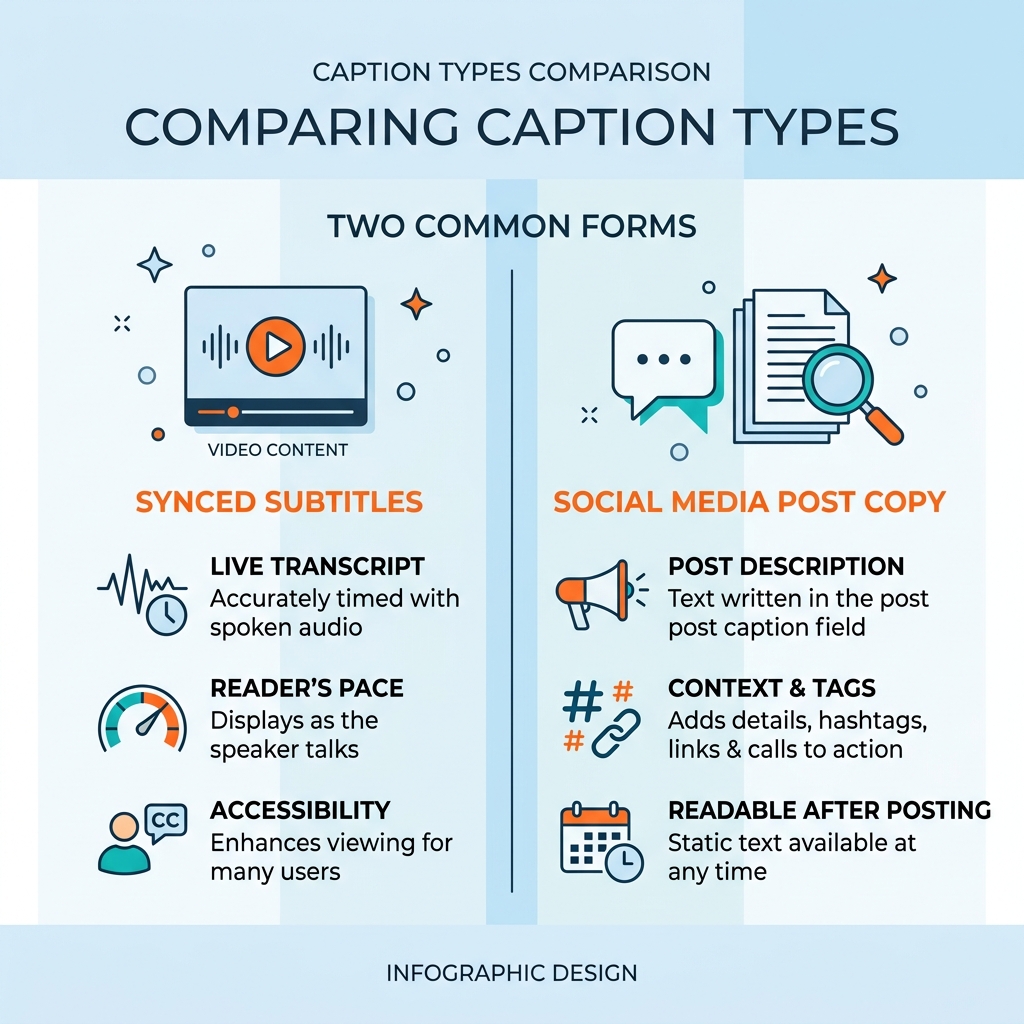
What Kind of Caption Do You Actually Need?
Here is the distinction that changes everything.
Video subtitle captions are timed text that syncs with speech in a video file, generated from the audio track. They appear on screen as the person speaks, word by word or phrase by phrase.
Social media text captions are the written copy that appears in the post body alongside a video or image. A person writes them, or an AI copywriting tool drafts them. They are not synced to anything.
A TikTok creator who wants words on screen while their video plays needs video subtitle captions. The same creator writing the text that appears below their post needs a social media text caption. These are two different jobs, and the tools that do one do not do the other.
A captioning tool that transcribes audio does not write post copy. A caption copywriting AI does not produce timed subtitle files. Knowing which type you need takes ten seconds and saves you from downloading the wrong tool.
This guide covers both, starting with the type most people mean when they search "caption making" -- the video subtitle kind.
| Video Subtitle Captions | Social Media Text Captions | |
|---|---|---|
| What it is | Timed text synced to speech in a video file | Written copy in the post body, alongside a video or image |
| Primary use case | Accessibility, muted viewing, engagement on-screen | Post engagement, SEO, platform algorithm signals |
| Tool type needed | AI transcription or captioning tool | AI copywriting tool or written manually |
| Output format | SRT, VTT, burned-in text overlay | Plain text, formatted copy |
| Platform examples | YouTube, TikTok, Instagram Reels, LinkedIn, Facebook | Instagram, TikTok, LinkedIn, Facebook, YouTube descriptions |
How AI Caption Making Works: A 6-Step Walkthrough
Before you pick a tool, know what the process actually looks like. AI captioning is fast, but it is not hands-off. Here is what happens at each step and what you control.
-
Upload your video -- Drag your video file into the captioning tool. Most tools accept MP4, MOV, and common web formats. Longer videos or larger files may take more time to process.
-
AI transcribes the audio -- The tool analyzes the audio track and converts speech to text. Accuracy depends on audio quality, accent, and speech pace. A noisy recording or fast talker will produce more errors. A review pass is always worth two minutes.
-
Review the draft captions -- Read through the transcript against the audio. The most common errors: homophones ("their" vs. "there"), proper nouns like brand names or people's names, fast speech that gets merged into one garbled word, and background noise that gets transcribed as something else. One read-through while the audio plays catches these quickly.
-
Edit timing and errors -- Adjust any caption that appears too early, too late, or stays on screen too long. Fix every factual error, especially names. A proper noun like a brand name is the most common AI caption error and the most visible one when it goes wrong.
-
Customize style -- Set font, color, size, and placement to match your brand. Some platforms handle styling automatically; others expect you to bring burned-in captions. This is also where you trim filler words if they feel unnatural.
-
Export or publish -- Download the caption file or push it directly to your platform. Common formats are SRT (the most widely accepted), VTT (used by some web players and YouTube), and burned-in captions (permanently embedded in the video). For a full breakdown of when each format matters, see the existing guide on caption methods and formats.
For readers who want a deeper look at what AI caption accuracy actually looks like in practice, this post on evaluating AI caption accuracy and tool selection covers it without the guesswork.
If you are publishing five videos a week, that review step across all five videos might take ten minutes total. A clean audio track makes it faster. That math still beats spending 25 to 50 minutes on captioning when a bulk workflow handles the rest automatically.
Start your 30-day free trial and see what bulk captioning actually looks like at scale.
Platform Caption Requirements: What Changes by Platform
Caption requirements are not uniform. A format that works perfectly on YouTube may display incorrectly on TikTok or get cut off on Instagram. A 60-second format check before you publish prevents visible mistakes.
YouTube's official caption documentation is the clearest reference for file upload specs and auto-caption availability.
| Platform | Caption Method | Key Formatting Rule | File Format Accepted |
|---|---|---|---|
| YouTube | Auto-captions (AI) or manual file upload | Keep lines short; reading speed matters for longer videos | SRT, VTT, SBV, and others |
| TikTok | Auto-caption toggle in app or burned-in | Captions appear at bottom center; avoid text in that zone if burned-in | Burned-in or in-app auto-captions |
| Instagram Reels | Auto-caption sticker or burned-in | Sticker placement is flexible; burned-in gives full control over style | Burned-in (no external file upload for Reels) |
| Caption file upload for native video | Keep lines concise; professional audiences read quickly | SRT | |
| Caption upload via video manager or auto-captions | Accuracy of auto-captions varies; upload an SRT for better control | SRT |
For accessibility context, the W3C Web Accessibility Initiative guidance on captions explains what captions need to include to meet WCAG standards, which matters for professional and institutional publishers.
How to Choose the Right Caption Tool for Your Volume
The right caption tool is not the most popular one. It is the one that fits your volume and platform mix.
Start with one question: are you captioning one video at a time, or dozens per week? The answer determines which tool category actually fits your situation.
Use this framework to evaluate any caption tool against criteria that matter, regardless of brand name.
| Criteria | What to look for | Why it matters |
|---|---|---|
| Accuracy and error correction | Does it flag low-confidence words? Is editing easy? | AI errors in published captions damage credibility |
| Language and accent support | How many languages? Does it handle regional accents? | Limits reach if your audience or speakers are multilingual |
| Export format options | SRT, VTT, burned-in, TXT? | Wrong format means captions that do not load on your target platform |
| Platform integrations | Does it connect to the platforms you publish on? | Disconnected tools add manual steps at every publish |
| Free vs. paid limits | What does the free plan cap: video length, exports, languages? | Knowing the cap prevents a workflow break mid-project |
| Volume handling | Single video at a time, or bulk? | Per-video tools create a hard ceiling on weekly output |
On the free vs. paid question: free plans typically cap video length, export count, or language access. Know what you are giving up before you commit to a free tier for professional use. If you want to compare plan options, see what GotReach plans include.
On volume: at 5 to 10 minutes per video for single-video captioning tools, a creator publishing 5 videos per week spends 25 to 50 minutes on captioning alone, before editing or scheduling. That is the bottleneck.
GotReach solves that specific problem. One idea becomes up to 300 videos in about 30 minutes, captions and all, ready to publish across seven platforms in a single workflow. An agency managing 10 client accounts cannot caption and publish 50 videos a week one at a time. GotReach Enterprise handles that with centralized multi-client management, creation, captioning, and scheduling in one place.
For readers who want a deeper editor-specific workflow, this guide on caption editing workflow and quality covers the refinement side in detail.
Making AI Captions Sound Like You: Quick Editing Tips
AI captions are trained on general language patterns, not your voice or brand tone. The output is a draft, not a final product.
For video subtitle captions: Focus on three edits. Remove filler words only when they feel unnatural -- not all of them, because some hesitations are part of how you speak. Adjust emphasis words where the AI got the phrasing stiff or formal. Align phrasing with how you actually talk. If you say "let's dig in" and the caption reads "let us begin," fix it.
For social media text captions: Add a hook in the first line. The first sentence determines whether anyone reads the rest. Close with a CTA or a question. Insert the words and phrases you use consistently so the caption sounds like you, not a template.
Before (AI output): "In this video I will be discussing the top strategies for growing your business on social media."
After (human edit): "Here are the three moves that actually grew my account last month."
Those edits take less than two minutes. They are the difference between content that connects and content that reads as generated.
For a full editing workflow, this post on improving caption quality after generation walks through the process step by step.
Frequently Asked Questions About Caption Making
What is the difference between captions and subtitles?
Captions and subtitles both display text on screen during video, but they serve different purposes. Captions are designed for viewers who cannot hear the audio, so they include speaker identification and sound effects. Subtitles assume the viewer can hear and are typically used for language translation. In casual use, most people use the terms interchangeably.
Are AI-generated captions accurate enough to publish without editing?
For clear speech in a quiet environment, AI captions are accurate enough to use as a strong starting draft. Accuracy drops with accents, fast speech, proper nouns, and background noise. A one-pass review while the audio plays catches most errors in under two minutes. Publishing without any review is a risk, especially when names or brand terms are involved.
What caption file format do I need for YouTube vs. TikTok?
YouTube accepts SRT, VTT, and several other formats via file upload, and also offers auto-generated captions you can edit. TikTok does not accept external caption file uploads for most use cases -- you either burn captions into the video or use TikTok's in-app auto-caption toggle. Always check each platform's current documentation before exporting, since format support changes.
Do captions help with SEO or video discoverability?
Captions make video content indexable by search engines and improve accessibility for a broader audience. Research from Verizon Media found that 69% of consumers watch video with the sound off, which means captions directly affect whether someone watches at all. They also support compliance with accessibility guidelines like WCAG. The discoverability benefit is real but not a guaranteed ranking signal -- it works alongside content quality and platform signals, not instead of them.
Is a free caption tool enough for professional use?
For occasional use, a free plan may be enough. Most free plans cap video length, the number of exports per month, or language support. If you are publishing at real volume -- five or more videos per week -- a free single-video tool will create a bottleneck before it creates output. That is when the math shifts toward a bulk platform. See which GotReach plan fits your volume.
Ready to Caption at Scale?
If you are posting multiple videos a week and spending 25 to 50 minutes captioning them one at a time, the workflow is the problem, not the effort.
GotReach takes one idea and produces up to 300 videos in about 30 minutes, captions included, ready to publish across seven platforms in a single workflow. No per-video bottleneck. No switching between disconnected tools.
Start your 30-day free trial today and see what caption making looks like when scale is not the constraint.