
Caption Editor: What It Is, What to Look For, and How to Choose the Right One
Captioning one video at a time is manageable until it is not. Once you are publishing five or more videos a week across multiple platforms, a tool that seemed fast starts to feel like a second job. Most caption editor searches begin at that point, when the current process stops working and something has to change.
The problem is that most search results return product homepages. They list features, quote accuracy percentages, and describe plans, but they skip the part where they tell you what to actually look for and why. This guide fills that gap.
Here is what you will find below: a clear definition of the caption editor category, a structured framework for evaluating any tool, a breakdown of which features matter by use case, what free tiers actually include, how to test accuracy before you commit, and what caption quality standards look like in practice.
Key Takeaways
- AI transcription handles clean audio reasonably well, but accuracy drops with accents, background noise, and jargon, so test with your actual content before committing to any tool.
- The export format you need, whether that is SRT, VTT, or burned-in video, determines which tools are actually compatible with your platform. Getting that wrong wastes time regardless of how good the tool looks otherwise.
- Free tiers across most caption editors restrict something meaningful: watermarks on exported video, upload or minute caps, or SRT/VTT export locked behind a paid plan.
- There is no single best caption editor. The right fit depends on what you are making, how much you are making, and where it needs to go.
- When captioning each video one at a time becomes the bottleneck, the issue is not which caption editor you are using. It is that you need a different kind of tool entirely.
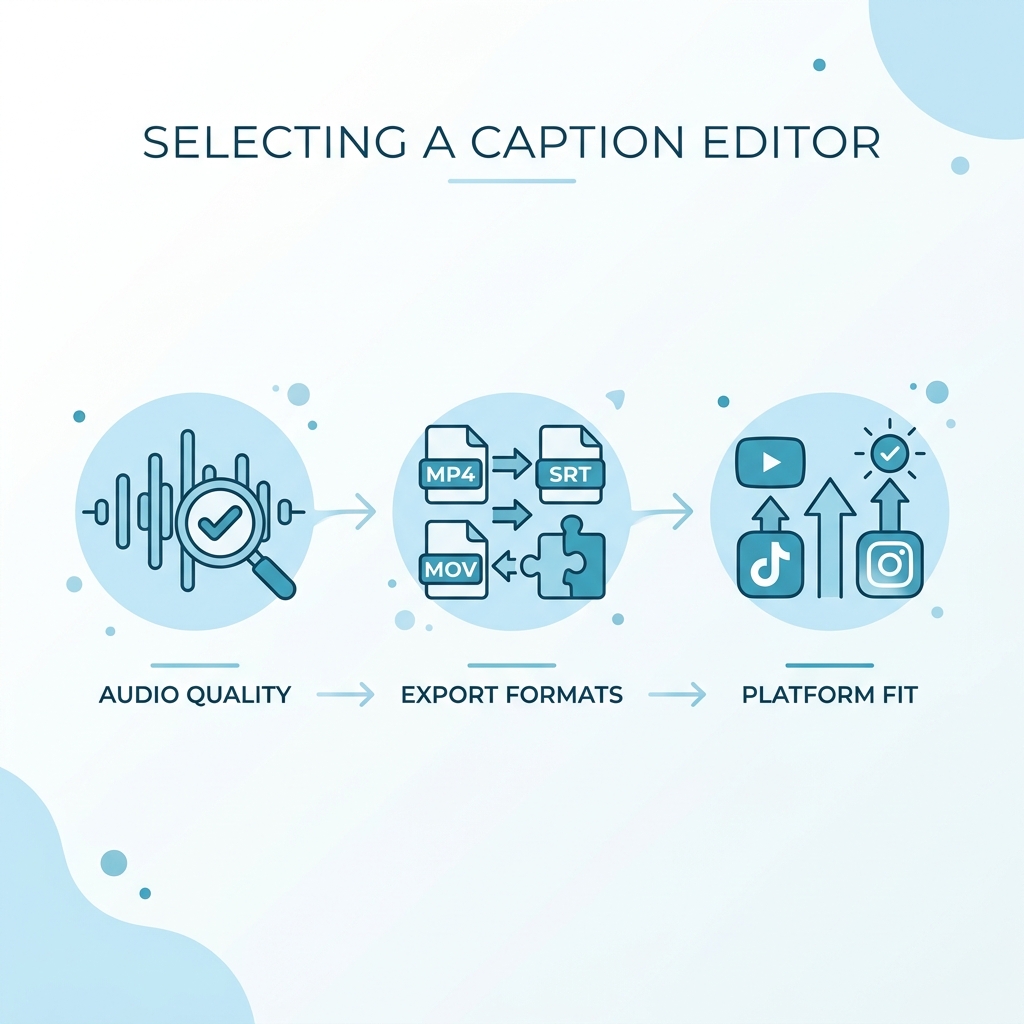
What a Caption Editor Is (and What It Is Not)
A caption editor is a dedicated tool for adding, editing, styling, timing, and exporting captions on video. That is a narrower job than it sounds. A general video editor, like a desktop cutting suite or mobile clip app, may include captioning as a secondary feature, but it is rarely the focus. Caption editors are built around the captioning workflow specifically: getting text on screen accurately, in the right format, with enough control to meet your platform or compliance requirements.
Within the caption editor category, there are three meaningfully different tool types:
AI auto-caption tools generate captions automatically from your audio using speech recognition. They are fast, they require no manual input to start, and they work well when the audio is clean. They also produce errors, and the error rate varies significantly by audio condition.
Manual timeline editors let you type or import caption text and place it frame by frame against the video. These are slower but give you full control over every word, every timing cue, and every line break. They are common in broadcast and accessibility workflows where precision matters more than speed.
Hybrid AI editors combine both approaches: AI generates a first draft, and then you correct it in an editing interface. This is the most common format for modern caption editor tools marketed to creators.
A few terms worth knowing before going further:
- Burned-in captions are permanently embedded into the video file itself. Once the video is exported, the captions cannot be turned off or edited. This format is standard for TikTok, which does not read external caption files natively.
- SRT files (SubRip Text) are separate text documents that travel alongside the video. Platforms like YouTube read SRT files to display captions, and viewers can toggle them on or off. SRT is the standard format for accessibility compliance and platform-controlled caption display.
- VTT files (WebVTT) function similarly to SRT but support additional styling and are used more often in web video players and learning management systems.
- Animated subtitle overlays refer to word-by-word or stylized caption effects that appear on-screen rather than sitting in a standard position. These are the karaoke-style captions common in short-form social video.
Caption editors serve two primary tracks that have different requirements. Engagement-driven captioning for social video prioritizes speed, animation styles, and platform-native export. Accessibility-driven captioning for compliance prioritizes accuracy, SRT or VTT output, and conformance to standards like FCC Part 79 captioning requirements and WCAG 2.1 SC 1.2. Knowing which track you are on before evaluating tools saves significant time.
For a deeper look at the difference between captions and subtitles and when to use each format, that distinction is covered separately and is worth reviewing before choosing a tool if your use case sits at the edge of both categories.
The Features That Actually Matter in a Caption Editor
Speed and ease of use are marketing claims. They appear in every tool's headline. The criteria below are the ones that determine whether a tool actually works for your situation. Before evaluating any caption editor, run it against all six.
| Feature | Why It Matters | What to Look For |
|---|---|---|
| Transcription Accuracy | Determines how much manual correction you need after auto-generation | Test with your actual audio, including accents, background noise, and any jargon specific to your content |
| Export Format Support | Controls where and how you can use the captions | Confirm SRT, VTT, and burned-in options are available at your plan tier, not just on paid plans |
| Customization Depth | Affects viewer engagement and brand consistency across videos | Look for font control, color options, timing adjustment, animation styles, and the ability to save and reuse templates |
| Platform Fit | Ensures output works natively on your target publishing platforms | TikTok needs burned-in captions; YouTube reads SRT; Reels and Shorts have their own format preferences |
| Pricing Transparency | Reveals what you actually get at each plan tier | Check specifically for watermarks, upload caps, export restrictions, and processing limits on free plans |
| Language and Translation Quality | Determines viability for multilingual content | Number of supported languages is less important than accuracy per language pair, which varies significantly |
Transcription accuracy is the most important criterion, and it is the one most often skimmed over.
Here is why it matters more than anything else on this list: accuracy determines the total time cost of using the tool. A tool that generates captions requiring one to three corrections per minute of video is workable. You review it, fix a few things, and move on. A tool that requires ten or more corrections per minute is effectively not an auto-caption tool at all. You would be faster transcribing manually.
Vendor accuracy claims are measured under controlled conditions, typically studio-recorded English with no background noise and a single clear speaker. A tool advertising 99% accuracy tested with that kind of audio may produce significantly more errors when a creator records over background music, speaks with a regional accent, or uses technical vocabulary specific to their industry. The accuracy figure on the product page is not representative of your audio. Test with your own content before committing.
For a more detailed breakdown of how to evaluate AI caption accuracy before committing to a tool, that methodology is covered in depth separately.
Export format support is the second most common source of frustration after accuracy.
SRT and VTT files are not interchangeable with burned-in captions, and they are not interchangeable with each other across all platforms. If you need SRT files for YouTube accessibility settings and the tool only exports burned-in video on the free plan, that tool does not work for your use case at that tier. Format compatibility is a binary question, not a nice-to-have. Confirm it before you spend time learning the interface.
A tool that scores well on five of these six criteria but poorly on the one that matters most for your use case is not the right tool for you.
Which Caption Editor Is Right for Your Use Case
The better question is not which tool is best overall. It is: what are you making, how much are you making, and where does it need to go? Those three questions determine which features to prioritize. The table below maps four common use case tracks to the criteria that matter most for each.
| Use Case | Top Feature Priority | Format Needed | Platform Focus | What to Deprioritize |
|---|---|---|---|---|
| Social Video Creator | Speed and animation styles | Burned-in or platform-native | TikTok, Reels, Shorts | Accessibility compliance, SRT export |
| Accessibility and Compliance Team | Accuracy and SRT/VTT export | SRT, VTT | Enterprise video, YouTube, broadcast | Animation styles, social templates |
| Educator or Long-Form Creator | Accuracy and timeline editing | SRT, VTT, burned-in | YouTube, LMS platforms | Social-first animations |
| High-Volume Creator or Business | Bulk processing and platform distribution | Burned-in, platform-native | All major platforms | Manual per-video editing workflows |
Social video creators publishing regularly to TikTok, Instagram Reels, and YouTube Shorts need tools that process quickly and export in burned-in format. Animated word-by-word captions are a real engagement consideration for this audience. Research on captioned video and viewer comprehension supports the value of captions for short-form content, including findings from recent studies on caption use and engagement behavior. An SRT-focused tool built for broadcast compliance is the wrong fit for this track, even if its accuracy is excellent, because the output format does not match the platform requirements.
Accessibility and compliance teams have non-negotiable format and accuracy requirements. FCC Part 79 governs captioning requirements for television and certain video programming. WCAG 2.1 Success Criterion 1.2 sets the standard for web-based video accessibility. ADA Title III has been applied to digital content in court decisions affecting businesses with public-facing video. For this track, the tool must produce accurate SRT or VTT output. Animated overlays and social templates are irrelevant to this use case.
Educators and long-form creators typically publish to YouTube or learning management systems where SRT and VTT files are read by the platform. They need timeline editing control and accuracy more than animation. Batch processing is a useful feature as course libraries grow, but it is secondary to getting individual caption tracks right.
High-volume creators and businesses run into a ceiling that caption editors were not designed to solve. A creator publishing five Reels and five Shorts per week, plus long-form YouTube content, is processing ten or more videos weekly. Single-video caption tools typically require five to ten minutes per video for review and correction. At that volume, captioning alone consumes an hour or more each week, and that is before scheduling, editing the underlying video, or managing distribution.
This is the point where per-video captioning stops being a workflow and starts being a bottleneck. GotReach is built for exactly this transition. Where a single-video caption editor processes one file at a time, GotReach automates video editing and publishing so creators can produce up to 300 videos in the time competitors spend on a single video, distributing across seven platforms from one workflow without tool-switching. If you are scaling content production across platforms, repurposing long video into captioned short clips becomes part of that same pipeline rather than a separate manual task.
What Free Caption Editor Plans Actually Include
Most caption editor free plans are designed to let you experience the tool, not run a real production workflow on it. That is not inherently a problem, but it is worth knowing before you invest time learning an interface that will not serve you at the volume or quality level you need.
Three common pricing models appear across caption editor tools:
- Subscription tiers (monthly or annual) with different feature sets at each level. The most common structure in the category.
- Per-minute or per-upload credit systems, where you purchase processing capacity and it draws down as you use it. Common in tools targeting occasional or project-based users.
- Freemium with gated features, where the free tier is functional but key outputs, like SRT export, higher accuracy models, or custom fonts, require a paid plan.
The four most common restrictions on free tiers across caption editor tools:
- Watermarks applied to exported video, making the output unpublishable for professional use without upgrading
- Monthly upload or minute caps that limit how many videos you can caption before the meter resets
- Export format limitations, specifically SRT and VTT files locked behind paid plans while burned-in video is available free
- Reduced processing priority or speed on free accounts, which matters less for occasional users and significantly more for time-sensitive publishing
Before signing up for any free tier, get answers to these four questions:
- Does the free plan add a watermark to exported video?
- What is the upload or processing minute cap per month?
- Can I export SRT or VTT files, or only burned-in video?
- Is the transcription accuracy on the free tier the same model used on paid plans?
Free Plan Pre-Signup Checklist
- Confirmed: no watermark on exported video at the free tier
- Confirmed: upload or minute cap is sufficient for my current publishing volume
- Confirmed: SRT or VTT export is available at the free tier (if I need it)
- Confirmed: accuracy is consistent across free and paid tiers, or I understand the difference
- Confirmed: I know what happens when I hit the cap (pause until reset, or pay per overage)
- Confirmed: the free tier allows enough test videos to evaluate accuracy with my actual audio
GotReach's free version allows up to 30 videos per month, connects one social media account, and does not add watermarks to exported content. If you want to try a free AI caption generator and test accuracy with your own content before committing to any paid plan, that is a low-friction way to evaluate what the tool actually produces on your audio.
Caption Quality and Accuracy: What to Test Before You Commit
Every caption editor vendor publishes an accuracy claim. None of them tested it with your audio. Here is what actually degrades AI transcription accuracy and how to run a test that gives you a real answer.
Four conditions that reduce AI transcription accuracy:
- Background music or ambient noise during recording
- Regional accents or non-native English speech patterns
- Technical or industry-specific vocabulary the model has not been trained on
- Overlapping speakers or rapid speaker changes
These are not edge cases for most creators. They are normal production conditions. A lifestyle creator filming in a cafe, a fitness instructor using workout cues over music, a podcast host with two speakers, or a business creator using their industry's terminology will all encounter meaningful accuracy variation compared to a quiet studio recording.
What an acceptable error rate looks like in practice:
Auto-generated captions requiring one to three corrections per minute of video are workable for most workflows. Five to seven corrections per minute starts to eat into the time savings. Ten or more corrections per minute means you are effectively transcribing the video yourself, just with extra steps. At that point, manual transcription is faster and more reliable.
How to Test a Caption Editor's Accuracy Before You Pay
- Record or select a two-minute clip that represents your actual content, not a clean demo. If you typically film with music in the background, include it. If you use technical terms from your industry, use them in the clip.
- Upload the clip to the tool's free tier or trial.
- Once captions are generated, review the output line by line against what was actually said.
- Count the number of corrections needed and note which types of errors appear most often (missed words, wrong words, incorrect punctuation, or missed speaker changes).
- Divide corrections by video length in minutes. If you are getting more than five corrections per minute consistently, factor that correction time into any per-minute pricing comparison.
- Repeat with a second clip from a different context if your content varies (indoor quiet versus outdoor with noise, for example).
This test takes less than fifteen minutes and gives you real performance data specific to your voice, your environment, and your vocabulary. Vendor accuracy claims do not.
For readers who want to go further on accuracy methodology, this resource on evaluating AI caption accuracy for tool selection covers additional factors in detail.
Caption Best Practices That Improve Readability and Accessibility
A caption editor is only as useful as the captions it helps you produce. Getting the technical output right matters, but so does how those captions actually appear on screen. These are the quality standards that affect whether captions serve viewers.
Line length and reading speed: Captions should be no longer than two lines, with a maximum of approximately 42 characters per line. Reading speed for general audiences should target 130 to 150 words per minute. Captions that move faster than viewers can comfortably read create comprehension gaps, not accessibility improvements.
Font contrast and size for mobile-first viewing: WCAG AA standard requires a minimum 4.5:1 contrast ratio between caption text and the background. On mobile, caption text should remain legible at 80% of the smallest expected viewing size. Light gray text on a white background is a common failure point that makes captions technically present but practically unusable.
Animated word-by-word captions versus static full-line captions: Word-by-word animations increase engagement for short-form social video, particularly on TikTok and Reels where the format is standard and viewer expectations are set accordingly. For long-form content, educational video, or any accessibility use case, static full-line captions are easier to read and less distracting. The choice should follow the viewing context, not the default setting in the tool.
Minimum requirements for accessibility-compliant captions: Accurate text is the baseline. Beyond accuracy, accessibility-compliant captions per FCC Part 79 guidelines require speaker identification when multiple speakers are present and notation of significant non-speech audio such as music, sound effects, or laughter. Captions that transcribe only spoken words while ignoring audio context do not meet the standard.
Caption Quality Quick Reference
- Maximum two lines per caption card; aim for 42 characters or fewer per line
- Reading speed: 130 to 150 words per minute for general audiences
- Contrast ratio: minimum 4.5:1 (WCAG AA) between text and background
- Caption text legible at 80% of the smallest expected viewing size
- Use animated word-by-word captions for short-form social; use static captions for long-form and accessibility
- Identify speakers when more than one person is on screen or heard
- Note significant non-speech audio (music, sound effects) for compliance use cases
- Test caption readability on a mobile screen at arm's length, not only on a desktop preview
Ready to Stop Captioning One Video at a Time?
If you are publishing a handful of videos a month, a dedicated caption editor is likely the right tool. This guide gives you the framework to pick a good one.
If you are publishing regularly across TikTok, Reels, Shorts, and YouTube simultaneously, captioning each video individually stops being a workflow problem and becomes a math problem. Five to ten minutes per video adds up faster than it looks on a production schedule.
GotReach is built for the moment when that math stops working. Where single-video caption tools process one file at a time, GotReach automates video editing and publishing so creators can produce up to 300 videos in the time a traditional approach spends on a single video, distributed across seven platforms from a single workflow. Your voice stays in the content. The bottleneck does not.
Start your 30-day free trial today with no commitment required. Up to 30 videos a month, one connected social account, no watermarks.
Frequently Asked Questions
What is the difference between a caption editor and a subtitle editor?
Caption editors and subtitle editors handle similar tasks but serve different purposes. Captions are intended for viewers who cannot hear the audio, including dialogue and non-speech sounds like music or sound effects. Subtitles are typically translations of spoken dialogue for viewers who speak a different language. Many tools market themselves as both, but the compliance standards differ significantly.
How accurate are AI-generated captions, and do they require manual correction?
AI transcription accuracy varies by audio condition. Clean, studio-recorded English with a single speaker performs best. Accuracy drops with background noise, regional accents, technical jargon, and overlapping speakers. Expect to review and correct AI-generated captions before publishing. A rate of one to three corrections per minute of video is workable. More than that, and correction time erodes the speed advantage of automation.
What caption file format do I need: SRT, VTT, or burned-in?
It depends entirely on your platform. TikTok requires burned-in captions embedded directly in the video file because it does not read external caption files natively. YouTube accepts SRT files and displays them via its built-in caption player. VTT files are common for web video players and learning management systems. Many creators need more than one format if they publish across multiple platforms.
Do free caption editors add watermarks or limit exports?
Many do. Watermarks on exported video, monthly upload or minute caps, and SRT or VTT export locked behind paid plans are the most common restrictions. Before committing time to learning any tool's interface, confirm whether the free tier includes the export format you need and whether it applies a watermark to output you intend to publish.
Can AI caption editors meet ADA or FCC accessibility compliance requirements?
AI caption tools can produce captions that contribute to compliance, but they do not guarantee it. FCC Part 79 and WCAG 2.1 SC 1.2 require accurate text, speaker identification, and notation of significant non-speech audio. Most AI tools handle transcription but miss speaker labeling and audio notation. Any accessibility-compliance workflow should include human review of AI-generated output before the captions are considered compliant.
How do I test a caption editor's accuracy before committing to a paid plan?
Upload a two-minute clip of your actual content, including your typical recording environment, any background noise you normally work with, and vocabulary specific to your subject matter. Review the output line by line and count corrections needed. One to three corrections per minute is workable. More than five consistently means the tool's accuracy does not match your audio conditions, regardless of what the vendor claims.
Which caption editor features matter most for TikTok, Reels, or YouTube Shorts?
For short-form social platforms, burned-in export format is required, and support for animated word-by-word caption styles is a strong differentiator because that format is standard for the platform's visual language. Processing speed matters when you are publishing at volume. SRT export and accessibility compliance features are largely irrelevant for this use case unless you are also publishing to YouTube.