
Caption Editing Software Compared: Accuracy, Pricing, and Use-Case Winners
Auto-captioning is the easy part. Most tools get captions onto your video in under a minute. What happens next is where they diverge sharply: catching a missed word, dragging a timing block, exporting a clean SRT file, or styling text for a Reel. That post-generation editing step is where creators lose the most time, and where the difference between a strong tool and a frustrating one becomes obvious.
This article does not pick one generic winner. It compares five of the most-used caption editing tools honestly, names a limitation for each, and tells you which one fits your specific situation. If you are publishing at volume and one-video-at-a-time captioning has become the bottleneck, that scenario gets its own answer too.
Key Takeaways
- No single caption editing tool is best for every creator. The right pick depends on your editing control needs, platform, and publishing volume.
- Auto-captioning generates a first draft. Manual correction control is what separates strong tools from weak ones.
- Free tiers exist across most tools but carry real limits. Know the cap before you build a workflow around it.
- Creators publishing at volume face a different problem than creators polishing one video at a time. Use-case fit matters more than feature count.
What Caption Editing Software Actually Does (And Why It Is More Than Auto-Captioning)
Auto-captioning and caption editing are two distinct steps. Auto-captioning generates the first draft from your audio. Caption editing is everything after: reviewing errors, adjusting timing, restyling text, and choosing how to export. Most tools combine both, but they are not equally good at both.
A creator uploads a 5-minute interview clip. Auto-captions appear in 30 seconds. Correcting six errors, adjusting two timing gaps, and exporting an SRT file takes another 8 minutes in one tool, or 90 seconds in another. The generation speed is nearly identical. The editing experience is not.
The correction and export process is covered in a separate post on caption editing workflow quality. For format decisions, the guide to caption output formats and methods covers burned-in captions versus SRT/VTT in detail.
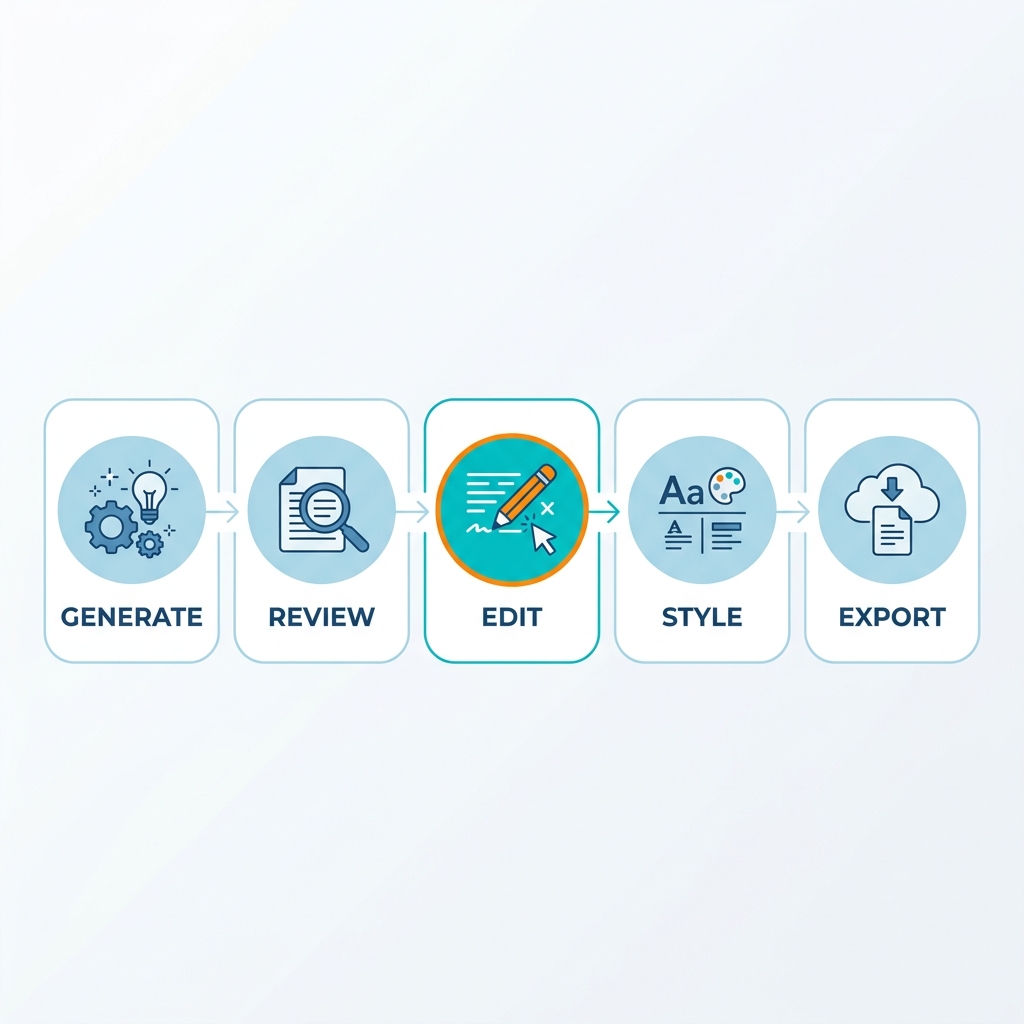
Here is the sequence every caption editing tool handles, in some form:
- Generate - AI transcribes your audio and places caption blocks on the timeline.
- Review - You scan for transcription errors, missed words, and misaligned timing.
- Edit - You correct errors at the word, phrase, or block level, depending on what the tool allows.
- Style - You set fonts, colors, animations, and positioning for your platform.
- Export - You choose between burned-in captions embedded in the video file or a separate SRT/VTT file for platforms that accept external caption tracks.
The question this article answers: which tool makes steps two through five easiest for your specific situation?
The Six Criteria That Actually Separate Good Caption Editing Tools from Mediocre Ones
Before looking at any specific tool, it helps to know what you are evaluating. Marketing pages focus on the generation step. The criteria below predict real-world usefulness after the captions appear.
1. Caption accuracy on real speech. Lab conditions do not reflect your content. How does the tool handle fast speakers, strong accents, and technical vocabulary? This is where marketing claims and real performance diverge most visibly.
2. Manual editing control. Can you click on a specific word and change it? Can you drag a timing block? Word-level inline editing is meaningfully different from paragraph-level editing or no manual control at all. This single criterion accounts for most of the time difference between tools.
3. Export format support. Burned-in captions are baked into the video file, which is standard for social posts. SRT or VTT files are separate caption tracks required by platforms that need accessibility compliance or allow user-controlled subtitles. Not every tool supports both, and that matters by platform. For a detailed comparison of burned-in versus SRT/VTT output, the guide to caption output formats and methods covers the distinctions in full.
4. Platform availability. Desktop app, browser-based, iOS, or Android. This matters more than most comparison posts acknowledge. A mobile-only tool is a real constraint for creators who edit on desktop. A browser-based tool with no offline mode is a constraint if your connection is unreliable.
5. Pricing and free tier limits. What can you actually do before hitting a paywall? Measure this in video length, export count, or feature access, not the marketing headline. A tool that auto-captions for free but locks SRT export behind a paid plan is a demo, not a free tool.
6. Caption styling depth. Fonts, colors, word-by-word animations, and positioning. For social video creators, styling is table-stakes. For accessibility output, format compliance matters more than visual customization.
A tool that scores well on accuracy and editing control but locks export behind a paywall is not a free caption editor. Keep this checklist in mind when evaluating any tool, including ones not covered here:
- Does it handle my speakers accurately (speed, accent, vocabulary)?
- Can I edit at the word level after generation, without re-generating?
- Does it export in the format my platform or workflow requires (burned-in, SRT, VTT)?
- Is it available on the device I actually edit on?
- What does the free tier actually let me do, and where does the paywall appear?
- Does it offer the styling depth my content type needs?
For a deeper look at how AI transcription accuracy varies by speech type and what to look for when testing tools, see this post on evaluating caption accuracy before choosing a tool.
Caption Editing Software Compared: Captions.ai, VEED.io, Descript, Kapwing, and CapCut
Each tool below gets an honest evaluation: what it does well, where it falls short, and who it actually fits. The comparison table carries the side-by-side data. The narrative below adds what the table cannot.
| Tool | Accuracy Tier | Manual Editing Control | Export Formats | Platform | Free Tier | Starting Price |
|---|---|---|---|---|---|---|
| Captions.ai | Strong | Word-level (mobile) | Burned-in, SRT | iOS, Android | 3 exports/month | ~$9.99/mo |
| VEED.io | Strong | Word-level (browser) | Burned-in, SRT, VTT | Browser | 30-min video limit, watermark | ~$18/mo |
| Descript | Strong | Word-level transcript editing | Burned-in, SRT, VTT, TXT | Desktop (Mac/Win), Browser | 1 hr transcription/mo | ~$24/mo |
| Kapwing | Moderate | Word-level (browser) | Burned-in, SRT | Browser | 4-min export limit, watermark | ~$16/mo |
| CapCut | Moderate | Basic (word-level on mobile) | Burned-in | iOS, Android, Browser, Desktop | Generous, with watermark | Free / ~$7.99/mo Pro |
| Subtitle Edit | Variable* | Full manual control | SRT, VTT, ASS, many more | Desktop (Windows) | Free, open source | Free |
*Subtitle Edit uses its own transcription engine or imports from other tools. Accuracy depends on the source.
Pricing is subject to change. Verify current plans directly with each provider before committing to a workflow.
Captions.ai is polished and fast for mobile-first creators. The word-level editor is responsive, and the styling options for short-form content are strong. The limitation is volume: the free tier allows around 3 exports per month, processing takes 5 to 10 minutes per video, and the workflow is built around one video at a time. That works well for occasional publishing. It becomes a bottleneck at scale.
VEED.io is a capable browser-based option with word-level editing and clean SRT/VTT export. The free tier is usable for short files but adds a watermark, and the 30-minute video length cap limits long-form use. The paid tiers are competitive for small teams. The interface is less refined than Captions.ai for social-specific styling but broader in export flexibility.
Descript takes a different approach: you edit the transcript as a text document, and the video follows. Deleting a word from the transcript removes it from the video. For podcast clip editors who need to cut content by editing text, this is genuinely powerful. For TikTok creators who want animated captions in seconds, it is not the right fit. The free tier gives you 1 hour of transcription per month, which is meaningful. The desktop app is a real strength for creators who do not want to work in a browser.
Kapwing is a solid browser-based option with word-level editing and SRT export, but accuracy on difficult audio is more variable than VEED.io or Descript. The free tier restricts exports to 4 minutes with a watermark, which limits real-world usability. Kapwing's strength is its broader video editing toolkit: if you are already using Kapwing for video editing, the caption integration makes sense.
CapCut has the most generous free tier of any tool on this list, and the mobile experience is fast and accessible. The limitation is that export defaults to burned-in captions, and the editing control on longer content is less precise than browser-based tools. For short-form social content on mobile, it is hard to beat on price. For desktop editors who need SRT output, it is the wrong tool.
Subtitle Edit is a free, open-source desktop application that gives you complete manual control over caption timing, format, and export. It does not include AI transcription natively, but it imports SRT and VTT files generated by other tools and lets you edit them with precision. For creators who need to meet specific accessibility formatting requirements or work with complex multi-speaker files, this level of control is not available in any paid web tool. The interface requires more patience than consumer tools.
Which Caption Editing Tool Wins for Your Situation
Scanning a comparison table tells you what each tool does. This section tells you which one to use.
| Creator Type | Best Tool | Why |
|---|---|---|
| YouTube long-form creators | Descript | Word-level transcript editing, desktop app, SRT/VTT export, and 1 hr/month free tier make it the strongest match for longer files and accessibility output |
| Short-form social (TikTok, Reels, Shorts) | CapCut | Most generous free tier, fast mobile workflow, strong styling for vertical video, and cross-platform availability |
| Podcast clip editors | Descript | Transcript-based editing lets you cut content by editing text, not scrubbing the timeline |
| Accessibility compliance output | Subtitle Edit + Descript | Descript generates accurate SRT/VTT; Subtitle Edit provides format-level control for compliance verification |
| Best free option with usable output | CapCut | No export time limit, no watermark on base version, available on desktop and mobile |
| Bulk volume creators | GotReach | Built for creators who cannot afford 5 to 10 minutes per video in manual captioning work at scale |
YouTube long-form creators need reliability on longer files, word-level editing to catch errors in 20-minute videos, and clean SRT export for YouTube's caption system. Descript delivers on all three, and its desktop app removes the browser dependency that can frustrate long editing sessions.
Short-form social creators need fast turnaround, styled captions that fit vertical video, and a free tier that does not cut off after a few exports. CapCut handles this better than any paid competitor at the free price point. The mobile experience is fast, and the styling library is built for Reels, Shorts, and TikToks specifically.
Podcast clip editors benefit most from Descript's transcript-first approach. If you are turning a 40-minute interview into three shareable clips, being able to read the transcript, highlight what you want, and export the trimmed clip with captions already synced is a different class of efficiency than any other tool on this list.
Accessibility compliance is a requirement, not a preference. Descript produces SRT and VTT files that meet basic format requirements for platforms like YouTube. For creators with formal compliance obligations, SRT files from any tool should be reviewed against relevant standards. The FCC's closed captioning guidelines explain what compliance entails. No tool guarantees compliance on your behalf, and no tool reviewed here should be treated as a substitute for professional caption review in regulated contexts.
Bulk volume creators face a different problem than the scenarios above. If you are publishing 30 or more short-form videos per month, the per-video captioning workflow in every tool above becomes a real bottleneck. Five to 10 minutes per video at 30 videos per month is 150 to 300 minutes of caption work monthly, before any editing or distribution. GotReach is built for this scenario: automation that handles creation and publishing at volume so that one-video-at-a-time processing does not become the ceiling on how much you can publish.
GotReach's free tier allows up to 30 videos per month with one connected social account and no watermarks, which is a meaningful starting point for creators testing whether automation fits their output. For creators producing at scale, the paid tiers support up to 300 videos in roughly 30 minutes from a single idea, across seven publishing platforms. That is not a caption editor, and it should not be compared to Descript or VEED.io on manual editing control. It is the answer to a different and equally real problem.
For agencies managing captioned content across multiple clients from a centralized dashboard, GotReach Enterprise supports multi-client workflows without switching tools or logins, which addresses a constraint that no individual-creator tool on this list is built for.
You can review GotReach's pricing and free tier details to see where it fits your volume, or start your 30-day free trial to test whether automation removes the captioning bottleneck for your workflow.
Caption Accuracy: What to Realistically Expect and How to Fix Errors Fast
The most common objection to AI captioning is that the errors are frequent enough to make correction slower than typing manually. That is sometimes true, and it is worth being honest about when.
Every AI transcription tool, regardless of marketing language, struggles with the same inputs: fast speech, overlapping speakers, strong accents, heavy technical vocabulary, and background noise. These are not tool failures. They are the conditions under which any speech recognition system produces more errors. The difference between tools on difficult audio is narrower than marketing suggests.
On clean audio with a single speaker speaking at a normal pace, current AI tools are accurate enough that editing is meaningfully faster than typing manually. A 10-minute video with clean audio typically requires fewer than 10 corrections across the full transcript. That is a few minutes of review, not a full re-captioning session.
On difficult audio, that calculation flips. Multi-speaker recordings, recordings with heavy accents and fast speech, or content with dense technical terminology can produce enough errors that correction time exceeds manual captioning time. In those cases, the honest answer is that a professional caption correction service or full manual captioning is a better use of time. For a fuller breakdown of how AI transcription accuracy varies by speech type and content, this post on how AI transcription accuracy affects tool selection goes into the specifics.
For correction speed within tools, the difference is meaningful:
- Descript lets you click directly on the misrecognized word in the transcript and type the correction. The change syncs to the video immediately. On a 10-minute video with 8 errors, this takes under 3 minutes.
- VEED.io offers inline word-level editing in the browser caption panel. Slightly more clicks per correction than Descript, but still fast relative to timeline-based editors.
- Captions.ai allows word-level editing on mobile. The experience is smooth for 1 to 3 minute clips. On a 10-minute file, mobile editing becomes slower than browser-based alternatives.
| Approach | Pros | Cons |
|---|---|---|
| AI auto-captions + manual correction | Fast on clean audio, consistent format, scales better than full manual | Errors on difficult audio, requires correction time per video |
| Full manual captioning | Highest accuracy, total control over timing | Slowest, does not scale for high-volume publishing |
| Professional caption service | Handles difficult audio, accessibility-grade output | Higher cost, turnaround time, not a DIY workflow |
For most creators publishing content with a single speaker and reasonable audio quality, AI auto-captions plus a correction pass is the right default. When your content consistently has difficult audio characteristics, or when accessibility compliance cannot tolerate errors, that default changes.
Frequently Asked Questions About Caption Editing Software
Q: What is the difference between burned-in captions and SRT file export, and which do I need?
Burned-in captions are permanently embedded in the video file itself. They cannot be turned off by the viewer, and they travel with the video regardless of platform. SRT (SubRip Subtitle) files are separate text files that tell a video player when to display each line of text. Platforms like YouTube accept SRT uploads and let viewers toggle captions on or off. If you are posting to social media and want styled, always-visible captions, burned-in is standard. If you need viewer-controlled captions or are submitting to a platform with accessibility requirements, SRT or VTT is the correct format. YouTube's caption format support documentation explains what the platform accepts.
Q: Which caption editing software handles accented or fast speech best?
Descript and VEED.io consistently perform better on difficult audio than CapCut or Kapwing in publicly available user testing. That said, no current AI tool handles heavy accents, fast speech, and overlapping speakers reliably, and any accuracy claim without disclosed methodology should be treated skeptically. The more useful question is which tool lets you fix errors fastest when they appear. Descript's transcript-level editing makes correction faster regardless of which tool generated the most errors.
Q: Can I edit captions on desktop, or are most tools mobile-only?
Descript and Subtitle Edit both run as native desktop applications on Mac and Windows. VEED.io and Kapwing are browser-based tools accessible on any desktop. CapCut has a desktop application in addition to its mobile apps. Captions.ai is primarily mobile, with a limited browser interface. If you work on desktop, Descript, VEED.io, Kapwing, and CapCut's desktop app all give you real options.
Q: What does the free tier actually include for the most popular caption editing tools?
Free tiers vary significantly. CapCut's base version has no watermark and no hard export time limit for standard use, making it the most accessible free option. VEED.io's free tier caps video length at 30 minutes and adds a watermark to exports. Kapwing's free tier limits exports to 4 minutes with a watermark. Descript's free tier allows 1 hour of transcription per month without a watermark on exports. Captions.ai limits free users to approximately 3 exports per month. Pricing changes frequently; verify directly with each tool before building a workflow around a free tier.
Q: How long does it realistically take to caption a 10-minute video using AI tools?
Generation takes 1 to 3 minutes for most tools on a 10-minute file. On clean audio with a single speaker, a correction pass adds 3 to 8 minutes depending on the tool's editing interface. Total time with Descript or VEED.io on a clean recording: 5 to 10 minutes. On difficult audio, correction time can match or exceed the video length. At volume, that range compounds: 30 videos per month means 150 to 300 minutes of captioning work monthly, not counting styling and export.
Q: Do any caption editing tools produce accessibility-compliant closed caption files?
Descript and VEED.io both export SRT and VTT files that meet the format requirements for platforms like YouTube. Whether those files meet specific legal accessibility standards, such as FCC or ADA requirements, depends on content accuracy, timing precision, and the platform's own compliance obligations, none of which any tool can guarantee automatically. Subtitle Edit provides format-level control that allows manual compliance verification. For content with formal accessibility obligations, SRT output from any tool should be reviewed against the FCC's closed captioning guidelines or by a professional captioning service.
Ready to Remove the Captioning Bottleneck?
If you are polishing one video at a time, the tools above give you strong options depending on your device, platform, and budget. Descript for desktop editing control. CapCut for free short-form volume. VEED.io for browser-based flexibility with clean export options.
If manual captioning has become the ceiling on how much you can publish, one-video-at-a-time tools are not going to solve that. GotReach is built for creators producing at volume: up to 300 videos in roughly 30 minutes from a single idea, distributed across seven platforms from one workflow. The free tier includes 30 videos per month, one connected social account, and no watermarks.
Start your 30-day free trial and see what your output looks like without the captioning bottleneck. Or review the pricing tiers to find the plan that fits your publishing volume.