AI Captions: How They Work, What to Expect, and How to Choose the Right Tool
Every AI caption tool claims to be the best. None of them tell you what you actually need to know before you pick one: how accuracy really works, which export format you need, and whether the tool is built for the way you actually post.
This guide covers all of it. How AI captions work, what realistic accuracy looks like, how to evaluate tools on criteria that matter, and which platform specs to follow before you publish.
Key Takeaways
- AI captions are automatic speech-to-text overlays, but accuracy drops significantly with background noise, accents, or technical vocabulary. Always review before publishing.
- "99% accuracy" claims are typically based on ideal conditions. Your real-world results depend on your audio and content type.
- Burned-in captions and SRT/VTT subtitle files are different outputs with different use cases. Knowing which one you need should shape which tool you choose.
- Not all AI caption tools are built for volume. If you are publishing across multiple platforms at scale, a tool that handles one video at a time becomes a bottleneck.
- For creators publishing at volume across multiple platforms, a tool that captions at scale matters more than one that captions a single video quickly.
How AI Caption Generation Actually Works
AI captions are software-generated on-screen text, created automatically from the spoken audio in your video, without any manual typing. You upload a video, the tool analyzes the audio, and it returns text timed to match what was said.
At a practical level, here is what happens:
- Audio is extracted from your video file. The tool isolates the speech track.
- Speech-to-text processing runs on that audio. The AI identifies sounds and matches them to words based on patterns in its training data.
- A transcript is generated with timing. Each word or phrase is tied to a timestamp in the video.
- Text is formatted and placed on screen. Either burned into the video or exported as a separate file.
- Styling is applied (if the tool supports it). Font, color, animation, or word-by-word highlighting can be layered on top.
It is worth distinguishing two things tools often bundle together: the transcription layer (converting audio to text) and the visual styling layer (how that text appears on screen). A tool can produce accurate transcription but limited styling options, or flashy animated captions with mediocre transcription. Both matter, but they are separate quality questions.
On the output side, AI caption tools produce two different things: burned-in captions or subtitle file exports. That distinction matters for how you use the captions, and it is worth understanding before you commit to a tool. For a deeper look at how captions differ from subtitles at the terminology level, see the difference between captions and subtitles.
What Affects AI Caption Accuracy and What to Realistically Expect
Most AI caption tools advertise something close to 99% accuracy. What that number rarely includes is the fine print: it typically assumes one speaker, clean audio, a quiet environment, and standard vocabulary. Change any of those conditions and the accuracy drops, sometimes significantly.
That is not a knock on the technology. It is just how speech-to-text works. The AI is matching audio patterns to a model trained on a large but finite dataset. Anything that falls outside common speech patterns introduces error.
Factors that reduce AI caption accuracy in your videos:
- Heavy background music or ambient noise layered under speech
- Strong regional accents or non-native speaker patterns
- Technical, industry-specific, or branded vocabulary (product names, jargon, acronyms)
- Multiple speakers talking simultaneously or overlapping
- Fast speech or low-clarity audio from a poor recording setup
- Non-English content or code-switching between languages mid-sentence
A clean talking-head tutorial recorded in a quiet room with a decent microphone will produce near-publishable captions on most tools. An interview with two speakers, background music, and technical terminology will need a careful review pass before you post.
When is AI output good enough to publish without review? For solo-speaker, low-noise content on familiar vocabulary, often yes. For anything else, treat the AI output as a strong first draft, not a finished product.
The correction workflow does not have to be painful. Read through the captions once before publishing, or play the video back at 0.75x speed while the captions run. Most tool editors let you click directly on a word to fix it. The goal is catching proper nouns, technical terms, and any place where the transcription clearly broke down, not re-reading every line for grammar.
For a deeper comparison of how specific tools handle accuracy differences, evaluating AI caption accuracy across tools covers that ground in more detail.
Burned-In Captions vs. SRT and VTT Files: Which One Do You Need?
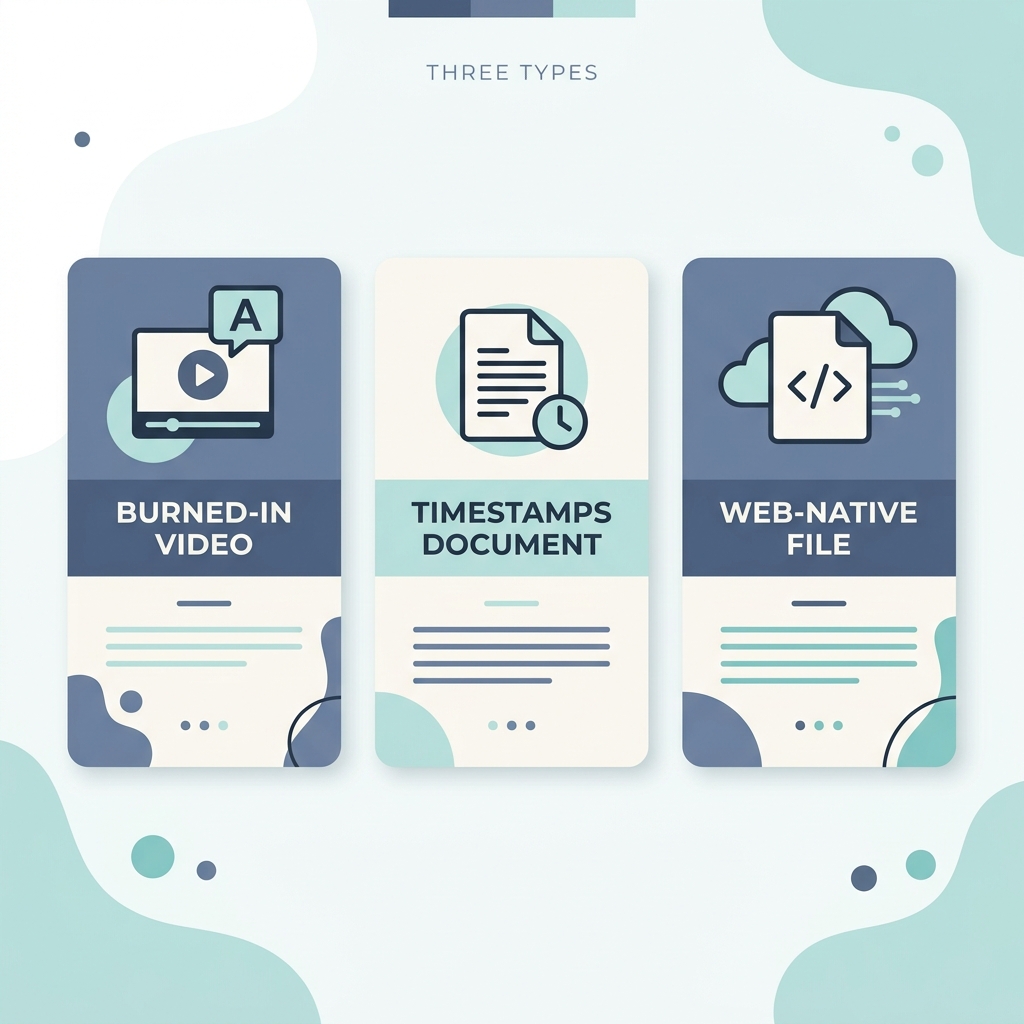
AI caption tools produce two fundamentally different kinds of output. Understanding which one fits your use case before you choose a tool will save you a frustrating workflow dead end.
Burned-in captions (also called hardcoded captions) are text permanently overlaid onto the video file itself. Anyone watching the video on any platform sees the captions automatically, because the text is part of the image. You control exactly how they look: font, size, color, position, animation. Best for TikTok, Instagram Reels, and YouTube Shorts, where visual styling is part of the content and the platform does not reliably surface its own caption layer.
SRT files (SubRip Text) are separate text files that contain the transcript and timestamps, but no visual formatting. Platforms like YouTube read the SRT file and display captions in their own player UI. You do not control the visual style, but the text is indexable, editable, and accessible to platform accessibility features.
VTT files (WebVTT) are similar to SRT but built for web-based video players and better suited to HTML5 video, e-learning platforms, and corporate video hosting. They support some limited styling and are the preferred format for many accessibility-focused deployments.
| Format | What It Is | Best Platform Fit | Accessibility Suitable | Styling Control |
|---|---|---|---|---|
| Burned-in | Text baked into the video file | TikTok, Reels, Shorts | Visible but not machine-readable | Full control |
| SRT | Separate timed text file | YouTube, video hosting platforms | Yes, platform-readable | None (platform controls) |
| VTT | Web-native timed text file | E-learning, corporate video, HTML5 | Yes, recommended for compliance | Limited |
Not every AI caption tool exports all three formats. Some produce only burned-in captions. Others offer SRT export on paid plans only. If your workflow requires SRT or VTT for any platform or compliance context, confirm export support before you sign up. For more on when each format applies, see the difference between captions and subtitles.
How to Evaluate AI Caption Tools: A Comparison of Top Options
Before comparing tools, it helps to name what you are actually evaluating. Eight criteria matter most:
- Accuracy transparency -- does the tool explain how its accuracy is measured, or just post a percentage?
- Editability -- how easy is it to find and fix errors before publishing?
- Export formats -- burned-in only, SRT, VTT, or all three?
- Language support depth -- how many languages, and how well does it handle each?
- Free tier reality -- what is genuinely usable for free, and where do limits appear?
- Pricing clarity -- are limits and upgrade triggers clearly explained?
- Platform fit -- does the tool output correctly for your target platforms?
- Use-case fit -- is this a captioning-only tool or part of a broader workflow?
| Tool | Accuracy Transparency | Editability | Export Formats | Language Support | Free Tier | Best For |
|---|---|---|---|---|---|---|
| GotReach | Not publicly benchmarked; part of a broader automation workflow | Built into the video editing workflow | Burned-in (SRT/VTT not confirmed) | Not publicly confirmed | 30 videos/month, 1 connected account, no watermarks | Bulk multi-platform creation and captioning at scale |
| Captions.ai | Claims high accuracy; methodology not disclosed | In-app editor available | Burned-in; SRT on paid plans | Broad language support claimed | Limited; full features require paid plan | Short-form solo creators wanting styled captions |
| AutoCaption | No published accuracy methodology | Basic editor | Primarily burned-in | Limited language range | Restricted free access | Quick single-video captions |
| OpusClip | Not a primary captioning tool; clip-focused | Limited caption editing | Burned-in within clips | English-primary | Limited | Repurposing long-form into short clips |
The most important distinction this table surfaces: Captions.ai, AutoCaption, and OpusClip are all single-video tools. That means 5 to 10 minutes of captioning work per video. If you are posting five times a week across three platforms, that is a part-time job, not a workflow.
GotReach's AI caption generator operates at a different scale. GotReach produces up to 300 videos in approximately 30 minutes from a single idea, then distributes them across seven platforms from a single workflow. That is not a faster version of the same thing. It is a different category of tool built for a different content volume.
GotReach's free tier includes 30 videos per month with one connected social account and no watermarks. That is a usable starting point, not a demo with a hard wall after two videos.
For agencies managing multiple clients and high content volumes, GotReach Enterprise provides centralized multi-client account management and bulk output at scale. It is worth a separate look if you are running content for more than one brand.
AI Captions for Accessibility and Compliance: What Creators Need to Know
Captions are not only an engagement feature. For viewers who are deaf or hard of hearing, they are the primary way to access your content. In many professional and institutional contexts, they carry legal weight.
WCAG 2.1 Success Criterion 1.2.2 requires captions for all prerecorded audio content in synchronized media. ADA Section 508 applies to federal agencies and organizations receiving federal funding, with similar requirements. For social-only creators, these standards are not typically enforceable mandates. For anyone producing corporate video, e-learning, government content, or institutional media, they are.
Here is the honest part: AI-generated captions alone typically do not meet accessibility standards without human review. The issues are accuracy (errors in proper nouns, technical terms, overlapping speech), timing (gaps or overlaps), and speaker identification (who is speaking is often missing from auto-generated output).
For most social content, a review pass is sufficient. For compliance-sensitive contexts, human verification against WCAG 2.1 criteria is necessary.
Accessibility caption requirements to verify before publishing in compliance-sensitive contexts:
- Captions are present for all spoken dialogue
- Captions are synchronized accurately with audio (no significant timing gaps)
- Speaker identification is included when multiple speakers are present
- Sound effects and meaningful audio cues are described where relevant
- Caption text is accurate enough that meaning is not distorted
- Captions are visible and readable against the video background
GotReach does not offer accessibility compliance review or ADA audit services. If your context requires WCAG compliance, pair AI captioning with a human review step or a specialist accessibility service.
Platform-Specific Caption Formatting: TikTok, YouTube Shorts, Reels, and LinkedIn
Getting the captions right for one platform does not automatically mean they are right for another. Each platform has its own aspect ratio, UI elements, and viewer behavior that affect how captions should be positioned and styled.
The safe zone problem: Captions placed too close to the bottom of a 9:16 vertical video get covered by platform UI elements. On TikTok, the comment icon, username, and description sit at the bottom 15 to 20% of the screen. Burned-in captions placed there become unreadable. Center-lower third, roughly 35 to 55% up from the bottom, is the reliable safe zone for vertical video.
| Platform | Aspect Ratio | Safe Zone | Recommended Line Length | Caption Style |
|---|---|---|---|---|
| TikTok | 9:16 | Center-lower third | 1 to 2 short lines | Animated or bold static; word-by-word highlight performs well |
| YouTube Shorts | 9:16 | Center-lower third | 1 to 2 short lines | Static or minimal animation; clean font preferred |
| Instagram Reels | 9:16 | Center-lower third | 1 to 2 short lines | Animated captions perform well in feed context |
| 16:9 or 1:1 | Bottom third | 2 to 3 lines | Static, clean font; professional and readable |
Animated captions (word-by-word highlight, bounce, pop-in) tend to hold attention in short-form feed environments where viewers scroll fast. Static captions are cleaner for LinkedIn and professional contexts where readability and credibility matter more than motion.
If you are managing caption formatting across multiple platforms, doing it manually per video per platform adds up quickly. GotReach distributes across seven platforms from a single workflow, which means platform-specific formatting is handled in one place rather than repeated for every upload. For creators thinking about this as part of a broader content repurposing workflow, that single-workflow advantage compounds at volume.
For YouTube-specific caption format guidance, YouTube's official caption documentation covers supported file types, timing requirements, and formatting specs directly from the platform.
Frequently Asked Questions
How accurate are AI captions compared to human captions?
AI captions in ideal conditions (clear audio, single speaker, standard vocabulary) can approach human-level accuracy. In real-world creator content with accents, background noise, or technical terms, they require a review pass. Human captions remain the standard for compliance-sensitive contexts.
What is the difference between burned-in captions and SRT or VTT subtitle files?
Burned-in captions are permanently part of the video image and visible on any platform automatically. SRT and VTT files are separate text files that platforms read and display in their own player. Use burned-in for social video where styling matters; use SRT or VTT for YouTube, e-learning, or compliance contexts.
Are AI captions good enough for ADA or WCAG accessibility compliance?
Generally no, without human review. AI output can contain errors in accuracy, timing, and speaker identification that do not meet WCAG 2.1 standards. For compliance-sensitive contexts, human verification is required after AI generation.
Which AI caption tool is best for TikTok and short-form video?
For single-video use, tools like Captions.ai offer styled burned-in captions. For creators publishing at volume across TikTok, Reels, and Shorts simultaneously, GotReach handles captioning as part of a broader workflow that produces up to 300 videos in roughly 30 minutes.
Can AI caption tools handle accents, technical terms, or multiple speakers?
Depends on the tool and your content. Most AI tools struggle with heavy accents, domain-specific vocabulary, and overlapping speakers. Always treat AI output as a first draft for any content type outside clear solo-speaker speech.
Are AI caption tools free, and what do paid plans actually add?
Free tiers exist but usually limit volume, resolution, or export formats. GotReach's free tier includes 30 videos per month with one connected social account and no watermarks. Paid plans across most tools add higher volume, SRT export, language support, and team features.
Start Captioning at Scale
If you only post one or two videos a week, most AI caption tools will do the job. The choice mostly comes down to which editor you find easiest and whether you need SRT export.
If you are publishing consistently across multiple platforms and captioning is currently eating your time, the math on single-video tools stops working fast.
GotReach's AI caption generator handles captioning as part of a complete video creation and distribution workflow. Up to 300 videos in roughly 30 minutes, distributed across seven platforms, starting with a free tier that includes 30 videos per month and no watermarks.
Start your 30-day free trial today and see what captioning at actual scale looks like.
For agencies managing content across multiple clients, GotReach Enterprise provides centralized control and bulk output built for teams. See how GotReach helps businesses and people create and publish more.