The Best AI Captions Apps in 2026: Compared for Accuracy, Features, and Creator Fit
If you're captioning videos one at a time, it takes 5 to 10 minutes per video to do it right. Post five videos a week and you've spent nearly an hour just on text overlays. That's before you've edited, scheduled, or published anything.
Every AI captions app on the market claims to solve this. Most say they're the most accurate, the easiest to use, or the most powerful. After reading a few of those homepages, the claims blur together. What they don't tell you is when the free tier runs out, which export formats they actually support, or whether their accuracy holds up for anything other than a native English speaker in a quiet room.
This article cuts through that. What follows is an honest comparison of the top AI captions apps across the criteria that actually drive the choice: caption accuracy, output format options, free tier reality, and use-case fit. No rankings based on marketing copy. No single winner declared. Just the information you need to pick the right tool for how you actually work.
Key Takeaways
- How to tell if a free AI captions tool will cover your needs before you hit the paywall
- What caption output formats (burned-in, SRT, VTT, animated) mean and which platforms need which
- A side-by-side comparison of top AI captions apps with honest free tier limits and export format gaps
- How to match the right tool to your creator type, publishing volume, and workflow
- When a dedicated captions app is enough versus when an all-in-one platform closes the gap
Two Types of AI Captions Tools: And Why the Difference Matters
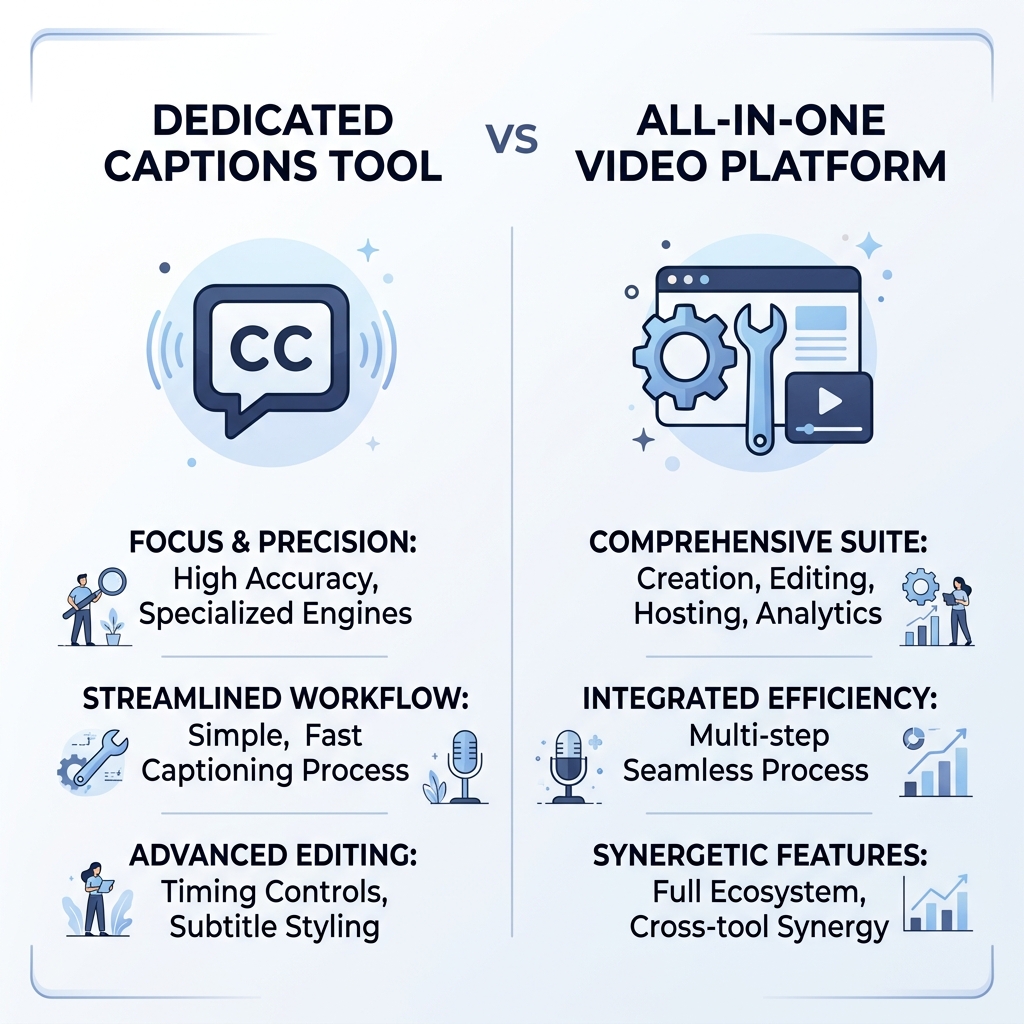
Before comparing specific apps, it helps to know which category of tool you actually need. There are two, and they solve different problems.
Dedicated captioning tools do one thing: transcribe your audio and generate captions. They're faster to learn, typically cheaper, and the right fit if captioning is your only task. You upload a video, get captions back, and export or burn them in.
All-in-one AI video editors include captioning as one feature inside a broader production system. Editing, scheduling, multi-platform publishing, and bulk video creation all live in the same workflow. These tools cost more and have a steeper learning curve, but they're built for creators who need more than just a caption layer on a single clip.
The category you choose shapes everything that follows: your budget, how long it takes to get up to speed, which export formats are available, and whether the tool can keep pace as your publishing volume grows.
A TikTok creator publishing three videos a week probably needs a dedicated captions tool. A business publishing 50 videos a month across multiple platforms needs something that handles the full workflow from start to finish.
As a quick orientation before diving into individual apps, here's how the two categories compare:
| Criteria | Dedicated Captioning Tools | All-in-One AI Video Editors |
|---|---|---|
| Primary function | Transcription and caption overlay only | Editing, captioning, scheduling, and publishing in one system |
| Best for | Occasional creators, single-caption tasks | High-volume creators, businesses, agencies |
| Typical pricing | Free tier available, paid from ~$10-20/month | Broader plans, often $30+ per month depending on volume |
| Export format options | Usually SRT, VTT, burned-in | Varies by platform; may include bulk output |
| Learning curve | Low | Moderate to high |
If you need scale and not just a caption layer, try GotReach's AI caption generator to see what a production-focused workflow looks like beyond single-video tools.
What to Look for When Comparing AI Captions Apps
The decision comes down to a handful of real questions. Here's what each one actually means in practice.
Caption accuracy sounds obvious, but the variability is worth understanding. Errors happen most often with strong accents, fast speech, background noise, or specialized vocabulary (medical, legal, technical). When an app homepage says "up to 99% accurate," that number is brand-reported and typically reflects ideal conditions. Read how caption accuracy affects tool selection before taking any accuracy claim at face value.
Language support is another area where marketing overpromises. A tool that lists 50 supported languages may produce excellent English captions and noticeably weaker output in Spanish, French, or any non-Latin script. Breadth of support and depth of quality are different things.
Export format options determine whether a tool fits your downstream workflow. If you need to upload subtitles to YouTube for accuracy editing or accessibility compliance, you need an SRT or VTT file. If a tool only burns captions directly into the video, that file becomes a dead end for localization.
Free tier limits rarely appear clearly on pricing pages. Most tools cap the number of projects per month, throttle processing speed for free users during peak periods, or lock animated captions and SRT export behind paid plans. You often find the wall after you've already built a habit around the tool.
Platform availability matters if you caption on the go. Some tools are mobile-first (iOS and Android apps), some are desktop-only, and some are browser-based. If you edit on your phone between takes, a desktop-only tool creates friction.
Volume capacity is the limit most creators underestimate. A tool that works fine for five videos a week may throttle, cap out, or price-escalate significantly when you hit 30 or 50 videos per month.
Use this checklist when evaluating any AI captions app:
- Caption accuracy: Does it handle your accent, speaking pace, and industry-specific vocabulary without constant manual correction?
- Language support quality: If you create in a non-English language, test actual output before committing. "Supported" and "accurate" are not the same.
- Export format: Does it output SRT or VTT files, or only burn captions into the video? The answer changes everything for YouTube and accessibility workflows.
- Free tier limits: How many videos per month before the paywall? Is processing throttled on the free plan? Are key features like animated captions gated?
- Platform availability: Is there a mobile app for your device, a desktop version, or is it browser-based only?
- Caption customization: Can you adjust font, color, position, and animation style to match your brand?
- Processing speed: How long does it take per video at your publishing volume? Seconds matter when you're producing 30 videos a month.
- All-in-one vs. dedicated tool: Do you need editing and scheduling too, or are captions the only gap in your current workflow?
Top AI Captions Apps Compared: Accuracy, Export Formats, and Free Tier Reality
Here's what the comparison actually looks like when you strip away the homepage copy and look at what each tool does and doesn't do.
| App | Accuracy Notes | Language Support | Export Formats | Free Tier Reality | Platform | Best For |
|---|---|---|---|---|---|---|
| Captions.ai | Brand-reported high accuracy for English; quality drops noticeably for non-English audio | 28+ languages (brand-reported); non-English quality varies | Burned-in video export; SRT on paid plans | Free tier caps projects quickly; animated styles gated behind paid | Mobile (iOS/Android) | Short-form social creators who work on mobile |
| OpusClip | Strong at clipping long-form video into short clips with auto-captions; accuracy brand-reported | English-primary; limited multilingual quality | Burned-in captions in exported clips | Free tier limited by clip count per month; advanced styling on paid | Browser-based | Podcasters and YouTubers repurposing long-form content |
| CapCut | Solid auto-caption accuracy for English; manual correction often needed for fast or accented speech | 10+ languages (brand-reported); results vary by language | Burned-in export; no standalone SRT export in standard workflow | Generous free tier; some features require paid plan | Mobile and desktop | Casual creators making short-form content for TikTok and Reels |
| Descript | Transcription-first workflow; strong accuracy for clear speech; errors compound in noisy audio | Primarily English; limited other language support | SRT, VTT, burned-in, and text export | Free tier limits transcript length and projects per month; collaboration features on paid | Desktop and browser | Podcasters and long-form YouTubers who edit in transcript form |
| Submagic | Designed specifically for short-form video captions with animated styles; accuracy brand-reported | 48+ languages (brand-reported); non-English quality unverified | Burned-in video with styled captions | Free tier restricts video count and removes watermark only on paid | Browser-based | Short-form social creators who want styled animated captions |
| GotReach | Automated captions as part of bulk video creation; accuracy tied to production workflow | Not confirmed for multilingual; English-primary workflow | Output format details not confirmed; built for bulk video publishing | 30 videos per month free, one social account, no watermark | Browser-based (mobile not confirmed) | Businesses and high-volume creators who need 300 videos in 30 minutes, not one clip at a time |
A few things the table can't fully capture:
Processing throttling on free tiers is real. Captions.ai, Submagic, and CapCut all limit free users more during peak hours. This shows up as longer processing queues, not as an error message. You won't find this on their pricing pages.
SRT export is rarer than it looks. Most tools in this space burn captions into the video file. If you need a separate subtitle file for YouTube, accessibility workflows, or translation, only a subset of tools provide that. Descript is the clearest example of a transcription-first tool that outputs SRT. Captions.ai gates it behind a paid plan.
GotReach operates in a different category. Captioning is part of a production system that creates up to 300 videos in 30 minutes from a single idea. That's not a replacement for a dedicated captions tool if you caption one video at a time. It's the upgrade path when single-video workflows can't keep pace with your publishing schedule. Generate captions and build your video workflow with GotReach to see how bulk creation changes the math.
Caption Output Types Explained: Burned-In, SRT, VTT, Animated, and Static
This is the part most tool comparison articles skip, and it's where creators discover the tool they signed up for doesn't actually fit their workflow.
There are four main caption output types. Here's what each means and when it matters:
- Burned-in captions (also called hardcoded captions): The caption text is permanently embedded into the video file itself. No separate file is needed, and the viewer always sees them. The trade-off: you can't turn them off, edit them after export, or upload a corrected version. Best for social media where videos autoplay without sound.
- SRT files (SubRip Text format): A separate text file containing caption text and timestamp data. Upload it to YouTube, edit it for accuracy, translate it into another language, or use it in an accessibility workflow. Essential for creators who localize content or need to meet captioning requirements.
- VTT files (Web Video Text Tracks format): Similar to SRT but formatted for browser-based video players and HTML5 video. Used on websites, learning platforms, and streaming tools that support web-standard caption delivery.
- Animated captions: Captions that move, highlight words in sequence, or change style in sync with speech. Research on video engagement suggests animated captions improve viewer retention on short-form video. Not all tools support them, and the ones that do often gate the feature behind paid plans.
- Static captions: Fixed-position text overlays that don't animate. Simpler, widely supported, and enough for most use cases where the goal is legibility rather than visual engagement.
Platform requirements determine which format you need. YouTube accepts SRT and VTT uploads directly, and those files can be edited or auto-translated after the fact. TikTok and Instagram Reels expect burned-in captions or use their own auto-caption layer on top of your video. If you're publishing in both places, you may need a tool that handles both output types or two separate tools in your workflow.
For a full breakdown of when captions and subtitles function differently, see when to use captions vs. subtitles for the complete treatment. The W3C Web Accessibility Initiative also outlines why captions matter for hearing-impaired audiences and platform compliance.
Which AI Captions App Fits Your Workflow? A Use-Case Matching Guide
The comparison table tells you what each tool does. This section tells you which one fits how you work.
Short-form social creators (TikTok, Reels, Shorts): You need styled or animated captions burned into the video, fast processing, and ideally a mobile app so you can work between takes. At low volume (under 10 videos a week), a dedicated captions tool like CapCut or Submagic covers the workflow. As volume climbs, the one-video-at-a-time ceiling becomes the constraint.
Long-form YouTubers and podcasters: SRT or VTT export is non-negotiable if you care about accuracy, accessibility, or auto-translate for international audiences. A transcription-first tool like Descript fits this workflow well. For creators who clip long-form content into short captioned pieces for social distribution, repurposing long video into short captioned clips is where an all-in-one platform earns its cost.
Businesses and marketers publishing at volume: Accuracy and brand consistency matter, but the bigger constraint is throughput. Single-video captions tools create a bottleneck when you're publishing 50 or more videos a month. GotReach produces up to 300 videos in 30 minutes from a single idea and publishes across seven platforms from one workflow. For agencies managing multiple clients, GotReach Enterprise adds centralized multi-client control from a single dashboard.
Multilingual creators: Prioritize language quality over language count. A tool that supports 48 languages but produces shaky output in Spanish is not a multilingual solution. Test actual output in your target language before committing to any tool for non-English content.
Here's how each creator type maps to the right tool category:
| Creator Type | Top Priority | Secondary Priority | Recommended Category | Features to Prioritize |
|---|---|---|---|---|
| Short-form social (TikTok, Reels) | Animated/styled captions, speed | Mobile access | Dedicated captions tool (or all-in-one at scale) | Animated styles, fast processing, burned-in export |
| Long-form YouTube / podcaster | SRT/VTT export, accuracy | Editing workflow integration | Dedicated captions or transcription tool | SRT export, transcript editing, accuracy for clear audio |
| Business / marketer at volume | Throughput, brand consistency | Multi-platform publishing | All-in-one AI video platform | Bulk creation, no per-video bottleneck, scheduling |
| Agency / multi-client team | Client management, scalability | Centralized control | All-in-one enterprise platform | Multi-account dashboard, volume capacity |
| Multilingual creator | Non-English caption quality | Language breadth | Test before committing; dedicated or all-in-one | Verified accuracy in target language, not just language count |
If you're ready to test an option built for scale, try an AI caption tool for short-form video with GotReach.
Free vs. Paid AI Captions Apps: What You Actually Get
Free tiers are real, but the limits are rarely disclosed clearly.
Free AI Captions Tools
Pros:
- No upfront cost, which makes sense for creators testing the workflow
- Some tools offer watermark-free exports on free plans (GotReach includes this at 30 videos per month)
- Enough for occasional creators publishing fewer than 10 to 15 videos per month
- Good for evaluating caption quality before paying
Cons:
- Project caps hit quickly for consistent publishers
- Processing is often throttled during peak hours, meaning longer waits on the free plan
- Export formats are usually restricted: SRT and VTT export are common paid-only features
- Animated captions and advanced styling are typically locked behind paid tiers
- Key collaboration and team features are almost always gated
Paid AI Captions Tools
Pros:
- Higher or unlimited video volume per month
- Faster processing and priority queue access
- Full export format access, including SRT and VTT
- Access to animated captions, custom branding, and advanced styling
- Priority support when something goes wrong
Cons:
- Subscription cost adds up for casual creators who publish infrequently
- Annual plans lock you in before you've fully tested the tool in your workflow
- Pricing pages change often, so the tier you sign up for today may look different in six months
The honest answer on free tiers: they work well for occasional creators. If you're publishing fewer than 10 videos a month and only need burned-in captions for social media, a free plan likely covers you. If you need SRT export, animated captions, or consistent throughput at any real volume, you'll hit the wall and need to upgrade.
GotReach's free plan offers 30 videos per month, one connected social account, and no watermark. That's a concrete baseline. For comparison, most dedicated captions tools free-tier you at 5 to 10 projects before asking for payment. Verify current plan details directly on any pricing page before committing, since these change frequently.
Frequently Asked Questions About AI Captions Apps
What is the most accurate AI captions app? Accuracy depends on your content, not just the tool. Every major app performs best with clear English audio from a single speaker in a quiet environment. Accuracy drops for accented speech, fast delivery, background noise, and specialized vocabulary. No single app is the most accurate across all conditions. Test any tool with a sample of your own audio before committing.
Can I get AI captions for free without a watermark? Yes, some tools offer watermark-free exports on their free plans. GotReach's free plan, for example, allows up to 30 videos per month with one connected social account and no watermark. Other tools require a paid plan to remove watermarks. Check the specific tool's current pricing page, since these terms change.
What is the difference between burned-in captions and SRT subtitle files? Burned-in captions are permanently embedded in the video file. Viewers always see them and they can't be turned off or edited after export. SRT files are separate text documents containing caption text and timestamps. You can upload them to YouTube, edit them for accuracy, translate them, or use them for accessibility compliance. For a full breakdown, see when to use captions vs. subtitles.
Which AI captions app works best for TikTok and Instagram Reels? For short-form social platforms, look for three things: animated or styled captions that display word by word, fast processing so you're not waiting on exports, and ideally a mobile app so you can work from your phone. No single app wins on all three criteria. CapCut and Submagic are frequently used for this workflow. At higher publishing volumes, an all-in-one platform removes the one-clip-at-a-time ceiling.
Do AI captions apps work for languages other than English? Most do, with significant caveats. English caption quality is consistently higher than other languages across nearly every tool. Apps that list 48 supported languages may produce polished English captions and noticeably rougher output in Spanish, French, or non-Latin script languages. Always test actual output in your target language before using any tool for non-English content.
Do I need a full AI video editor or just a captions app? The answer depends on publishing volume and workflow. If captions are the only gap in your current process and you're publishing fewer than 15 to 20 videos per month, a dedicated captions tool likely covers it. If you also need editing, scheduling, multi-platform publishing, or bulk creation, a dedicated captions tool creates a bottleneck. The volume threshold is usually the clearest signal: when manually captioning one video at a time stops keeping pace with your publishing calendar, an all-in-one platform earns its cost.
Start Publishing More Video in Less Time
The right AI captions app for your workflow comes down to three questions: how accurate do the captions need to be for your content, what format does the output need to be in for your platform, and how many videos are you publishing each week.
For creators who need animated captions burned into short-form clips, a dedicated tool at low to moderate volume is a reasonable starting point. For creators who need SRT files for YouTube or accessibility workflows, make sure the tool actually exports that format before you sign up. And for businesses, marketers, and high-volume creators who are losing time to one-video-at-a-time production, the bottleneck is the workflow itself, not just the captions.
GotReach produces up to 300 videos in 30 minutes from a single idea and publishes across seven platforms from one workflow. The free plan covers 30 videos per month with no watermark, so you can test the volume before committing.
Start your 30-day free trial today and see how much of your production time is actually spent on tasks an AI can handle.
See how GotReach helps businesses and creators publish more video in less time, without rebuilding your content strategy from scratch.