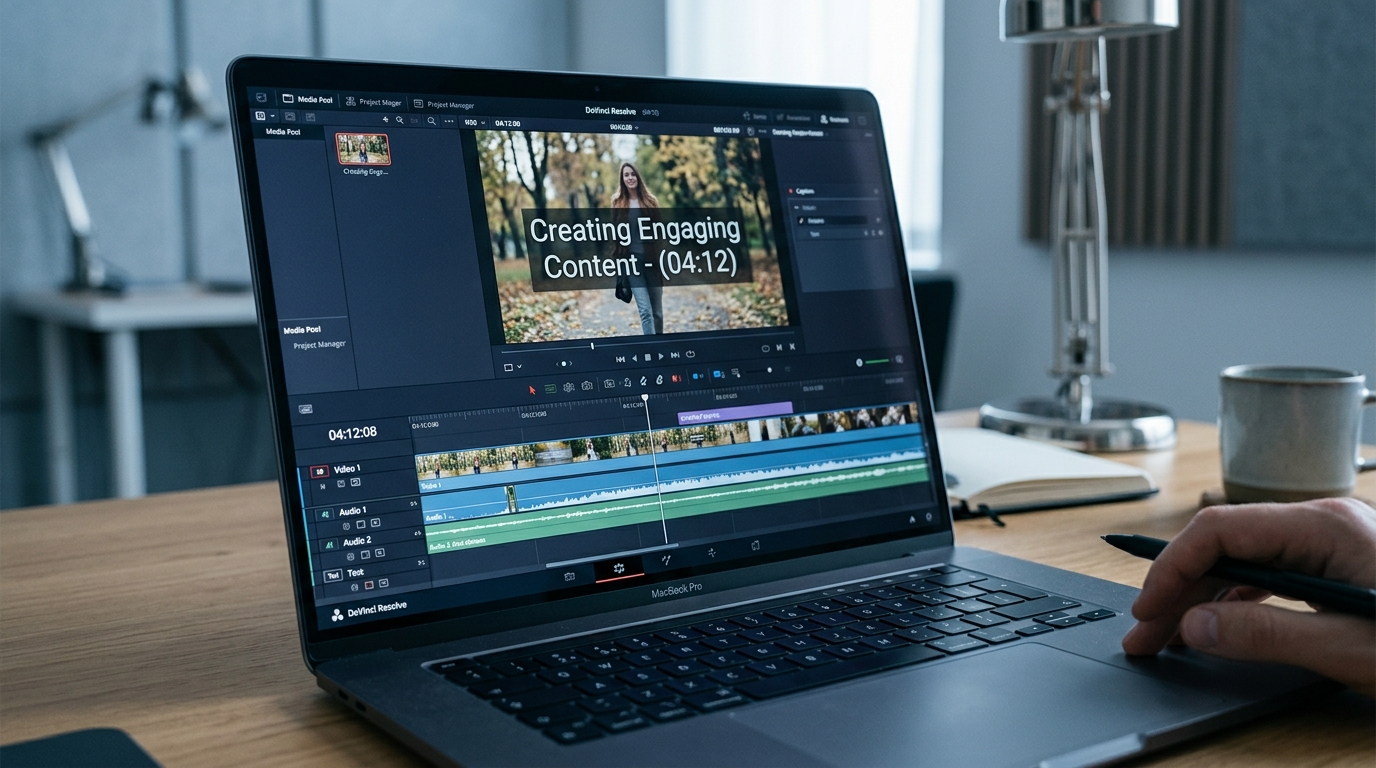
Read our updated guide to adding subtitles and captions to video.
How to Caption a Video: Methods, Tools, Formats, and Platform Workflows
Most creators hit the same wall: you know you need captions, but the moment you start, you face three separate decisions at once. Which method do you use? What file format does your platform actually accept? And once the caption file exists, where exactly do you upload it?
This guide resolves all three. It covers how to choose the right captioning method for your volume and budget, how to format captions so they work for deaf and hard-of-hearing viewers, which file formats each major platform accepts, and the step-by-step publish workflow for YouTube, Vimeo, TikTok, Instagram, and LinkedIn. Compliance context is included for readers who need it.
Key Takeaways
- Auto-generated captions always need editing before they meet accessibility standards. Timing, punctuation, and speaker identification all require correction every time.
- The right captioning method depends on your video volume, accuracy requirements, and budget, not on which tool sounds most advanced.
- SRT is the default format for most platforms. VTT is required for HTML5 video players and web embeds. SCC is for broadcast distribution only.
- ADA Title III applies to businesses with public-facing websites that include video. WCAG 1.2 is the benchmark standard for what technically correct captions look like.
- Every major platform has a different captioning interface. A generic upload instruction is useless without knowing where the option is and what the platform accepts.
What Captioning a Video Actually Involves
Captions are not the same as subtitles or transcripts. Subtitles assume the viewer can hear and translate dialogue for a different language audience. Transcripts are text documents without timecodes. Captions are timecoded text that represents all meaningful audio, including dialogue, speaker identification, and non-speech sounds, for viewers who cannot hear the audio.
There are two delivery types that affect every format and platform decision you make:
Open captions are burned directly into the video frame. They are always visible and cannot be turned off. Common on TikTok and Instagram Reels, where muted autoplay makes them a reach tool as much as an accessibility tool.
Closed captions are delivered as a separate file and toggled on or off by the viewer. They are required for compliance, the format used on YouTube's CC toggle, and the standard for any platform that accepts a caption file upload.
Choosing between them comes down to platform and intent. If the video lives on a social feed where autoplay is muted, open captions are often the better reach choice. If the video is hosted on a platform that accepts file uploads, or if compliance is a factor, closed captions are the right call.
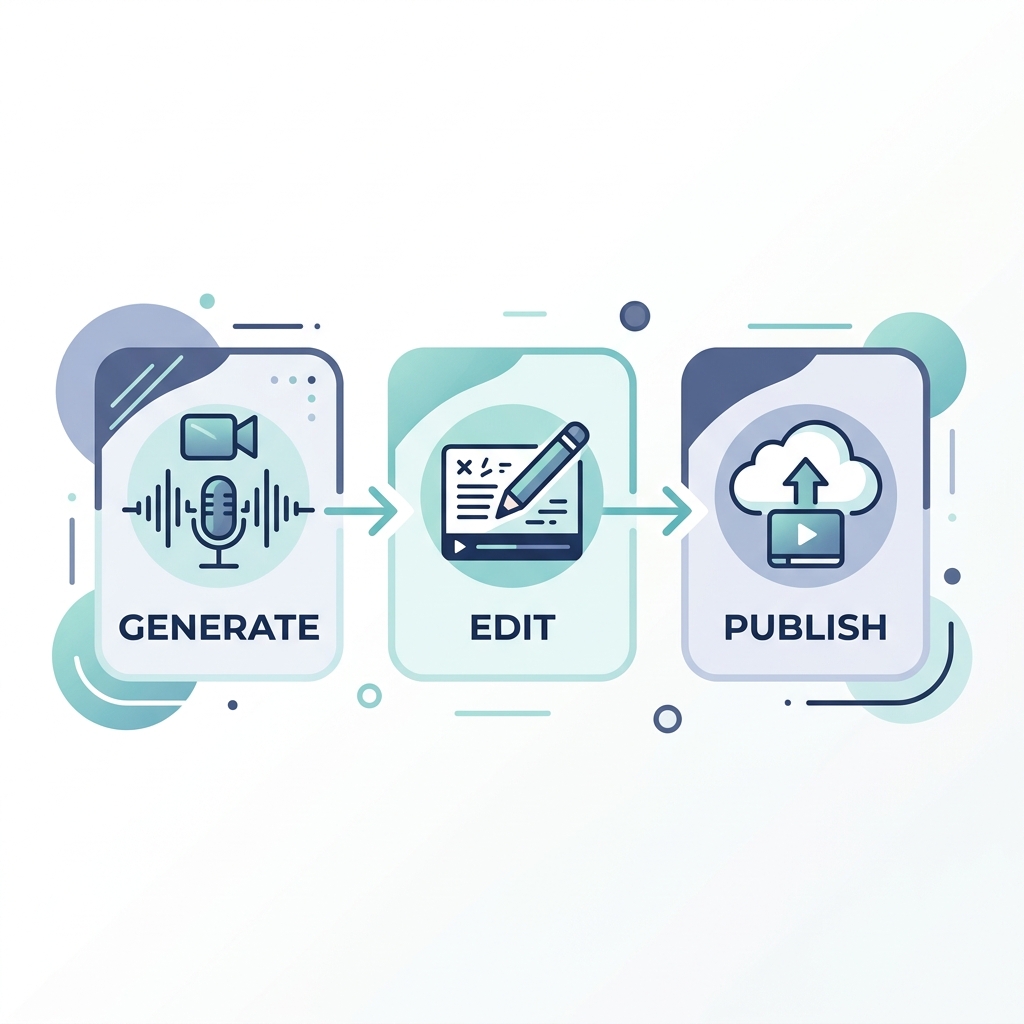
The full captioning process follows three steps regardless of which method or format you choose:
- Generate captions using an AI tool, manual captioning software, or a professional human service.
- Edit and format the output to meet timing, line-length, punctuation, and speaker-ID standards.
- Publish by uploading the correct file format to your platform or burning captions in before export.
The rest of this article follows that sequence.
Choosing Your Captioning Method
Four distinct approaches exist. None is universally best. The right choice depends on your video volume, accuracy requirements, and how much manual review your workflow can support.
AI auto-captioning is built into most video platforms and editing tools. It is fast and free or low cost, but accuracy varies considerably depending on audio quality, accents, technical vocabulary, and speaker overlap. Expect to edit every output before it is publish-ready.
Free manual captioning tools let you type captions line by line, set timecodes manually, and export a file. Best for low-volume creators who need to verify every word or who are working in a niche where AI accuracy is poor. Slow by design, but the output is as accurate as the person doing the work.
Paid AI captioning tools offer higher accuracy tiers, better multilingual support, and often integrate into broader video production workflows. For mid-to-high-volume publishers who cannot afford the time cost of fully manual captioning, they reduce editing time without eliminating it.
Professional human captioning services deliver the highest accuracy. A trained human reviews every caption against the audio. The slowest and most expensive option, and the only one appropriate when compliance-grade accuracy is non-negotiable, such as legal proceedings, medical content, or federal accessibility requirements.
If you are publishing at scale, the volume math matters. A single-video tool that takes 5 to 10 minutes per video per platform becomes a second job at 300 videos per month. That is the problem GotReach is built to solve: creating 300 videos in 30 minutes from a single idea and distributing them across seven platforms from one workflow, so platform-specific setup becomes a one-time investment rather than a per-video task.
| Method | Accuracy | Typical Cost | Speed | Best For |
|---|---|---|---|---|
| AI Auto-Captions | Low to moderate; requires editing | Free to low | Very fast | High-volume creators who will review and edit every output |
| Free Manual Tools | High if done carefully | Free | Slow | Low-volume creators or anyone needing full line-by-line control |
| Paid AI Tools | Moderate to high; still needs review | Subscription or per-minute | Fast | Mid-to-high volume with accuracy requirements and budget |
| Professional Human Services | Highest | Premium per-minute rate | Slowest | Compliance-grade content, legal, medical, government |
For most independent creators, paid AI tools offer the best balance of speed and accuracy. For compliance-driven organizations, human review is still the required standard. See GotReach's pricing to understand how a multi-platform workflow fits into your overall content budget.
Caption Formatting Standards That Make Captions Actually Accessible
Formatting is not cosmetic. Captions that are present but mistimed, over-long, or missing sound descriptions fail accessibility standards just as much as no captions at all.
Synchronization is the baseline. Captions must match audio within approximately two seconds. Late captions break comprehension for deaf and hard-of-hearing viewers who rely on them to follow the content in real time.
Line length and display follow a clear rule from the DCMP Captioning Key: a maximum of two lines on screen at once, approximately 45 characters per line. Why 45 and not 60? Longer lines require more reading time, which conflicts with the viewer's need to simultaneously watch the visual content. Lower-third placement is standard to avoid blocking the speaker's face or key visuals.
Font and contrast matter for readability. Sans-serif fonts read clearly at smaller sizes. White text on a dark background, or the inverse with sufficient contrast, meets the WCAG 1.4.3 contrast ratio requirement. Do not use color to distinguish speakers. Use name labels instead: [SARAH], [INTERVIEWER].
Sound effects and non-speech audio must be represented. Silence is meaningful. Use bracket notation: [applause], [door slams], [music playing]. A deaf viewer watching a suspense scene needs to know that the sound design is part of the content.
Filler words and unintelligible speech: the professional standard is verbatim captioning for most content. For genuinely unintelligible sections, use [inaudible] rather than guessing.
What Auto-Captions Get Wrong (And What You Fix)
Here is a concrete example of what AI auto-captioning produces versus what the corrected version looks like:
Raw AI output:
were going to cover three things today the section 508 requirements uh the wcag guidelines and how there different from ada
Corrected caption:
We're going to cover three things today: the Section 508 requirements, the WCAG guidelines, and how they differ from ADA.
The AI output is missing apostrophes, commas, capitalization, and correct spelling of proper nouns. The line break falls mid-thought. This is not an edge case. It is the default output of AI captioning on technical content.
Fix these every time:
- Missing punctuation and sentence-ending periods
- Proper noun misspellings (names, brands, acronyms)
- Line breaks that split a phrase mid-thought
- Unmarked speaker changes
- Filler words that were not intended to be transcribed verbatim
Caption File Formats: SRT, VTT, and SCC Explained
A caption file is a plain-text document that pairs timecodes with caption text. It is not embedded in the video. It is uploaded separately or linked to the video player, which renders it on top of the video frame at the correct times.
SRT (SubRip Text) is the most widely supported format across all major video platforms. It uses a simple structure: a sequence number, a timecode range, and the caption text. If you create one format and one format only, make it SRT.
VTT (WebVTT) is the web-native standard required by HTML5 video players. It supports basic styling that SRT does not, including font size and position adjustments. Use VTT when your video is embedded on a website using an HTML5 player or when a platform specifically requires it.
SCC (Scenarist Closed Captions) is the broadcast standard. It encodes captions into the video signal and is used primarily for FCC compliance and broadcast television distribution. If you are publishing web-first content, you almost certainly do not need SCC.
The practical rule: start with SRT. It covers YouTube, Vimeo, LinkedIn, and most platforms. Add VTT for web embeds. Ignore SCC unless you are distributing to broadcast.
Platform Format Compatibility
| Platform | SRT | VTT | SCC | Notes |
|---|---|---|---|---|
| YouTube | Yes | Yes | Yes | Upload in YouTube Studio under Subtitles; auto-captions also available to edit |
| Vimeo | Yes | Yes | No | Upload via Advanced settings on any video; supports multiple caption tracks |
| TikTok | No file upload | No | No | Use platform auto-captions or burn open captions in before upload |
| Instagram Reels | No file upload | No | No | Burn open captions in before upload; no external file support |
| Yes | No | No | Upload SRT during video upload or add after publish via edit | |
| Wistia | Yes | Yes | No | Upload in video settings; supports multiple language tracks |
| HTML5 Player | No | Yes | No | Use the track element; VTT is the required format for native HTML5 captioning |
Platform-Specific Captioning Workflows
Every platform has a different captioning interface and format requirement. A generic upload your SRT file instruction is useless without knowing where to find the upload option and what the platform actually accepts.
YouTube
- Open YouTube Studio and select the video you want to caption.
- Click Subtitles in the left navigation panel.
- Select the language, then click Add next to the language row.
- Choose Upload file and select your SRT or VTT file, or choose Auto-translate to use YouTube's generated captions as an editable starting point.
- Review timing and text in the caption editor. YouTube's auto-captions are a draft, not a final product.
- Click Publish to save. Return to the video and use the CC toggle to confirm captions are active and displaying correctly.
Vimeo
- Open your Vimeo video in the video manager.
- Go to the Advanced tab and scroll to Distribution.
- Under Subtitles/Captions, click Add a caption track.
- Upload your SRT or VTT file and select the language.
- Save changes. The CC control will appear automatically in the Vimeo player.
TikTok
- After recording or uploading your video, tap Captions in the editing screen.
- TikTok will generate auto-captions. Review and edit them before posting, especially for proper nouns and punctuation.
- Alternatively, burn open captions into your video before uploading using your video editor. This ensures captions appear on all devices and autoplay contexts.
- Open captions are generally the higher-reach choice for TikTok, where the majority of views happen on muted autoplay.
Instagram Reels
- Instagram does not accept external caption file uploads for Reels.
- Use Instagram's native auto-captions by enabling the Captions sticker in the Reels editor after upload.
- For compliance or accuracy-grade captions, burn open captions into your video before uploading. This is the only method that gives you full control over caption text and formatting.
- Upload your video natively in LinkedIn's post composer.
- Once the video processes, click the pencil/edit icon on the video thumbnail.
- Select Add captions and upload your SRT file.
- Alternatively, add captions to a previously published video by navigating to the post, selecting the three-dot menu, and choosing Edit post.
Self-Hosted or Website-Embedded Video
For HTML5 video players, add captions using the <track> element in your HTML. Point the src attribute to your VTT file and set kind="captions". Most modern media player libraries (Video.js, Plyr, JW Player) support this natively. VTT is the required format. SRT is not supported by the HTML5 <track> element directly.
Accessibility and Compliance: Who Needs Captions and Why
The compliance question is not whether accessibility law applies to video content. It is which standard applies to you.
Section 508 of the Rehabilitation Act applies to federal agencies and organizations receiving federal funding. It requires that electronic content, including video, be accessible to people with disabilities. The Section 508 captioning standards define specific technical requirements for accuracy, synchronization, and completeness. Most independent creators are not directly covered, but the standard defines what technically correct captions look like.
ADA Title III applies to businesses and organizations open to the public. Courts have increasingly applied ADA accessibility requirements to websites and digital content, including video. If you operate a business with a public-facing website that includes video, ADA Title III is relevant to you.
WCAG 1.2 is the international web standard for audio and video accessibility. WCAG 1.2 success criteria require captions for all prerecorded audio content in synchronized media. WCAG 2.0 AA is the benchmark that most ADA-related web accessibility claims reference in practice.
Who is practically at risk: businesses with public-facing websites, higher education institutions, healthcare providers, and any organization receiving federal funding. Independent creators without a business website face lower direct legal risk, but the accessibility case for captions does not depend on compliance.
Auto-generated captions do not meet compliance-grade standards. No major framework, Section 508, ADA, or WCAG, treats auto-captions as an acceptable finished product. They lack the accuracy, punctuation, and editing required to meet any of the three standards above.
Note: This section summarizes publicly available standards for informational purposes. If you have specific compliance obligations, consult qualified legal counsel for guidance applicable to your situation.
Captioning Workflow Checklist
Use this checklist on every video you publish. It covers the full process from production through final publish.
- Record with clear speech, consistent pacing, and minimal background noise or overlapping audio
- Choose the right captioning method for your volume, accuracy requirement, and budget
- Generate captions using your chosen method (AI tool, manual tool, or professional service)
- Edit for punctuation, capitalization, and sentence-ending periods
- Correct proper noun spelling (names, brands, acronyms)
- Fix line breaks that split phrases mid-thought
- Add speaker identification labels where speakers change
- Add bracket notation for non-speech audio ([applause], [music playing], [inaudible])
- Verify maximum two lines on screen, approximately 45 characters per line
- Confirm caption timing syncs within two seconds of corresponding audio
- Export in the correct file format for your target platform (SRT for most; VTT for web embeds)
- Upload caption file using the platform-specific workflow for your destination
- Confirm captions are active and displaying correctly on the published video
- Repeat the upload step for each additional platform you distribute to
If you are publishing one or two videos per week, this checklist is manageable by hand. If you are publishing at volume, that math changes fast. A tool that creates one video in 5 to 10 minutes requires 25 to 50 hours of creation time alone for 300 videos, before captioning, formatting, and platform uploads are factored in. That is the problem GotReach removes: 300 videos in 30 minutes from a single idea, distributed across seven platforms from one workflow. Platform-specific captioning setup becomes a one-time configuration rather than a per-video task.
Start your 14-day free trial today and see what a publishing workflow at scale actually looks like.
Frequently Asked Questions
Do auto-generated captions count as accessible captions under ADA or WCAG?
No. Auto-generated captions are a starting draft, not an accessible finished product. WCAG 1.2 requires accurate captions for prerecorded video. Auto-captions routinely miss punctuation, misspell proper nouns, mishandle speaker changes, and omit non-speech audio. They must be edited before they meet any compliance standard.
What is the difference between closed captions and open captions, and when should I use each?
Closed captions are delivered as a separate file and can be toggled on or off by the viewer. Open captions are burned into the video frame and always visible. Use closed captions when the platform accepts a caption file upload or when compliance is a requirement. Use open captions for social video (TikTok, Instagram Reels) where muted autoplay makes always-on captions a reach and accessibility advantage.
Which caption file format should I use for YouTube, TikTok, Vimeo, or LinkedIn?
YouTube accepts SRT, VTT, and SCC. Vimeo accepts SRT and VTT. LinkedIn accepts SRT only. TikTok and Instagram Reels do not accept external caption files at all. For those platforms, use platform auto-captions or burn open captions in before upload. SRT is the best default format for platforms that accept file uploads.
How long does it take to caption a video using different methods?
AI auto-captioning generates output in seconds or minutes but requires editing time proportional to the video length and complexity. Manual captioning typically takes three to five times the video duration. Professional human captioning services vary by provider but generally deliver within 24 to 48 hours for standard turnaround. Single-video AI tools average 5 to 10 minutes per video total when editing is included.
Do I legally need to caption my videos, and which laws apply to me?
It depends on your situation. Section 508 applies to federal agencies and federally funded organizations. ADA Title III applies to businesses with public-facing websites and has increasingly been applied to digital video content by courts. WCAG 1.2 is the technical standard most ADA-related web accessibility claims reference. If you operate a business website with video, you likely have an obligation. Consult qualified legal counsel for guidance specific to your situation.
Can I add captions to a video that is already published without re-uploading it?
Yes, on most platforms. YouTube allows you to add or edit captions in YouTube Studio without re-uploading the video. Vimeo lets you add caption tracks to any published video via the Advanced settings. LinkedIn allows caption file additions through the post edit function. TikTok and Instagram Reels require you to re-upload if you want to change burned-in open captions, but TikTok's auto-caption feature can be applied post-upload.
What specifically goes wrong with auto-captions and how do I fix it?
The most common auto-caption failures are: missing punctuation and apostrophes, misspelled proper nouns and brand names, line breaks that split a phrase mid-sentence, unmarked speaker changes, missing notation for non-speech audio, and homophones used incorrectly. Fix all of these before publishing. The correction workflow is not optional, it is part of the captioning process regardless of which AI tool you use.