How to Create Clips from Long Videos — Tools, Strategy, and What Actually Works
You have recordings. A library of them — webinars, podcast episodes, Zoom interviews, event footage — and somewhere between producing them and publishing on short-form platforms, the workflow breaks down. Most teams either skip repurposing entirely or spend hours manually scrubbing timelines to find the two minutes worth clipping.
AI clip creation tools exist to solve the identification and trimming problem. But the tool is only half the equation. The other half — choosing which moments are worth clipping, formatting them correctly for each platform, and building a publishing system that generates performance data — is where most workflows quietly fail.
This guide covers both. Which tools handle the heavy lifting. And what actually separates a clip that holds attention from one that gets skipped in the first second.
Key Takeaways
- AI clipping tools accelerate the identification and trimming steps, but the human review step is where clip quality is actually determined — skipping it is where most teams produce forgettable content.
- TikTok and Instagram Reels reward clips under 60 seconds; YouTube Shorts allows up to 60 seconds but performs best under 45; LinkedIn video works best between 30 and 90 seconds for feed-based reach.
- There are two distinct AI methods — transcription-based editing and AI scene/moment detection — and the right choice depends on your video type, not just the feature list.
- When evaluating clip tools, AI detection accuracy for your specific video genre matters more than the number of features on the pricing page.
- A 60-minute recording can realistically produce 8–12 candidate clips; a content team reviewing and selecting from that list typically completes the process in under 30 minutes.
- Distribution and performance tracking close the loop — views-to-completion rate and saves tell you which source moments to prioritize next time, not raw view count.
The Core Workflow: From Long Recording to Published Clip
Before choosing a tool, it helps to see the full sequence clearly. Most clip creation tools market themselves as an upload-and-done solution. The reality is more useful than that framing suggests — there are more steps, and knowing where each one sits tells you exactly where AI is saving you time and where your judgment still matters.
The workflow applies to these source video types: Zoom call recordings, webinar replays, podcast episodes, long-form interviews, event and conference footage, and long YouTube videos. Essentially, any recording where strong moments are buried inside a longer runtime.
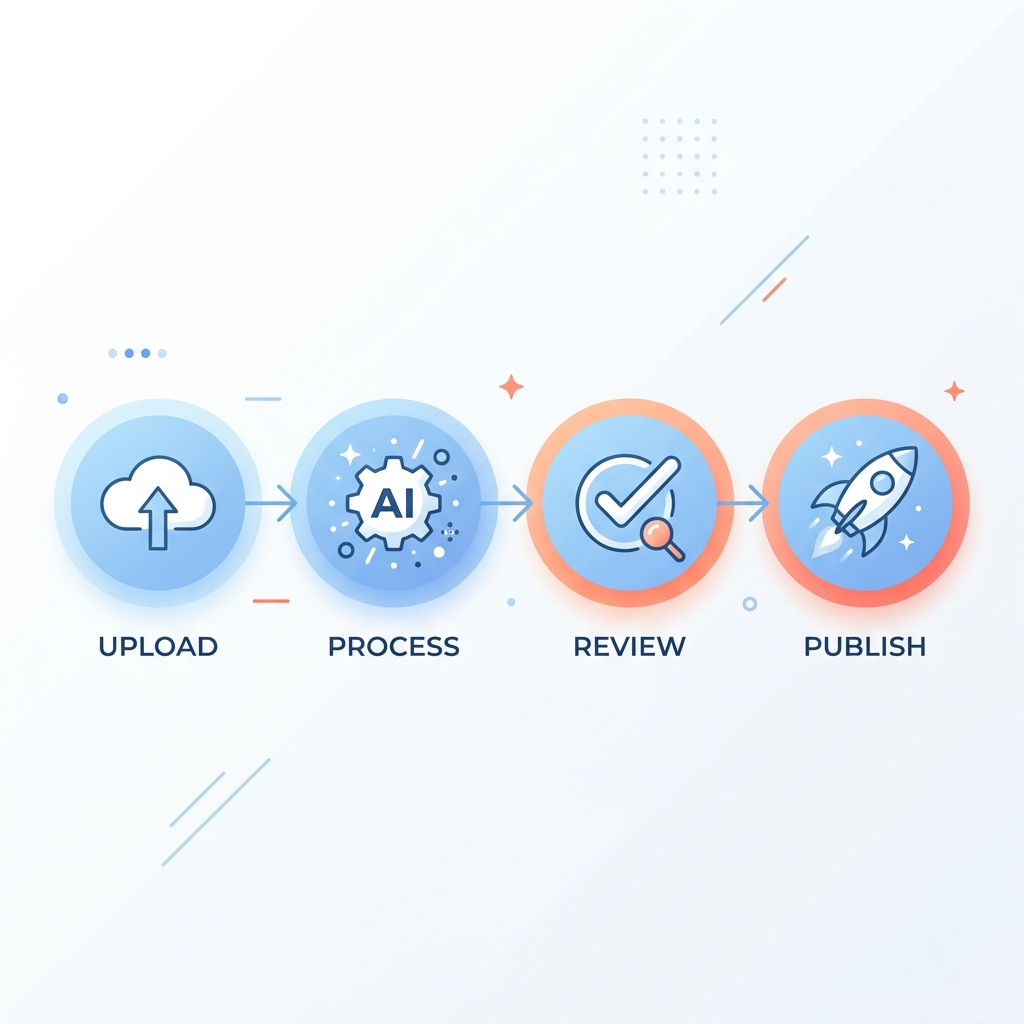
- Upload your source video. Import the full recording into your clip creation tool. Most platforms accept MP4 and MOV; processing time varies by video length but typically runs a few minutes for recordings under 60 minutes.
- AI processing. The tool analyzes the video — either through transcription, visual/audio scoring, or both — and surfaces candidate clips ranked by engagement potential.
- Review and select clips. A human reviews the AI-suggested segments. Check that each clip has a clean entry and exit point, that the hook lands in the first three seconds, and that the clip makes sense without the full video context.
- Adjust captions and format. Review caption accuracy, especially for proper nouns or industry-specific terminology. Adjust aspect ratio per platform — vertical (9:16) for TikTok and Reels, square or vertical for Shorts, horizontal or square for LinkedIn.
- Export per platform. Export in platform-native formats and name files by platform and clip number to keep your publishing queue organized.
- Publish or schedule. Upload natively to each platform or route through a scheduling tool that maintains posting cadence without requiring daily manual uploads.
A practical benchmark: a 60-minute podcast episode as source material, AI surfaces 8–12 candidate clips, a content manager reviews and selects 4, captions are adjusted, clips export in three aspect ratios for three platforms — all in under 30 minutes. That is the workflow AI makes realistic.
For teams managing that process at volume — multiple recordings per week, multiple platforms, multiple stakeholders — the handoff friction between clip creation, editing, and publishing is where time disappears. Platforms like GotReach address this by running the full workflow from a single place, so clips move from creation to scheduled post without context-switching between tools.
What Makes a Clip Actually Perform — Before You Touch a Tool
This is the section most clip creation guides skip. AI can find the most energetic 60 seconds in your recording. It cannot manufacture a strong moment if the recording does not contain one. Understanding what makes a clip perform before you upload anything is the difference between a tool that feels useful and one that produces content you are embarrassed to post.
The hook is everything in the first three seconds
On every short-form platform, viewers make a stay-or-skip decision in under three seconds. A hook is not just "starting strong" — it has a specific structure. The clips that hold attention open with one of these: a surprising or counterintuitive statement, a direct question aimed at the viewer's specific problem, a conflict setup ("Here is the mistake most teams make"), or a bold claim that creates immediate curiosity.
The difference is concrete: a clip that opens with "Here's the mistake 90% of marketers make with video" performs differently than the same content starting with "Today I want to talk about video marketing mistakes." Same information. Entirely different retention curve.
Platform-specific length benchmarks
General advice to "keep clips short" is not actionable. Here are the ranges that reflect how each platform's algorithm and viewer behavior actually work:
- TikTok: Under 60 seconds is the sweet spot for most content categories. Clips between 21 and 34 seconds have historically shown strong completion rates.
- Instagram Reels: Under 60 seconds performs best for discovery-focused content. Longer Reels (up to 90 seconds) can work for established audiences but underperform in reach.
- YouTube Shorts: Up to 60 seconds is allowed; content under 45 seconds tends to drive higher completion rates and stronger Shorts feed placement.
- LinkedIn: 30 to 90 seconds works well for the professional feed. Clips here should front-load the insight, not build to it.
Captions are not optional
Most social feeds autoplay video muted. Viewers make the skip-or-stay decision before they have heard a single word. Captions do two things: they let muted viewers follow the content, and they reinforce retention even when audio is on — because reading and hearing simultaneously reduces cognitive load and keeps attention anchored. Clips without captions consistently underperform clips with them, regardless of content quality.
What AI tools score for — and why it matters
AI clip tools score source video segments based on signals like audio energy spikes, pacing changes, sentiment indicators, and structural markers like questions or declarations. These signals correlate with moments that tend to perform well. But the scoring is only as useful as the source material — if the recording contains 45 minutes of flat, low-energy conversation, the tool will surface the least flat segments, not genuinely strong ones.
Here's how format requirements break down across the four platforms where short clips drive the most reach. Specifications reflect widely documented platform standards — consult Sprout Social's video specs guide for the most current platform-official figures:
| Platform | Ideal Length | Aspect Ratio | Captions | Recommended Format |
|---|---|---|---|---|
| TikTok | 21–60 seconds | 9:16 (vertical) | Essential — feed is often muted | MP4 or MOV |
| Instagram Reels | Under 60 seconds | 9:16 (vertical) | Essential — autoplay is muted | MP4 |
| YouTube Shorts | Under 45 seconds | 9:16 (vertical) | Strongly recommended | MP4 or MOV |
| LinkedIn Video | 30–90 seconds | 1:1 (square) or 16:9 | Recommended — professional context | MP4 |
How AI Clip Creation Tools Actually Work
Not all AI clip tools use the same approach, and the difference affects which tool is right for your video type. There are two primary methods, and understanding them helps predict output quality before you upload anything.
Transcription-based editing
The tool converts your video's audio to text. You — or the AI — then works from the transcript rather than the timeline. Clip boundaries are defined by selecting text, not by scrubbing through frames. This approach is fast for dialogue-heavy content because it removes timeline navigation entirely. You can scan a 60-minute interview in minutes and identify three strong clips without watching any of the video.
The limitation: transcription quality directly affects clip precision. If the tool mis-transcribes a sentence, the clip boundary can land a few words early or late, cutting off a punchline or including a dead pause.
AI scene and moment detection
Instead of working from text, this method scores video segments based on audio energy, pacing, sentiment signals, or visual change. The output is a ranked list of candidate clips — the tool surfaces moments most likely to hold attention based on its scoring model.
This approach works better for non-dialogue or visually driven content — event footage, gaming, sports, or presentations where the energy comes from the room, not just the words. It does not require clean transcription to function.
For additional technical context on how AI transcription models handle audio-to-text conversion in video workflows, this practical overview from V7 Labs covers the mechanics without product promotion.
Honest limitation both methods share: AI clip quality degrades with poor audio quality, heavy crosstalk, unstructured or rambling content, or video types the model was not trained on. A tool optimized for podcast interviews will produce weaker results on unscripted event footage, and vice versa. Knowing this before committing to a tool saves the frustration of blaming the workflow when the real issue is a method mismatch.
Transcription-Based Editing
- Pro: Fast for dialogue-heavy content — scan a 60-minute interview without watching it
- Pro: Clip boundaries are precise when transcription is accurate
- Pro: Easy to search and navigate large recordings by keyword or topic
- Con: Transcription errors shift clip boundaries and affect caption quality downstream
- Con: Does not work well for non-speech content (music, visual-only segments, ambient audio)
- Con: Output quality depends heavily on audio clarity and speaker separation
AI Scene / Moment Detection
- Pro: Works on visual and non-dialogue content where transcription is not useful
- Pro: Scores engagement potential across multiple signals — not just words
- Pro: Useful for unscripted content where the best moments are not obvious from text alone
- Con: Less precise for dialogue-heavy content where transcript structure matters
- Con: Scoring models vary by tool and may not reflect your specific audience or niche
- Con: Harder to manually override or fine-tune without re-watching segments
How to Choose the Right Clip Creation Tool for Your Workflow
There is no universally best clip creation tool. The right choice depends on what you are uploading, how many clips you need, who is producing them, and whether speed or creative control is the higher priority for your team.
A marketing team repurposing 10 webinar recordings per month has fundamentally different requirements than a solo creator clipping one podcast episode per week. The criteria that matter most shift accordingly.
Use these criteria to evaluate any AI clip tool before committing to a plan:
| Evaluation Criterion | What to Look For | Why It Matters for Your Workflow |
|---|---|---|
| AI detection accuracy for your video type | Does the tool perform well on talk-head interviews, webinars, events, or your specific content format? Request a test with your actual footage before committing. | Accuracy varies significantly by content type — a tool trained on podcasts may underperform on event footage |
| Clips generated per upload | How many candidate clips does one upload produce? Is there a cap per video or per month? | Limits on clip volume constrain batch workflows — important for teams repurposing at scale |
| Source format support | Does the tool accept the formats you already work with — MP4, MOV, recorded Zoom links, uploaded files? | Format incompatibility creates an extra conversion step that slows the workflow |
| Platform export options | Does the tool output in platform-native aspect ratios (9:16, 1:1, 16:9) or require manual resizing? | Per-platform export automation removes a significant manual step for multi-platform publishing |
| Free tier scope | What does the free version actually allow — full clip generation or watermarked previews with limited exports? | Free tiers vary widely; understanding the real scope prevents time investment in a workflow you cannot sustain without paying |
| Manual override and editorial control | Can you adjust clip boundaries, trim handles, or override AI suggestions? | Teams with editorial standards need fine-grained control when AI suggestions miss the mark |
| Pricing model | Per-video pricing vs. subscription — which aligns with your actual clip volume? | Subscription models favor high-volume teams; per-video pricing can be more economical for occasional use |
Free tier reality
Most clip creation tools offer a free tier with meaningful constraints — watermarked exports, limited clip counts per month, or restricted platform output options. Before investing hours setting up a workflow, understand exactly what the free version allows and where it stops.
GotReach's 30-day free trial is structured for teams who want to run the full workflow — creation through publishing — before committing to a plan. That low-friction evaluation window is practical for organizations that need to validate output quality against their actual recordings before a budget decision.
When dedicated clip tools beat general video editors
General video editors (Premiere, Final Cut, DaVinci) offer maximum creative control, but they require manual timeline work for every clip. Dedicated clip tools win on speed and platform-format automation — particularly for teams generating multiple clips per recording across multiple platforms. If your priority is fine-grained creative control over a handful of high-production clips, a general editor may be the better call. If your priority is consistent volume across platforms, a dedicated tool removes the production ceiling.
For businesses, marketing agencies, and enterprise teams producing video at volume, GotReach is built specifically for that operational context — not for solo creators clipping one video a week. Learn more about how GotReach approaches multi-client video at scale.
Creating Clips with AI: The Step-by-Step Process
Here is the practical walkthrough — from upload to export-ready clip. This applies regardless of which tool you use.
- Upload your source video. Import the full recording. Processing time varies by tool and file size; most platforms return candidate clips within a few minutes for recordings under 60 minutes. Longer recordings take proportionally more time.
- Review AI-suggested clips. Do not accept suggestions wholesale. For each candidate clip, check three things: Does the hook land in the first three seconds? Are the entry and exit points clean — no partial sentences, no dead air at either end? Does the clip make sense to someone who has not watched the full video?
- Verify caption accuracy. Run through the auto-generated captions before exporting. Focus on proper nouns, brand names, industry terminology, and any speaker with a strong accent or fast speech pattern — these are where transcription errors concentrate. A caption error on a key term undercuts the clip's credibility.
- Adjust aspect ratio per platform. Resize or reframe to the correct dimensions for each destination platform. 9:16 for TikTok, Reels, and Shorts. 1:1 or 16:9 for LinkedIn. If your tool outputs multiple aspect ratios simultaneously, use that feature — manually resizing each clip is one of the highest-friction steps in the workflow.
- Export and name files systematically. Export in platform-native formats (MP4 for most platforms). Name files with a consistent convention: platform, recording title or date, clip number. Example: reels_webinar-nov14_clip02.mp4. A disorganized export folder is the fastest way to break a publishing queue.
- Queue for publishing or schedule. Route clips to your publishing workflow — either native upload or a scheduling tool. If you are publishing across multiple platforms, a centralized scheduling system prevents the daily manual upload bottleneck.
After the Clip: Publishing, Scheduling, and Measuring Performance
Before you publish each clip, run through this checklist:
- Hook lands within the first three seconds — not warming up, not introducing context
- Clip length matches the target platform's ideal range
- Captions are accurate, especially for names, terms, and key phrases
- Aspect ratio is correct for the destination platform
- Entry and exit points are clean — no cut-off sentences, no dead air
- File is named by platform and clip number before upload
- Caption styling matches your brand or channel format
Native upload vs. scheduling tools
Platform algorithms generally favor content uploaded natively over content cross-posted through third-party tools. The performance difference is real but varies by platform and changes over time — it is not a reason to avoid scheduling tools entirely, but it is worth understanding the tradeoff. For high-volume workflows, the cadence benefit of scheduled posting typically outweighs a marginal algorithm preference.
Batch publishing and posting cadence
Teams creating clips at volume benefit significantly from scheduling tools that maintain consistent posting cadence without requiring daily manual action. A single 60-minute webinar can produce a week of platform-ready clips — but only if the publishing system can distribute them without someone manually uploading each one.
GotReach's workflow handles creation, editing, and publishing across seven platforms from one place. For businesses and agencies managing multiple recordings and multiple clients, that single-workflow approach removes the handoff friction that typically slows publishing pipelines down to a manual crawl.
Performance signals that actually matter
Raw view count is a vanity metric for clip performance. The signals that tell you whether a clip is actually working:
- Views-to-completion rate: What percentage of viewers watched to the end? A high completion rate signals a strong hook and sustained value — the clip held attention.
- Saves and shares: These indicate the clip delivered something the viewer found worth returning to or passing along — a strong proxy for genuine engagement.
- Profile visits from the clip: Viewers who navigate to the full profile after watching a clip are in discovery mode — this metric tells you the clip is working as a top-of-funnel asset.
Close the feedback loop
Performance data is only useful if it informs the next round of clip selection. The moments that generate high completion rates and saves should guide which segments you prioritize clipping from the next recording. This is the step that transforms clip creation from a one-off content push into a compounding content strategy — each recording gets smarter as you learn which source moments your audience responds to.
If you have a library of recordings that have never been clipped, that library is not sitting idle — it is undeployed source material. A single session using the workflow above can produce weeks of platform-ready content from recordings you already own.
If your team is producing at volume — multiple recordings per month across multiple platforms — see how GotReach helps businesses and enterprise teams create and publish more without scaling the workload proportionally.
Frequently Asked Questions
Can AI clip tools work on any type of video, or just podcasts and interviews?
AI clip tools work across a range of video types, but accuracy varies significantly. Transcription-based tools perform best on dialogue-heavy content like podcasts, interviews, and webinars. Scene and moment detection tools handle non-scripted or visual content — events, gaming, presentations — more effectively. No single tool performs equally well on every content type, which is why testing with your actual footage before committing matters.
What is the best free tool to create clips from long videos?
Free tiers vary widely across clip creation tools. Most offer limited clip volume, watermarked exports, or restricted platform output options on free plans. Rather than recommending a single tool, the practical approach is to identify which tools offer a substantive free evaluation period — not just a watermarked demo — and test them against your actual recordings. GotReach offers a 30-day free trial that covers the full workflow, including publishing.
How long should a clip be for TikTok, Instagram Reels, and YouTube Shorts?
For TikTok, 21–60 seconds is the performance sweet spot for most content types. For Instagram Reels, under 60 seconds performs best for reach-focused distribution. For YouTube Shorts, under 45 seconds drives stronger completion rates and feed placement. For LinkedIn, 30–90 seconds works well when the insight is front-loaded rather than built to gradually.
How many clips can I generate from one long video?
A 60-minute recording typically surfaces 8–12 candidate clips from an AI tool. The number varies based on video type, content density, and the tool's scoring thresholds. Not every suggested clip will be worth publishing — a realistic selection rate is 3–5 strong clips per hour of source material after human review.
How accurate is AI caption generation, and does it affect clip quality?
AI caption accuracy depends on audio quality, speaker clarity, and whether the content includes specialized vocabulary. Most tools perform well on clean, single-speaker audio with standard terminology. Accuracy drops with heavy crosstalk, strong accents, fast speech, or technical jargon. Captions should always be reviewed before publishing — an error on a key term affects credibility and sometimes changes the meaning of the clip entirely.
What is the difference between transcription-based editing and AI scene detection — and which should I use?
Transcription-based editing converts your audio to text; clip boundaries are set by selecting transcript segments rather than scrubbing a timeline. It is fast and precise for dialogue-heavy content. AI scene detection scores video segments based on audio energy, pacing, and engagement signals — it works better for visual or unscripted content where transcript quality is not reliable. Use transcription-based editing for interviews, podcasts, and webinars. Use scene detection for events, gaming, or non-scripted recordings.
Do I need video editing experience to create clips with AI tools?
No. AI clip creation tools are designed to remove the timeline-scrubbing and manual trimming work that requires editing experience. The human role in the workflow is review and selection — evaluating AI-suggested clips against quality criteria — not technical editing. Basic familiarity with social media platforms and content judgment matters more than editing skills in this workflow.
Short-form video consumption continues to grow across every major platform — Wyzowl's annual video marketing report consistently documents how teams are increasing clip output while reducing manual production time. The workflow above is how that happens in practice.
Ready to run this workflow on your own recordings? Download GotReach today and start your 30-day free trial — bring one recording from your existing library and see how many platform-ready clips it actually contains. If you are managing content production for a business, agency, or enterprise team, see how GotReach helps teams create and publish more across seven platforms without adding headcount to the workflow.
Want to stay ahead of what GotReach is building next? Join the list for updates, potential rewards, future discounts, and launch news.