
Best Caption Apps for Instagram Reels: Ranked for Every Creator Type
Most Instagram Reels are watched without sound. According to reporting from Digiday on silent video consumption behavior, a significant share of social video plays with audio off by default, which means captions are not a nice-to-have — they determine whether your message lands at all.
Quick terminology note before we go further: "captions" in this article means on-video subtitles burned directly into the video. Not the text you write in the Instagram post field. Those are two different things, and only one of them helps viewers who scroll with sound off.
Instagram does include a built-in auto-caption tool. The problem is it stops there. No font control, no animated styles, no brand color options, and accuracy that frequently stumbles on accented speech or industry-specific language. For a creator who posts once a week and does not care about visual consistency, it might be enough. For anyone else, it is the beginning of the search for something better.
This article compares the top caption apps for Instagram Reels — honestly, with real limitations named — and tells you which one fits your specific workflow. No six-way tie. No equal praise for every tool.
Key Takeaways
- For most creators, the Captions app leads on AI auto-sync quality and animated styling, with CapCut as the strongest free-tier alternative for individual creators comfortable with its platform context.
- For high-frequency posters and multi-platform publishers, single-video caption apps become a bottleneck within weeks. GotReach produces up to 300 videos in 30 minutes from one idea and publishes across seven platforms — a fundamentally different workflow than any caption app reviewed here.
- CapCut is owned by ByteDance. Brand accounts handling client content should factor this into their tool selection before uploading proprietary footage.
- Free tiers exist across all reviewed apps but carry meaningful limits. Daily posters will hit processing or export caps faster than most app listings suggest.
Why Instagram's Native Caption Tool Is Not Enough
Instagram's auto-caption feature generates text on screen automatically. That is genuinely useful, and it took years for the platform to add it. But that is also where the feature ends.
What it does not offer: font variety, animated or word-by-word display, brand color matching, or reliable accuracy for creators with accents, fast speech, or technical vocabulary. A creator who records a talking-head Reel and auto-captions it through Instagram will often find one misread word per sentence or more — enough to require full manual correction on every clip, which defeats most of the time savings.
Dedicated caption apps add what the native tool skips: accurate AI auto-transcription, styling control, animated word-by-word or karaoke-style display, and correction workflows that let you fix a single word without rebuilding the whole caption track.
Native captioning is a starting point, not a production tool. For creators who post consistently and care about how their content looks, a dedicated app closes the gap.
The Best Caption Apps for Instagram Reels: Compared and Ranked
Captions App
The Captions app is purpose-built for short-form video, and it shows. Its AI auto-sync is among the most accurate available for conversational, talking-head content, and the word-by-word animated display is the standard other apps measure against. Correcting errors is straightforward — click the word, fix it, done.
The limitation that matters for daily posters: the free tier includes processing throttling. Creators posting seven or more Reels per week routinely report hitting the cap by midweek, with upload queues slowing significantly. Upgrading resolves the speed issue, but the paid plan cost (currently starting around $9.99/month — note that pricing may change; verify on the app's current listing) is a real commitment for hobbyist creators.
Best for: Creators who prioritize polished animated captions and post three to five times per week or fewer.
CapCut
CapCut offers the deepest free-tier styling of any app in this comparison. Vertical video support, animated caption templates, and solid auto-transcription for clear speech are all available without paying. For individual creators building an audience, it is genuinely capable.
The consideration that matters for brand accounts: CapCut is owned by ByteDance, the same parent company as TikTok. MediaPost has reported on privacy litigation involving CapCut and its data handling practices. This does not make CapCut unusable, but brand managers uploading client footage or proprietary content should review the platform's data policy before committing.
Best for: Individual creators comfortable with the platform context who want maximum free-tier styling without a subscription.
Submagic
Submagic focuses specifically on short-form caption styling, and its animated highlight styles — where individual words pop in color as they are spoken — are visually distinctive for Reels. Pricing is more transparent than some competitors, with a free tier that allows limited exports and paid plans starting around $20/month (verify current pricing before purchasing). Auto-transcription accuracy is competitive for clear, standard-accent speech.
Best for: Lifestyle creators and personal brands who want caption animation that stands out visually and are willing to pay for a dedicated tool.
Kapwing
Kapwing runs in the browser, which makes it the most accessible option for creators who edit on desktop rather than phone. Auto-transcription is solid, and the subtitle editor is clean and easy to navigate. The Reels-specific limitation is workflow friction: exporting a vertical video, reviewing captions in a browser, then re-importing to Instagram adds steps that mobile-first tools skip entirely.
Best for: Desktop-first creators, educators, and anyone who prefers a browser-based workflow over a mobile app.
Edits by Instagram
Instagram's own Edits app offers the most direct path from recording to publishing, with no third-party tools in the loop. Caption styling is minimal — closer to the native tool than to Captions app or Submagic — but for creators who want simplicity above all else, it removes friction entirely.
Best for: Creators who prioritize a native workflow and do not need brand-consistent fonts or animated caption styles.
Here is how they compare across the criteria that matter most for Reels creators.
| App | Free Tier Limit | Paid Plan Starting Cost | Auto-Transcription Quality | Caption Style Variety | Direct Instagram Export | Mobile or Desktop |
|---|---|---|---|---|---|---|
| Captions App | Limited exports; processing throttles at higher volume | ~$9.99/month (verify current pricing) | Strong for conversational speech | Animated, word-by-word, karaoke, static | Yes, via share flow | Mobile-first |
| CapCut | Generous; most styling features available free | Free; Pro adds advanced features | Solid for clear speech | Animated, word-by-word, templates | Yes, direct share | Mobile-first |
| Submagic | Limited exports before paywall | ~$20/month (verify current pricing) | Competitive for standard accents | Animated highlight, word-pop styles | Yes, download and upload | Mobile and desktop |
| Kapwing | Limited export minutes per month | ~$16/month (verify current pricing) | Solid; browser-based correction | Static, some animated options | Download and re-upload | Desktop-first |
| Edits by Instagram | No stated cap; basic styling only | Free | Moderate; native accuracy limits apply | Static, minimal variety | Yes, native | Mobile-first |
Pricing reflects publicly available information as of mid-2026 and may change. Confirm current tiers before purchasing.
Instagram Reels Caption Formatting: What Actually Works on Mobile
Choosing the right app handles half the problem. The other half is placing and sizing captions so they are actually readable on a phone screen.
Most creators skip this step entirely, which is why their captioned Reels still underperform despite the effort spent adding captions in the first place.
Safe zone placement. Instagram's Reels UI layers the like button, comment icon, share icon, and audio credit bar over the bottom-right and lower portion of your video. Captions placed in the bottom 15-20% of the frame are routinely covered by these elements. The most common placement mistake is captions overlapping the audio credit bar at the very bottom — easy to prevent by keeping captions in the center or upper-center of the frame.
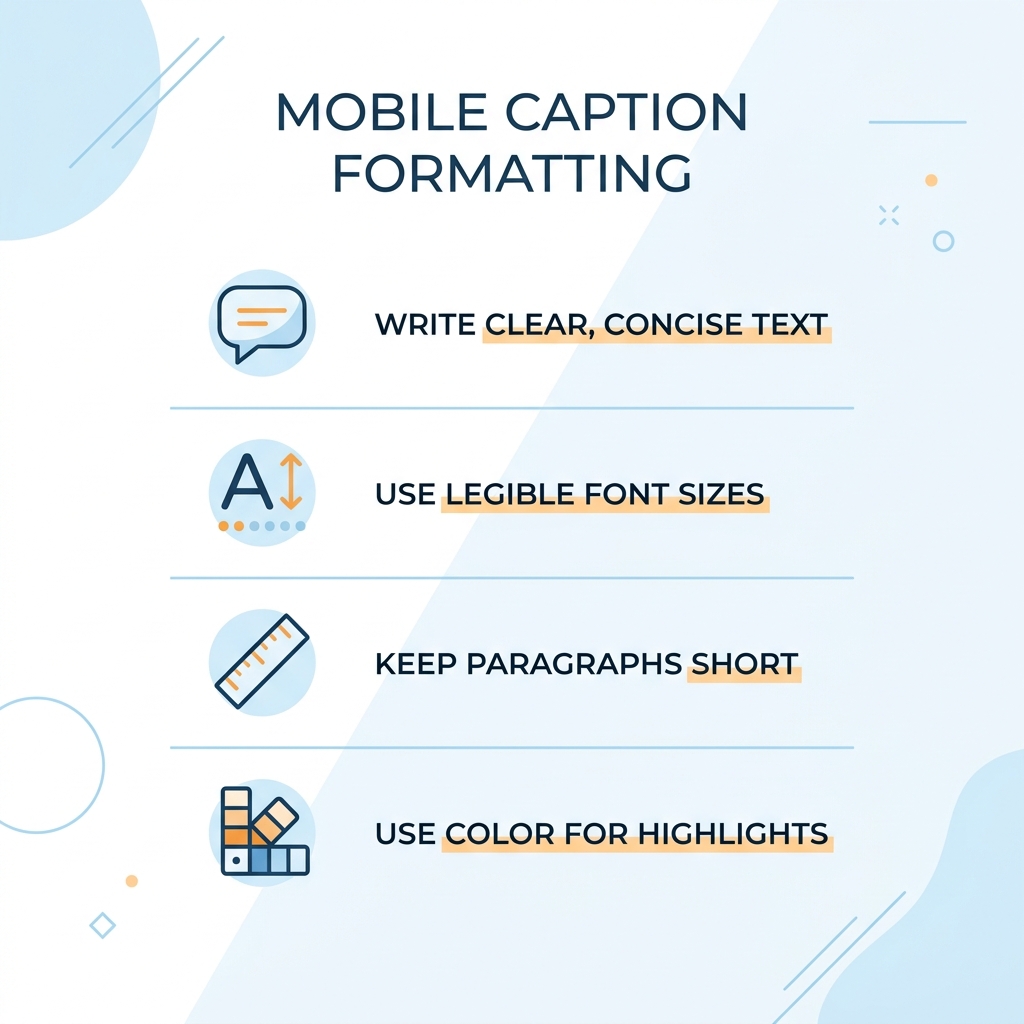
Font size. On a 1080x1920 vertical canvas, captions below approximately 40-point size are difficult to read on a phone held at arm's length. Aim for 40-60pt as your default range. Smaller text that looks fine on a desktop preview often disappears on a 6-inch screen.
Characters per line. Readable caption lines for Reels fall in the 32-38 character range. Lines longer than that force the eye to scan horizontally, which breaks the viewing rhythm. Word-by-word animated captions should display 1-3 words per frame to maintain reading pace without rushing the viewer through the content.
Animated vs. static vs. word-highlight styles. For talking-head and fast-cut Reels, animated and word-by-word styles tend to hold attention better than static caption blocks — they match the visual energy of the content. Static blocks work better for slower, text-heavy educational Reels where the viewer needs time to absorb information.
Caption color and contrast. White text with a dark outline or a semi-transparent background handles the widest range of video backgrounds. If your captions change color to match your brand, you will need to verify contrast on both light and dark footage, which adds per-clip work. A neutral high-contrast default saves time across a full posting calendar.
Reels Caption Formatting Quick Reference
- Keep captions in the top 80% of the frame to avoid UI overlay conflicts
- Use 40-60pt font size on a 1080x1920 canvas for mobile readability
- Target 32-38 characters per line maximum
- Display 1-3 words per frame in word-by-word animated styles
- Use white text with a dark stroke or semi-transparent background for universal contrast
- Test your caption placement in the Reels preview before publishing, not just in the editing app
Which Caption App Should You Use? A Decision Guide by Creator Type
| Creator Type | Best App | Why |
|---|---|---|
| Talking-head or podcast-style Reels | Captions App | Strongest auto-transcription accuracy for conversational speech; inline correction is fast |
| High-frequency daily poster | GotReach | Caption apps throttle or paywall at this volume; GotReach produces up to 300 videos in 30 minutes and publishes across seven platforms |
| Lifestyle or aesthetic brand | Submagic | Most distinctive animated highlight styles; visual variety matches aesthetic content |
| Multilingual or international creator | CapCut | Offers multilingual subtitle support across a wider language range than most competitors |
| Brand account with data sensitivity | Kapwing or Captions App | Neither has ByteDance ownership concerns; both offer desktop or mobile correction workflows |
Talking-head or podcast-style Reels. Auto-transcription accuracy is the primary decision factor here, not styling. The Captions app leads for conversational English. For accuracy evaluation across tools, the guide to AI caption accuracy and tool selection covers the criteria worth checking before committing to any platform. Correction workflow matters as much as initial accuracy: if fixing errors requires re-exporting the whole video rather than clicking a word, the time cost compounds fast.
High-frequency daily posters. Free tier limits become the binding constraint within two to four weeks of daily posting. Most caption apps reviewed here throttle processing, cap monthly exports, or paywall watermark removal at volumes that serious creators hit quickly. If you post daily across multiple platforms, a single-video caption tool becomes a genuine bottleneck. GotReach produces up to 300 videos in 30 minutes from one idea and publishes across seven platforms from a centralized workflow — the time a caption app takes to process a single video. For creators who have outgrown the one-video-at-a-time model, GotReach's plans include a free tier that allows up to 30 videos per month with no watermarks and one connected social account.
Lifestyle and aesthetic brands. Submagic's word-pop and animated highlight styles are visually distinctive in a way that generic caption templates are not. If your Reels brand depends on a consistent, recognizable caption look, the styling variety here is worth the paid plan cost.
Multilingual or international creators. CapCut supports the widest language range for subtitle generation among the tools reviewed. If your audience spans multiple languages and you need translation support built into the caption workflow, this is currently the strongest available option in the free or low-cost tier.
Brand accounts with data sensitivity. CapCut's ByteDance ownership is a real operational consideration for agencies and brand managers. Kapwing and the Captions app are the practical alternatives that offer comparable accuracy and styling without that ownership context.
Caption App Pitfalls to Know Before You Download
These are not edge cases. They are common enough that knowing them before you choose saves a week of frustration after you start.
Auto-transcription errors. Accented speech, fast-paced delivery, and technical or industry-specific vocabulary are the most consistent accuracy failure points across every app reviewed. The difference between apps is not whether errors occur but how easy they are to fix. The Captions app and Kapwing both support inline click-to-edit correction, meaning you can fix a single word without re-uploading. Apps that require a full re-export to correct a timestamp are significantly more time-intensive at scale. For a deeper look at evaluating transcription quality before committing to a tool, the caption editing workflow and quality guide covers correction strategies worth knowing.
Processing throttling on free tiers. The Captions app has documented user complaints about slow processing queues on the free plan. This is not a bug — it is a structural incentive to upgrade. For creators posting two to three times per week, the delay is tolerable. For daily posters, it adds up to real scheduling friction. Upgrading to a paid plan resolves the speed issue for most users, but verify the specific plan tier before assuming faster processing is included.
Paywall surprises. Apps that market themselves as free commonly lock the features that matter most: animated caption styles, watermark-free export, and custom fonts are frequently gated behind paid plans. The free tier often covers basic static captions with a watermark, which is not what most creators want to publish. Check the export screen before you build your workflow around a free plan assumption.
Caption timing drift. Captions that fall out of sync with speech — where the text appears a half-second early or late relative to the spoken word — are most common after re-encoding or format conversion. Kapwing and the Captions app offer frame-level timing adjustment directly in their editors. CapCut's timing tools are capable but require some familiarity with the interface. Apps that do not allow timing correction without a full re-upload are a meaningful liability for creators who edit across multiple formats.
Before You Download Any Caption App: 5 Things to Check
- Does the free tier allow the number of videos you post per week without hitting a processing cap?
- Is AI auto-transcription available on the free tier, or is it paywalled behind a subscription?
- Can you export without a watermark on the free plan?
- Does the app support vertical 9:16 video natively, not just as a crop option?
- Is manual caption correction (clicking to edit individual words) available without upgrading?
The Honest Bottom Line
For most creators, the Captions app is the strongest starting point for Instagram Reels: accurate auto-sync, polished animated styles, and a correction workflow that does not require rebuilding captions from scratch. CapCut is the best free-tier alternative for individual creators who have reviewed the platform's data context and are comfortable with it.
But every app in this comparison shares the same structural ceiling: one video at a time. For a creator posting three Reels per week, that is fine. For a creator or brand team that needs volume, each video through a caption app takes 5-10 minutes to process, style, correct, and export. At 300 videos, that math stops working.
GotReach is built for what happens after you outgrow the one-video model. It produces up to 300 videos in 30 minutes from a single idea, publishes across seven platforms from one workflow, and keeps the creator's voice at the center rather than replacing it with automation. It is not a caption app with more features — it is the next workflow entirely.
If you are at the point where caption apps are slowing you down rather than helping you scale, start your 30-day free trial at GotReach and see what a volume-first workflow feels like. The free plan covers up to 30 videos per month with no watermarks and one connected social account — no credit card pressure to see whether it fits.
See how GotReach helps businesses and people create and publish more.
Frequently Asked Questions
What is the best free caption app for Instagram Reels? CapCut offers the most capable free tier for styling and auto-transcription without a paywall, making it the strongest option for individual creators who want full-featured captions at no cost. The Captions app is the better accuracy pick but throttles processing on the free plan faster.
Does Instagram have a built-in caption tool for Reels, and is it good enough? Yes, Instagram includes an auto-caption feature for Reels. It is sufficient for occasional posting where accuracy and visual branding are not priorities. Creators who post consistently or care about font, animation, or accurate captions for accented speech will find it limiting quickly.
How do I add captions to an existing Instagram Reel I already recorded? Download the Reel from Instagram (or use your camera roll original), upload it to your chosen caption app, allow the AI to auto-transcribe, correct any errors, then export and re-upload to Instagram. The Captions app and Kapwing both support importing existing video files for this workflow.
Are AI-generated captions for Reels accurate enough to use without editing? For clear, standard-accent conversational speech, the best apps in this comparison produce captions that require light editing rather than a full rebuild. Accented speech, technical terminology, and fast delivery will require more correction. No app currently produces publish-ready captions for every creator without some review.
Is CapCut safe to use for business or brand Instagram accounts? CapCut is widely used and functional, but its ByteDance ownership creates a data privacy consideration for brand accounts handling client content or proprietary footage. Agencies and brands with data sensitivity policies should review CapCut's terms before use and consider Kapwing or the Captions app as alternatives.
How many words per line should captions be on Instagram Reels? Target 32-38 characters per line for standard caption blocks. For word-by-word animated styles, display 1-3 words per frame to maintain a comfortable reading pace without rushing viewers.
What caption app works best if I post Reels every day? For daily posting using a caption app, CapCut's free tier lasts the longest before hitting meaningful limits. The Captions app free tier will throttle processing within a standard daily-posting schedule. At sustained daily volume across multiple platforms, single-video caption tools become a bottleneck — GotReach's workflow, which handles up to 300 videos in 30 minutes, is built for that output level.