Clipping Video Editor: What It Is, How It Works, and How to Choose the Right Tool
You have raw footage and you need a shorter clip. Simple enough — until you search for a clipping video editor and discover that the term covers a dozen different products built for completely different workflows. An AI repurposing tool, a browser-based timeline editor, and a mobile trimming app all call themselves clipping tools. They are not the same thing.
This guide defines what clipping actually means, maps the three main tool types to the workflows they fit, and gives you a clear framework for choosing the right one — without wading through product pages that assume you already know what you want.
Key Takeaways
- Clipping means extracting a shorter segment from longer footage — it is distinct from trimming, cutting, and cropping.
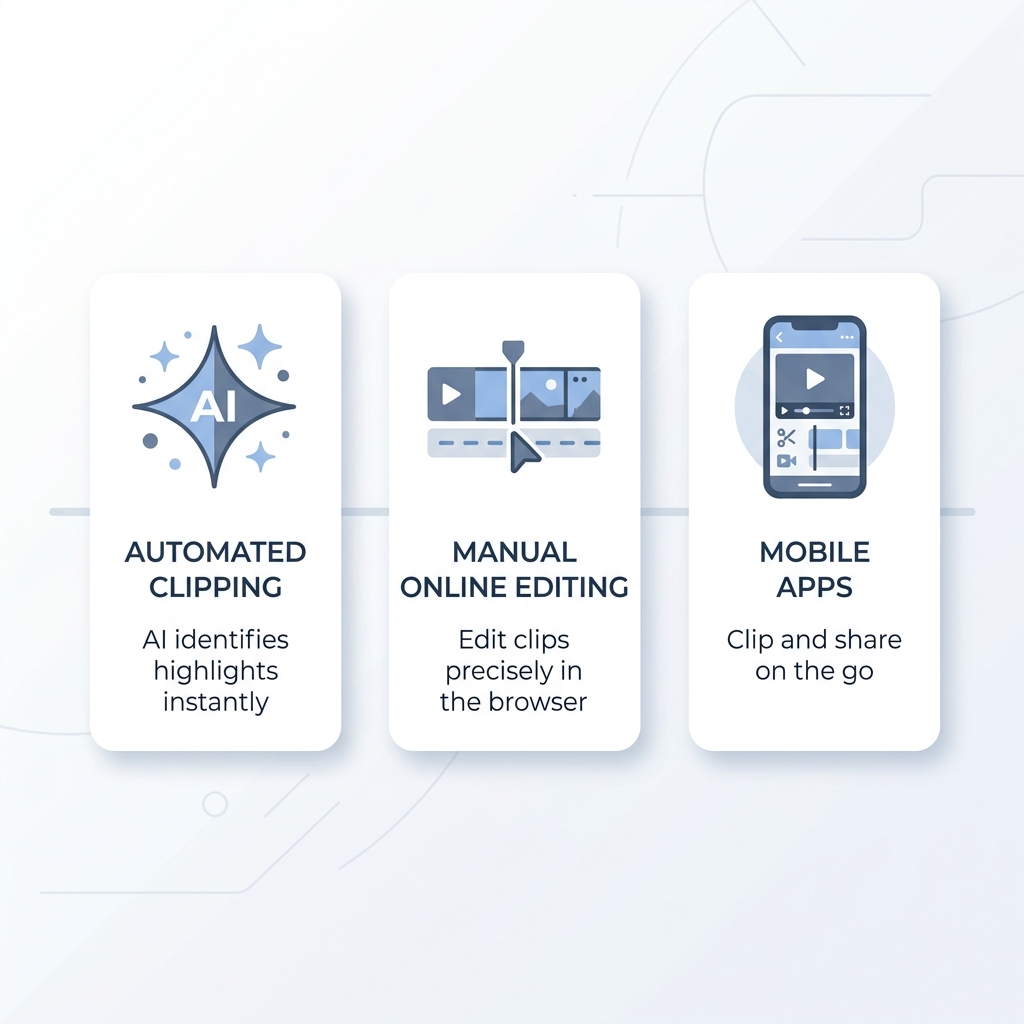
- Three main tool types exist: AI-powered clipping, traditional online editors, and mobile apps — each built for a different workflow.
- The wrong tool type costs more time than it saves; use case should drive the choice, not marketing claims.
- Free tiers can be sufficient for low-volume needs, but meaningful limits apply across all tools.
- Decision criteria include video genre support, control level, export quality, platform compatibility, and caption accuracy.
What Is a Clipping Video Editor (And How Is It Different from a Regular Video Editor)?
Most people searching for a clipping tool have the same situation: 60 minutes of footage and need 60 seconds of it. The tool you choose determines how fast and how often you can do that — but first, the terminology matters.
Quick definitions:
- Clipping: Extracting a specific segment from a longer video for a distinct purpose (a highlight, a social post, a key moment).
- Trimming: Removing frames from the beginning or end of a clip to shorten it.
- Cutting: Splitting a clip at a point to separate it into two pieces.
- Cropping: Changing the frame dimensions — reframing what is visible in the picture, not the duration.
Clipping is about extraction with intention. You are pulling a defined moment out of a longer source for a specific destination.
There are two ways clipping tools do this. In manual mode, you scrub through the footage and select the segment yourself — like a gaming streamer hunting for a 30-second play from a 4-hour VOD. In AI-automated mode, the tool analyzes the video and identifies moments worth clipping — like a podcast producer uploading a 60-minute episode and receiving 10 social-ready clips without watching the whole thing. To understand how AI clip generation works mechanically, see how AI clip generators work.
The key point: "clipping video editor" is a category, not a product. That category includes tools built for very different jobs.
The Three Types of Clipping Video Editors and What Each One Is Built For
Choosing a tool type before you choose a specific product saves you from the most common mistake in this category: picking a tool built for the wrong job.
AI-powered clipping tools analyze your source footage and automatically identify clip-worthy moments. Best for creators repurposing long-form content (podcasts, interviews, webinars) into short-form social posts at volume. The tradeoff is reduced manual control — the AI decides what matters, and output quality varies by video genre. Research into how machine learning identifies highlight moments in video shows that these systems perform most reliably on structured, spoken content.
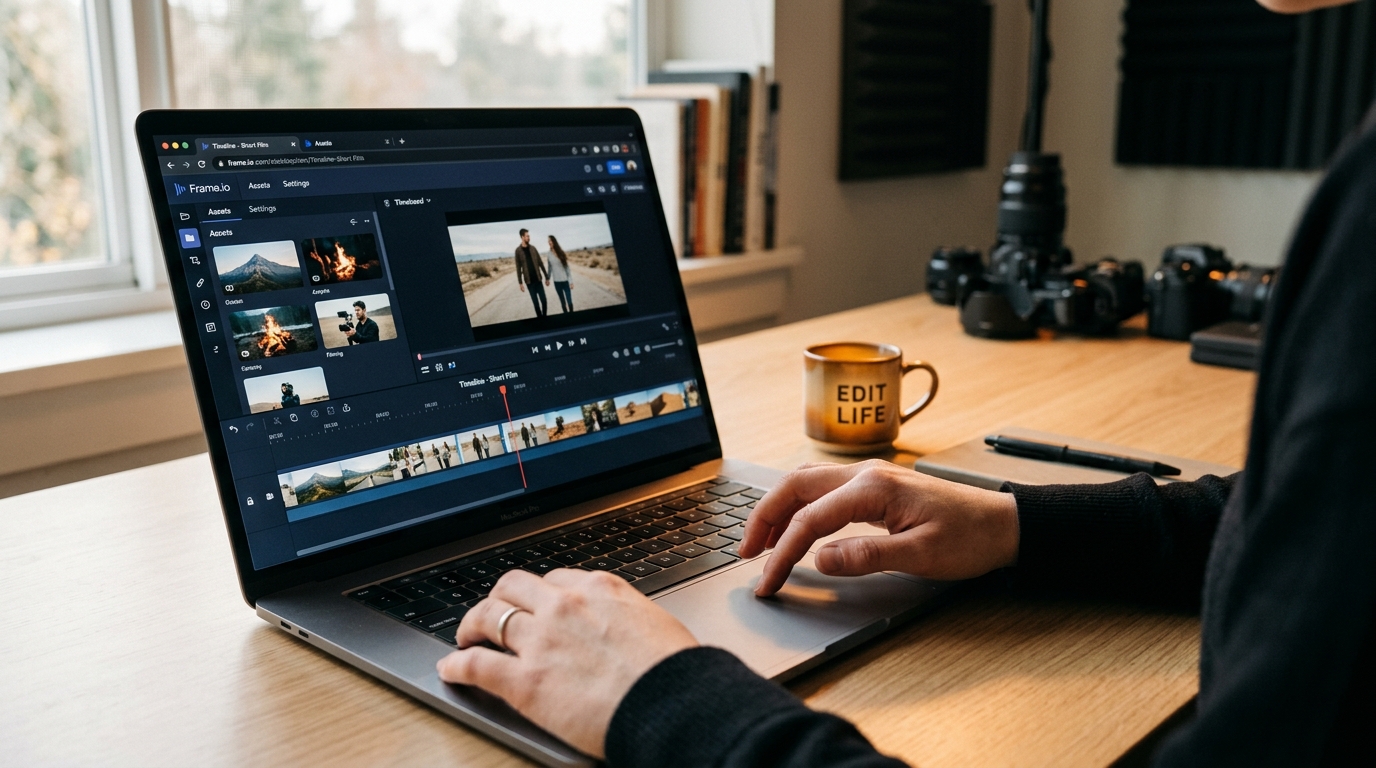
Traditional online editors with clipping features give you a timeline, manual controls, and the ability to make frame-precise edits in a browser without installing software. Best for creators who need precision — a YouTube explainer with carefully placed cuts, or a corporate video needing specific sound bites pulled. The tradeoff is slower throughput; manual scrubbing and editing takes time.
Mobile clipping apps let you trim and clip directly on your phone, often with basic reframing and caption overlays. Best for casual social sharing or quick cuts when you are not at a desk. The tradeoff is limited feature depth and storage constraints that make them impractical for longer source files.
| Tool Type | Best For | Control Level | Typical Access | Free Tier Available? |
|---|---|---|---|---|
| AI-powered clipping | Long-form to short-form repurposing at scale | Low to medium (AI selects clips) | Browser/cloud | Usually yes, with limits |
| Traditional online editor | Manual cuts, broader editing tasks | High | Browser | Usually yes, with limits |
| Mobile clipping app | Quick on-device cuts, casual social sharing | Medium | iOS/Android | Usually yes, with limits |
A creator repurposing a weekly podcast for multiple social platforms needs volume and speed — AI-powered clipping is the right category. A video editor producing a polished YouTube explainer needs frame-level precision — a traditional editor is the right category.
This is where volume becomes the deciding factor. Single-video AI tools take 5 to 10 minutes per clip. GotReach produces up to 300 videos from one session in around 30 minutes by automating not just clip selection but the full creation-to-publishing workflow across seven platforms. For high-volume repurposing, that difference compounds fast.
How the Clipping Process Works: From Raw Footage to Published Clip
Understanding the workflow reveals where tools save the most time — and where manual control still matters. The step where most people lose time is reviewing AI-selected clips, which is why the tool choice at step 2 directly determines the quality burden at step 3.
- Import your source video. Upload a file, paste a URL, or connect a recording source. Cloud-based tools accept most formats; some require conversion first.
- Select or let AI identify clip-worthy segments. Manual: scrub the timeline and mark in and out points. AI: the tool analyzes the video and surfaces candidate clips automatically. A creator uploading a 45-minute interview can receive 15 candidate clips in under 5 minutes with a capable AI tool.
- Review and adjust selected clips. This step matters more with AI tools. Check that the selected segments make sense, the pacing is right, and the beginning and end points are clean. AI tools that allow override and reselection give you meaningfully more control than those with locked output.
- Enhance if needed. Add captions, reframe for the target aspect ratio (9:16 for Reels and Shorts, 1:1 for square posts, 16:9 for YouTube), apply branding, or adjust audio.
- Export and publish. Choose your format, resolution, and destination. Some tools export a file you upload manually. Others publish directly to connected platforms and let you schedule posts without leaving the workflow.
GotReach compresses steps 2 through 5 into one automated pass for high-volume use cases, handling clip selection, captioning, reframing, and scheduling in a single session.
What to Look for in a Clipping Video Editor: Key Decision Criteria
These criteria reveal more about a tool's real-world fit than any feature grid. A tool that lists "AI clipping" as a feature but locks manual override behind a paywall is a different product than one that gives full control from the start.
Video genre compatibility. AI tools trained primarily on talking-head content often underperform on gaming, sports, or heavily visual footage. Test with your actual content type before committing.
Manual override capability. Can you adjust, reject, or replace AI-selected clips? Or is the output fixed? This distinction separates tools that assist your judgment from tools that replace it.
Caption and subtitle quality. Accuracy and language coverage vary widely across tools. Treat this as a feature to test, not assume. For a deeper look at how to evaluate AI caption accuracy across clipping tools, that criterion deserves its own evaluation pass.
Aspect ratio and reframing. Does the tool automatically reframe vertical for 9:16, square for 1:1, and horizontal for 16:9? Check the YouTube Shorts format specs and apply the same due diligence for your other target platforms.
Export resolution and format limits. Many free tiers cap exports at 720p or restrict file formats. If your content needs 1080p or higher, verify this before building a workflow around a free plan.
Platform publishing integration. Direct scheduling from within the tool versus download-and-upload-manually workflows have very different time costs at scale. If you are posting to multiple platforms consistently, this criterion matters more than almost any other.
Use this checklist when evaluating any clipping tool:
- Does it support my video type (gaming, interview, vlog, screen recording)?
- Can I override or adjust what the AI selects?
- Does it export in the resolution and format I need?
- What are the free tier limits (clip count, watermark, export resolution)?
- Is it browser-based, desktop, or mobile — and does that fit my device setup?
- Does it generate captions and in the languages I need?
- Can it publish directly to my target platforms?
- How does it handle my uploaded footage from a privacy standpoint?
Free vs. Paid Clipping Tools: What You Actually Get
Free tiers are real, but the limits differ in ways that matter depending on your use case. Knowing where a free tier stops before you build a workflow around it saves a painful mid-project migration.
Common free tier limits across clipping tools:
- Export caps (clip count per month or processing minutes)
- Watermarks on output
- Resolution limits (often capped at 720p)
- Restricted platform publishing (manual download and upload only)
What paid tiers typically unlock:
- Higher or unlimited export volume
- Watermark removal
- Team collaboration and multi-account features
- API access
- Priority processing
Free Tier Pros and Cons
Pros of free clipping tools:
- No financial commitment while testing a tool for your workflow
- Sufficient for low-volume or occasional use (one to three posts per week to one platform)
- Useful for evaluating AI quality before purchasing
Cons of free clipping tools:
- Volume caps become a bottleneck fast for consistent publishers
- Watermarks can undermine content credibility
- Resolution limits affect quality on larger screens
- Publishing integrations are often locked to paid plans
A solo creator posting three times a week to one platform may stay within a 30-video free monthly limit indefinitely. An agency managing five client accounts cannot.
GotReach's free plan includes up to 30 videos per month, one connected social media account, and no watermarks on exported content. The 30-day free trial requires no commitment and gives full access to evaluate the platform against your actual workflow. For creators and agencies ready to compare what higher-volume plans unlock, see full pricing details.
For agencies managing multiple client accounts, GotReach Enterprise provides centralized multi-client video management and bulk delivery in one workflow — a distinct tier designed for the volume and organizational demands of agency operations.
Frequently Asked Questions About Clipping Video Editors
What is the difference between a clipping video editor and a regular video editor?
A regular video editor is built for compositing, color grading, transitions, and multi-track timelines. A clipping video editor is purpose-built for one task: extracting shorter segments from longer footage. Most clipping tools sacrifice deep editing controls in exchange for speed and simplicity. If you need frame-level precision for a finished production, a traditional editor is the right tool. If you need to pull social clips from long-form content efficiently, a clipping tool is faster.
Can AI clipping tools handle gaming or sports videos, not just podcasts and interviews?
Some can, but results vary significantly. Most AI clipping systems are trained heavily on structured spoken content, which means they perform most reliably on interviews, podcasts, and talking-head videos. Fast-action gaming footage and sports highlights involve different visual cues that many tools do not detect as reliably. If your content is primarily gaming or sports, test the tool with a real clip before committing. Manual clipping tools or hybrid tools with strong override controls are often the safer choice for these genres.
Are free clipping video editors good enough for social media content?
For low-volume publishing, yes. If you are posting a few times a week to one or two platforms, a free tier often covers your needs. The limits that matter most are watermarks and export resolution. A watermarked clip at 720p is functional but can undermine content quality depending on your platform and audience. Free tiers are also useful for testing before you commit a workflow to a paid plan. Know the specific limits of any free tier before you build a regular process around it.
Do I need to download software to clip videos, or can I do it in a browser?
Most modern clipping tools are entirely browser-based. You do not need to install anything. This is true for AI-powered repurposing tools, many traditional online editors, and cloud-based workflow platforms. If you prefer desktop software with offline access, options like DaVinci Resolve exist, but they come with a steeper learning curve. For most creators, a browser-based tool is faster to start and easier to access across devices. You can get started with GotReach free directly in your browser without any installation.
How accurate are AI-generated captions in clipping tools?
Caption accuracy varies by tool, language, speaker clarity, and background noise. Most AI caption tools perform well on clear, single-speaker English audio. Accuracy typically drops with accents, technical vocabulary, multiple speakers, or noisy backgrounds. Never assume captions are production-ready without reviewing them. Treat caption output as a draft, not a finished product, and choose a tool that lets you edit generated captions after the fact. Language support beyond English also varies significantly across tools.
Is it safe to upload my videos to an online clipping editor?
Cloud-based clipping tools require you to upload footage to their servers, which means your content is processed and stored on infrastructure you do not control. Safety depends on the specific tool's data retention policy, encryption practices, and terms of service. Before uploading sensitive or proprietary footage, review the tool's privacy policy. The FTC's guide to protecting your privacy online covers the key questions worth asking of any cloud-based service. For routine social content without sensitive material, most reputable cloud tools carry acceptable risk for the average creator.
Ready to Stop Clipping One Video at a Time?
Manual clipping and single-video tools have a ceiling. When your content volume grows beyond what you can produce one clip at a time, the bottleneck becomes the tool itself — not your ideas or your schedule.
GotReach automates the clipping-to-publishing workflow so you can produce up to 300 videos from a single session in around 30 minutes, publish across seven platforms without leaving the workflow, and keep your authentic voice at the center of every piece of content.
Start your 30-day free trial today with no commitment required.
See how GotReach helps businesses and people create and publish more at scale, without the per-video bottleneck that single-video tools cannot solve.